


How to Download Application Attachments
Applicants often upload supporting documents with their application, such as pitch decks, business plans, or financial statements. As an evaluator, you can open these files directly from the Application File to support your review.
Your ability to view and download attachments depends on the permissions configured for your user role by your program administrator. If you cannot see or download a file, contact your admin to request access.
Where to Find Application Attachments
Click Applications in the top navigation menu and select Overview. Click on an applicant's name to open their Application File. Attachments can be accessed in two places inside the file:
- The Application Form tab, where attachment fields appear alongside the applicant's other answers.
- The right-hand panel of the Application File, which lists all files for the application, if your admin has enabled it.
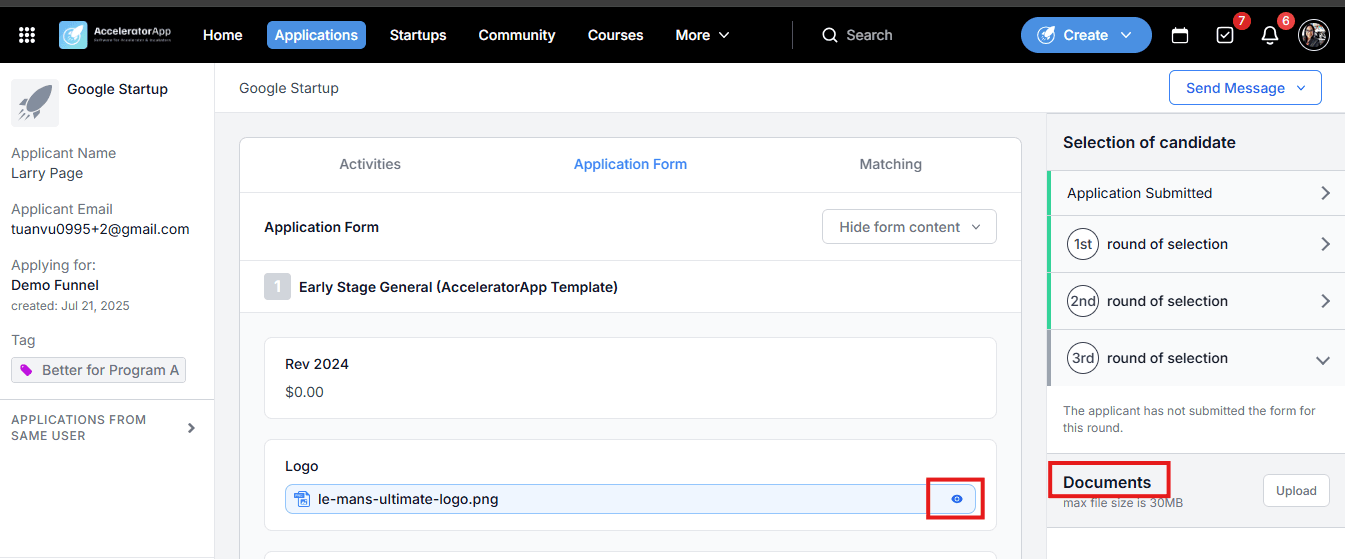
Step-by-Step
1. Open the Application File
From the Application Overview, click on the applicant's name to open their Application File. To find the applications that need your input faster, use the Evaluation required from me filter.
2. Find Attachments in the Application Form
Open the Application Form tab. If the form includes an attachment question, the file the applicant uploaded appears in that field. From there you can:
- View the file directly.
- Download the file to your device.
3. Find All Files in the Right-Hand Panel
If your admin has enabled it, the right-hand side of the Application File shows a list with all the files linked to the application. This is useful when the form has several attachment fields and you want to see everything in one place. Click on a file to view it or download it.
Best Practices
- Review attachments before starting your evaluation. Documents like pitch decks or business plans often contain the details you need to score accurately.
- Use the right-hand files list for a quick overview. If the form is long, this saves you from scrolling through every question to find the uploaded documents.
- Contact your admin if a file is missing or you cannot download it. Access to attachments is controlled by your role permissions, so your admin can check whether the option is enabled for you.