


How to Use the Application Overview
The Application Overview is your main workspace as an evaluator. It lists all the applications you have access to and gives you the tools to find, filter, and navigate to the ones that need your attention.
Which applications you can see depends on the permissions configured for your user role by your program administrator. You may see only the applications assigned to you, or all applications in the funnel.
Where to Find the Application Overview
Click Applications in the top navigation menu and select Overview from the left sidebar.
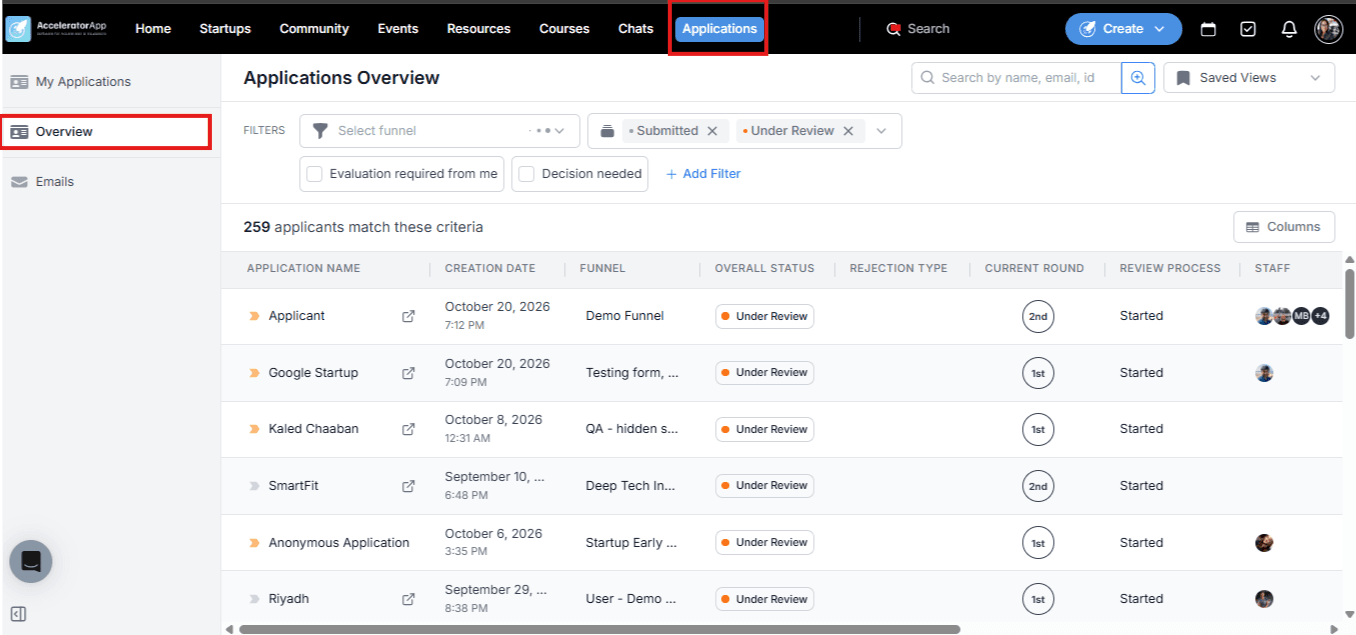
Step-by-Step
1. Select Your Funnel and Round
At the top of the Overview, use the funnel dropdown to select the funnel you want to work in. You can also filter by status to narrow down to a specific round or stage.
2. Filter for Your Pending Evaluations
Use the quick filters at the top of the page to find the applications that need your attention:
- Evaluation required from me — shows only applications where your evaluation is still pending. This is the most useful filter for evaluators and the one you will use most often.
- Decision needed — shows applications that have completed the current round and are ready for a final decision (admin only).
- Only my evaluations — switches the evaluation data shown in the table to display only your own scores, rather than the combined average across all evaluators.
3. Configure Your Columns
Click the Columns button to choose which data columns are visible in the table. For evaluators, useful columns to enable include:
- Review Process — the current evaluation stage.
- Evaluation assignees — who is assigned to evaluate each application.
- Evaluation completed — how many evaluators have submitted.
- Evaluation pending — how many evaluators still need to submit.
- Total average score and Total average score % — the combined score across all evaluators.
4. Save Your View
Once you have applied your preferred filters and column configuration, save it as a Saved View for quick access next time:
- Click Saved Views at the top of the page.
- Save the current configuration and give it a clear name (e.g. "My Pending Evaluations").
- Load it again any time with a single click.
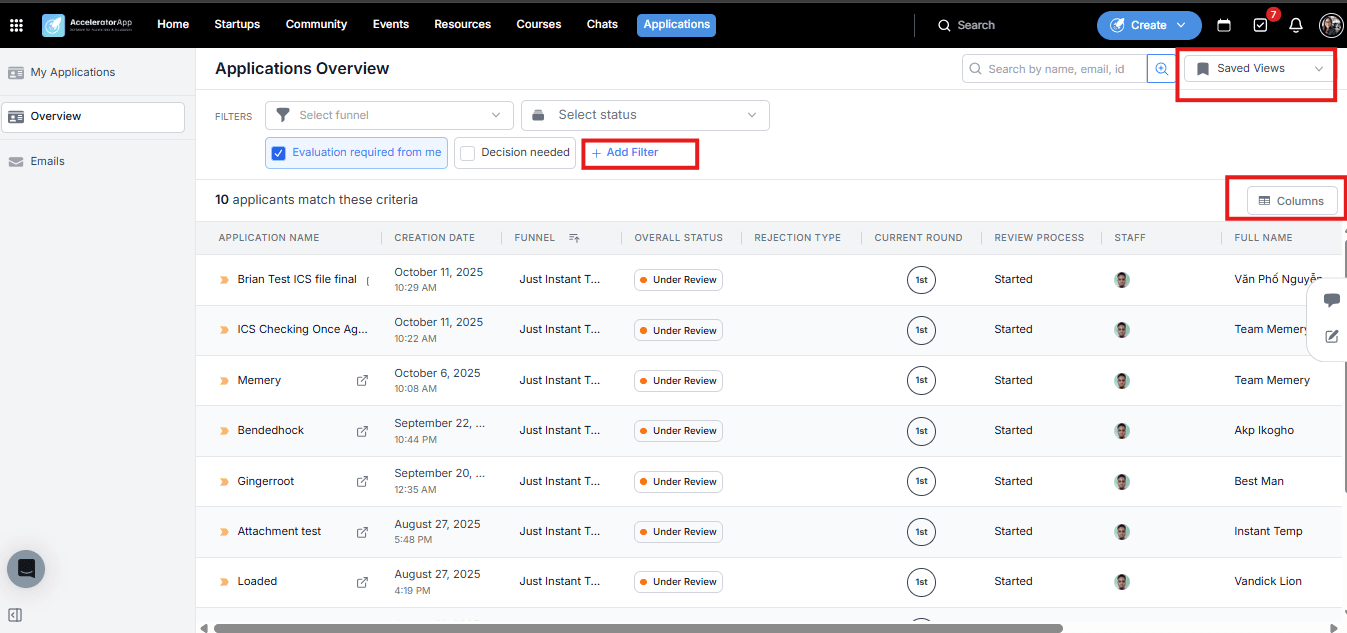
5. Open an Application File
Click on an applicant's name to open their Application File, where you can review their submitted form and complete your evaluation.
Best Practices
- Start every session with the Evaluation required from me filter. It immediately surfaces what is outstanding so you can work through your queue without missing anything.
- Save your go-to filter as a Saved View. If you always start with the same funnel and filter combination, saving it means you can get straight to work every time you log in.
- Use Only my evaluations when you want to review your own scores. This is useful before submitting to double-check your assessments, or after submitting to confirm they were recorded correctly.
- Configure your columns and filters once and save the view. Setting up the right columns for evaluation work — scores, assignees, completion status — and saving it as a view means you never have to reconfigure them again.