


How to Reschedule or Cancel a Meeting
Learn how to view, reschedule, or cancel a meeting in AcceleratorApp as a mentor — including how to use your calendar to get a full overview of all upcoming sessions.
If you need to reschedule or cancel a meeting, the easiest way is to start from your AcceleratorApp calendar, which gives you a consolidated view of everything scheduled with you through the platform.
Cancelling or rescheduling a meeting will notify all attendees automatically.
Where to Find Your Calendar
Click on your profile picture in the top-right corner and select Calendar.
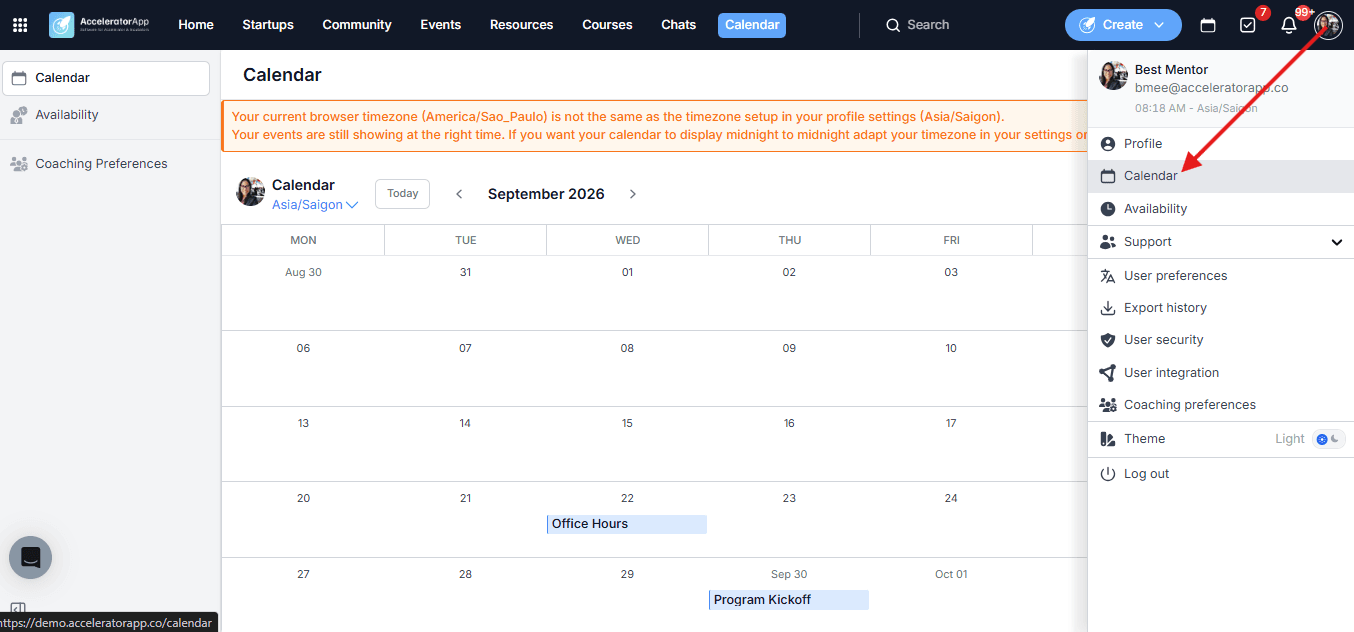
Step-by-Step
1. Switch to Month View
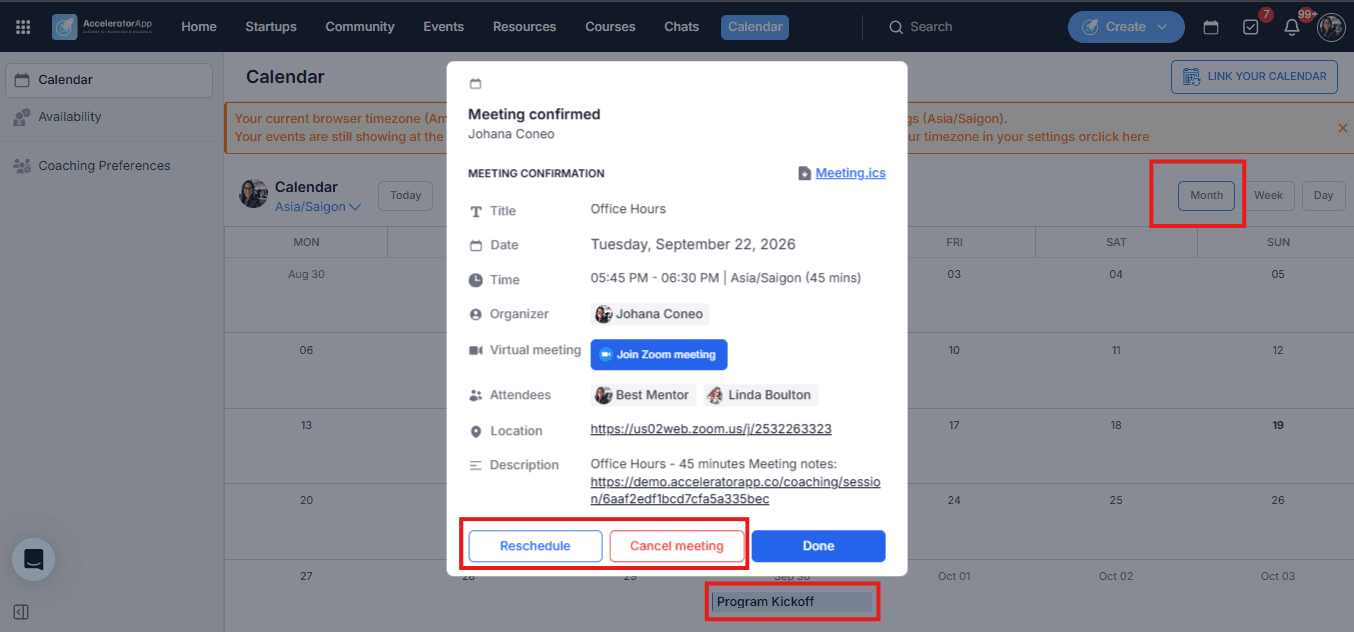
Once in your Calendar, switch the view to Month instead of Week. This gives you a broader overview of all your upcoming meetings, coaching sessions, and events scheduled through AcceleratorApp in one glance.
2. Find the Meeting
Browse the calendar and click on the meeting you want to manage. A card will appear showing the full details of that booking.
3. Take Action
From the meeting detail card you can:
- Reschedule — select a new date and time for the meeting. All attendees will be notified of the change automatically.
- Cancel — cancel the meeting entirely. All attendees will receive a cancellation notification and the event will be removed from their connected calendars.
- Copy the meeting link — if you just need the video call link to share or open it directly, you can copy it from the card without making any changes.
Best Practices
- Switch to Month view for a full picture, to manage or anticipate upcoming commitments at a glance.
- Reschedule instead of cancelling when possible. Cancelling a meeting means the other party needs to rebook from scratch — rescheduling is faster for everyone and keeps the momentum going.
- Notify attendees as early as possible. Even though the platform sends automatic notifications, it is good practice to reach out personally — especially for coaching sessions where founders may have prepared specific topics.