


Introduction to Ask AI
Ask AI is the Resource assistant available in every Resource Space. Ask a question in plain language, and it answers using the articles, documents, and links in that Space, showing the resources it used so you can open and check them.
A few things to know about how it works:
- It only uses your program's content. Ask AI doesn't search the internet. If it can't find anything relevant in the Space, it tells you instead of guessing.
- It respects your access. It only uses resources you're allowed to see.
- Each Space has its own assistant. Questions, answers, and chat history in one Space don't carry over to another.
Founders, for example, can ask "What makes a strong team slide?" and get an answer built from the program's pitch deck guides, with links to each one.
Where to Find Ask AI
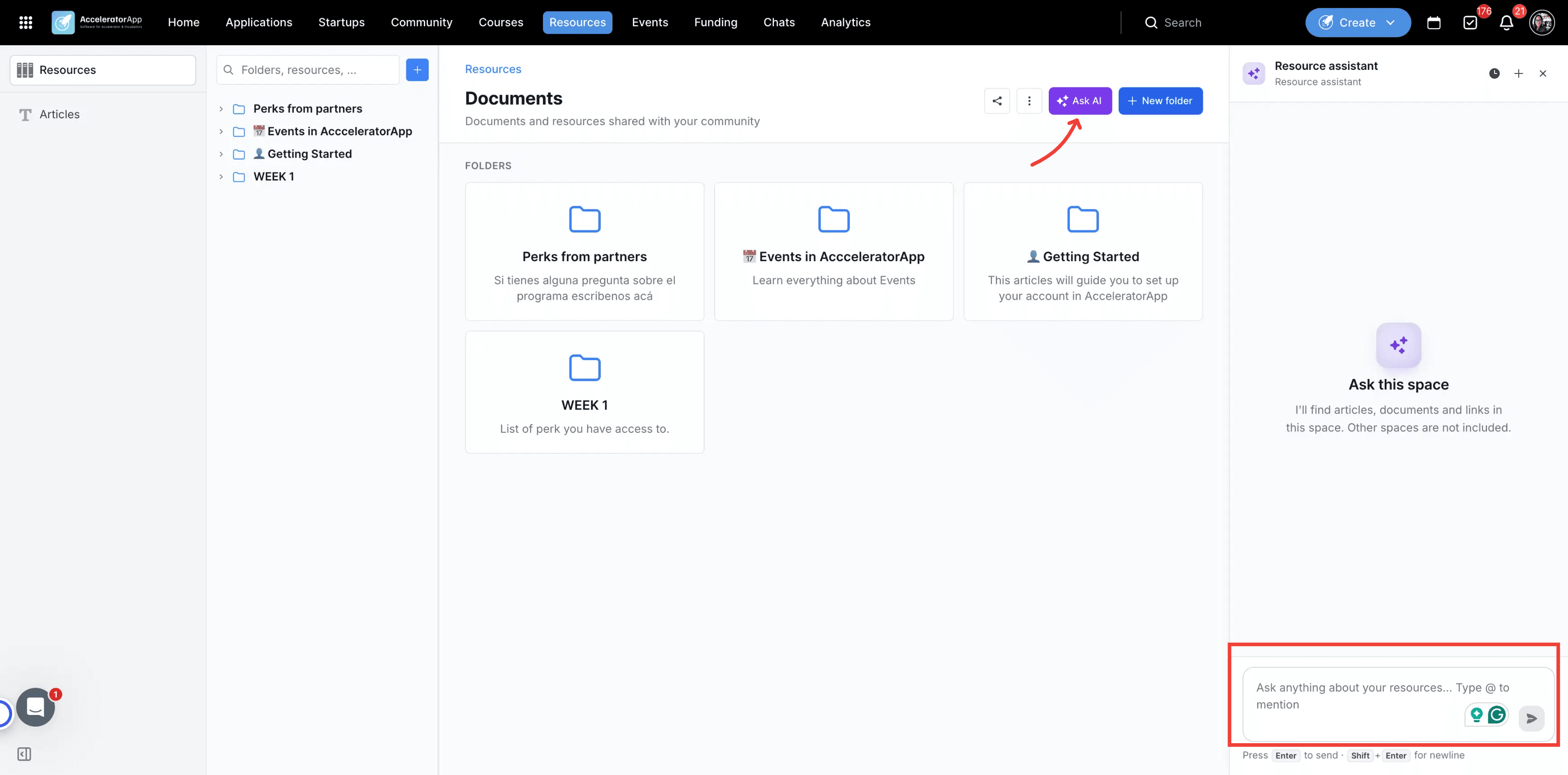
Go to Resources in the top navigation bar and open a Space. Click on Ask AI in the Space header to open the Resource assistant panel on the right.
Step-by-Step
1. Open a Space
Navigate to Resources and open the Space you want to ask about.
2. Click on Ask AI
Click on Ask AI in the Space header. The Resource assistant panel opens on the right.
3. Ask Your Question
Type your question in the chat input and press Enter to send it. Use Shift + Enter to add a new line.
4. Type @ to Select a Resource
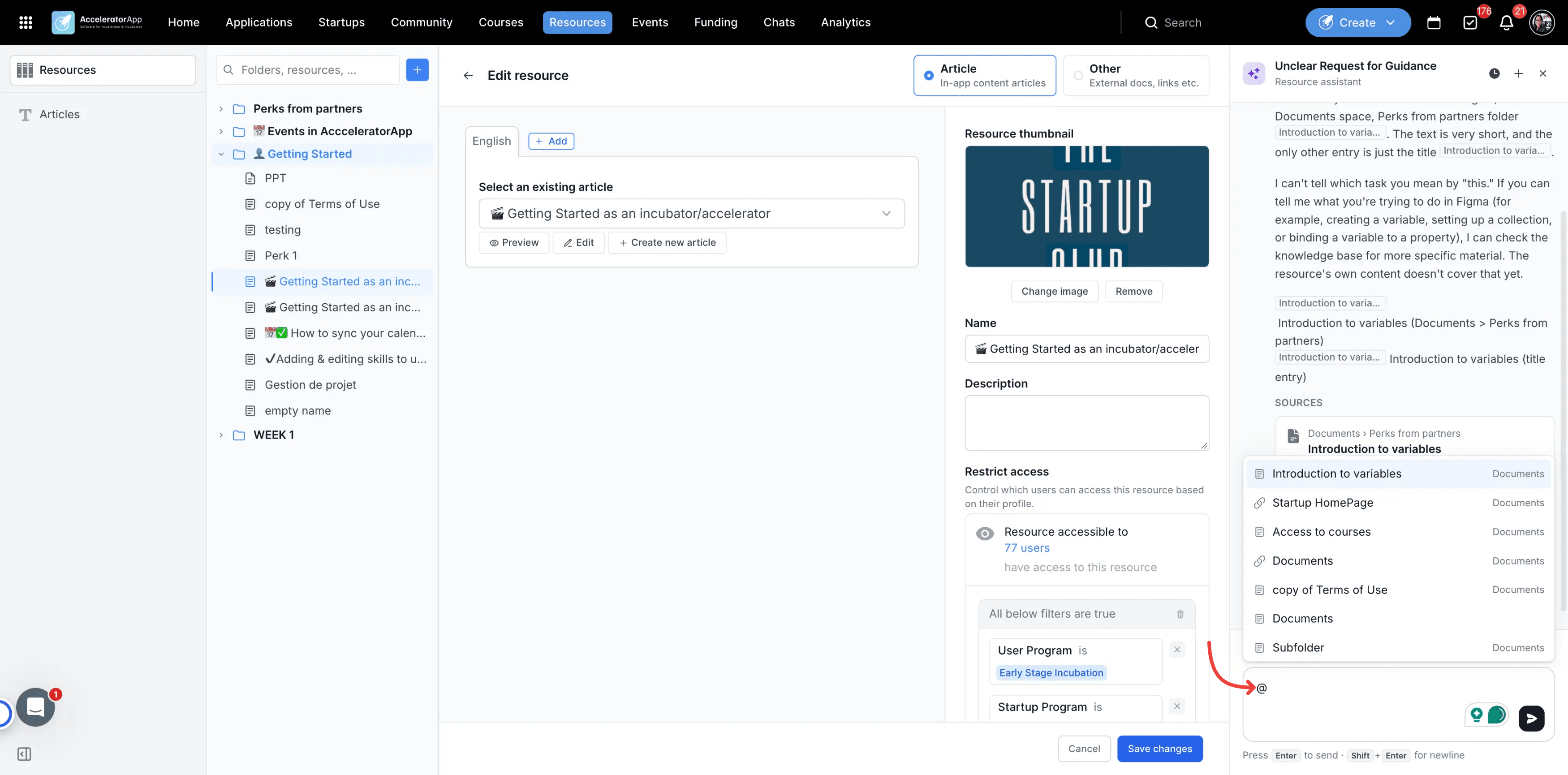
To focus the answer on a specific resource, type @ in the chat input. A list of resources in this Space appears, including articles, documents, and links.
Start typing the resource name to filter the list, then click on the resource you want. Type your question after it and press Enter. Ask AI prioritizes that resource in its answer.
4. Open a Source Resource
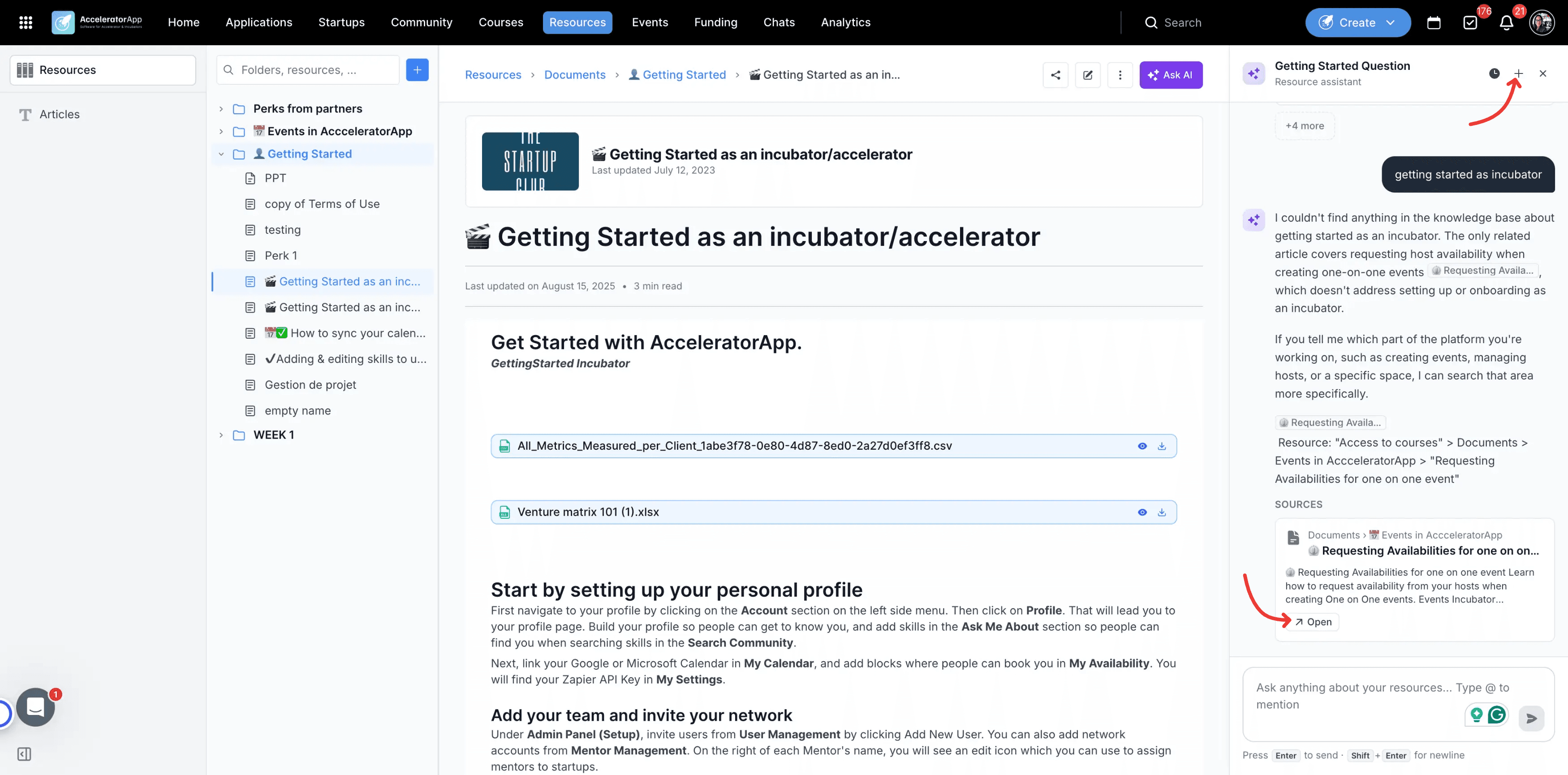
Review the answer and the resources listed below it. Click on Open to view a resource in the main page. The chat panel stays open.
5. Start a New Chat
Click on the + icon at the top of the panel to start a new conversation. Your previous chat is saved in your history.
6. Reopen a Past Chat
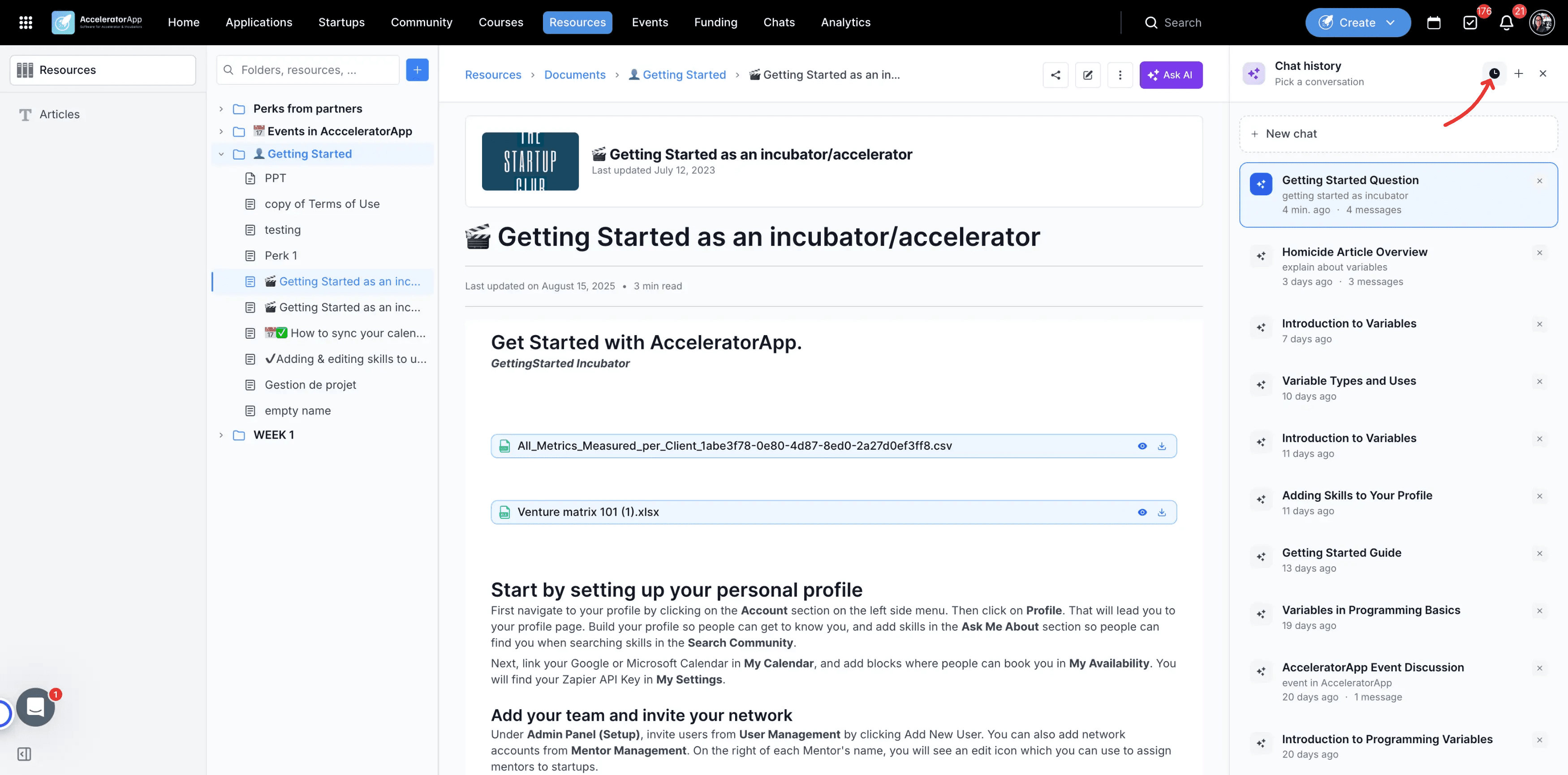
Click on the clock icon at the top of the panel to see your past chats in this Space. Click on a chat to reopen it and continue where you left off.
Best Practices
- Ask specific questions. "What should I include in my financial projections?" gets a better answer than "finance".
- Always open the source resource when the answer is important. It's the quickest way to confirm the details.
- If Ask AI says it couldn't find anything, the content may be in another Space, or you may not have access to it. Contact your program admin if you think you should.
- To focus the answer on a specific document or paragraph, add context with @ mentions or by highlighting text.
- Use @ when you already know which resource has the answer, for example "Summarize @Pitch Deck Guide". The list only shows resources you have access to in this Space.