


Introduction to Application Collaborators
If you're applying with a team, you can invite one or more collaborators to your application. Collaborators have the same rights you do: they can view, edit, and submit forms across all rounds of the application.
This is not real-time collaborative editing, only one person can edit the form at a time. While someone is editing, everyone else sees a read-only view until that person finishes or the session times out.
Only you, as the main applicant, receive email notifications and reminders about the application, collaborators do not, so make sure to keep them updated yourself.
Where to Find Application Collaborators
There are two ways to add a collaborator:
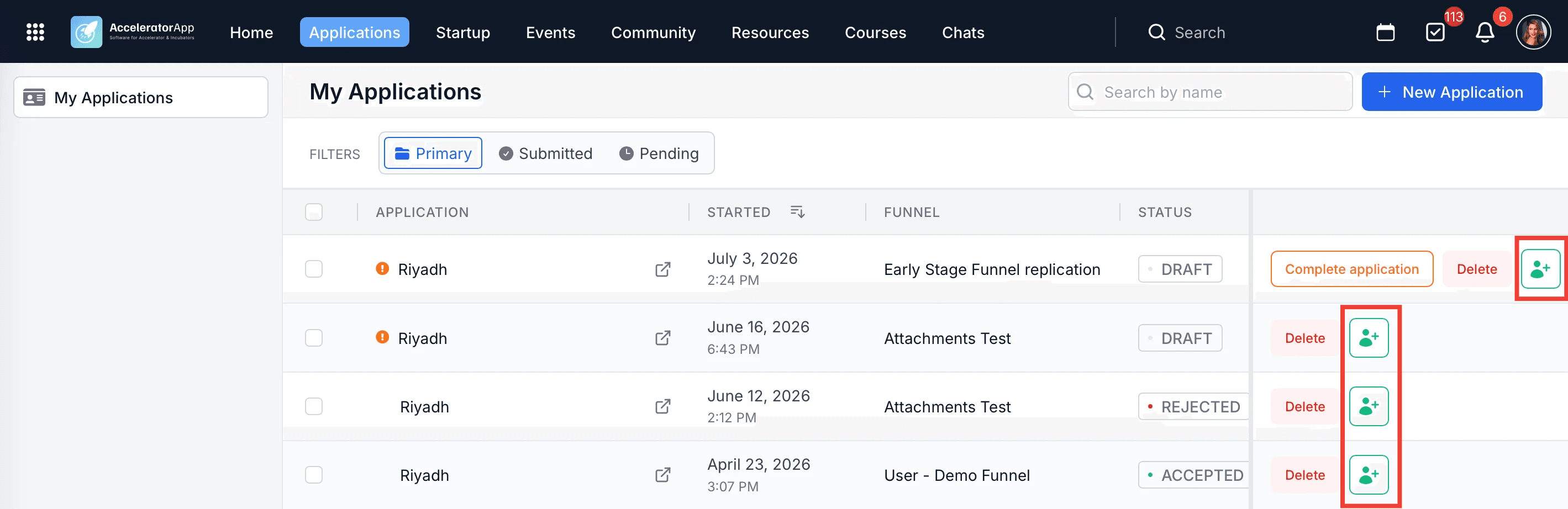
- From the My Applications table, click the collaborator icon (👤+) next to the application you want to add someone to.
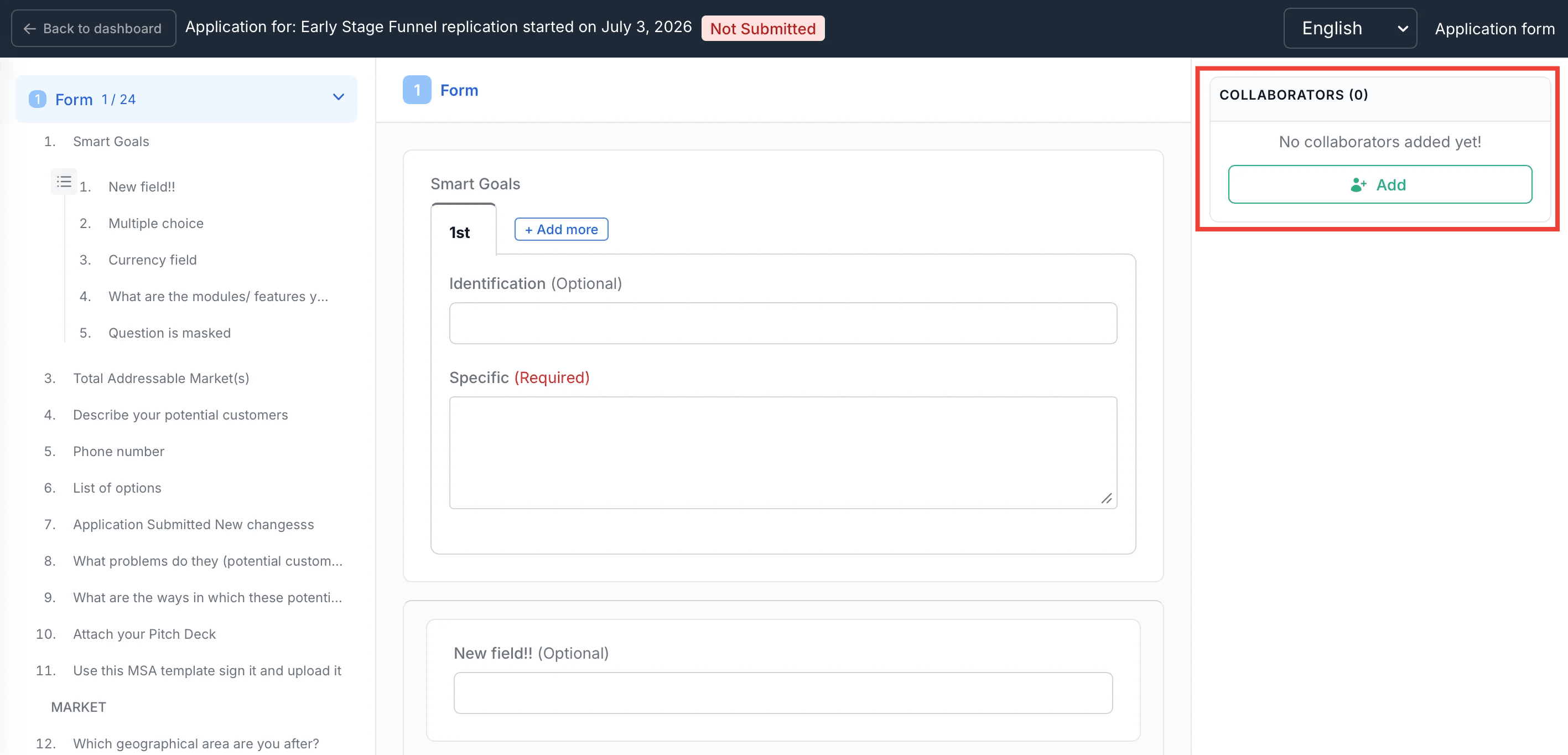
- From within the application itself, open the Application Form and use the Collaborators panel on the right side.
Step-by-Step
1. Open Add Collaborator(s)
There are two ways to get here:
- From My Applications, click the collaborator icon (👤+) next to the application — this opens the Add Collaborator(s) modal directly.
- From inside the application, open the Application Form and click Add in the Collaborators panel on the right side.
2. Add a Collaborator
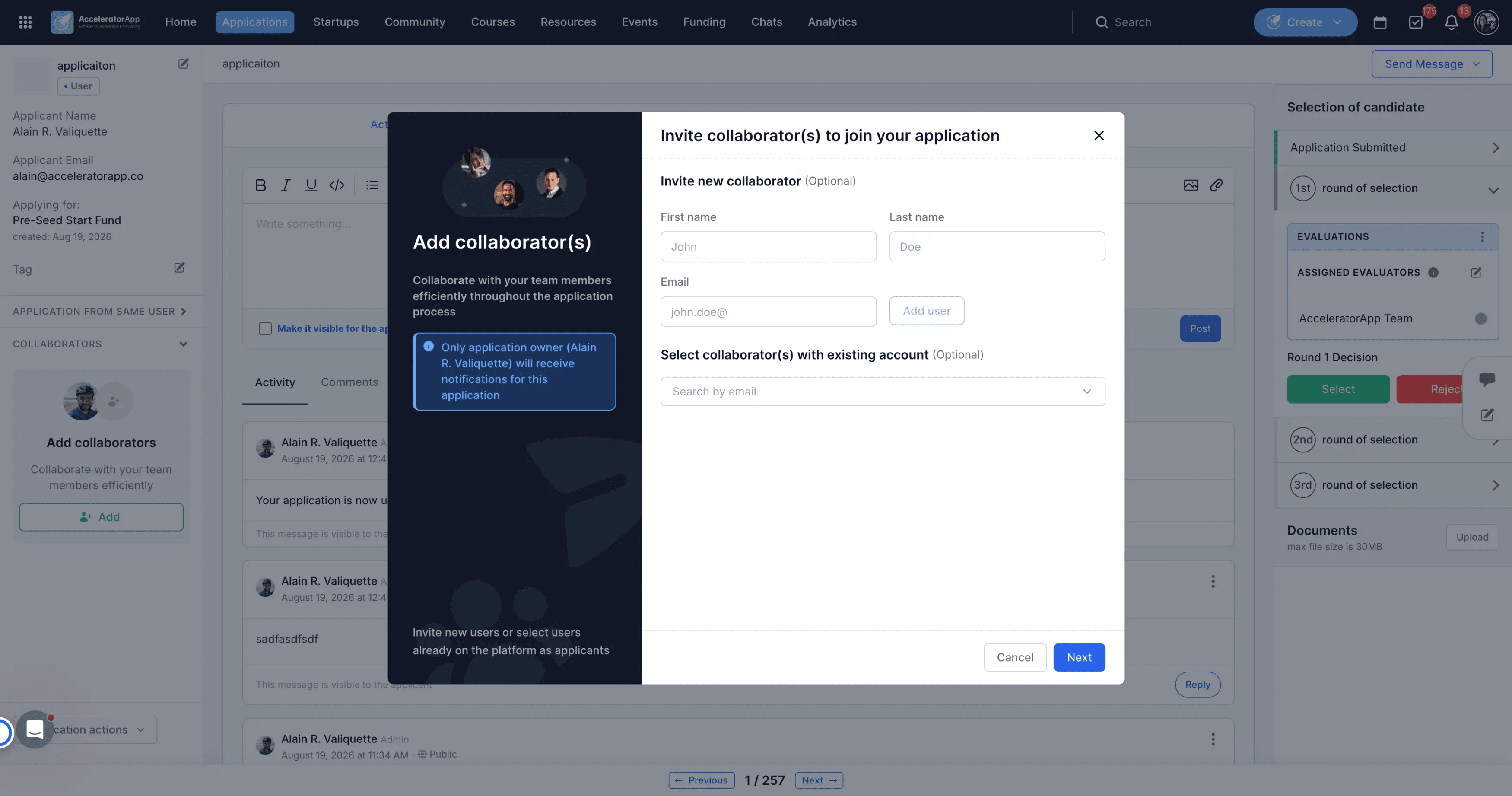
The "Invite collaborator(s) to join your application" modal opens. You have two options, and you can use either or both:
- Invite new collaborator — enter their First name, Last name, and Email, then click Add user.
- Select collaborator(s) with existing account — search by email to add someone who's already on the platform as an applicant.
Once you've added at least one collaborator, click Next to continue.
3. Confirm the Invite
Confirm the invitation. Your collaborator is added to the application and immediately gains full access to view, edit, and submit it.
4. Remove a Collaborator
Open the Collaborators section and click on the three dots next to the collaborator's name. Only the main applicant or an admin can remove a collaborator, other collaborators cannot remove each other.
Best Practices
- Only one person can edit the form at a time. If you see a read-only message, another collaborator is currently editing — wait for them to finish or for the session to time out.
- Any collaborator can submit the application, coordinate with your team before submitting, to avoid duplicate or premature submissions.
- Only the main applicant receives email notifications and reminders, check in with your collaborators directly so nothing gets missed.
- If you're already a collaborator on one application and try to start a new one, you'll see a prompt asking you to disassociate first, this is expected behavior.
- When an application is accepted, the main applicant and all collaborators become cofounders of the resulting startup.