


How to Sync an Event to Your Personal Calendar
When you register for an event, AcceleratorApp gives you ways to add that event directly to your personal calendar so you never miss a session.
Where to Find the Add to Calendar Option
When registering for an event, open the event page. On the right side you will see an Add to calendar section with three options:
- Google — adds the event directly to your Google Calendar.
- ICS — downloads an ICS file you can import into any calendar app (Apple Calendar, Outlook, etc.).
- Outlook — adds the event directly to your Outlook calendar.
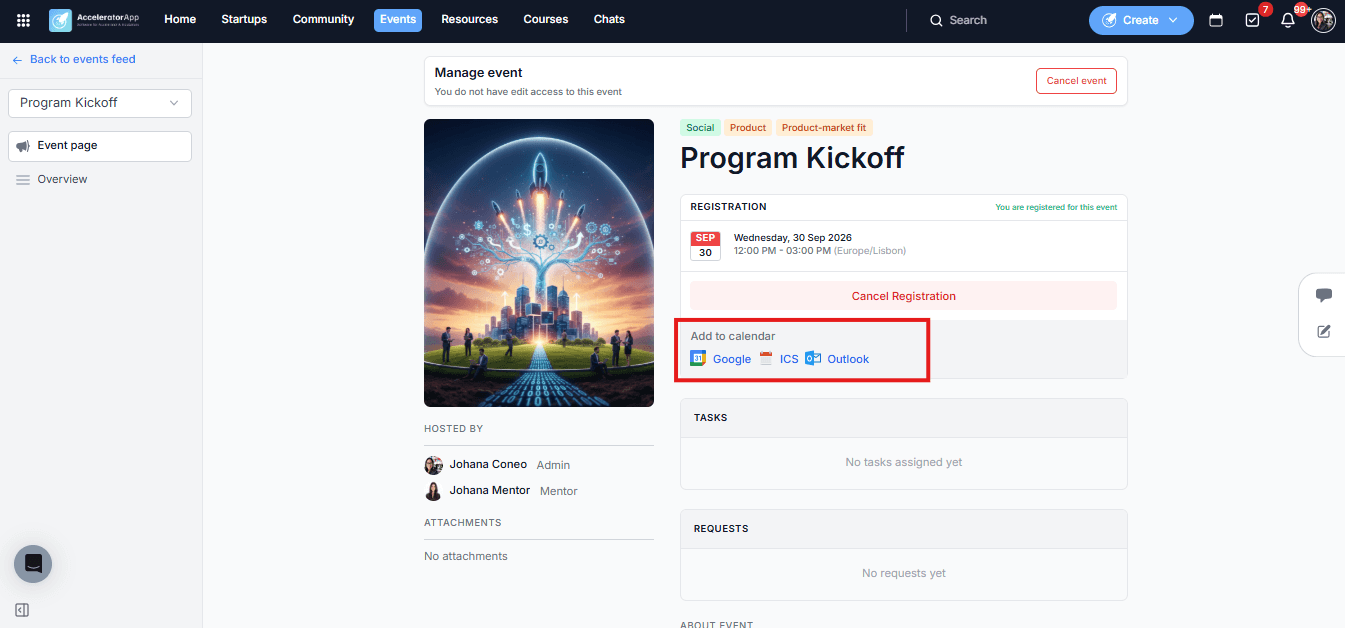
If you have connected your Google Calendar or Microsoft Calendar via User Integrations, events you are registered for or hosting will sync to your personal calendar automatically — no manual action needed.
Step-by-Step
1. Sync After Registering for a Group Event
After registering for a group event, you have two ways to add it to your calendar:
- From the event page — click Add to calendar and choose Google, ICS, or Outlook.
- From your confirmation email — the registration confirmation email includes an ICS file attachment that you can open directly to import the event into your calendar app.
2. Sync a One-on-One Booking
When you book a slot in a one-on-one event, your confirmation email includes an ICS file with the details of that specific slot. Open the attachment to import it into your calendar.
3. Receive Calendar Updates
If the event is updated by the admin after you have already synced it:
- As an attendee — you will receive a new email with an updated ICS file. Open the attachment to update the event in your calendar.
- As a host of a group event — you receive the event details by email once when the event is created or assigned to you.
- As a host of a one-on-one event — you receive an email for each individual booking made by attendees, each containing the relevant ICS file for that slot.
Best Practices
- Sync events to your calendar as soon as you register. This reduces the risk of forgetting a session and keeps your personal schedule accurate from the start.
- Use ICS if you do not use Google or Outlook. The ICS format is universally supported — it works with Apple Calendar, Thunderbird, and most other calendar applications.
- Check your email for updated ICS files when an event changes. If the admin reschedules or updates an event, the new ICS file in your email is the source of truth — open it to overwrite the old entry in your calendar.