


How to View Startup Request Responses
Request forms are sent by your program administrator to collect structured information from startups — such as progress updates, feedback, or data submissions. As a mentor, you can view the responses submitted by the startups you work with directly from their Startup File.
Access to the Requests tab inside the Startup File depends on the permissions configured for your user role by your program administrator. If you cannot see this tab, contact your admin to request access.
Where to Find Request Responses
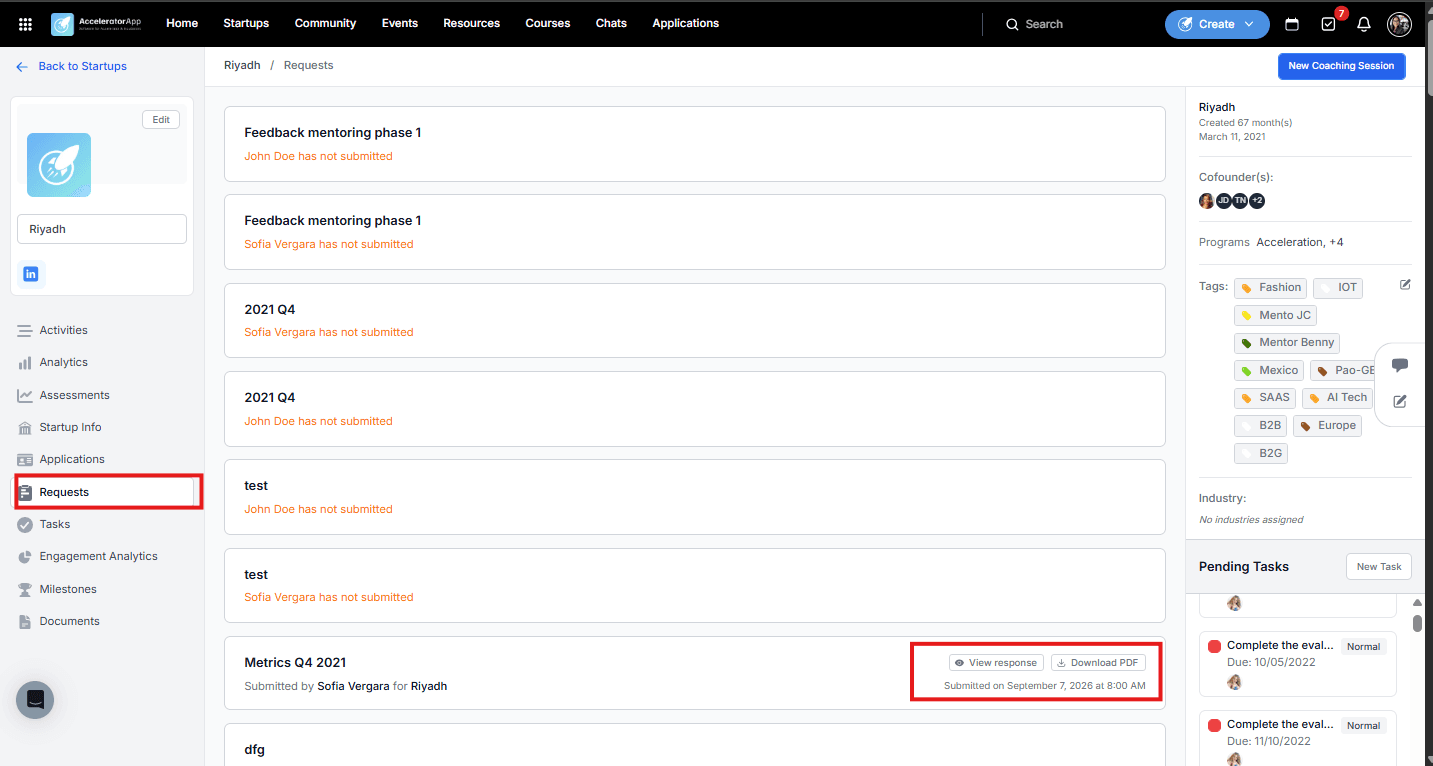
Open the Startup File of the startup you want to check, then click on the Requests tab in the left sidebar.
Step-by-Step
1. Open the Requests Tab
Inside the Startup File, click Requests in the left sidebar. You will see a list of all request forms that have been sent to this startup.
Each entry shows the request name and the submission status per co-founder:
- Not yet submitted — shown in orange (e.g. "Sofia Vergara has not submitted").
- Submitted — shows who submitted it, when, and two action buttons.
2. View a Response
For requests that have been submitted, click View Response to open the full form response and read the answers provided by the startup.
3. Download a Response as PDF
Click Download PDF to save the response as a PDF file — useful for keeping records or sharing with your program team.
Best Practices
- Check the Requests tab before coaching sessions. Reviewing recent submissions gives you useful context on the startup's current status, challenges, or progress before the meeting starts.
- Follow up on pending submissions. If a request shows as not submitted, you can use it as a conversation prompt during your next session to understand if the startup needs support completing it.