


Introduction to your user Preferences
Setting your User Preferences is essential for personalizing your interface and ensuring that all scheduling remains accurate. This section allows you to control your language settings and synchronize the platform with your specific timezone.
Where to Find your User Preferences
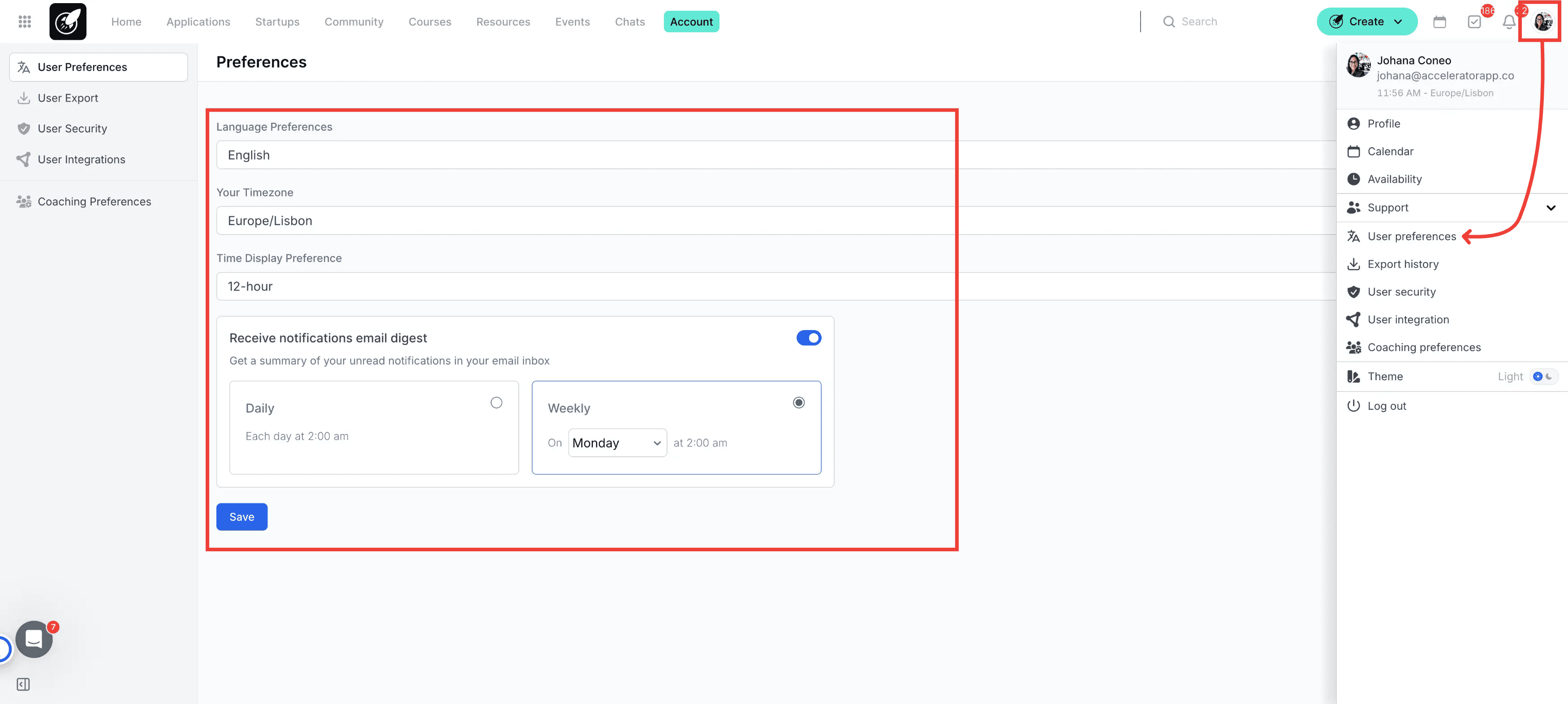
Navigation: Click on the Account/Profile Icon located in the top right corner of the screen and select Preferences.
Step-by-Step Actions
1. Access the Profile Menu
Click on the Profile Icon in the top right corner.
2. Open Preferences
Select User Preferences from the dropdown list.
3. Configure Settings & Save
Adjust your language, timezone and time display preference as needed. While the system automatically detects your timezone from your browser/search engine, you can manually override it here.
Additionally, you can manage your Email Digest Notifications:
Toggle Notifications: Turn the email digest On or Off.
Set Frequency: Choose how often you want to receive updates (e.g., Daily or Weekly).
Select Time: Pick the specific time of day you would like the digest to arrive in your inbox.
Once finished, click Save to apply all changes.
Best Practices
- Prioritize Localization: Set up your preferences as soon as you join the platform. Accurate timezones are critical for the Calendar Sync and Mentor Availability features to work correctly.
- Control Your Inbox: Use the Email Digest to stay updated on new notifications you get in AcceleratorApp in a single summary rather than receiving individual alerts for every action.
- Define Availability: After setting your timezone, navigate to your Calendar Availability to define when you are free for coaching sessions or meetings.