


Introduction to Export History
The Export History feature keeps a record of all exports generated in AcceleratorApp. Each entry shows who created the export, the source, when it was created, its status, and available actions — providing a clear audit trail and quick access to previously generated files.
Where to Find Export History
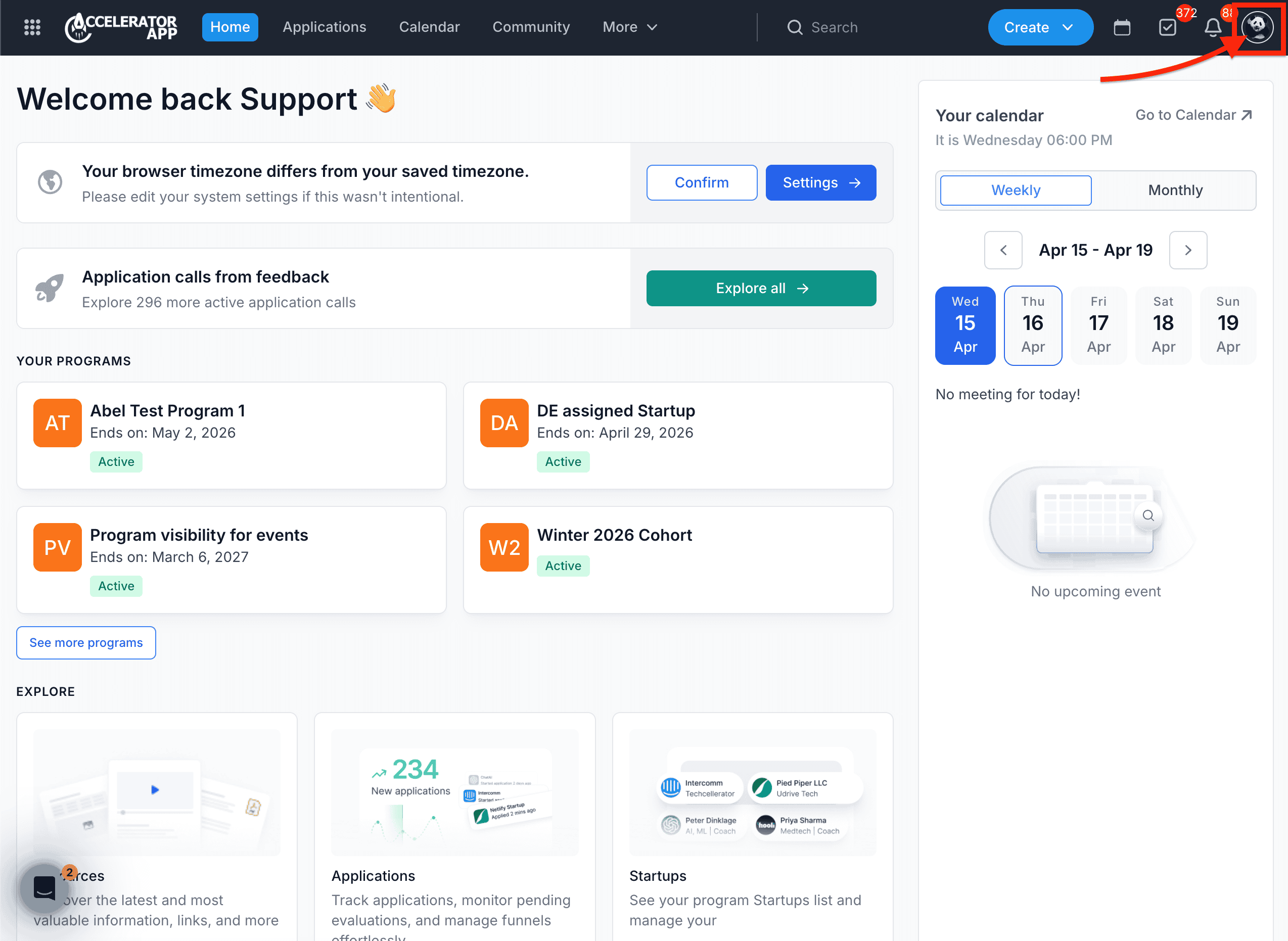
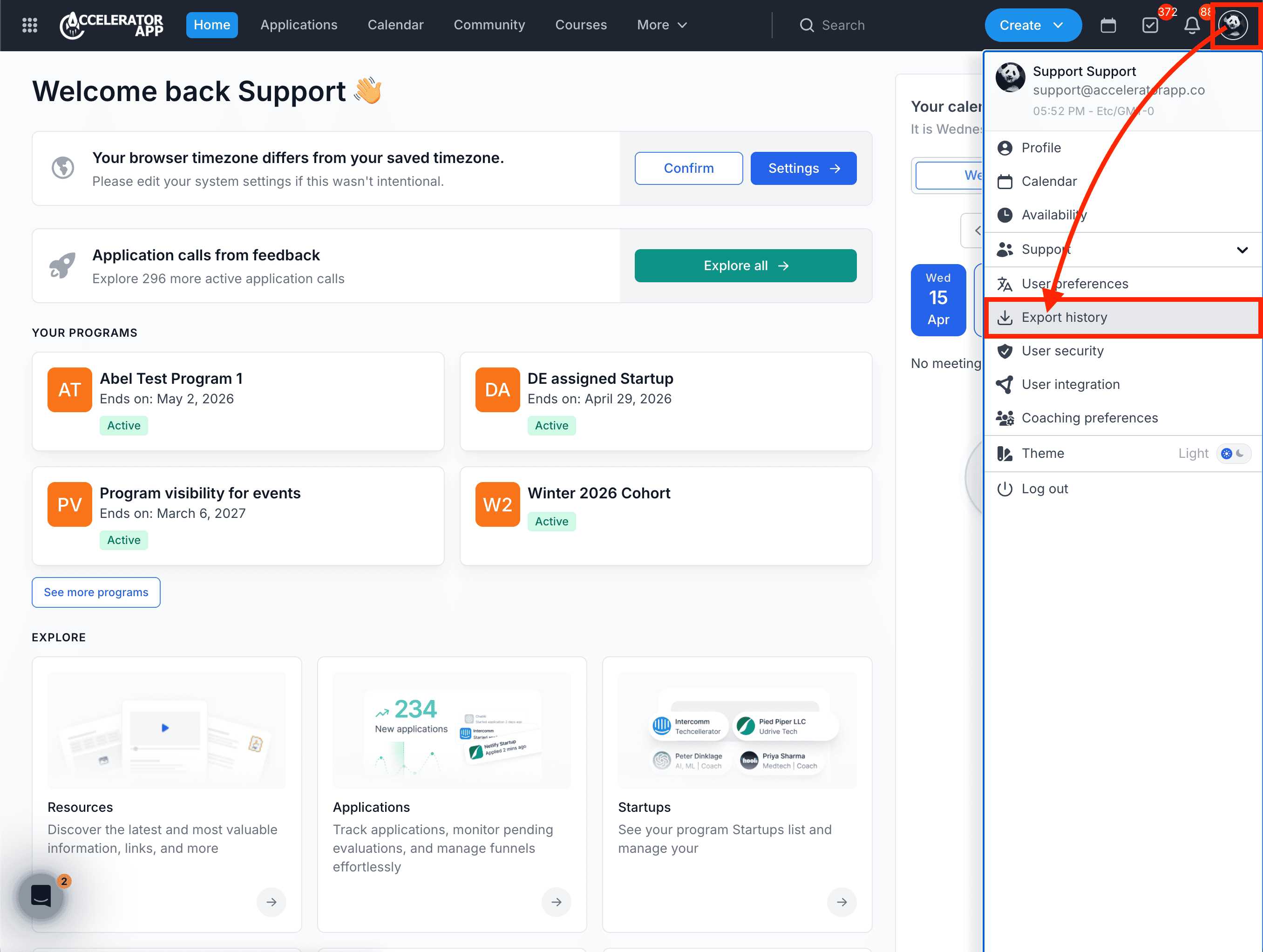
Click on your account icon (avatar or initials) in the top-right corner of the page and select Export History from the dropdown menu.
Step-by-Step
1. Review Your Export Records
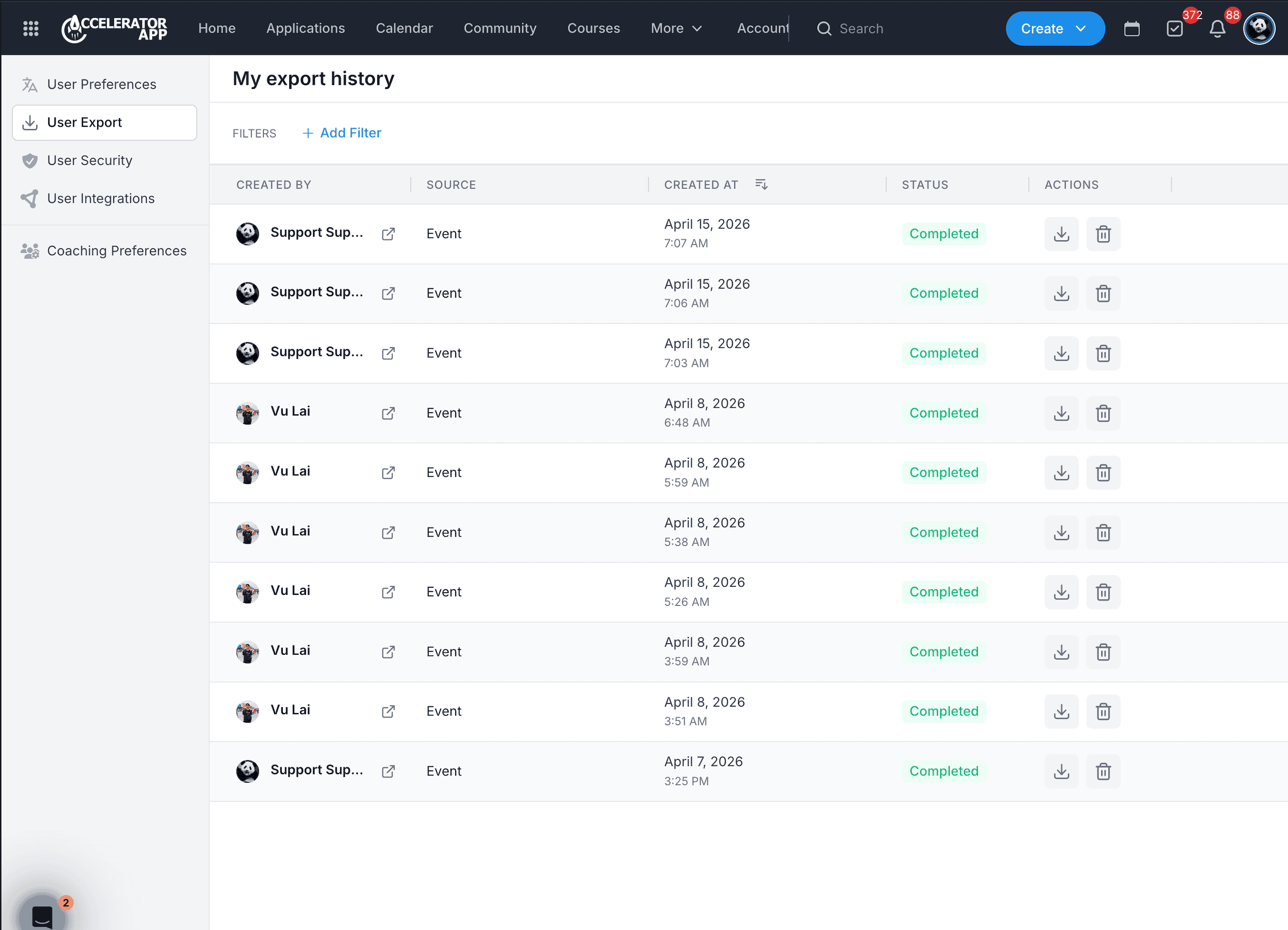
In the My Export History page, you will see a table with all your previous exports. Each row includes:
- Created By — the user who generated the export.
- Source — the module or type the export came from (e.g. Applications, Metrics, Mentors Management).
- Created At — the date and time the export was generated. This column is sortable.
- Status — Completed (green) or Failed (red).
2. Download or Delete an Export
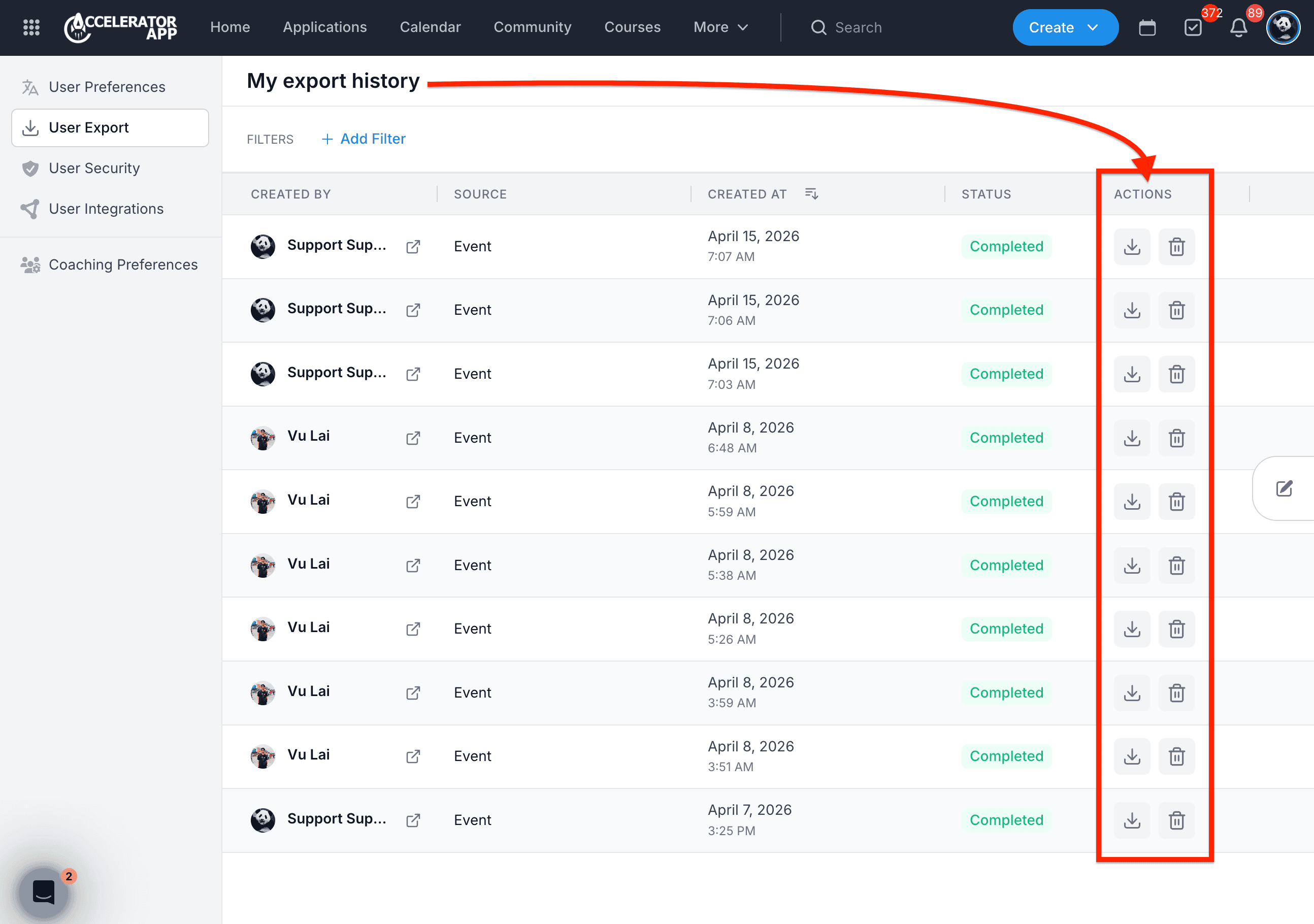
For each export in the table, two actions are available:
- Download — click the download arrow icon to save the file to your device.
- Delete — click the trash icon to remove the export from your history.
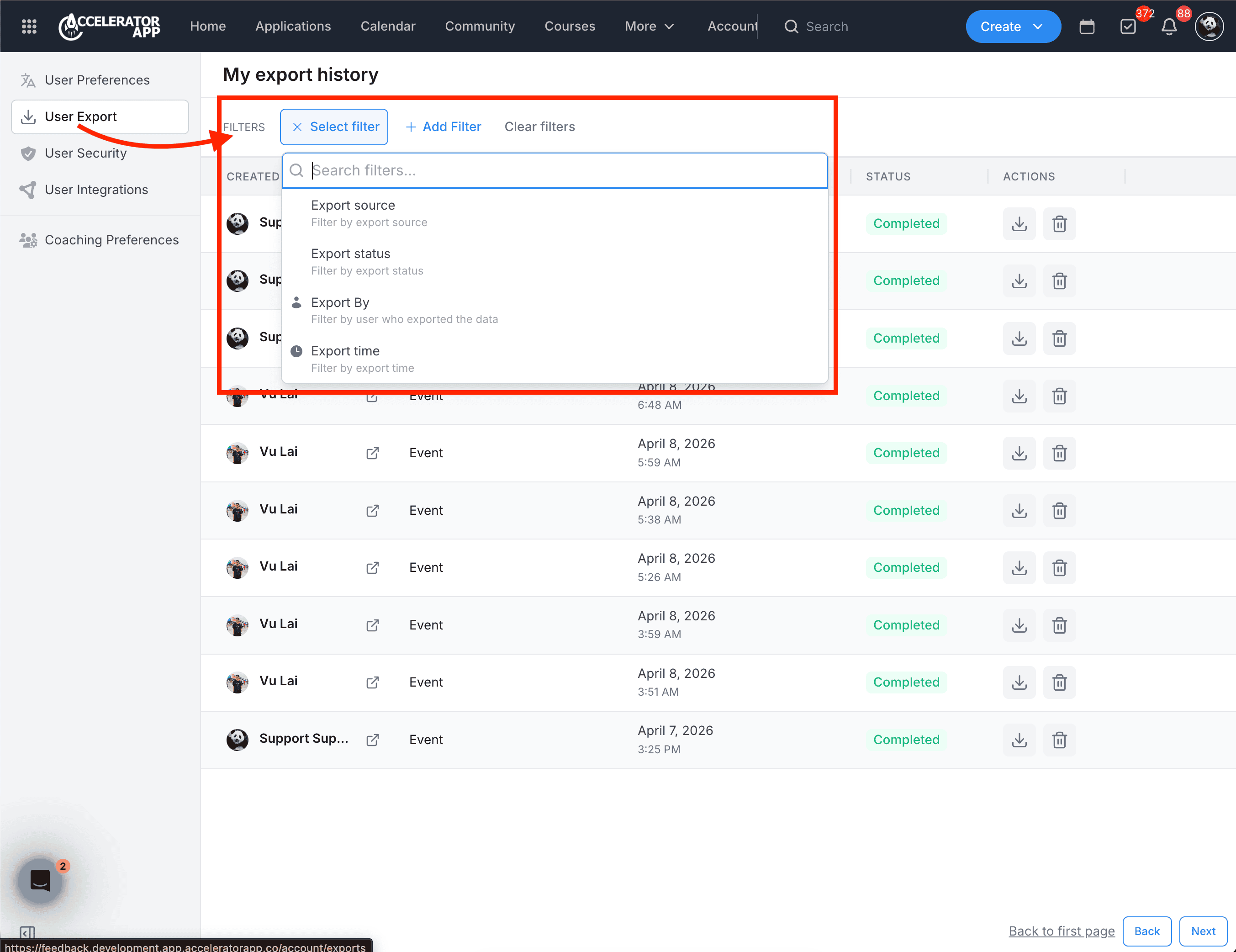
3. Filter Your Export History
Click + Add Filter to narrow down the list by:
- Export source — the module the export came from.
- Export status — Completed or Failed.
- Export by — the user who generated the export.
- Export time — a specific date or time range.
Best Practices
- Use Export History as a centralized place to find past exports without needing to remember where they were originally generated in the platform.
- Use filters to quickly narrow down the list when you have a large number of exports or are looking for a specific file.