


Introduction to Email Content Templates
Email content templates allow you to save and reuse email copy across different parts of AcceleratorApp — whether you are sending from the Startup Portfolio, Application Overview, an event, or any other screen. This saves time and ensures consistency in your messaging.
Where to Find Existing Templates
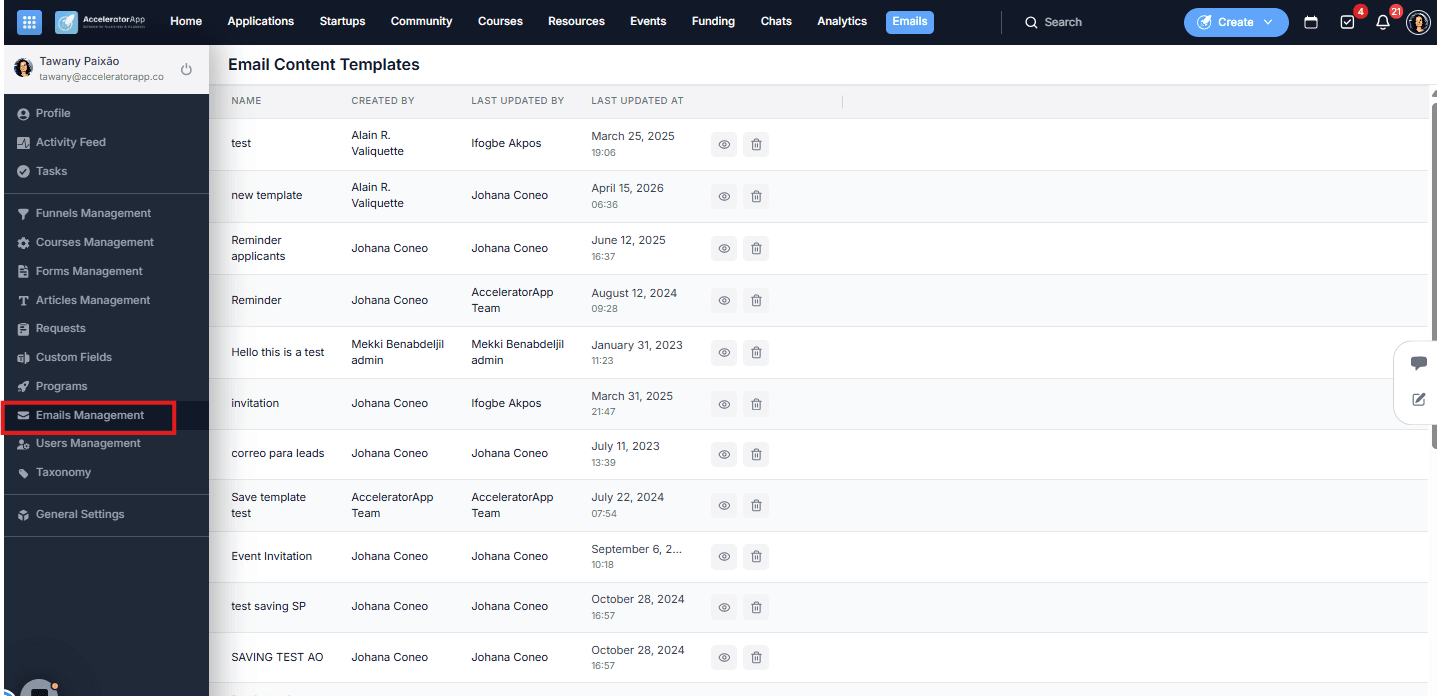
Navigate to Emails Management in the left sidebar menu, then open the Email Content Templates tab. Here you will see a list of all saved templates. For each template you can:
- Preview it using the eye icon.
- Delete it using the trash icon.
Step-by-Step
1. Create a New Content Template
There are two ways to create a content template:
From the Email Content Templates tab — navigate to Emails Management in the left sidebar, open the Email Content Templates tab, and click Create New Template. Fill in the template name, subject, and body, then save.
From the send email modal — accessible from any screen in the platform (Startup Portfolio, Application Overview, Events, Community, and more). Open the send email modal by clicking Send Email, fill in the Subject (required) and the email body (required), optionally add a design template and personalization tokens (e.g. First Name, Last Name), then click Templates and select Save as New Template. Enter a name for the template and confirm.
The template will appear in your Email Content Templates list in Emails Management regardless of which method you used to create it.
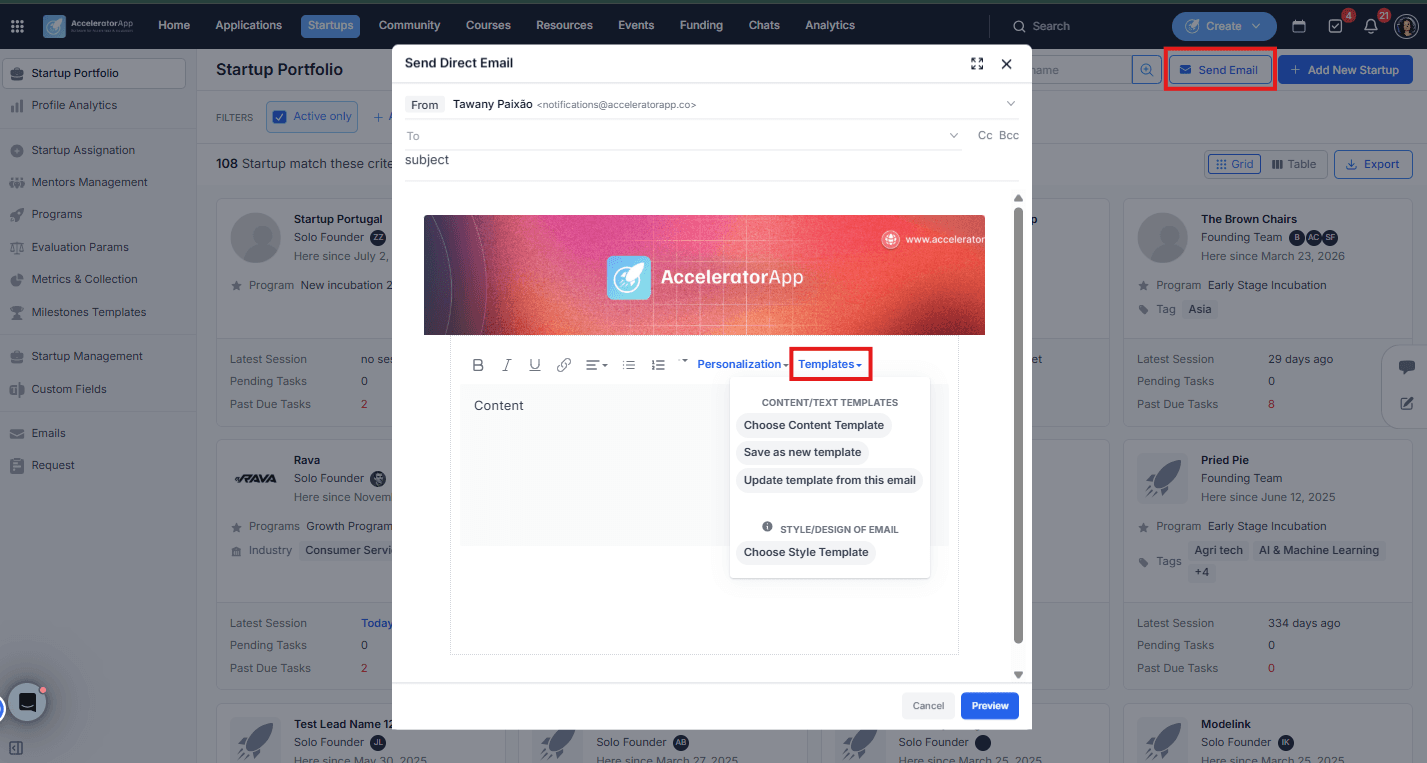
The template will now appear in your Email Content Templates list in Emails Management.
2. Use an Existing Content Template
To apply a saved template when sending an email:
- Open the send email modal from any screen by clicking Send Email.
- Click Templates and select Choose Content Template.
- Browse the list and select the template you want to use.
- Make any adjustments needed before sending.
Best Practices
- Name templates clearly. Use descriptive subject/ names that make it easy to find the right one later (e.g. "Event Reminder — Registered Users" or "Welcome — New Founders").
- Since templates cannot be edited, plan your content carefully before saving. If you need to update a template, do it directly from the send email modal after choosing the template.
- Use personalization tokens. Adding First Name, Last Name, or other tokens makes bulk emails feel more personal and relevant to each recipient.
- Review your templates regularly. Communication needs evolve — periodically check your saved templates to make sure they are still relevant and on-brand.