


Introduction to Customizing the Design of Email Templates
Designing email templates allows you to keep the look and feel of your branding consistent across all communications to your community. Editing the content and design of emails are separated to make it easier to reuse templates across multiple emails.
Where to Find Email Design Templates
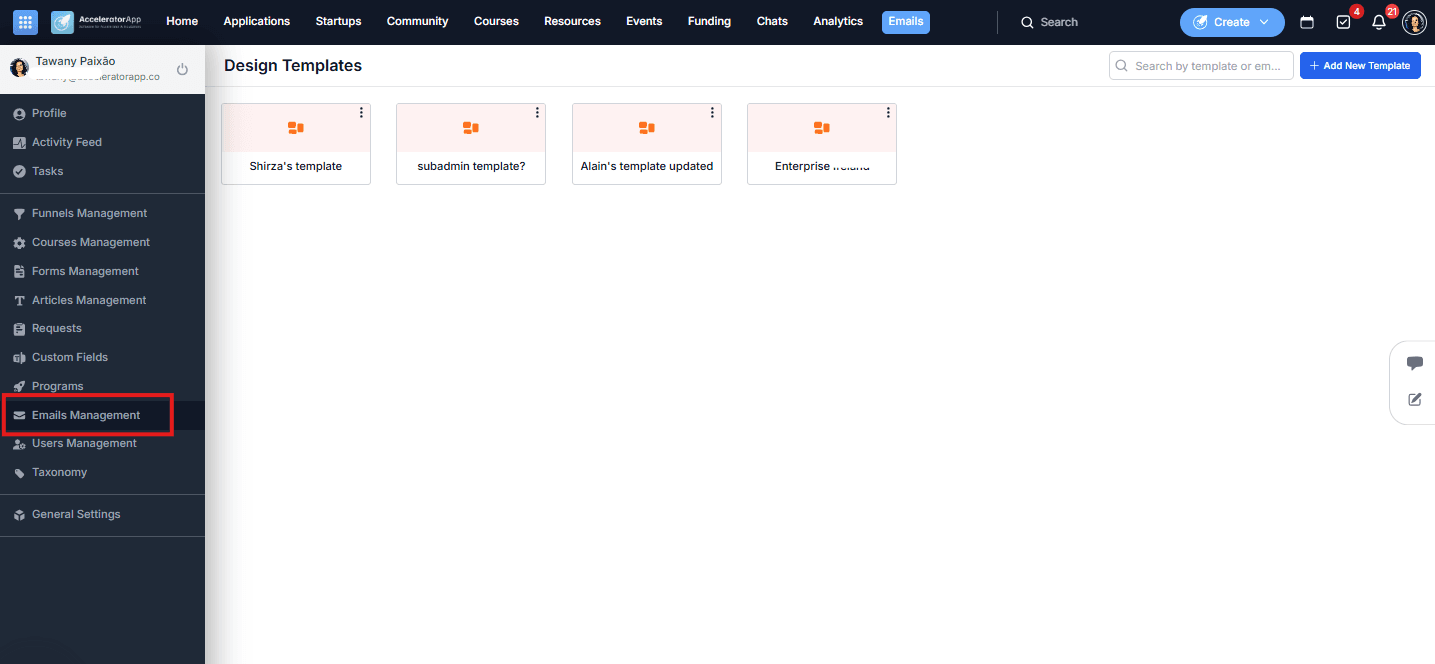
Navigate to Emails Management in the left sidebar menu, then select Email Design Templates.
From here you can create a new template by clicking Add New Template, edit an existing one by clicking directly on its card, or delete one by clicking the three dots on the card.
Step-by-Step
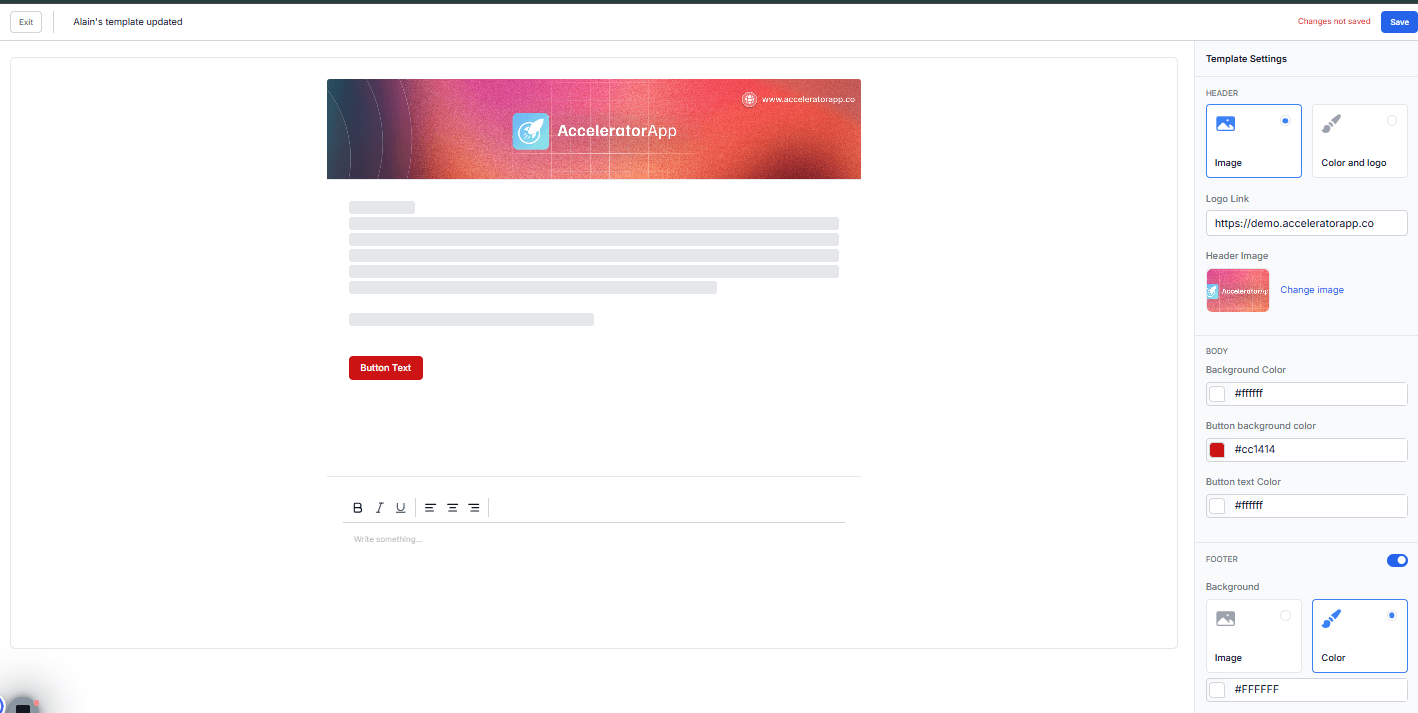
1. Configure the Header
The header is the top section of your email. You can customize it in two ways:
- Upload a custom image (recommended size: 800px × 150px).
- Use a background color combined with the logo you previously set up in your platform's Branding Settings.
You can also choose whether to display the Default logo or the Reverse logo version.
Additionally, set a Logo Link — a URL that recipients are redirected to when they click on the header logo.
2. Configure the Body
In the body section you can customize:
- Background Color — the color of the area surrounding the text zone. The text zone itself always remains white.
- Button Background Color — the fill color of your call-to-action button.
- Button Text Color — the color of the text on the button.
3. Configure the Footer
Use the Footer toggle to enable or disable the footer section. If enabled, you can customize:
- Logo — toggle visibility using the eye icon, and choose between the Default or Reverse logo version.
- Text — add custom footer text and set its color.
4. Save the Template
Click Save to store the template. Once saved, it will be available to select whenever you are composing or editing an email.
How to Apply a Template to an Email
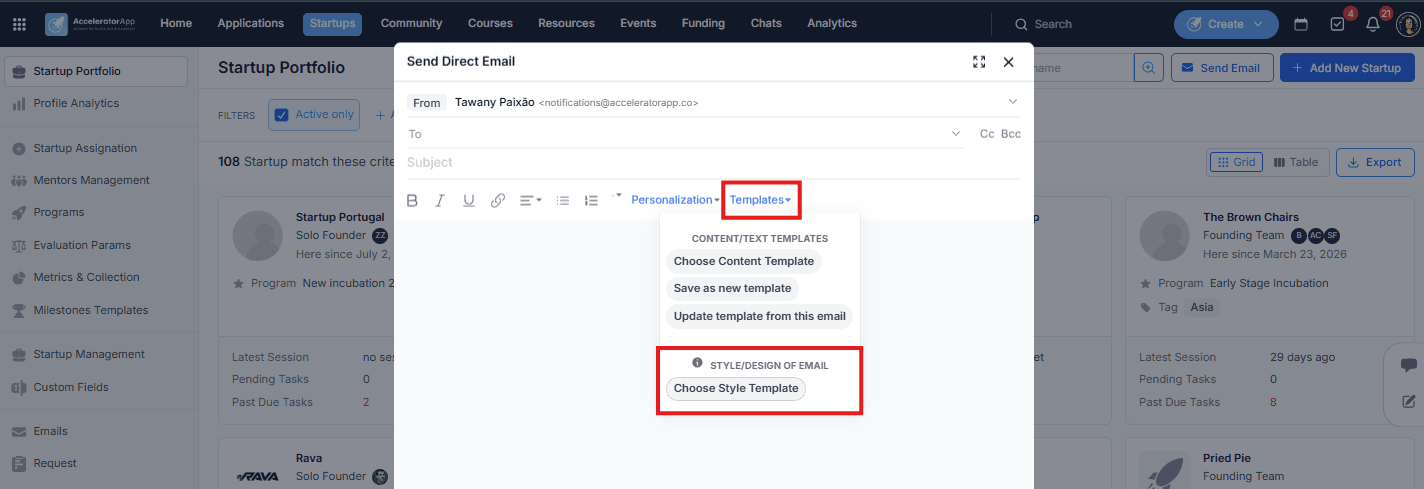
When composing or editing any email in AcceleratorApp, use the Email Template dropdown to select a saved design template and apply it to that email.
Best Practices
- Set up your branding first. The logo displayed in your email templates is pulled from your platform's Branding Settings — configure it there before creating templates.
- Use HEX codes for precision. Entering exact HEX codes ensures color consistency across all templates rather than relying on color pickers alone.
- Always set a Logo Link. Linking your header logo to your website or platform adds a professional touch and gives recipients a clear destination.