


Introduction to Community Access Settings
Managing community access allows administrators to define exact visibility levels for each user role in the ecosystem. You can control whether specific roles can see other user profiles, startup profiles, or restrict access based on community roles and direct user assignments.
Configuring these settings protects sensitive community data, maintains privacy between distinct groups (such as applicants and mentors), and ensures users only interact with profiles relevant to their role.
Role Restrictions: Configuring community access settings is restricted to Platform Administrators and Sub-Admins with role management permissions.
Where to Find Community Access Settings
Navigate to Menu > General Settings > User Role Settings.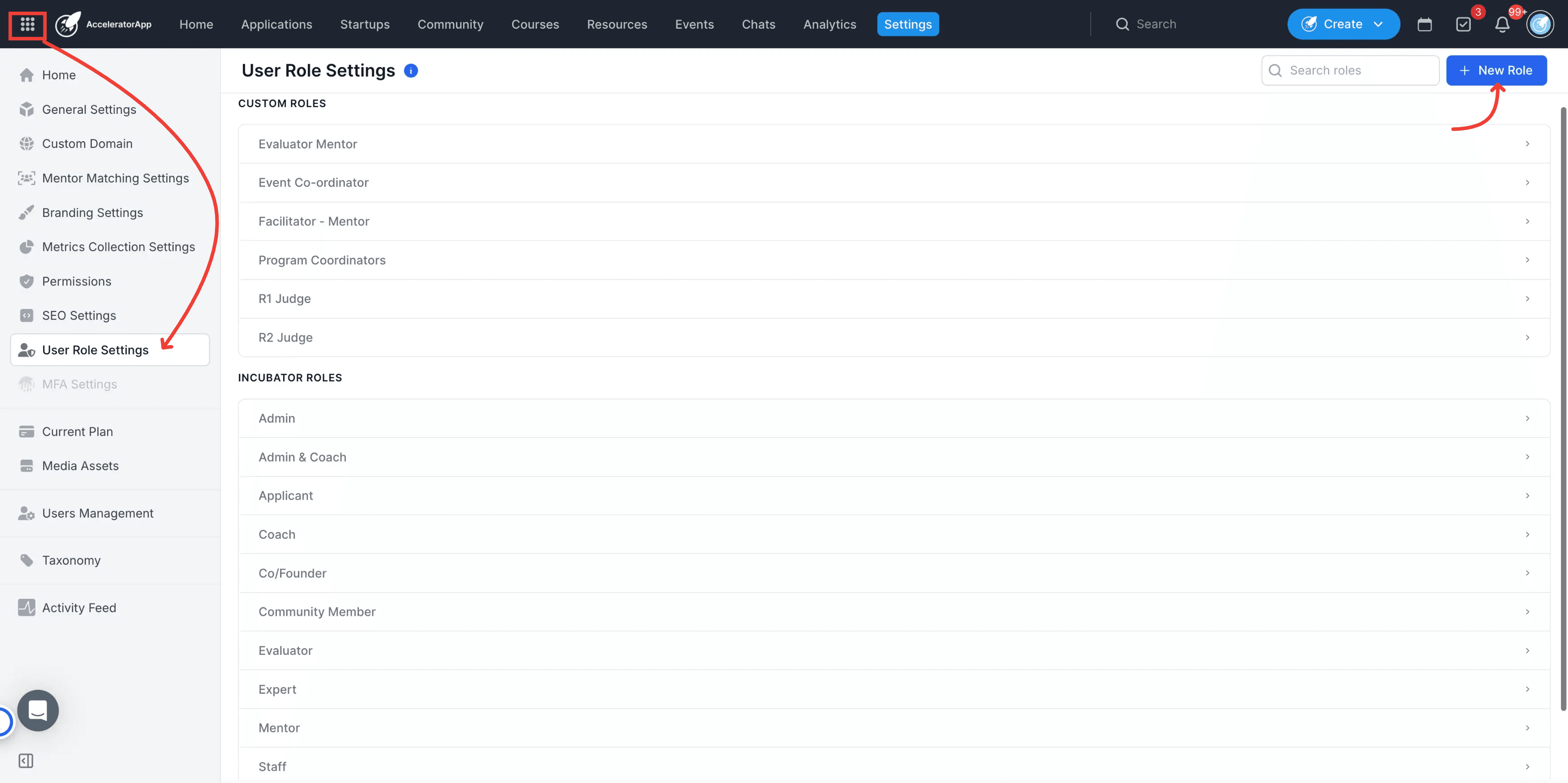
Step-by-Step
1. Access General Settings
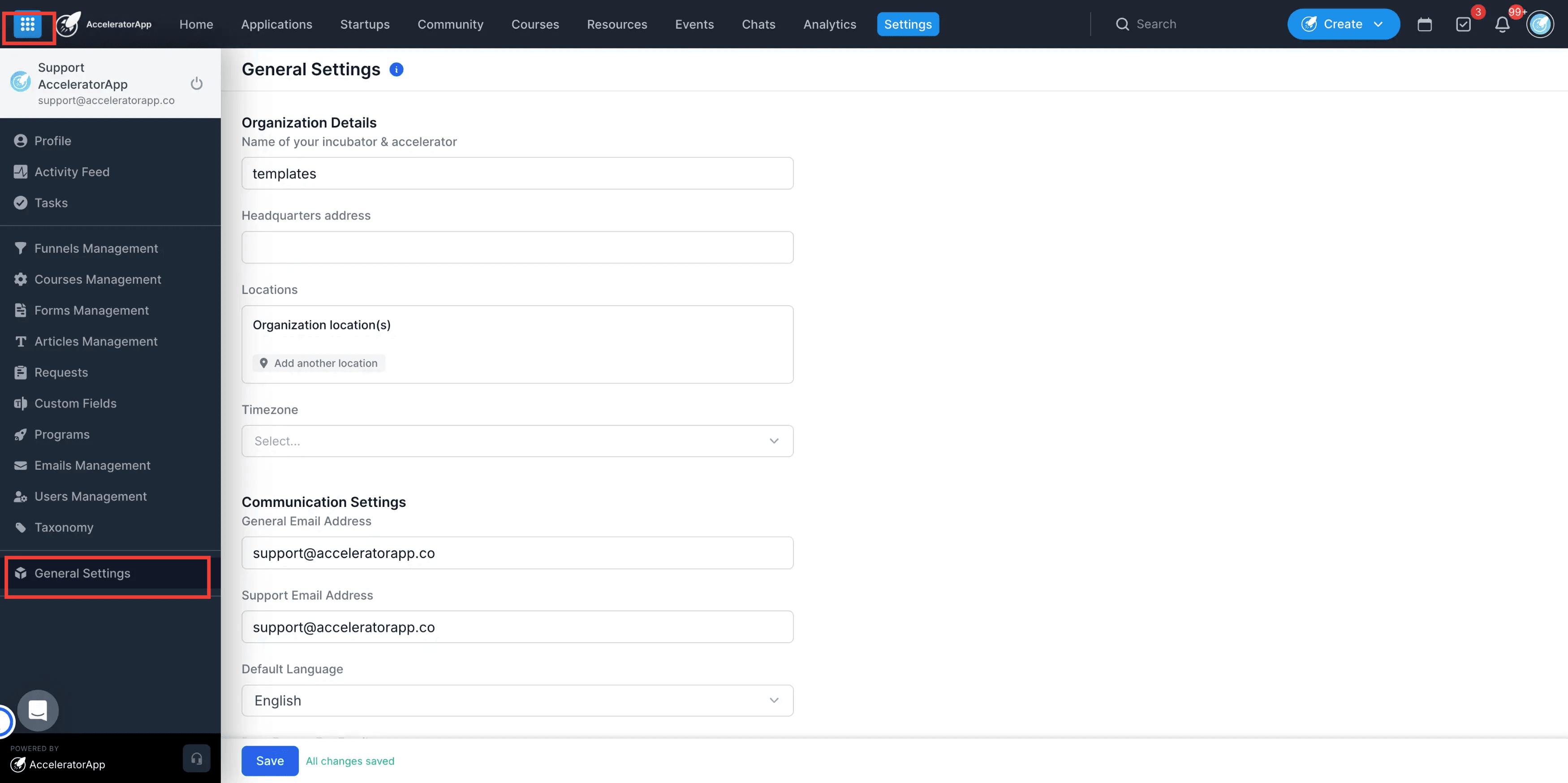
Click on the Menu icon in the top left corner of the platform and select General Settings.
2. Open User Role Settings
Select User Role Settings from the left navigation panel.
3. Select a user role
Locate the role you want to configure from the list of default or custom roles and click on it.
4. Navigate to Visibility Settings
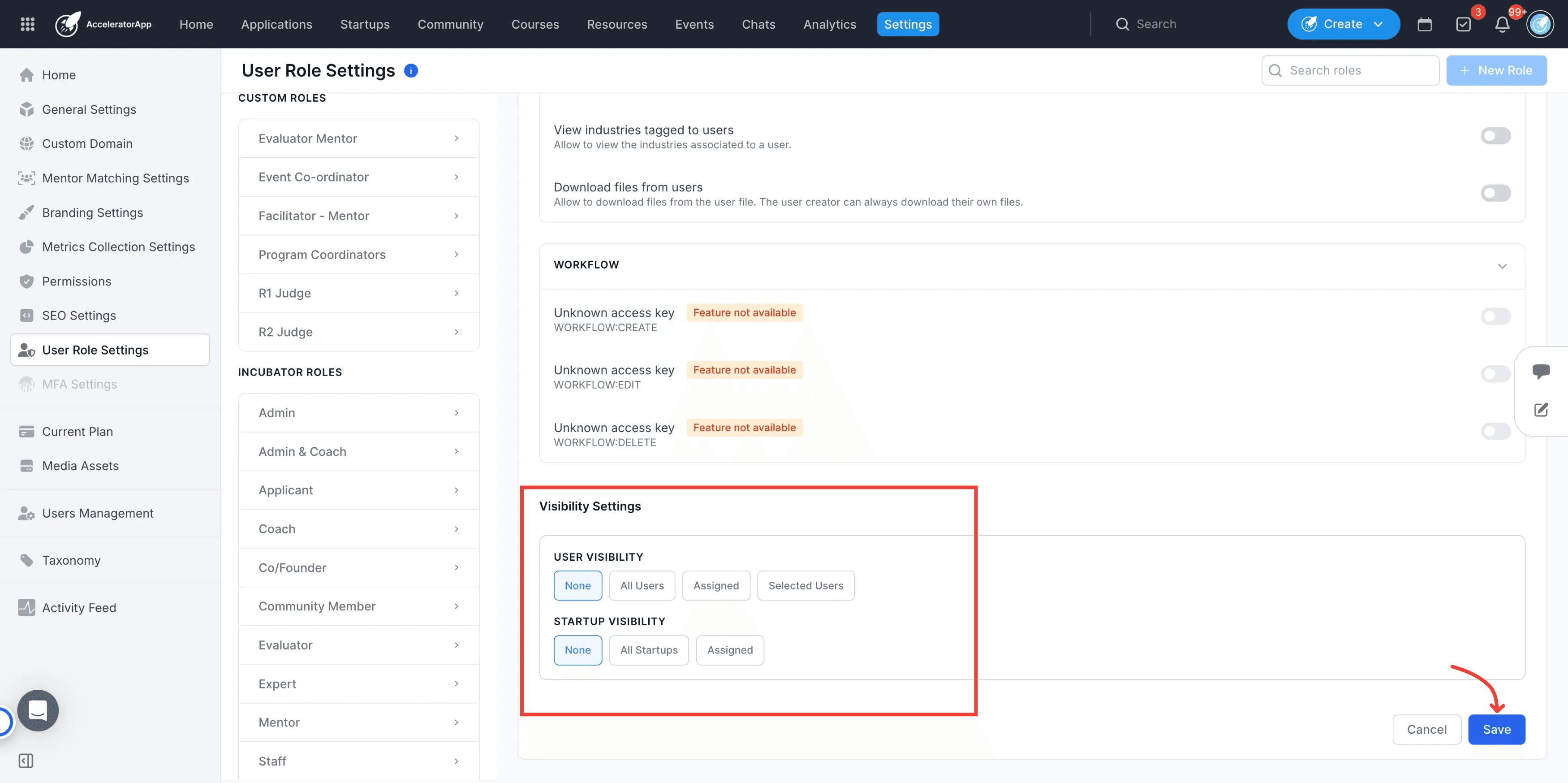
Scroll down the role configuration page to locate the Visibility Settings section.
5. Configure Startup Profile visibility
Adjust access settings to define whether users in this role can view all startup profiles, only assigned startup profiles, or specific startup categories.
6. Configure User Profile visibility
Customize settings to determine which other community user roles or assigned users this role can view in the platform.
7. Save your changes
Click Save at the bottom of the page to apply the updated community access settings.
Best Practices
Keep applicant visibility restricted to prevent premature interactions between applicants and mentors or evaluators prior to formal program entry.
Note that default system roles come with pre-set permissions, but their community profile visibility settings can still be adjusted as needed.
Review profile visibility settings whenever onboarding a new cohort or introducing new custom roles to ensure data privacy remains intact.