


Introduction to Changing Your Email Address
You can update the email address linked to your AcceleratorApp account from your profile.
This is useful if your email address has changed or if you want to use a different email for your account.
Where to Find Your Email Address Settings
To update your email address:
- Click your avatar in the top right corner.
- Click Profile from the dropdown menu.
- In your profile, click the Edit button.
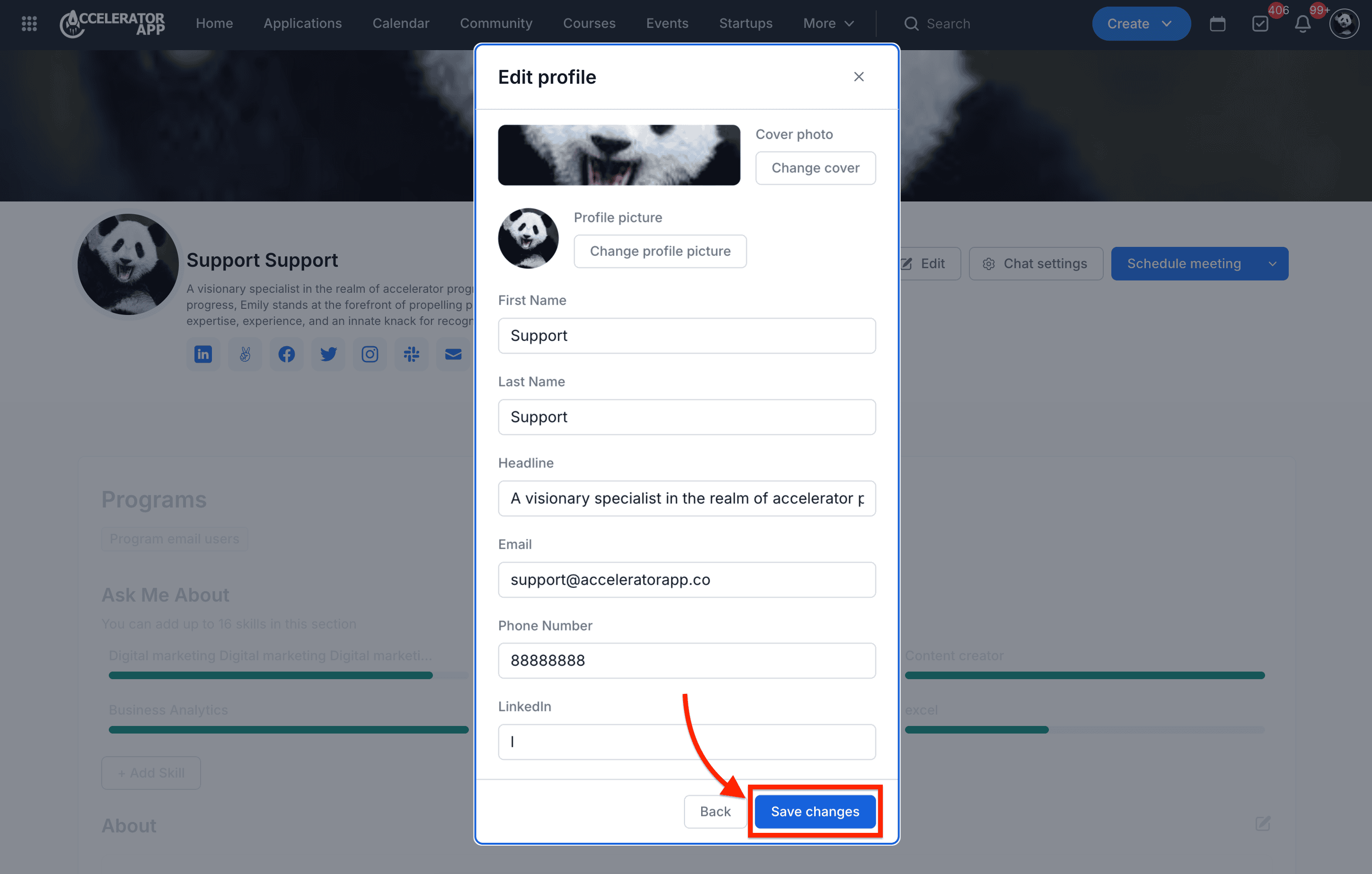
- Update your email address in the Email field.
- Click Save changes.
Step-by-Step
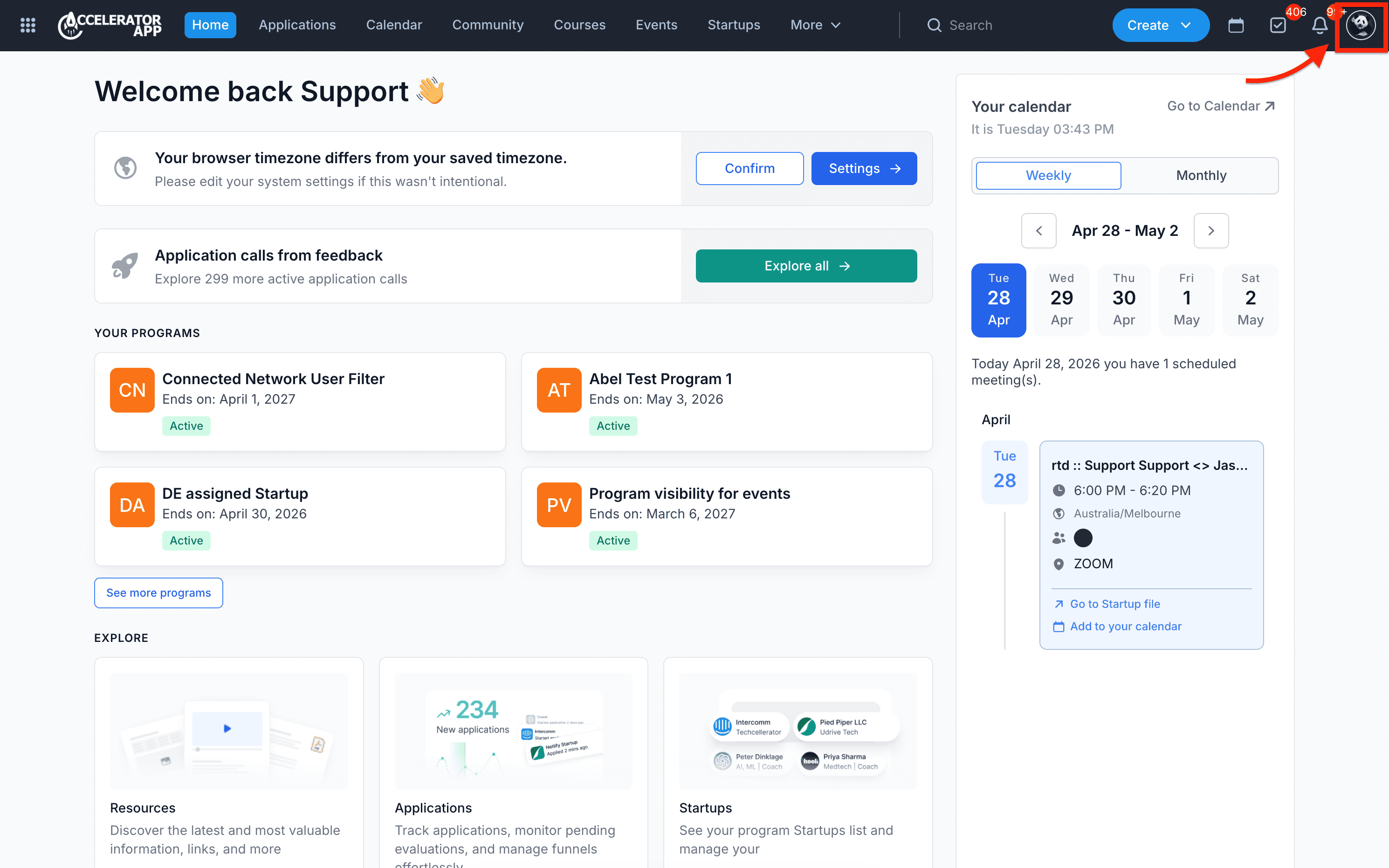
1. Open the profile menu
Click your avatar in the top right corner of AcceleratorApp.
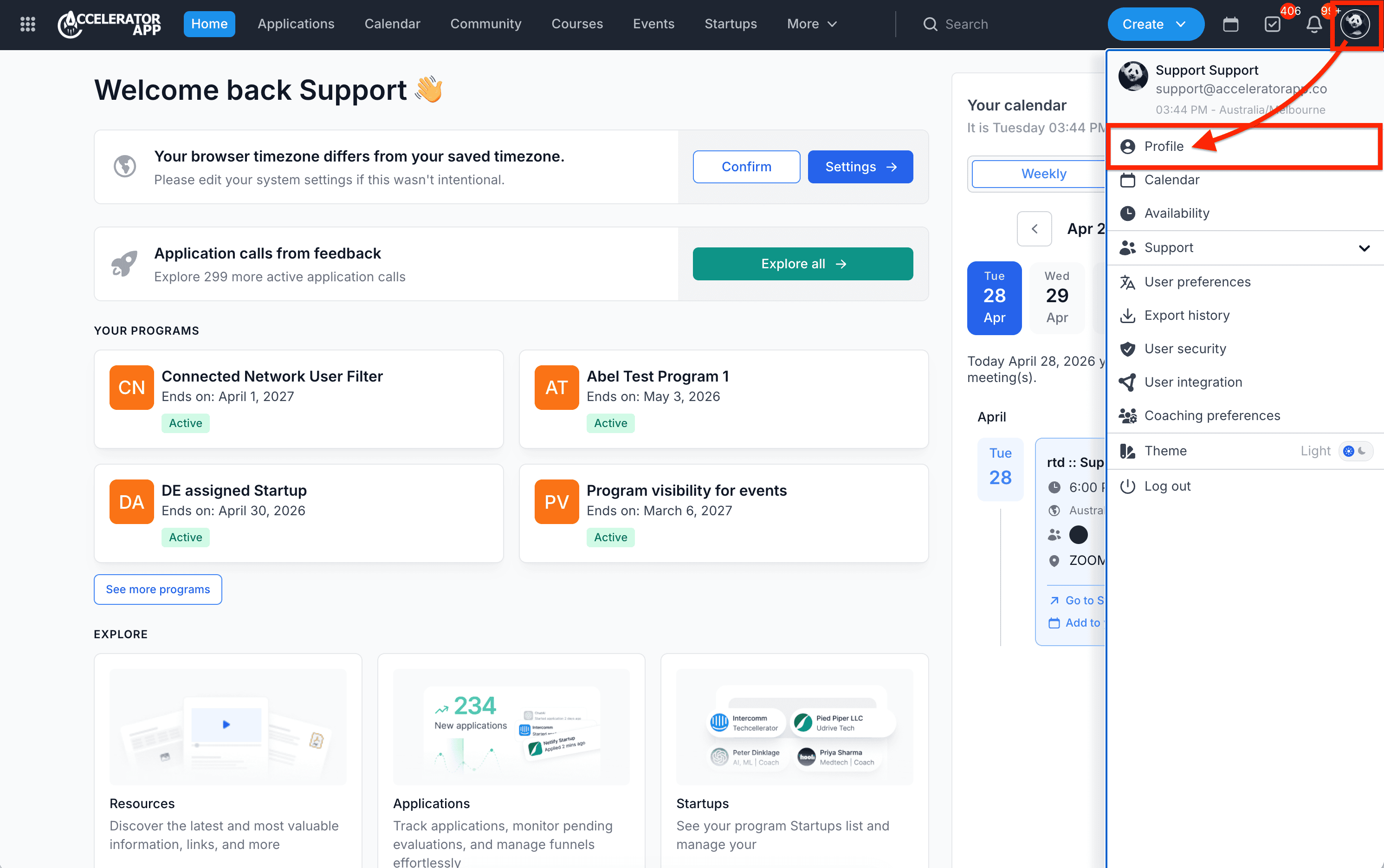
2. Open your profile
From the dropdown menu, click Profile.
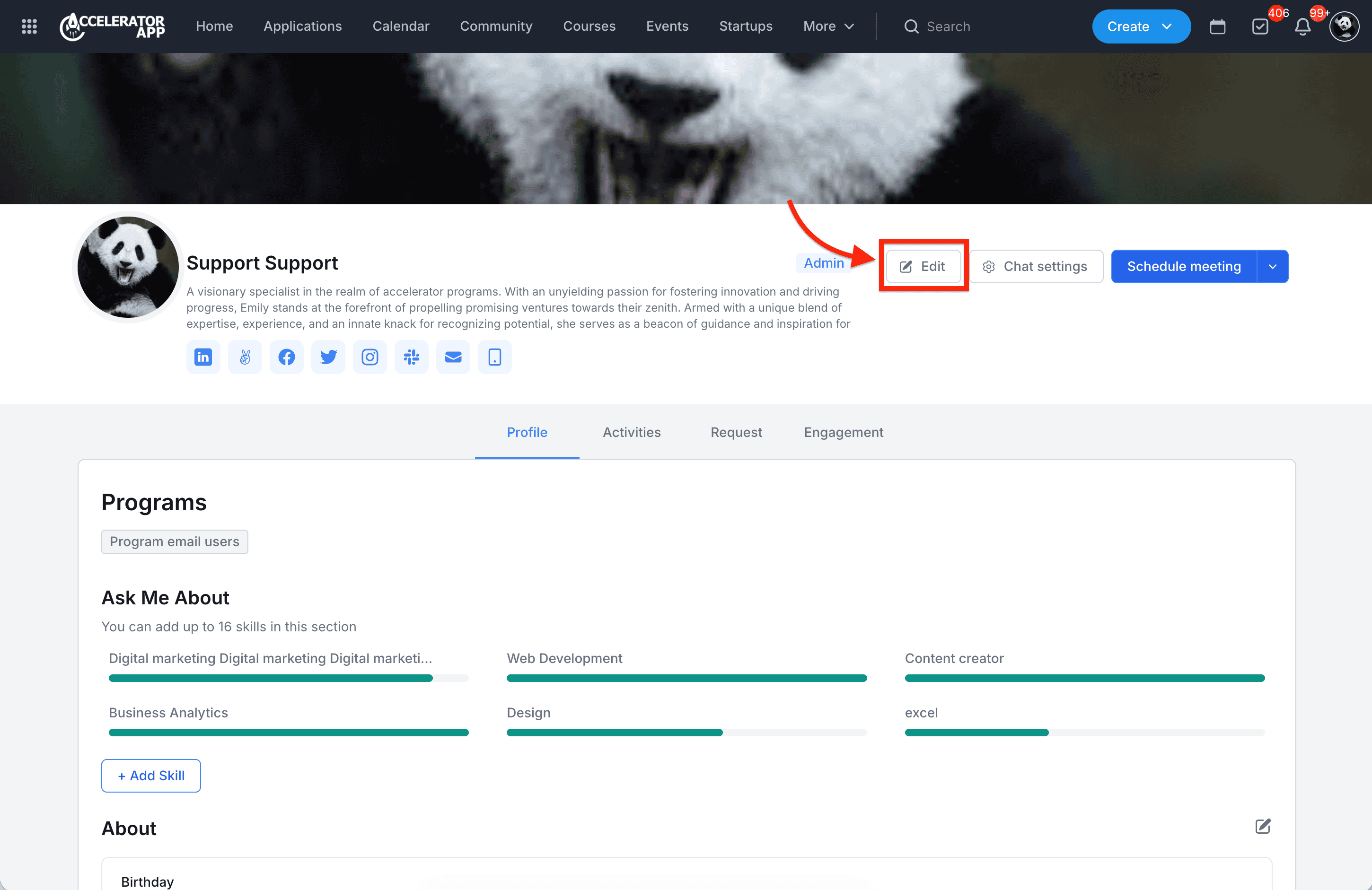
3. Open the Edit Profile window
Once you are in your profile, click the Edit button with the pen icon.
This will open the Edit profile modal.
4. Update your email address
In the Email field, enter your new email address.
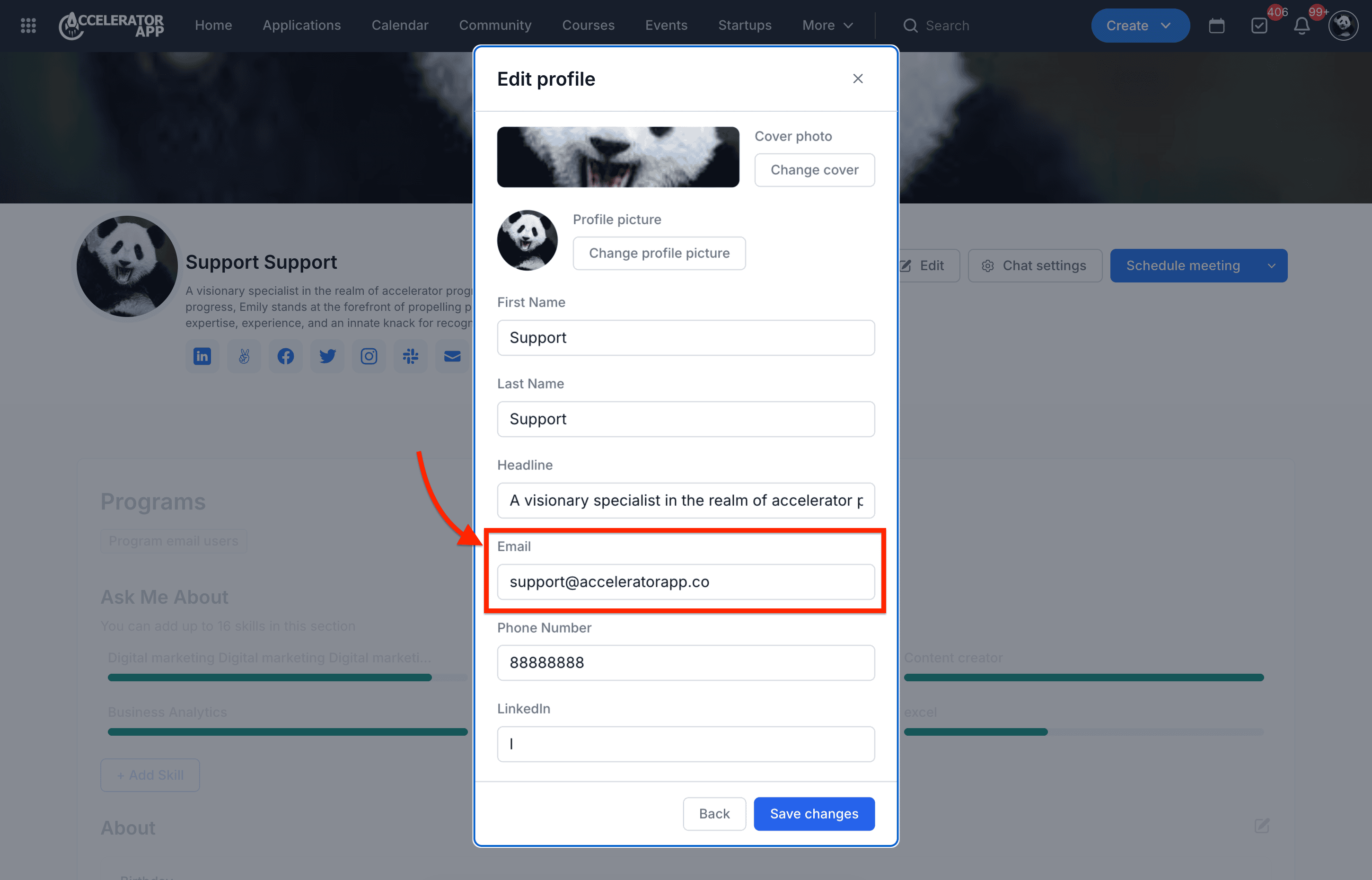
5. Save your changes
Click the blue Save changes button at the bottom of the modal.
Tips & Best Practices
- Double-check your new email address before saving to avoid typos.
- Make sure you use an email address you can access.