


Introduction to the User Profile Template
The User Profile template defines what information members of your community display on their profile page. Other users can identify, learn about, and connect with community members based on this information, helping establish credibility, expertise, and engagement across the platform.
Profile data is displayed, searchable, and accessible from the community page (subject to the permissions you configure). Customizing the template allows you to highlight what's most relevant for matching startups with mentors, investors, and other resources, and the data collected can be used to analyze program effectiveness and inform future decisions.
The User Profile template is built using custom fields. Answers submitted by users are saved and reusable wherever that custom field appears across the platform.
This feature is available to Accelerator/Incubator administrators only.
Where to Find the User Profile Template
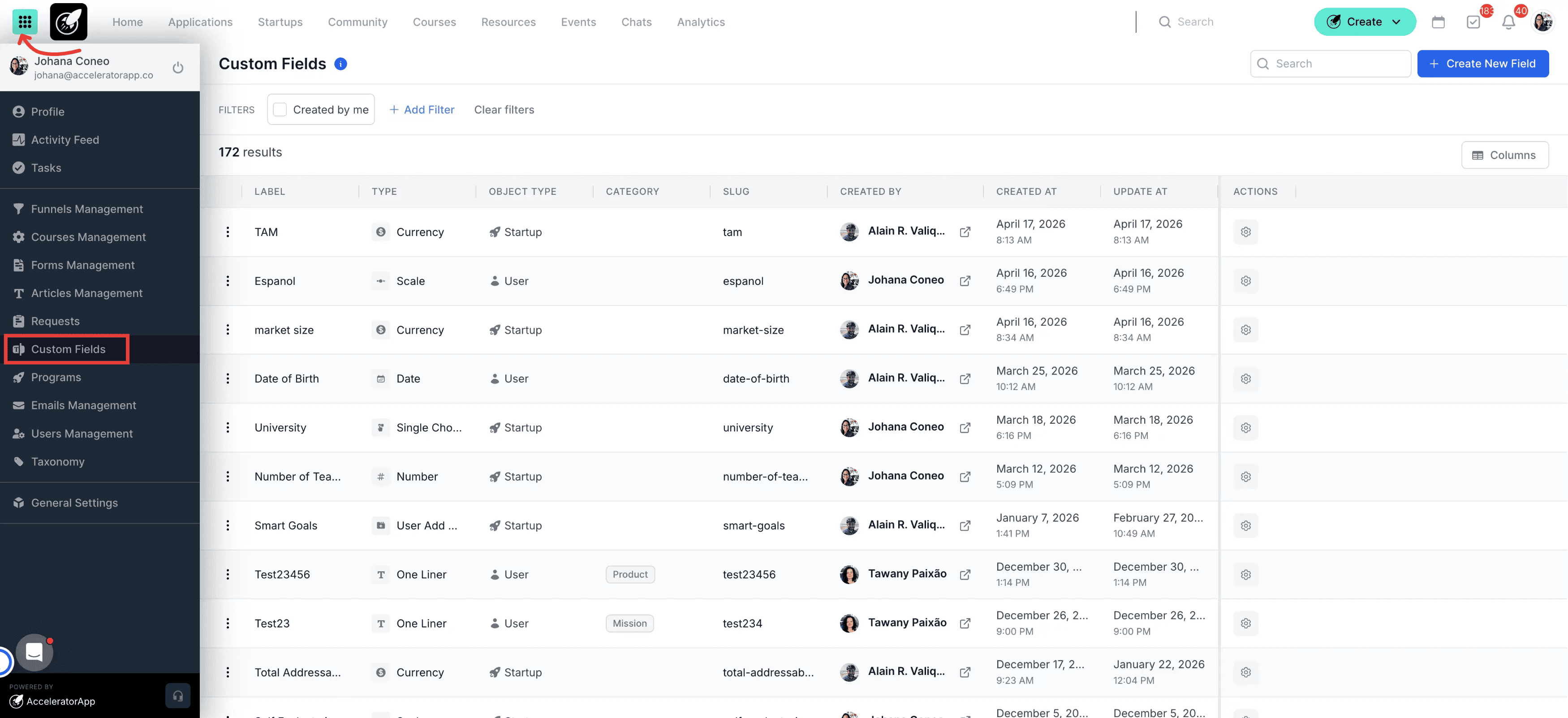
Navigate to the Menu icon in the top-left corner of the page, select Custom Fields, then click on the User Profile Fields tab.
Step-by-Step
1. Navigate to Custom Fields
Click on the Menu icon in the top-left corner of the page, then click on Custom Fields and User Profile Fields from the menu options.
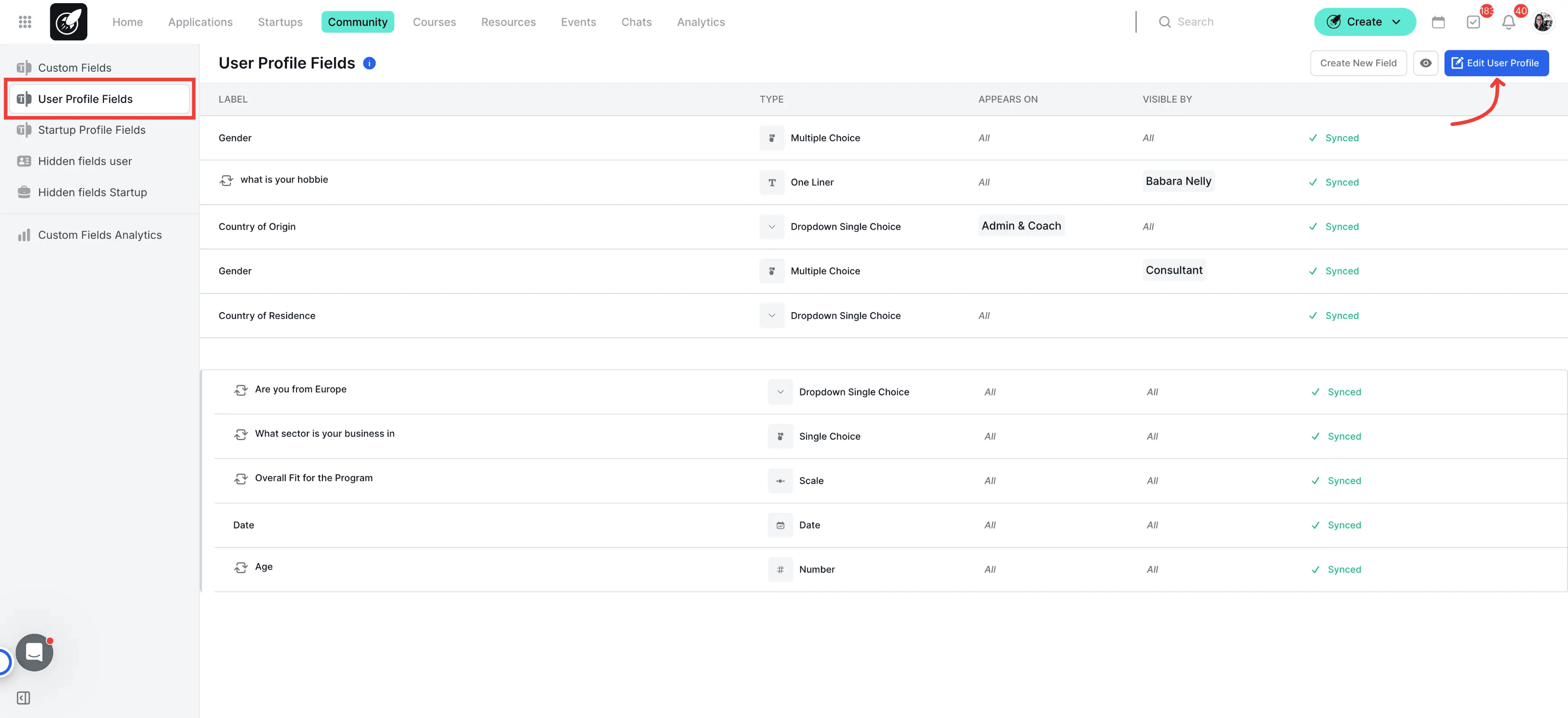
2. Click Edit User Profile
Click on Edit User Profile to open the template editor.
4. Drag and Drop Custom Fields
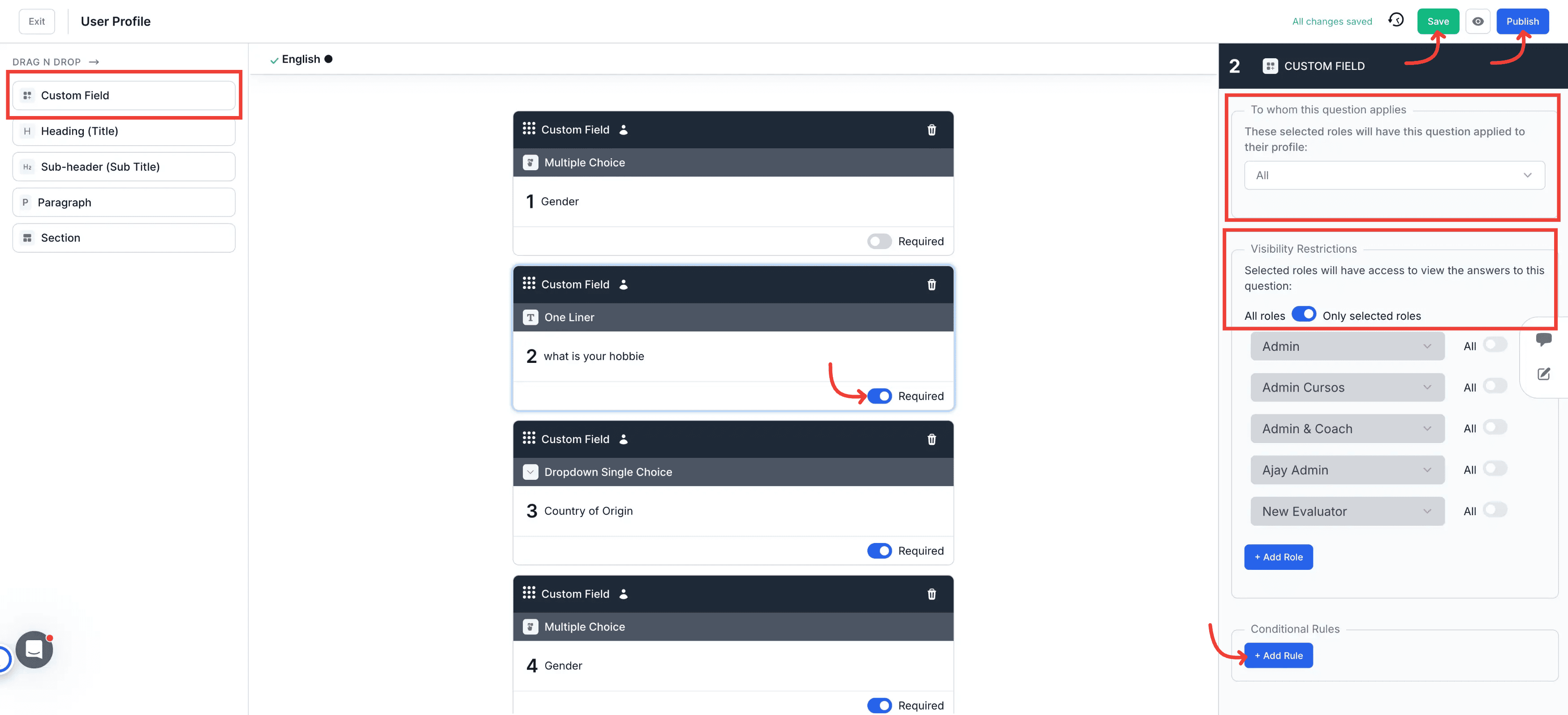
Drag and drop the custom fields you want to include into the profile template layout.
5. Configure Field Settings
After adding a field to the template, configure its settings to control how it behaves and who it applies to:
- Required or Not: Toggle the field on or off to mark it as required. When enabled, the system triggers a task and notification for users to complete the missing information in their profile.
- To Whom This Question Applies: Select which user roles this field should appear for. This allows you to show different fields to different types of users within the same profile template.
- Visibility Restrictions: Decide who can see this field in user profiles based on user role. Use this to protect sensitive information from being visible to all community members.
- Conditional Rule: Apply a rule to display a field only when a specific answer has been given in another field. This keeps the profile form clean and contextually relevant.
6. Save and Publish the Template
Click Save to store your changes, then click Publish to make the updated User Profile template live for your community.
Best Practices
- Apply visibility restrictions on sensitive details that users may not want to make public.
- Use conditional rules to display different fields depending on the user's role in the program.
- Only include fields that are relevant to your program goals — a focused profile drives more meaningful connections than an overloaded one.