


Introduction to Evaluation Parameters in Coaching Sessions
Evaluation parameters allow your team to assess startups or users during coaching sessions in a structured and consistent way. Admins can create evaluation sheets tailored to specific programs, criteria, and roles — ensuring that feedback is relevant, focused, and tied to each session's objectives.
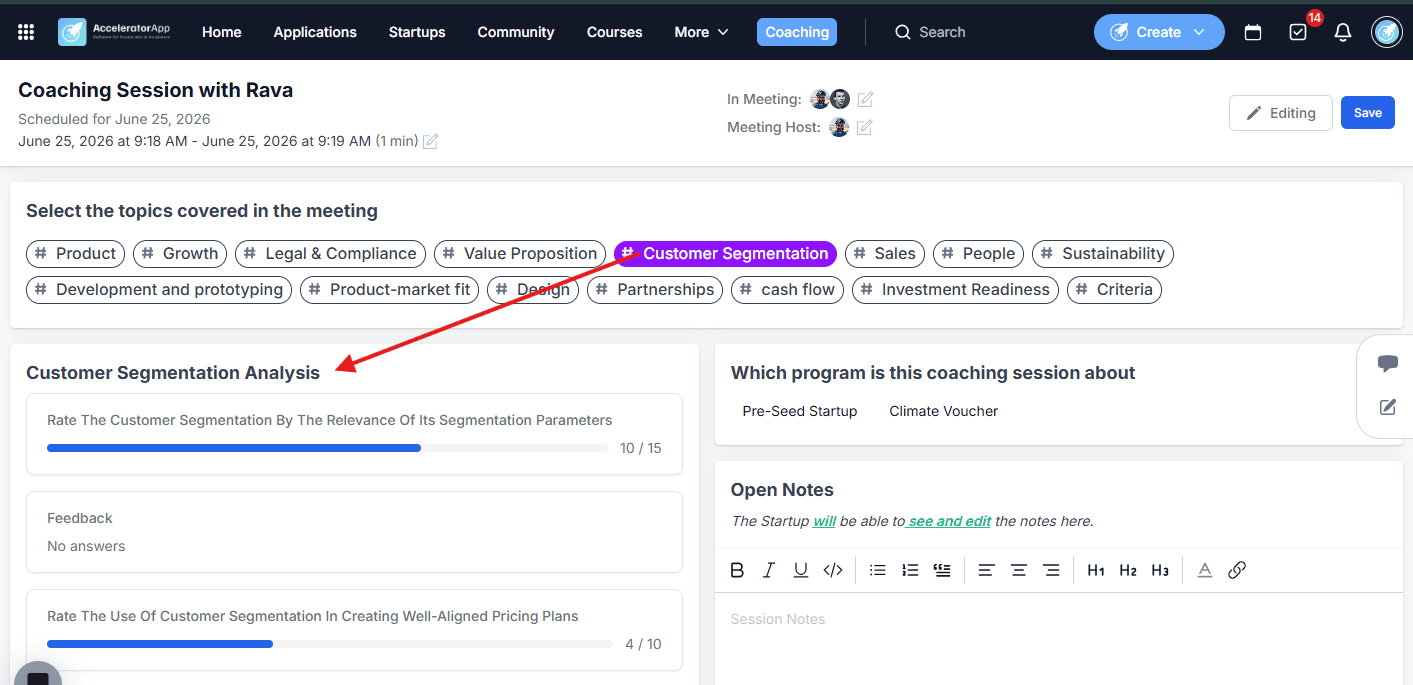
Where to Find Evaluation Parameters
Navigate to the Startups section in the top menu and select Evaluation Parameters.
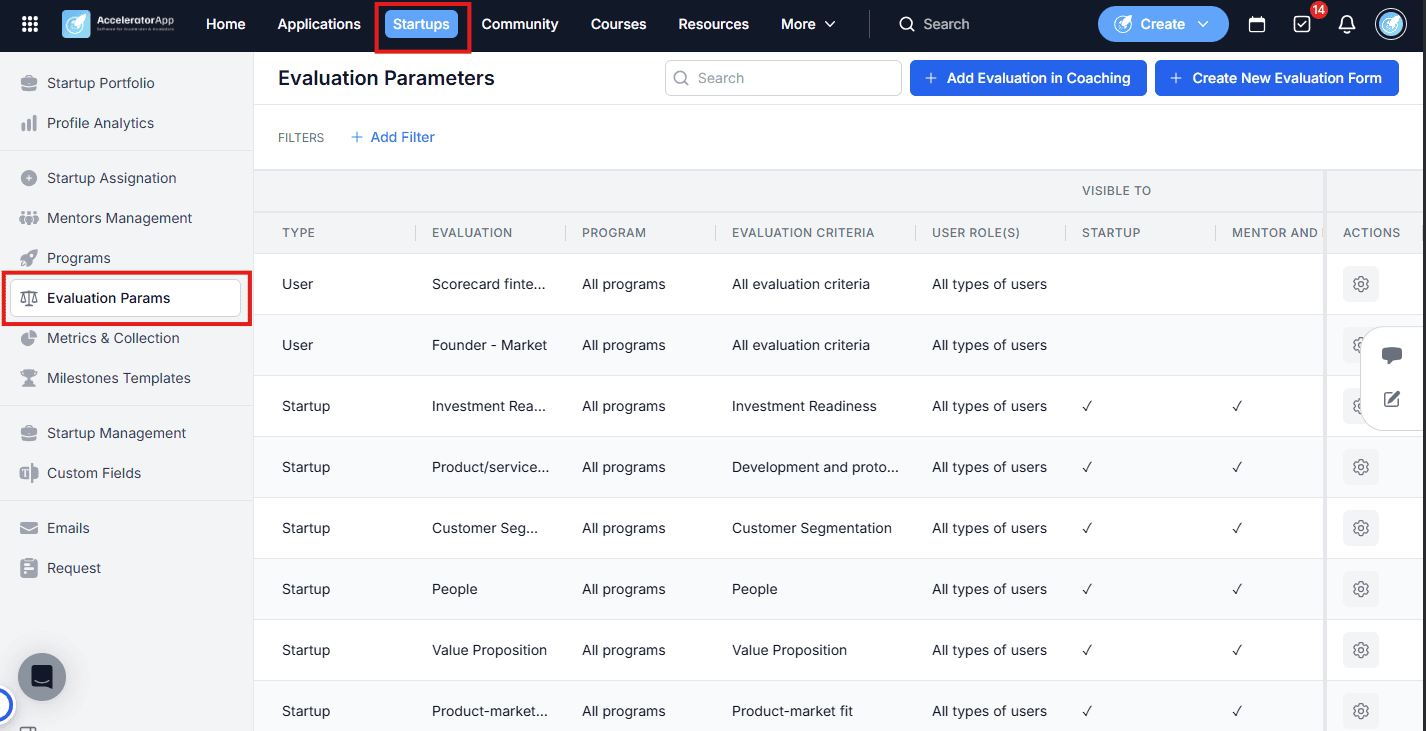
Step-by-Step
Before creating an evaluation parameter, make sure the following components are already set up:
1. Define Evaluation Criteria in Taxonomy
Go to the Taxonomy section to define the criteria you will use to evaluate startups (e.g. Marketing, Finance, Innovation). These criteria will be available for selection when creating your evaluation parameter.
2. Create an Evaluation Form
Go to Forms Management and design your evaluation form, including questions and scoring methods. This form will be the sheet used during the coaching session.
3. Create the Evaluation Parameter
- Navigate to Startups in the top menu and select Evaluation Parameters.
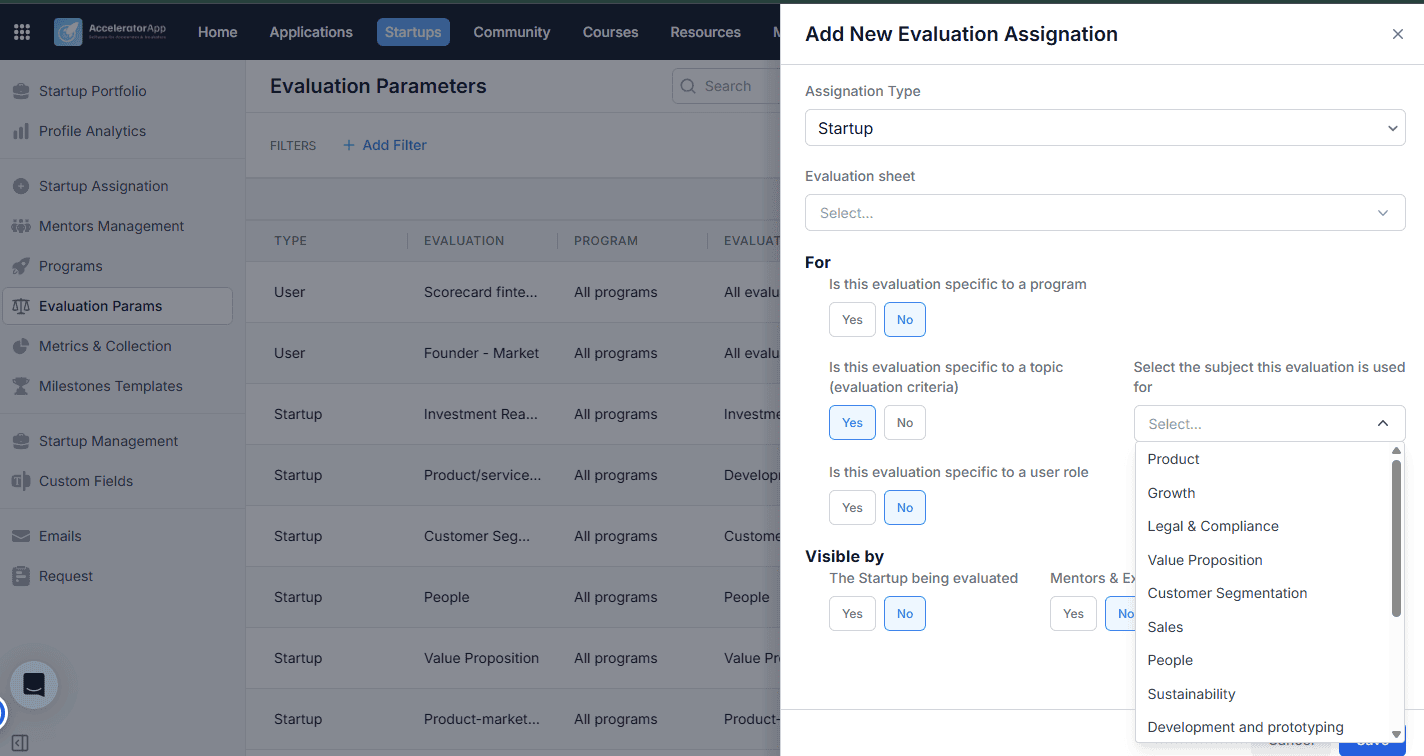
- Click Add Evaluation in Coaching.
- In the side panel, select the type of evaluation — for Startups or for Users.
- Select the evaluation form you created from the dropdown menu.
- Assign the evaluation to the relevant programs, criteria, and roles (e.g. Mentor, Coach, Expert).
- Define visibility settings to control whether startups and mentors can see the evaluation results.
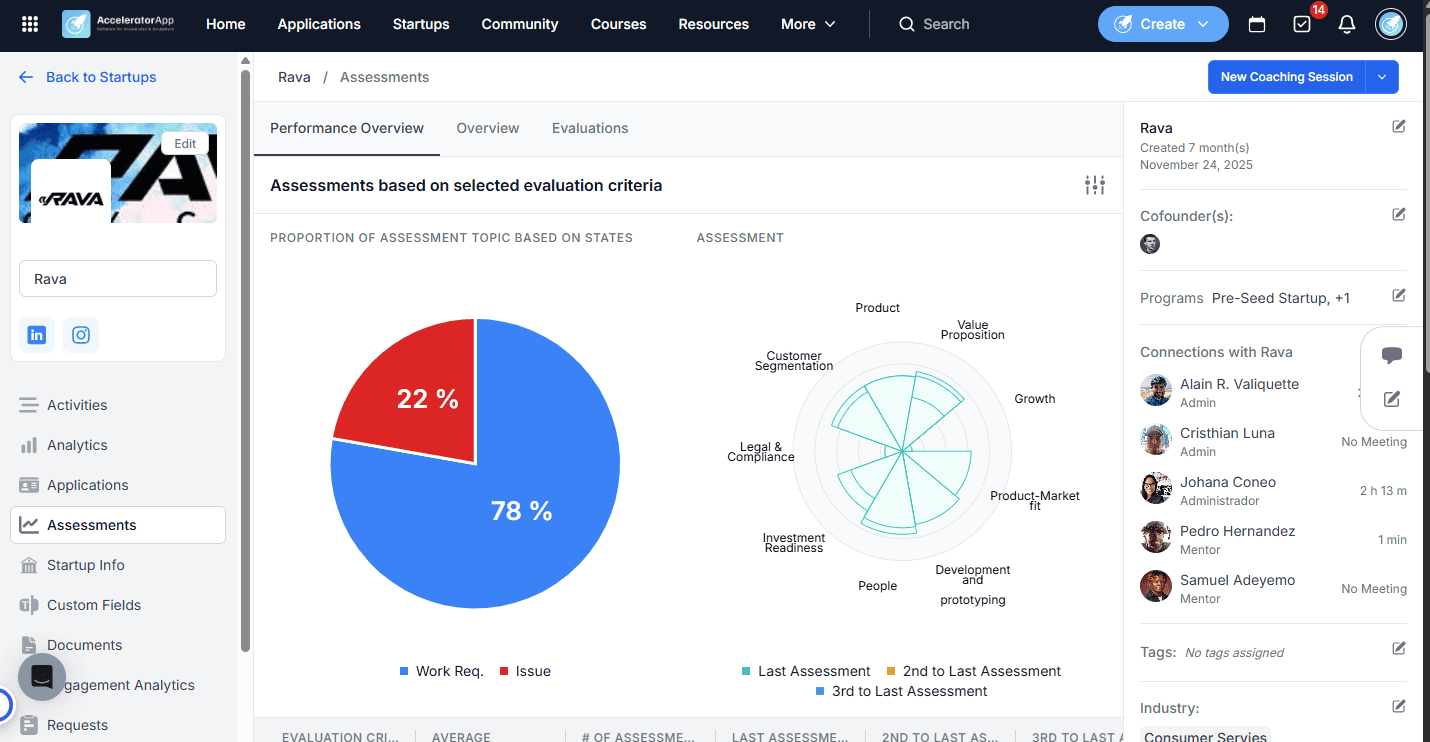
Viewing Evaluation Results
Once coaching session evaluations have been submitted, the scores and responses can be tracked and analyzed directly from the startup file. Navigate to the relevant startup and open the Assessments tab to see a consolidated view of all evaluation results submitted for that startup across sessions, criteria, and roles.
This makes it easy to track progress over time, compare feedback from different mentors or coaches, and identify patterns in a startup's development.
Best Practices
- Set up taxonomy and forms before creating evaluation parameters. The criteria and evaluation sheet must exist before you can configure the parameter — do this groundwork first.
- Tailor evaluation criteria to your program's goals. Align the criteria with your program's objectives and KPIs to focus feedback on the areas that matter most for each cohort.
- Keep evaluation questions clear and actionable. Design questions that encourage specific, constructive feedback rather than generic ratings.
- Use visibility settings intentionally. Decide upfront whether startups and mentors should see evaluation results — this shapes how open or confidential your feedback culture is.
- Use the Assessments tab to track progress over time. Regularly reviewing evaluation scores from the startup file helps you identify patterns and support each startup more effectively.
- Test before rolling out. Pilot your evaluation sheet with a small group first to catch any gaps or unclear questions before applying it across all sessions.
Additional Resources
- How to Create Forms in AcceleratorApp
- Taxonomy in AcceleratorApp
- How to Take Notes During Coaching Sessions?