


Introduction to the Startup File
The Startup File provides a centralized location where administrators can view and manage all the details of a startup within their community. Accessed from the Startup Portfolio, this file serves as a detailed record of a company's activities, performance, and key documents.
This file organizes all relevant information into categorized tabs for efficient access and tracking. It is an essential tool for administrators overseeing day-to-day startup engagement, task management, milestone tracking, and program reporting.
Where to Find the Startup File
To open a startup's dedicated file, navigate to the Startup Portfolio, hover over your chosen company from the list, and select Startup File.
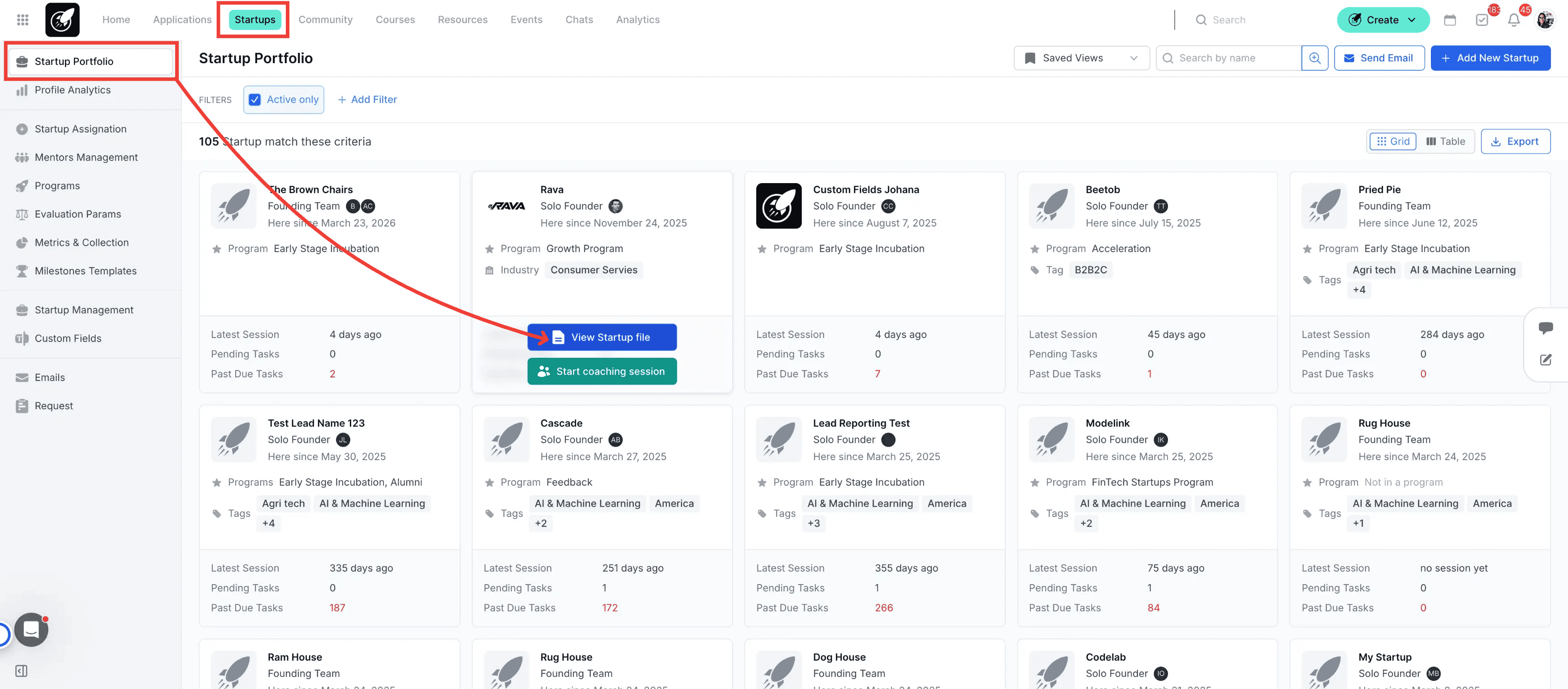
Step-by-Step
1. Track History in the Activities Tab
Click on the Activities tab to view a historical timeline of all system-recorded actions for the startup since onboarding. Use the filter options to narrow down the view by comments, coaching sessions, upcoming events, or data reporting.
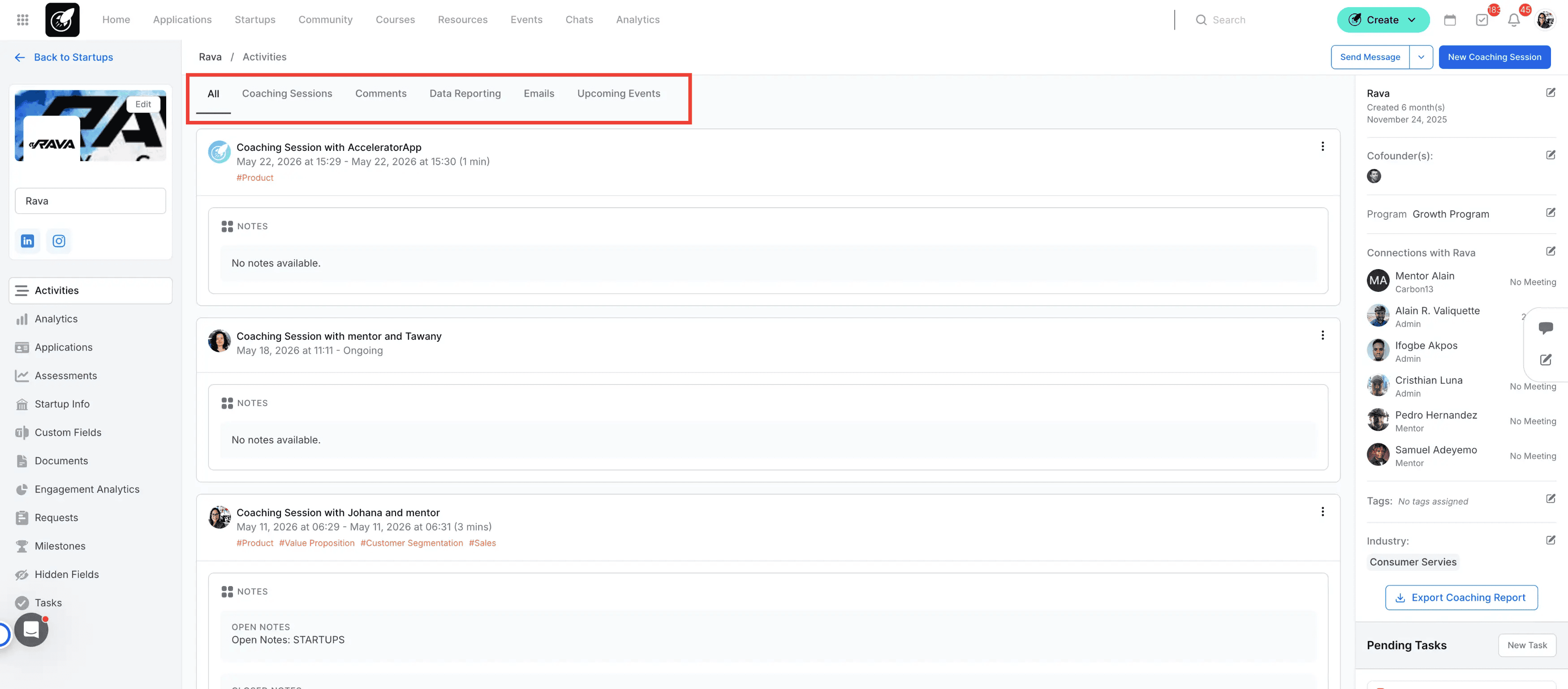
2. Monitor Metrics in the Analytics Tab
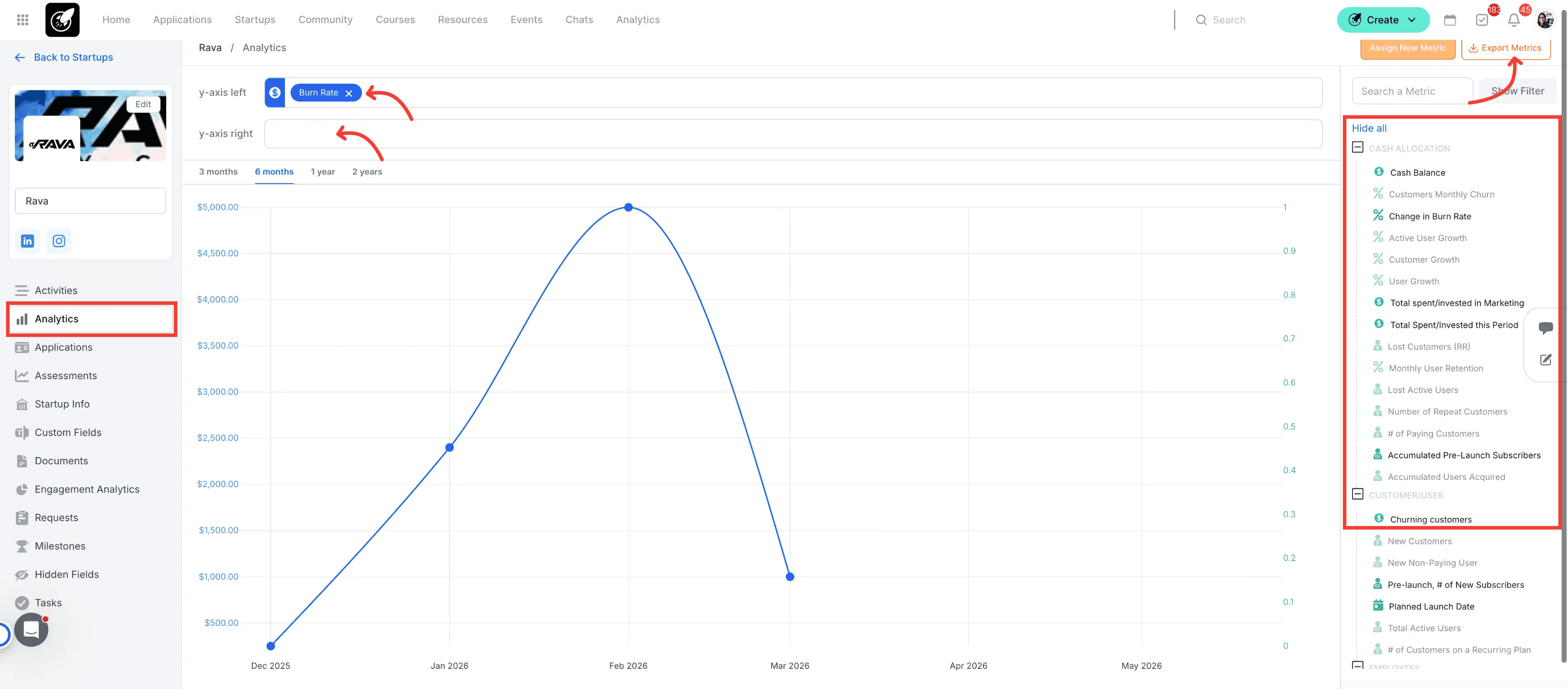
Switch to the Analytics tab to view graphical representations of monthly metrics and key performance indicators. Use the time frame filters to isolate specific semesters or years, and click the export button to download the data into an Excel spreadsheet.
3. Review Applications in the Applications Tab
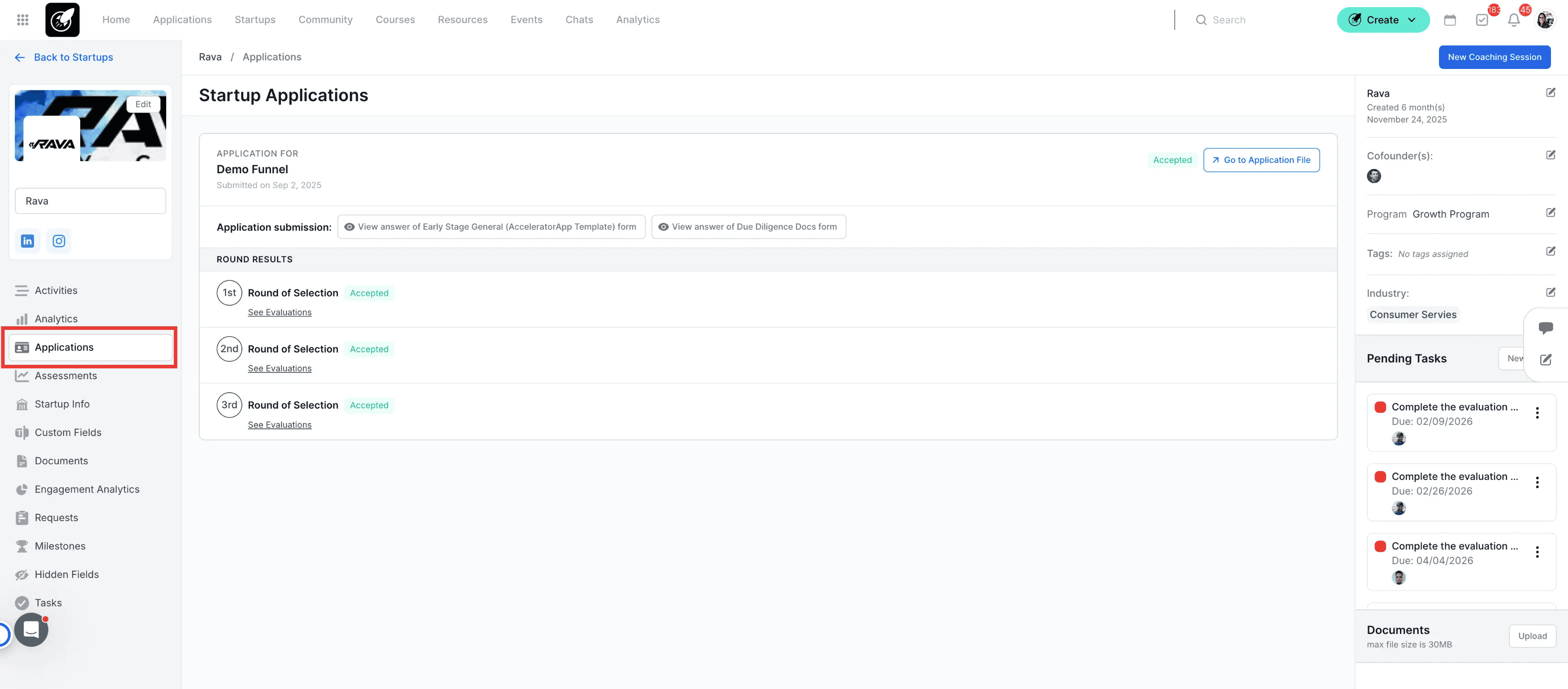
Navigate to the Applications tab to view a historical list of all applications submitted by the startup. Click on Go to Application File next to any entry to view deep-dive application answers and scores.
4. Check Evaluations in the Assessment Tab
Open the Assessment tab to review aggregated performance charts generated directly from evaluations completed during Coaching Sessions and Application Reviews.
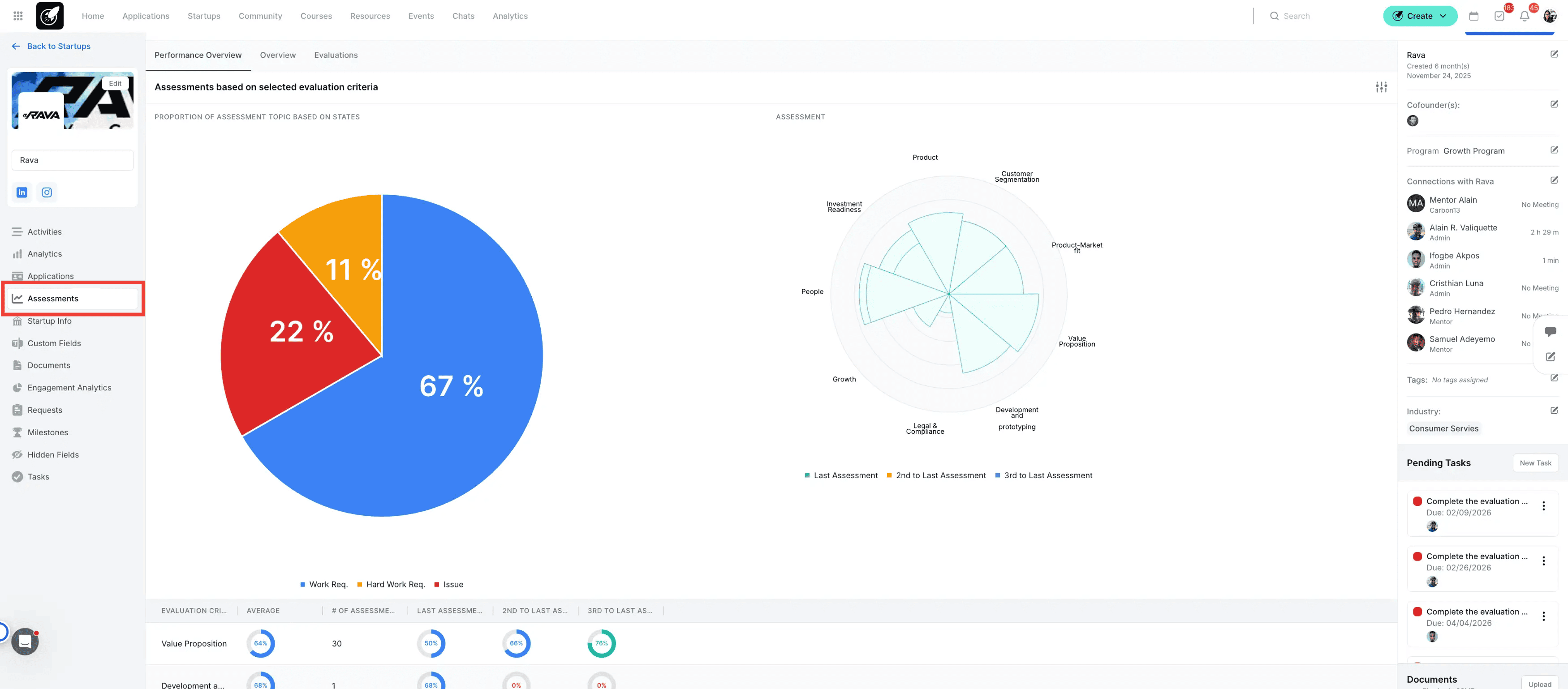
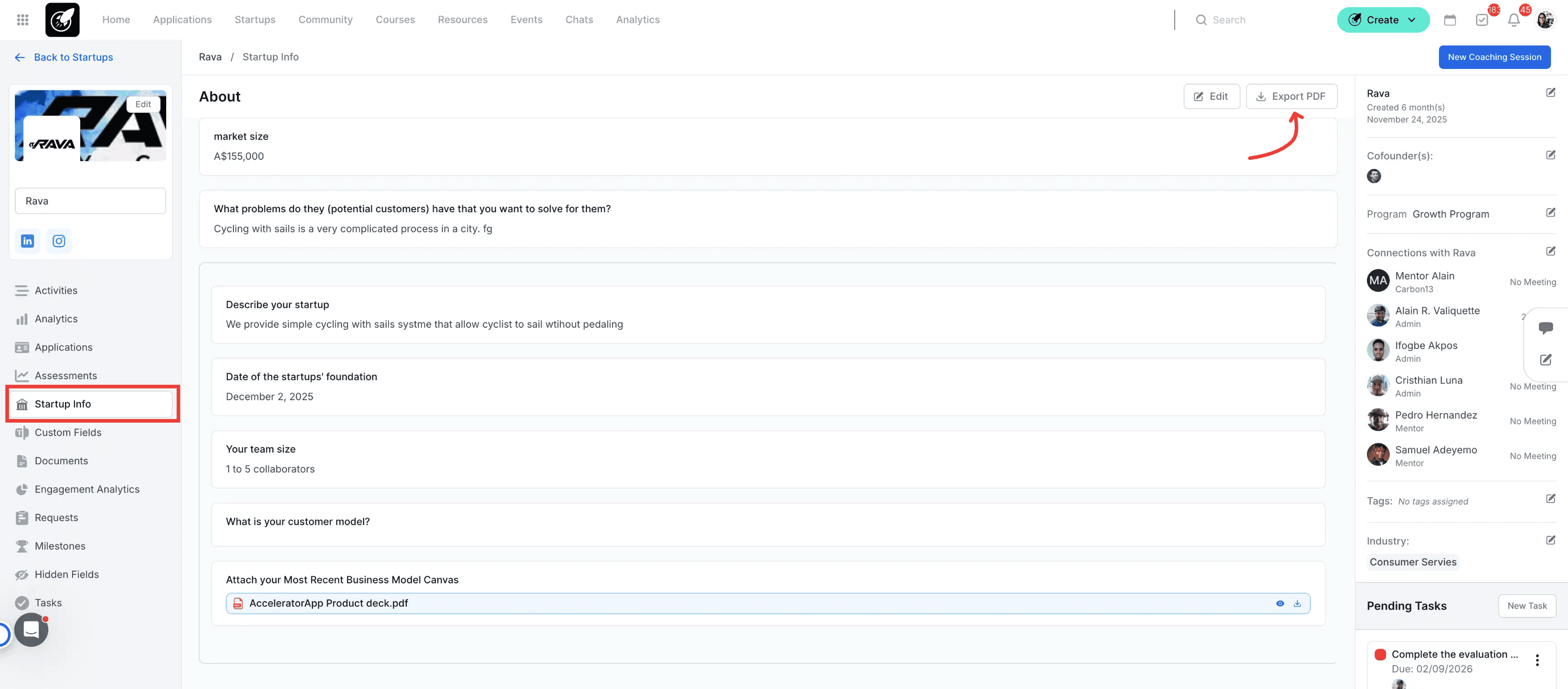
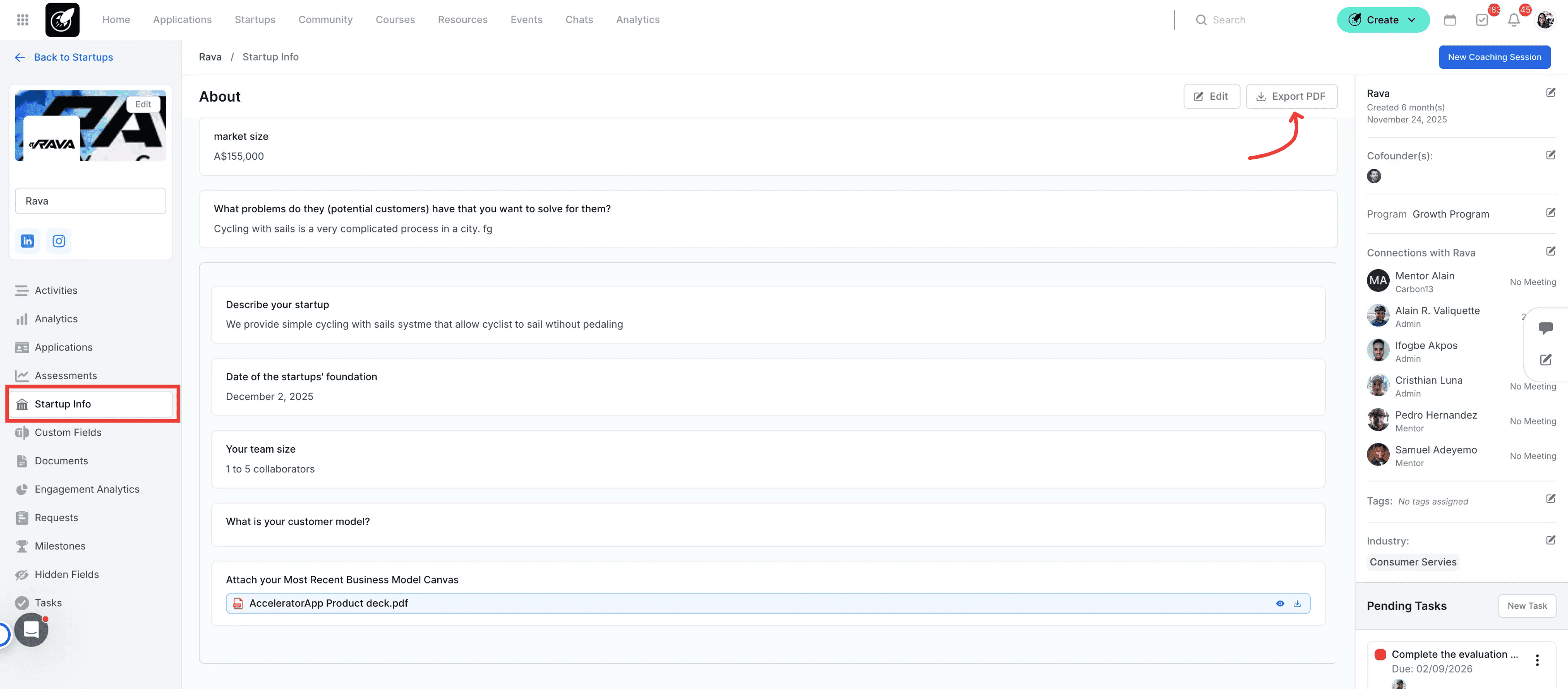
5. Edit Profiles in the Company Info Tab
Go to the Company Info tab to view or modify any profile field for the startup. You can also generate a downloadable summary of this profile at any time by clicking the PDF button.
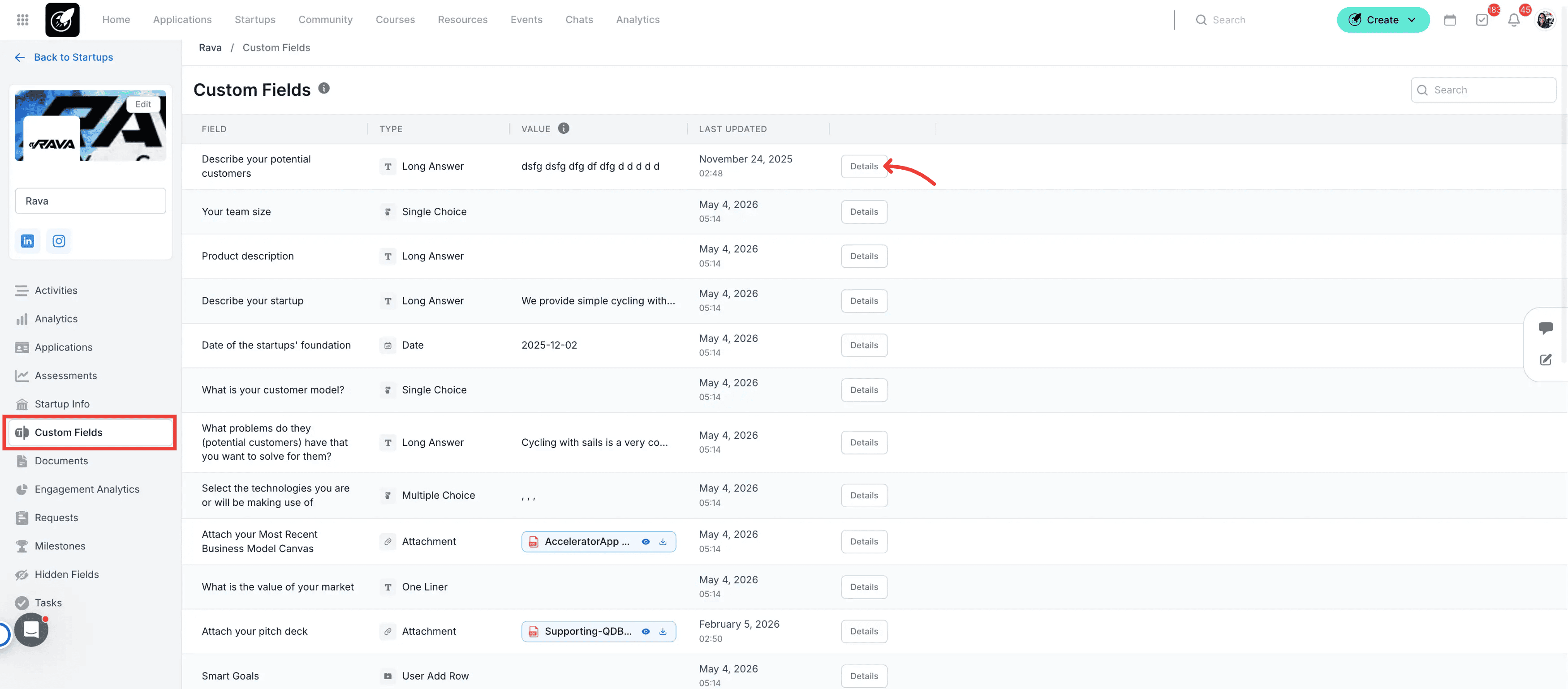
6. Audit Data History in the Custom Fields Tab
Click on the Custom Fields tab to review historical logs of how custom profile properties for that startup have changed over time, allowing you to audit past values and modifications.
7. Access Files in the Documents Tab
Click on the Documents tab to access the central repository holding every file uploaded by the startup during their application process or throughout the program.
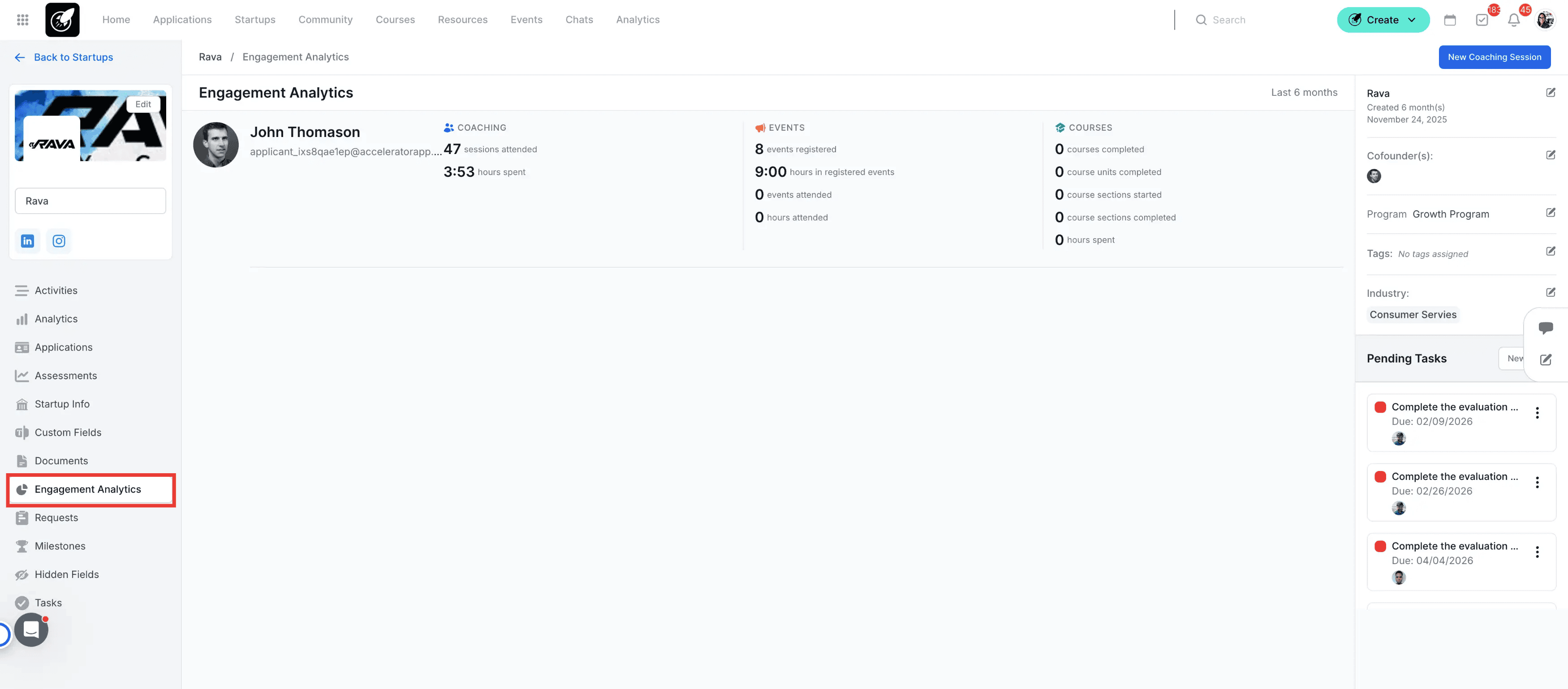
8. Track Interactions in the Engagement Analytics Tab
Click on the Engagement Analytics tab to monitor user participation metrics across the platform, including coaching sessions attended, hours spent in coaching, registered events, event attendance records, and course progress statistics.
9. Audit Responses in the Requests Tab
Select the Requests tab to view a history of all feedback requests completed by the startup. Click View next to any specific form to see their full detailed responses.
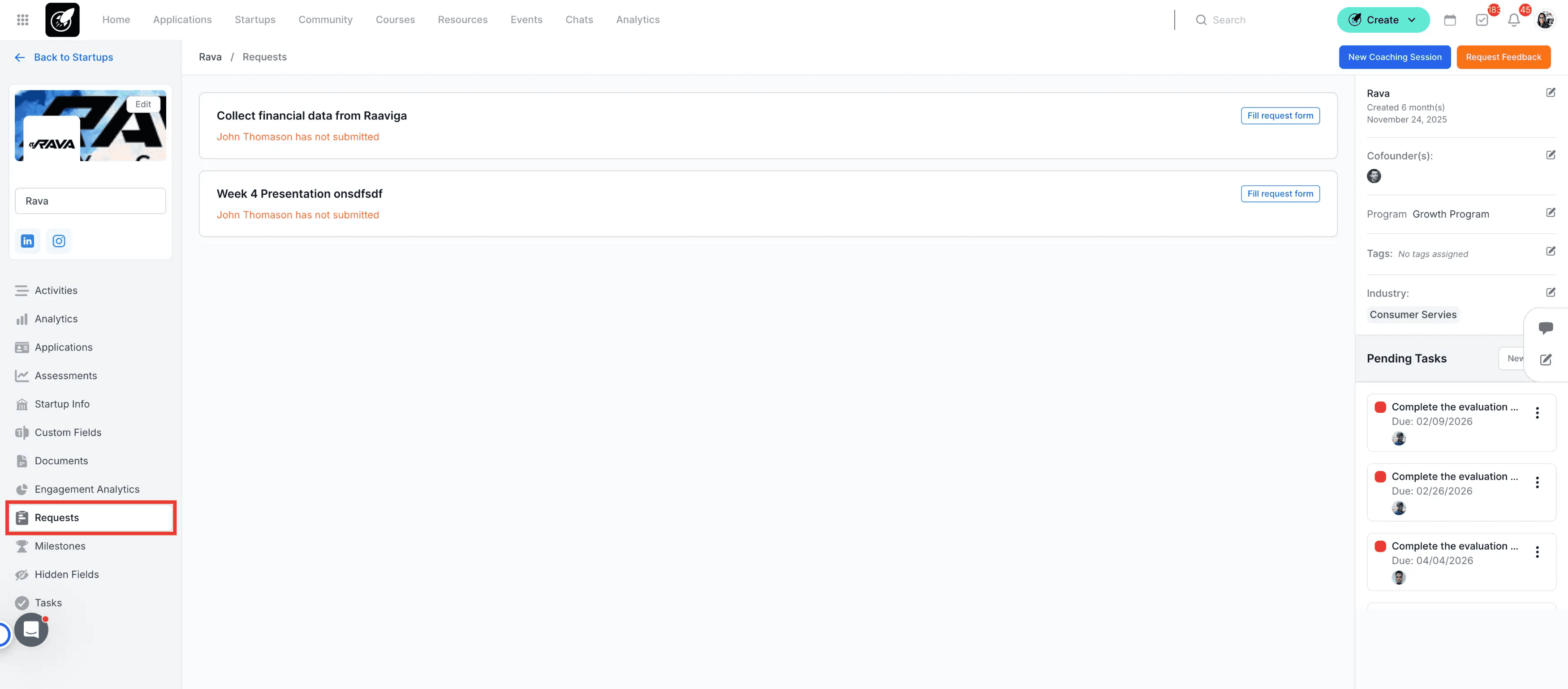
<Plan Restriction: The Requests tab feature is exclusively available on the Pro bundle or tier 3 and higher.>
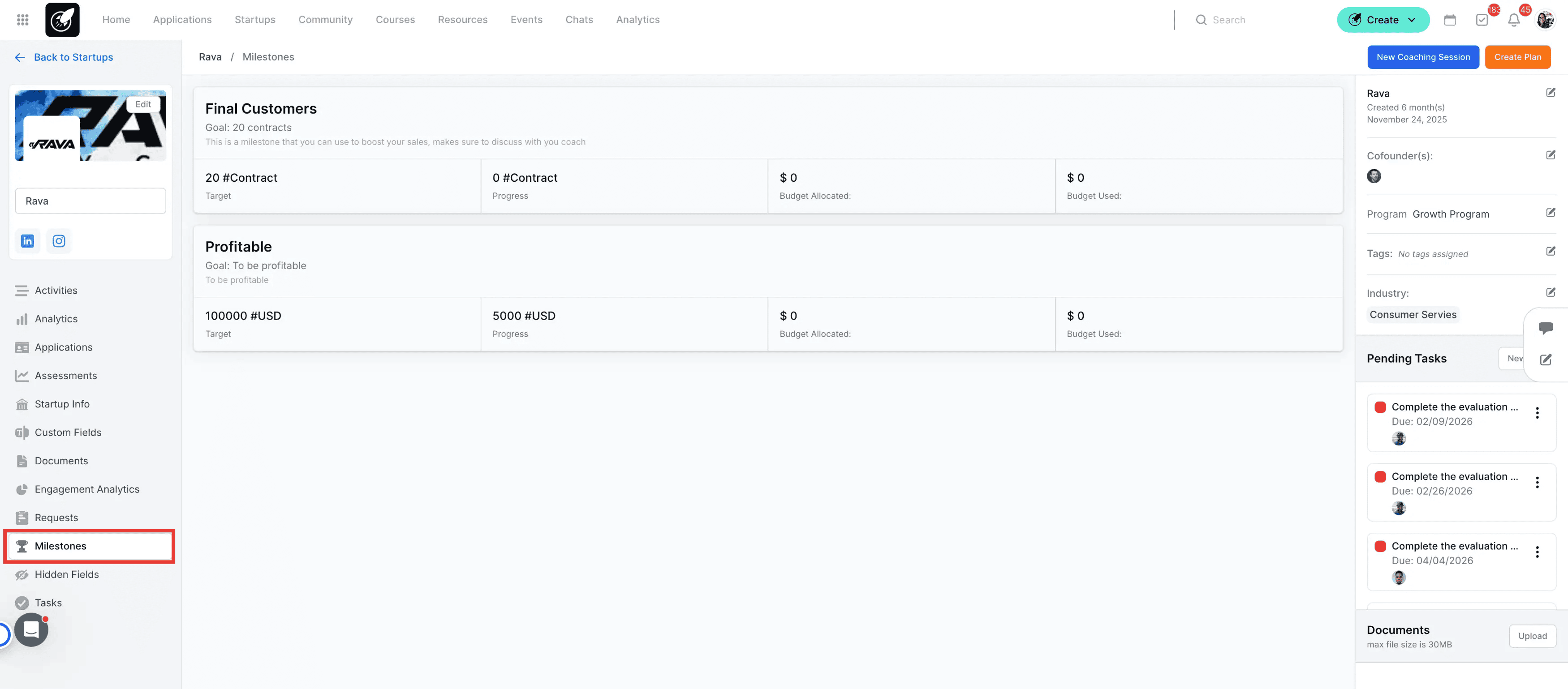
10. Monitor Targets in the Milestones Tab
Click on the Milestones Tab to view and manage specific operational or financial goals assigned to the startup. This tab tracks target objectives, real-time progress indicators, allocated budgets, and spent budgets for core goals like customer contracts or financial profitability.
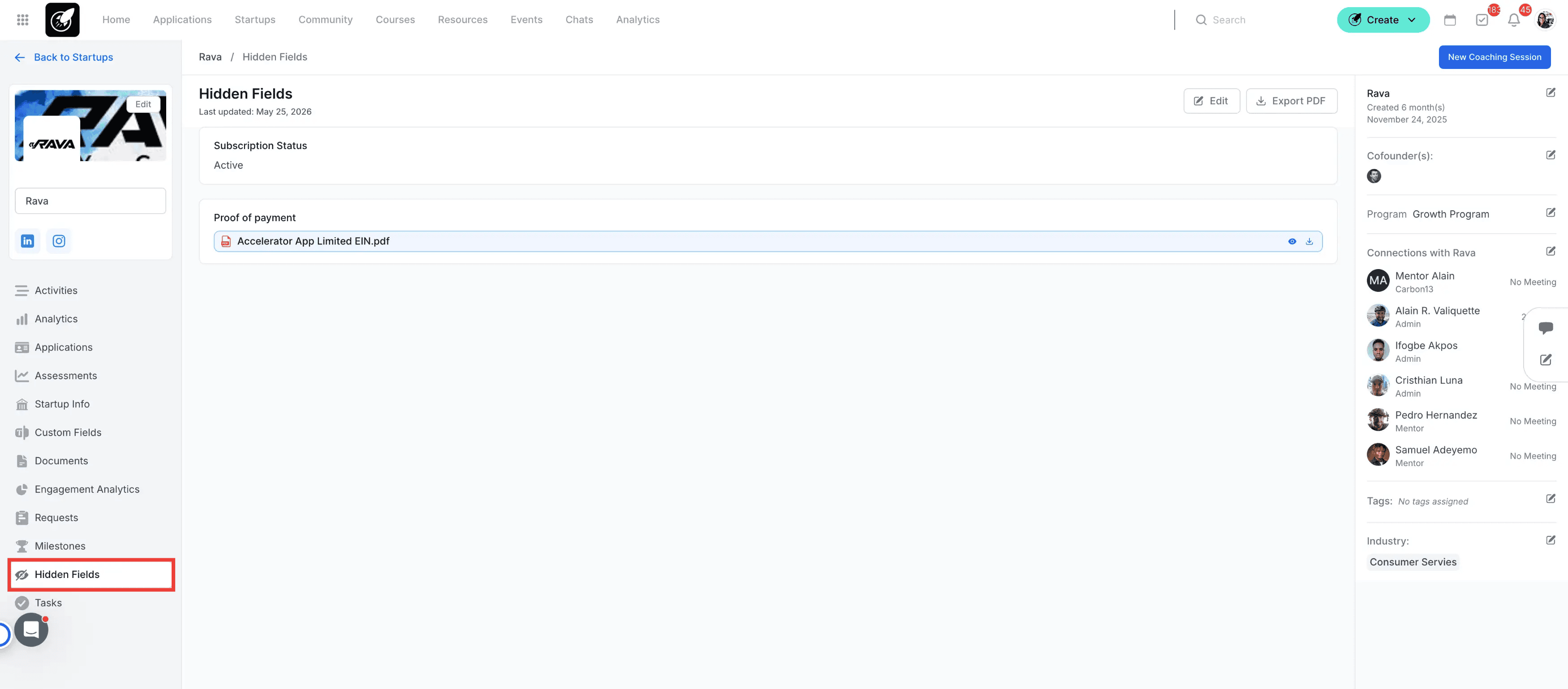
11. View Internal Metrics in the Hidden Fields Tab
Click on the Hidden Fields tab to access internal admin-only properties, funding information, and customized tracking notes that are restricted from founder visibility. To know more about hidden fields click here.
12. Manage Deadlines in the Tasks Tab
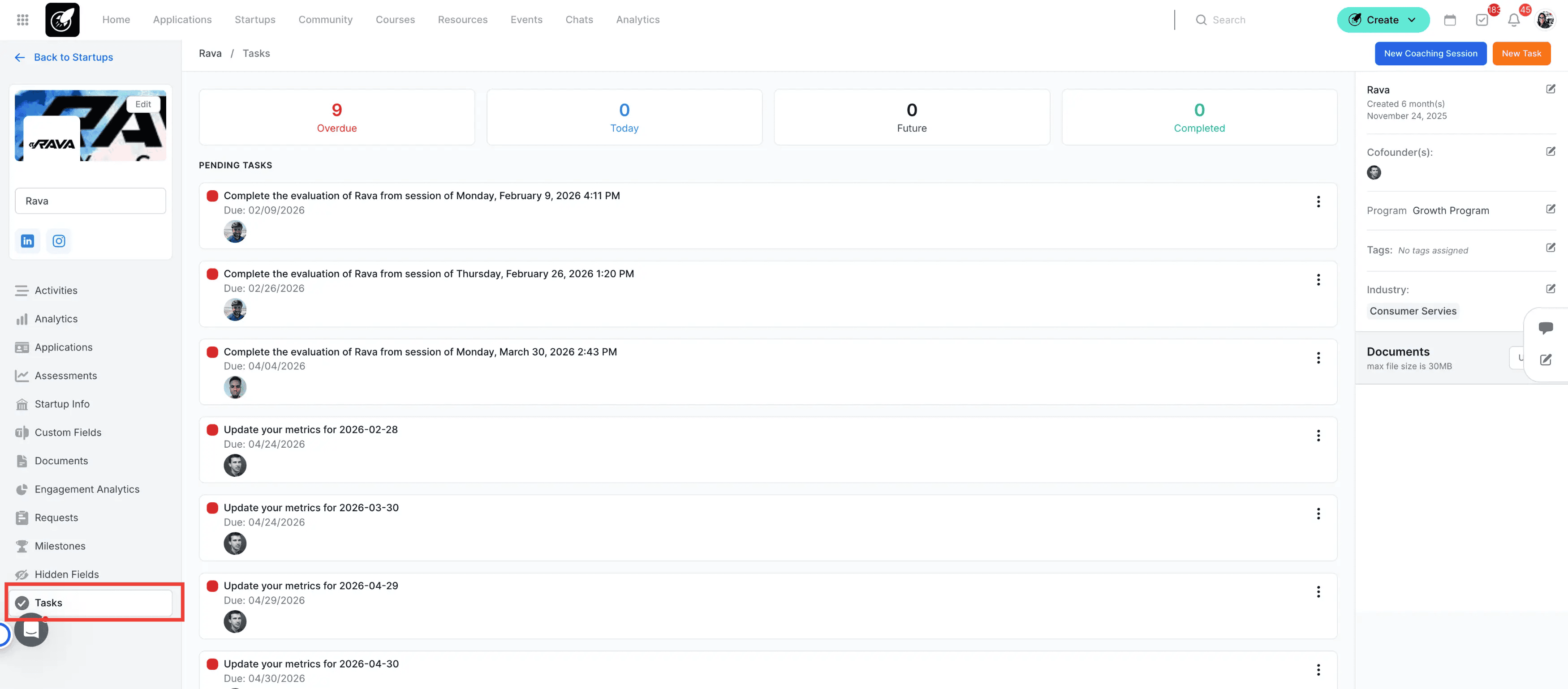
Navigate to the Tasks tab to track all items assigned to the startup, sorted cleanly by execution statuses including overdue, due today, future, and completed.
13. Customize Tab Visibility for Other User Roles
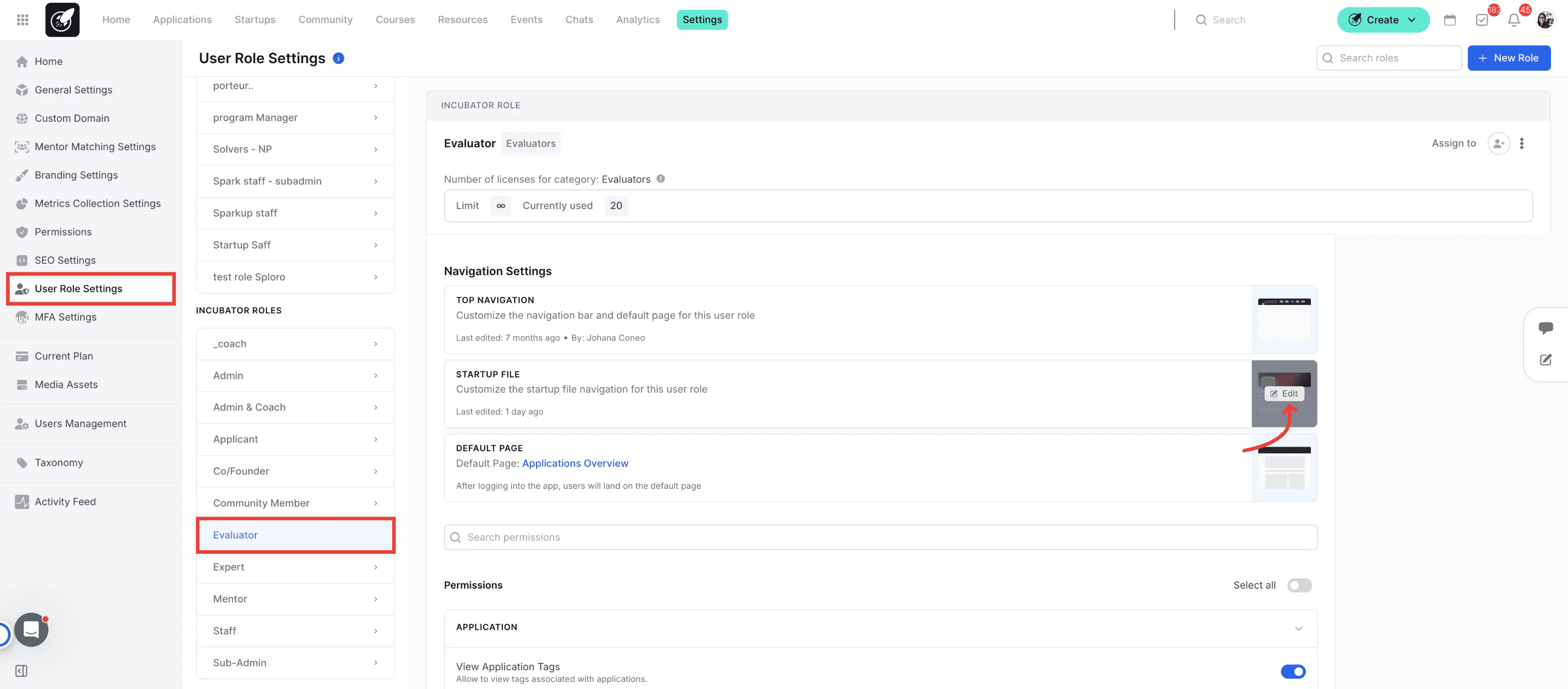
Navigate to the section User Role Settings under General Settings, if you need to restrict or open specific tabs for other user roles (such as Mentors or Evaluators), allowing you to tailor exactly what sections they can see when accessing a Startup File.
Best Practices
Utilize Filters for Speed: When checking mature startups with dense history timelines, use the specific activity filters (like coaching sessions) to skip scrolling through standard system logs.
Keep Fields Up-to-Date: Use the edit shortcuts inside the Activities or Startup Info tabs to immediately refresh tags, industries, and mentor assignments as your cohorts evolve.
Cross-Reference Milestones and Budgets: Frequently check the Milestones tab to see if a startup's progress metrics correlate accurately with their budget usage before approving additional resource funding.
Additional Resources
- How to View the Startup Portfolio?
- How to Add Startups to Your Portfolio?
- How to Import Startups with Zapier in AcceleratorApp?