


Introduction to the Gradebook
The Gradebook provides administrators, evaluators, and learners with a centralized view of performance across a course evaluations, assignments, and quizzes. It allows program managers to define unit weightages and passing grades while automatically calculating individual final grades and aggregated cohort-level statistics.
Understanding how Gradebook metrics work ensures accurate reporting and gives clear visibility into class progress and individual learner outcomes.
Note: The Gradebook feature is available in the Online Learning Tier 2 plan and above, or as part of the Pro Bundle. [KALED: please verify plan restrictions]
Where to Find Gradebook
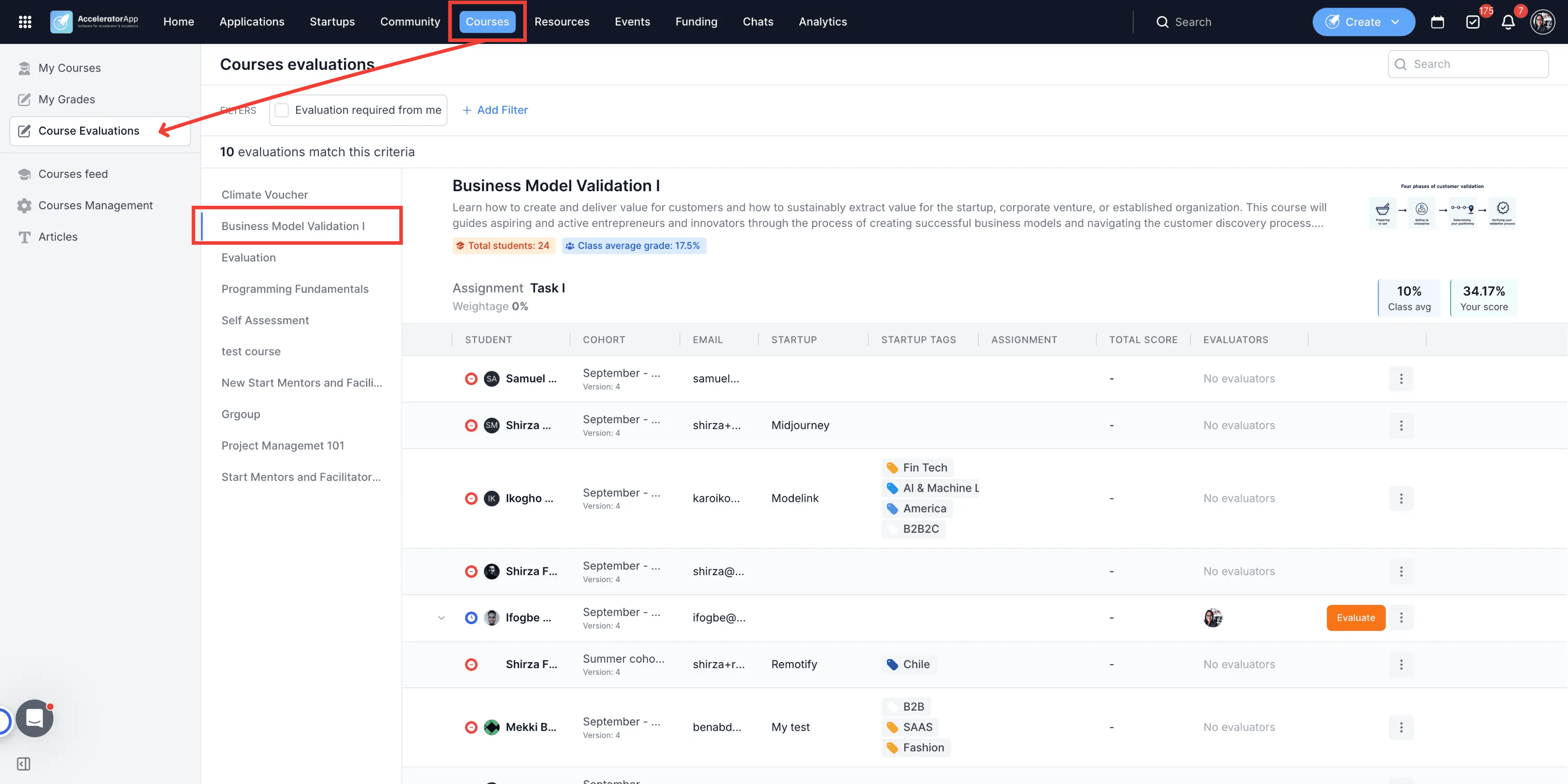
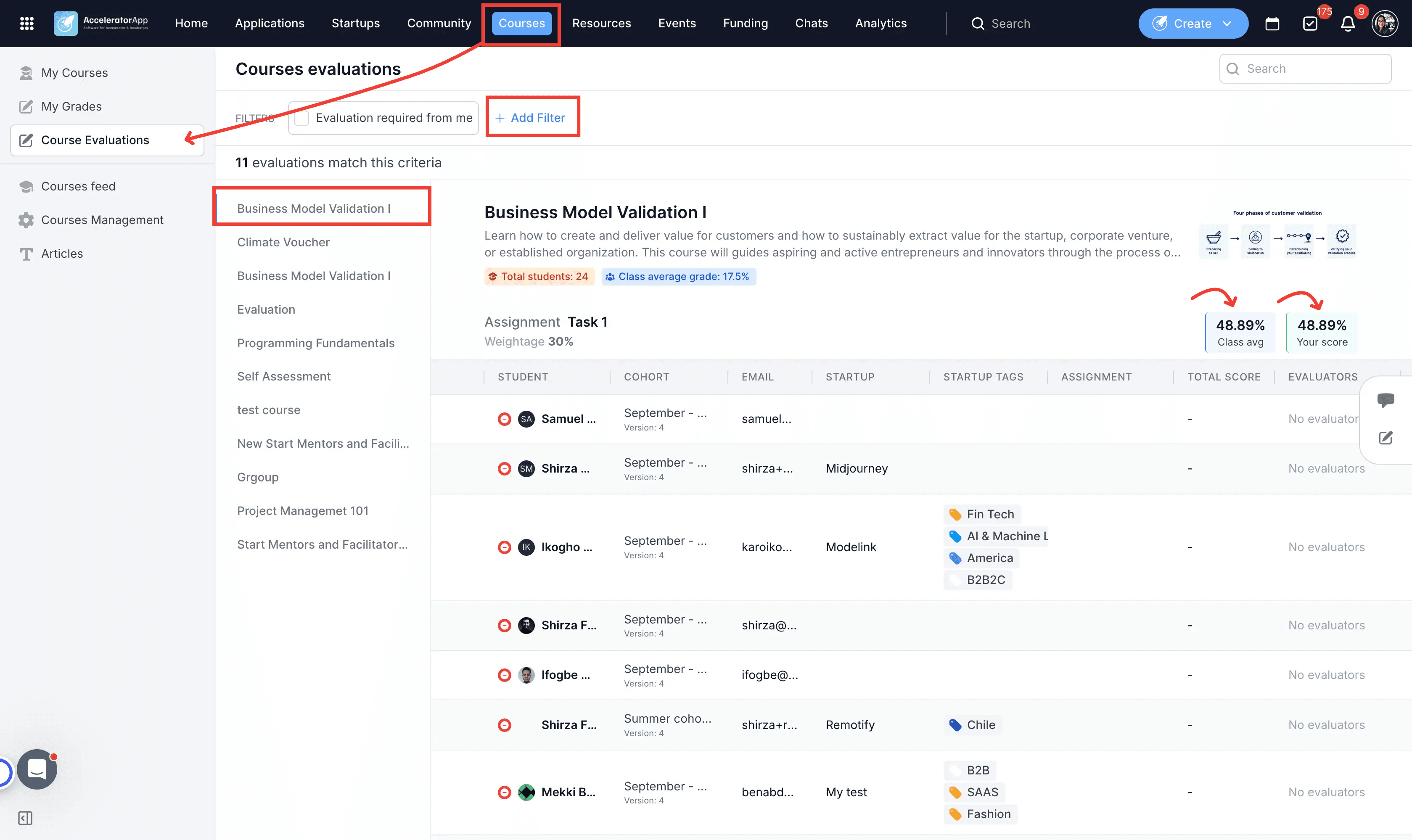
Navigate to Courses on the top menu, then select Course Evaluations tab and the specific Course to view cohort-level performance
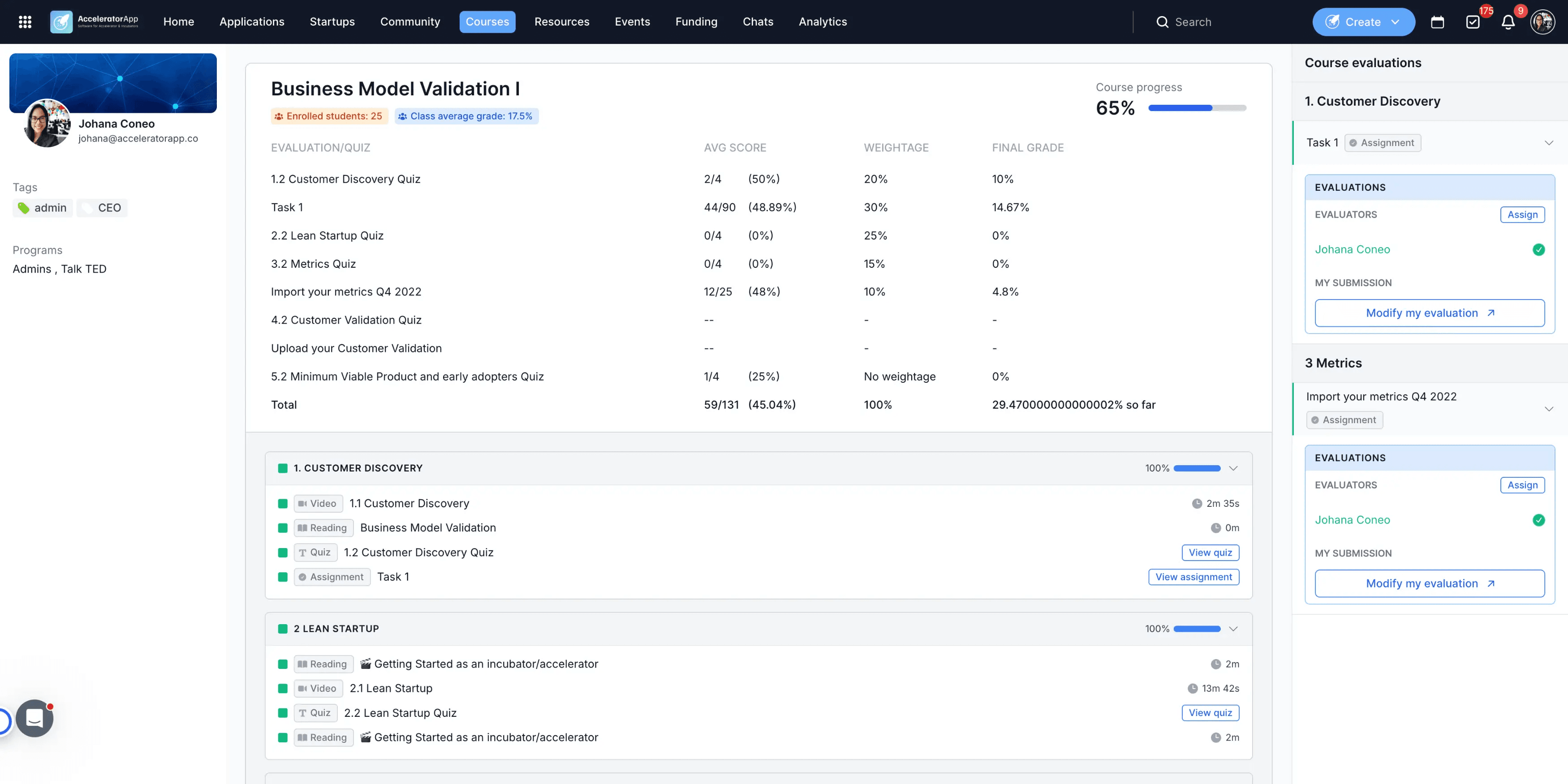
Open a student's profile to view individual performance.
Step-by-Step
1. Configure Unit Weightage and Passing Grade
Set up how individual items impact total score calculations inside the course builder.
- Unit Weightage: Assign a percentage weight to each assignment, submission, or quiz.
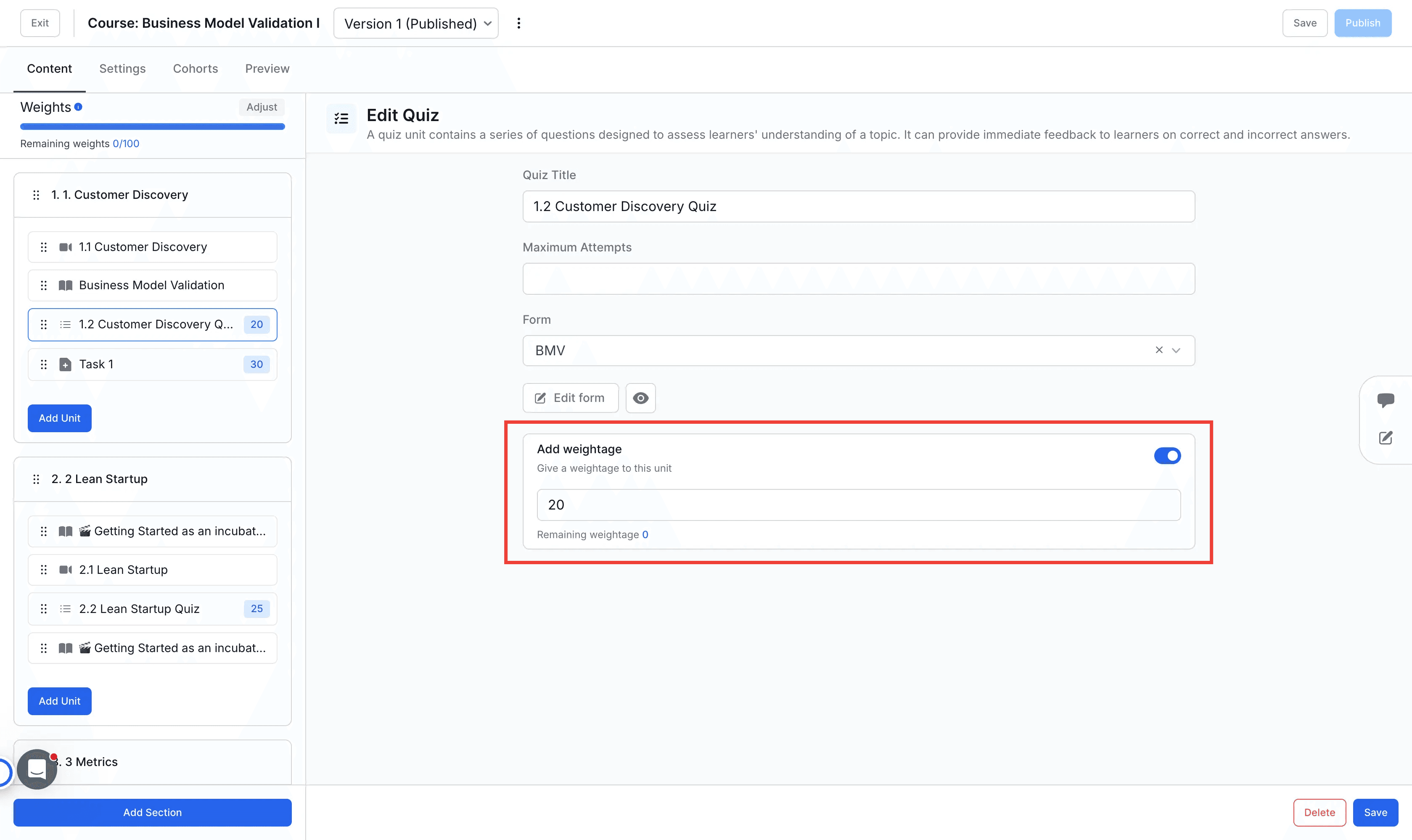
Default Weightage Behavior: If no weightage is specified anywhere in a course, the system includes all gradable units equally in score calculations, including quizzes.
Weighted Behavior: Once weightage is assigned to any unit, weightage takes over completely. Any unit left without an assigned weight (0% or unweighted) is automatically excluded from total grade and average calculations.
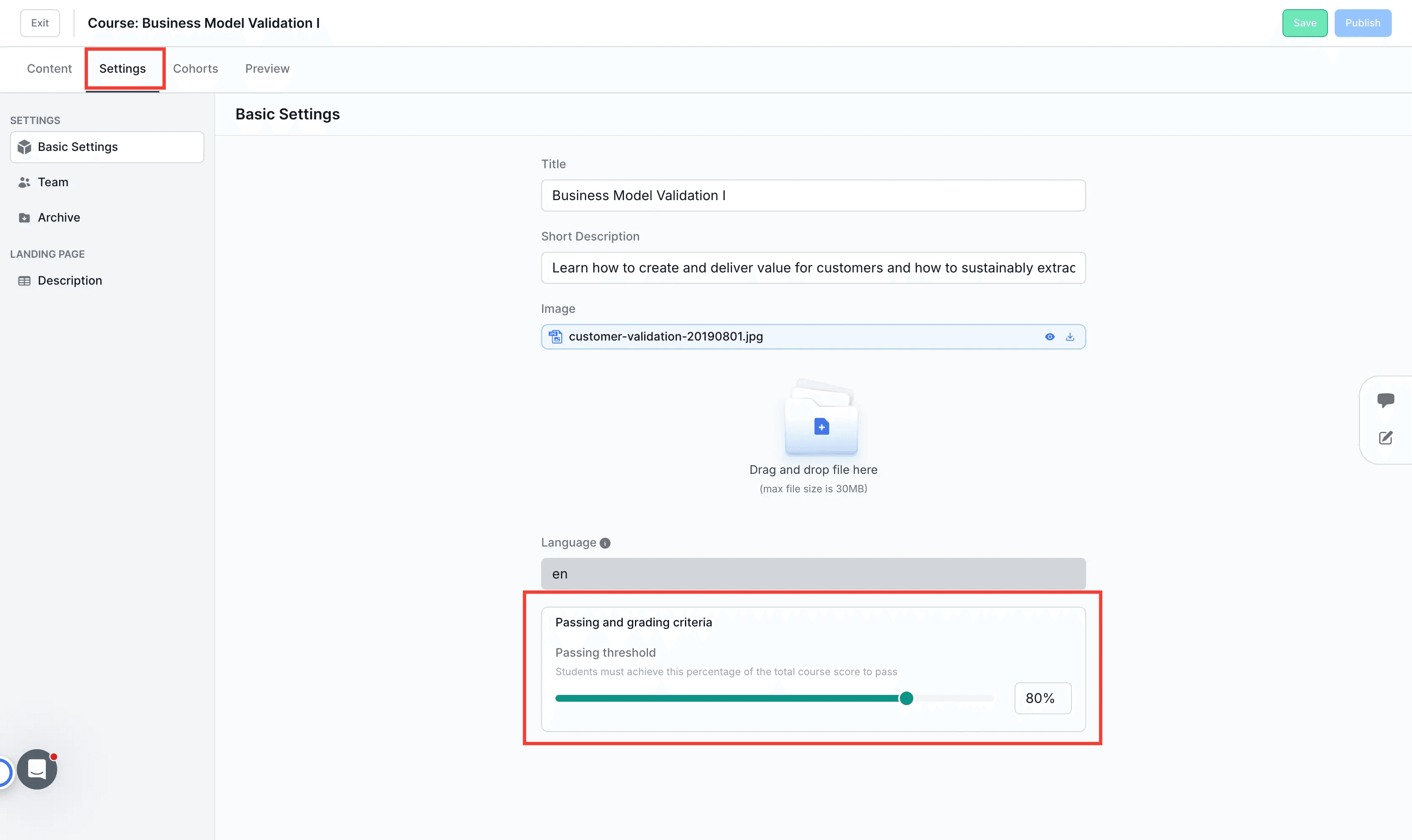
Passing Grade: Set the minimum required percentage or points a learner must reach to pass a course.
2. Analyze Cohort-Level Performance Metrics
Navigate to Courses > Course Evaluations and select your target course to view overall program metrics.
Class Average Grade: This metric represents the aggregated performance level of the entire cohort, calculated as the mean score across all enrolled students in the course. Unweighted units are automatically excluded from this calculation once weightage is configured on the course.
Cohort View Table: Displays a structured breakdown of each learner alongside their submission status, assigned evaluators, and total calculated scores.
Cohort Filters: Filter data to narrow down evaluation results by Student, Startup, or Startup Tags to focus on specific segments of your cohort.
3. Analyze Individual Learner Performance Metrics
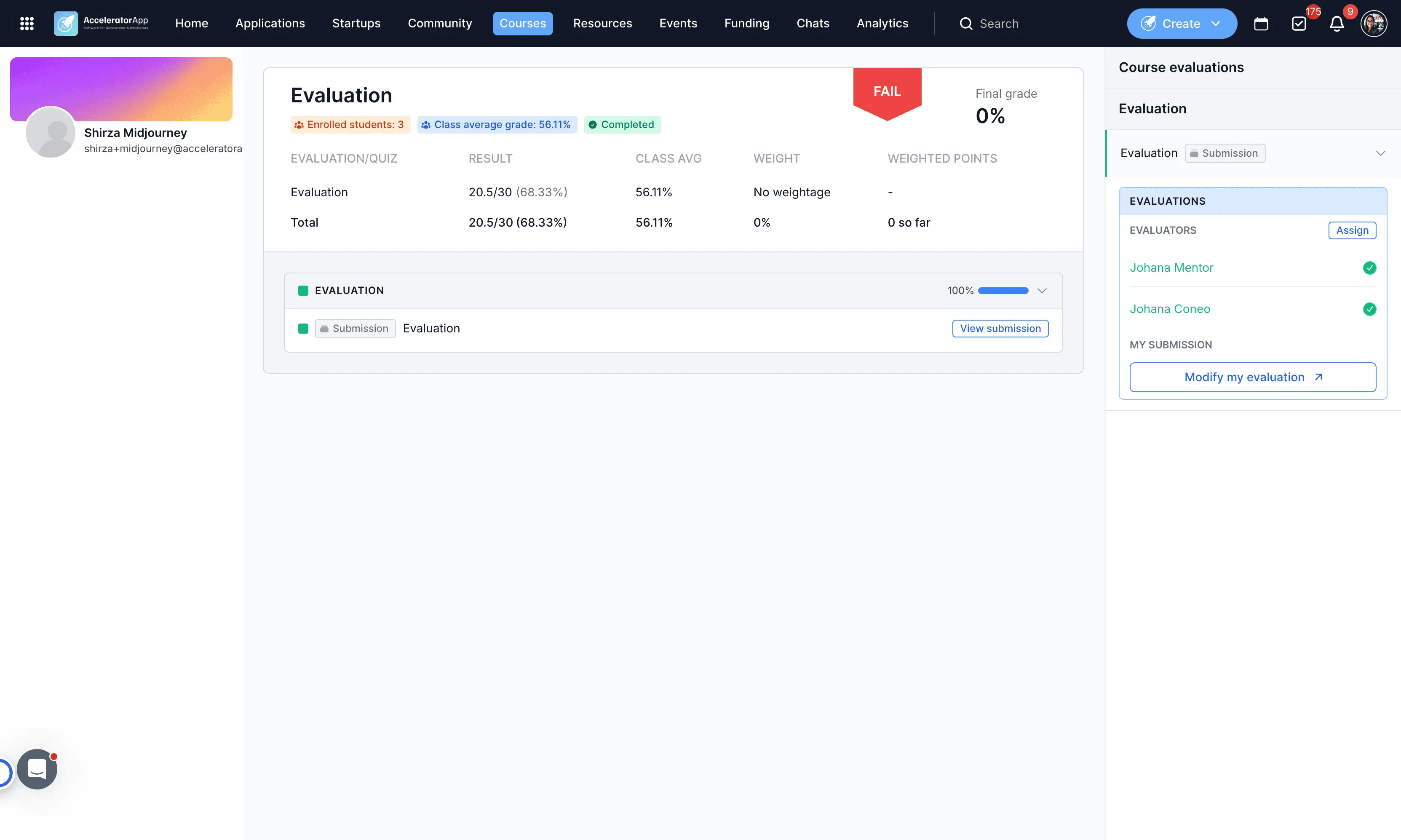
Open a specific student's profile to see individual performance metrics:
Course Progress: This metric measures the student's completion rate, showing the percentage of finished modules and units relative to the total required course content.
Avg Score: Represents the raw academic achievement of the student before weightages are applied. It displays raw points earned versus total possible points (e.g., 56/90) along with the raw percentage achieved for each unit.
Weightage: Defines the specific weight or importance percentage assigned to each unit relative to the entire course. Items marked as "No weightage" do not factor into final score calculations.
Final Grade: Represents the weighted cumulative outcome. It shows the weighted score earned for each item based on its assigned weightage percentage, along with the total accumulated final grade so far (e.g., 0% so far).
4. Review Individual Module Details
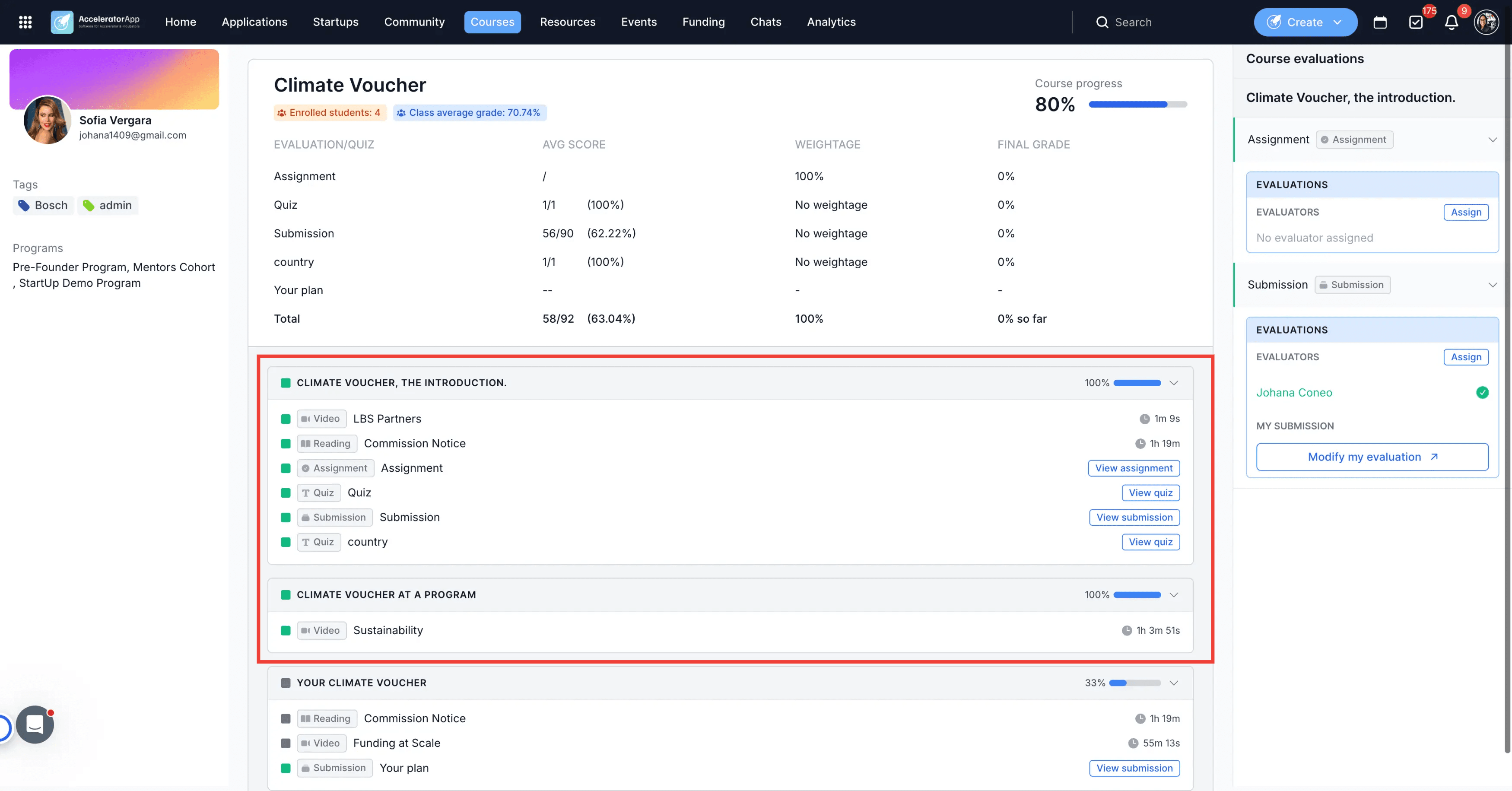
Scroll down the Students's Gradebook page to view unit-by-unit progress across course modules.
Track completion indicators for videos, readings, assignments, and quizzes.
Click action buttons such as View assignment, View quiz, or View submission to inspect submitted work directly.
Best Practices
Define unit weightages before launching a course to ensure the Class Average Grade calculates correctly from day one.
Remember that assigning weightage to even one unit automatically excludes all unweighted units from final calculations.
Set practice quizzes or non-graded assignments to "No weightage" to prevent them from affecting overall grades.
Regularly review the cohort-level Class Average Grade to identify topics where multiple students may be struggling.