


Introduction to Updating a User's Email Address
Admins, sub-admins, and users with the right permissions can update a user's email address directly from their profile, without needing the user to do it themselves. This is useful when a user loses access to their original inbox or needs their contact information corrected.
End users can also update their own email address the same way, directly from their own profile. To know how click here
Where to Find a User's Profile
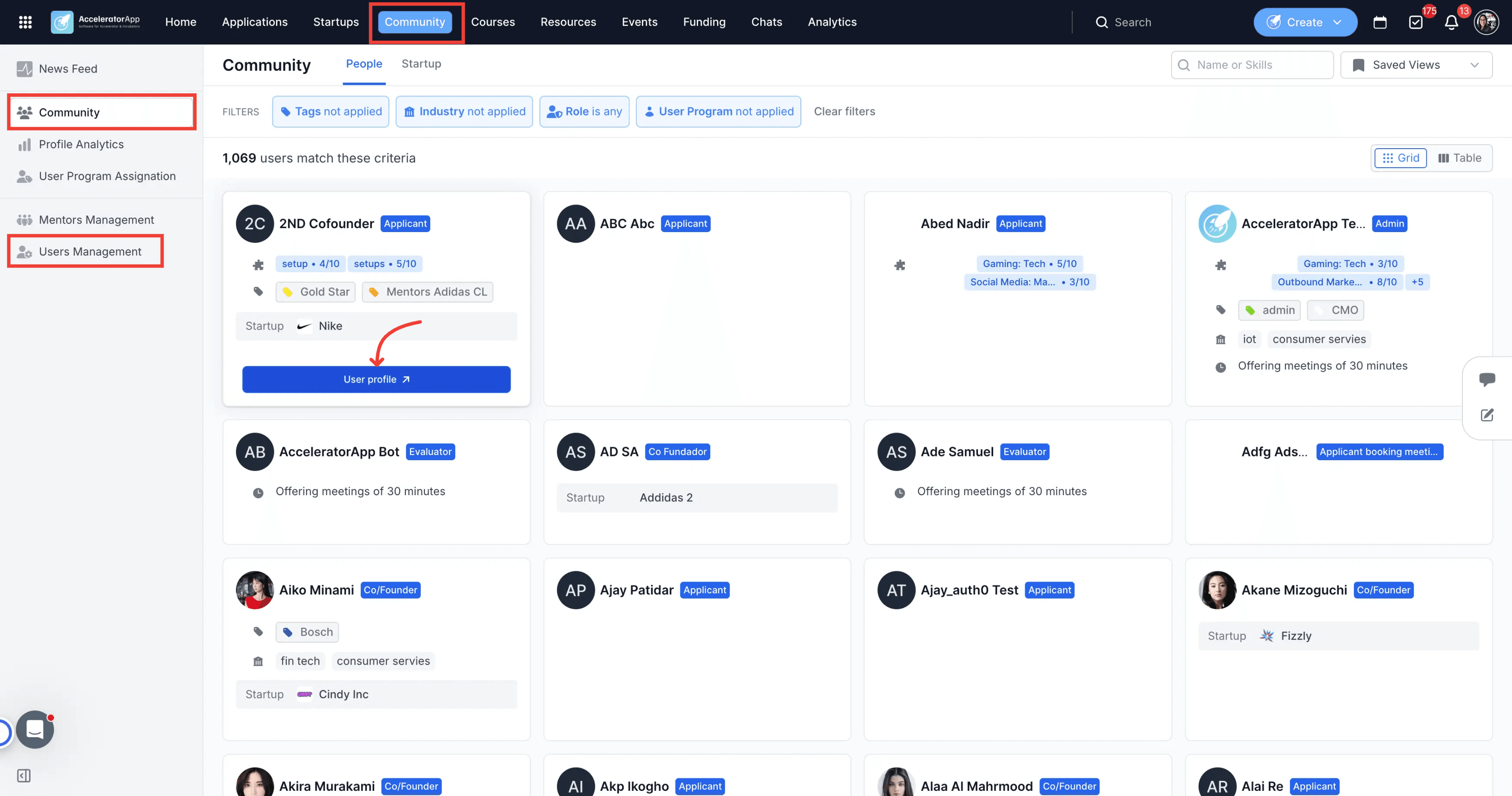
Find the user's profile either from User Management or from Community.
Step-by-Step
1. Open the User's Profile
Go to User Management or Community, and open the profile of the user whose email you want to update.
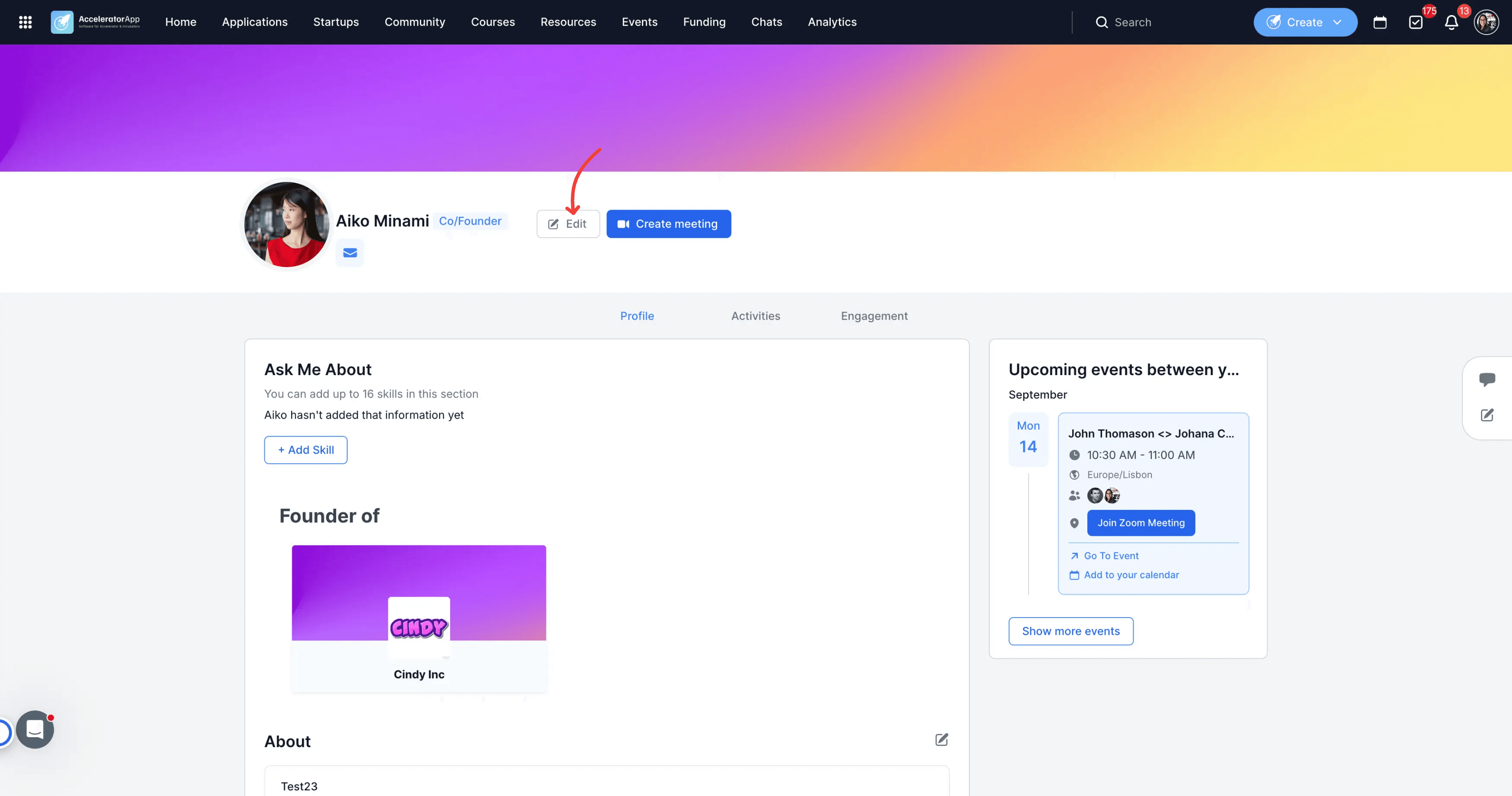
2. Click Edit
Click Edit on the user's profile.
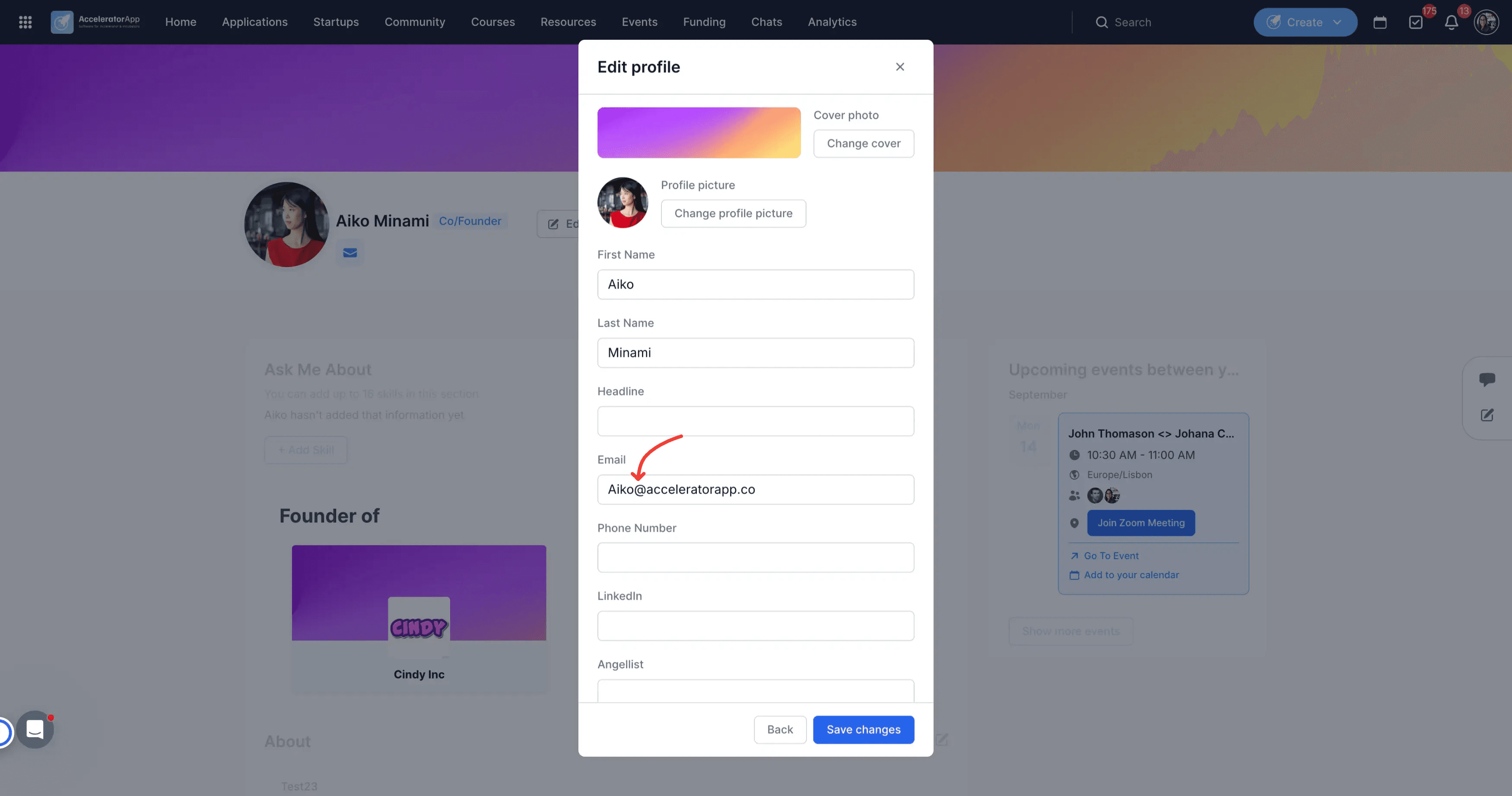
3. Enter the New Email Address
Enter the new email address and save your changes.
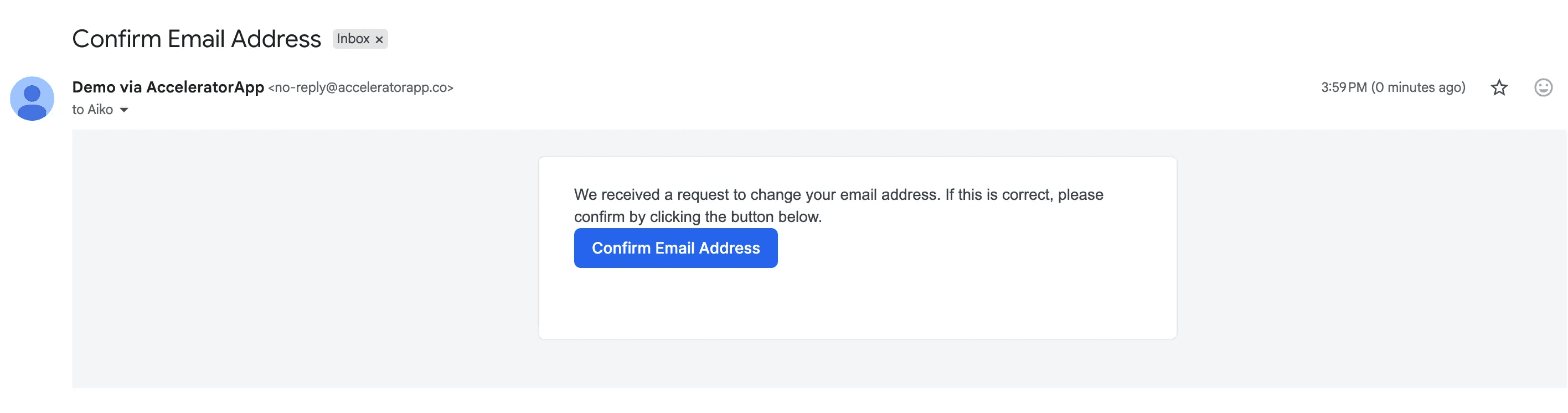
4. Wait for Verification
The system saves the change and sends a verification email to the new address. The user's previous email address remains active until the new one is verified — the end user must click the verification link themselves to complete the change.
Best Practices
- Only Admins, Sub-Admins, or users with the appropriate permissions can update another user's email address — if you don't see the Edit option, check your role permissions.
- The old email stays active until the new one is verified, so the user can still receive communications and log in during the transition.
- Let the user know a verification email was sent, the change isn't complete until they click the link themselves.