


Introduction to the User Program Assignation
The User Program Assignation module inside AcceleratorApp functions as a centralized workspace that tracks when individual community members, mentors, or participants are active within specific non-startup tracks. This tracking interface provides full operational transparency by logging key historical milestones, including designated start points, completion dates, and total calculated program durations.
Utilizing this feature resolves the difficulty of managing fluid, individual-focused timelines, such as independent mentorship cycles or rolling volunteer tracks, that operate outside of structured startup ventures. Instead of managing fragmented communication or tracking entries manually across multiple profile cards, platform administrators benefit from a clean, unified dashboard. Keeping these data blocks current guarantees that automated dashboard updates, event scheduling access, and individual training milestones route correctly across your ecosystem.
Where to Find User Program Assignation
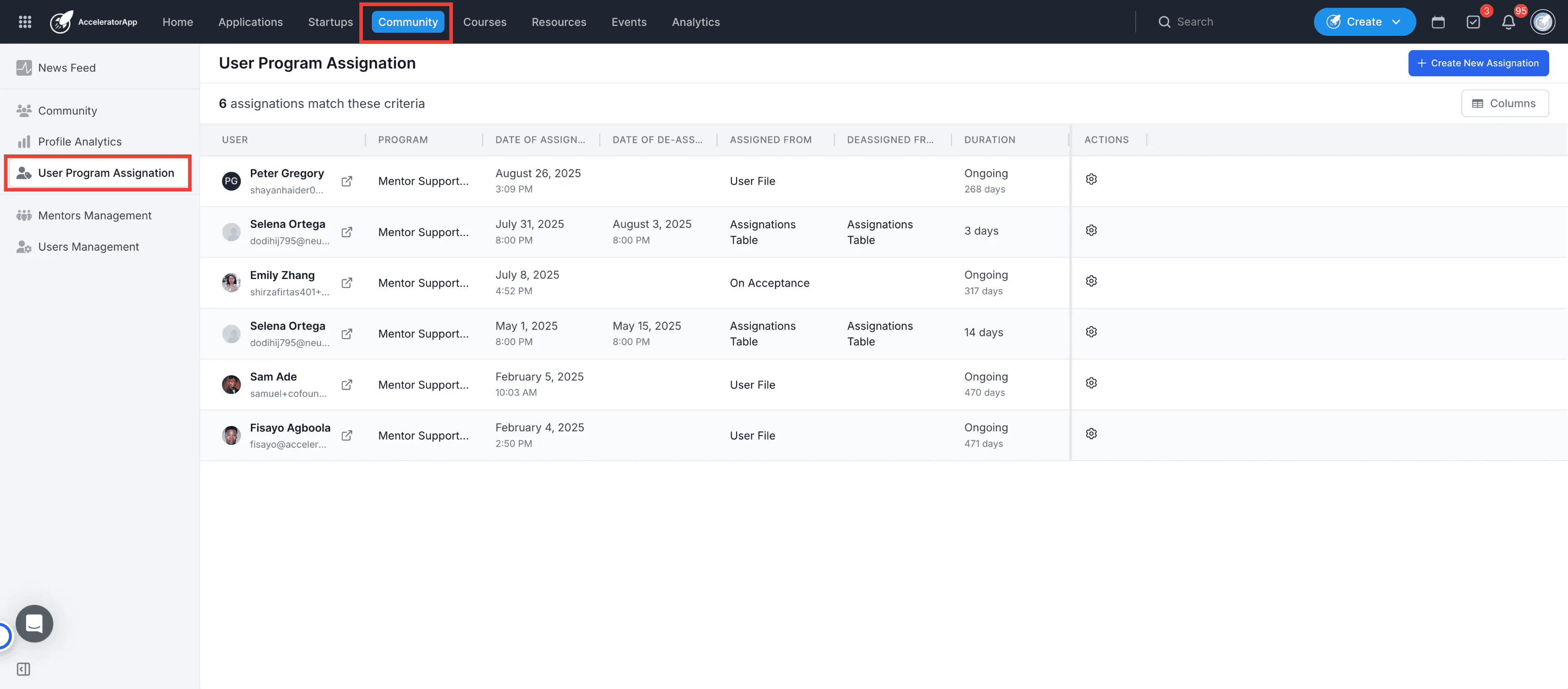
To open this overview dashboard, navigate to the Community module located in your primary platform sidebar menu and select User Program Assignation.
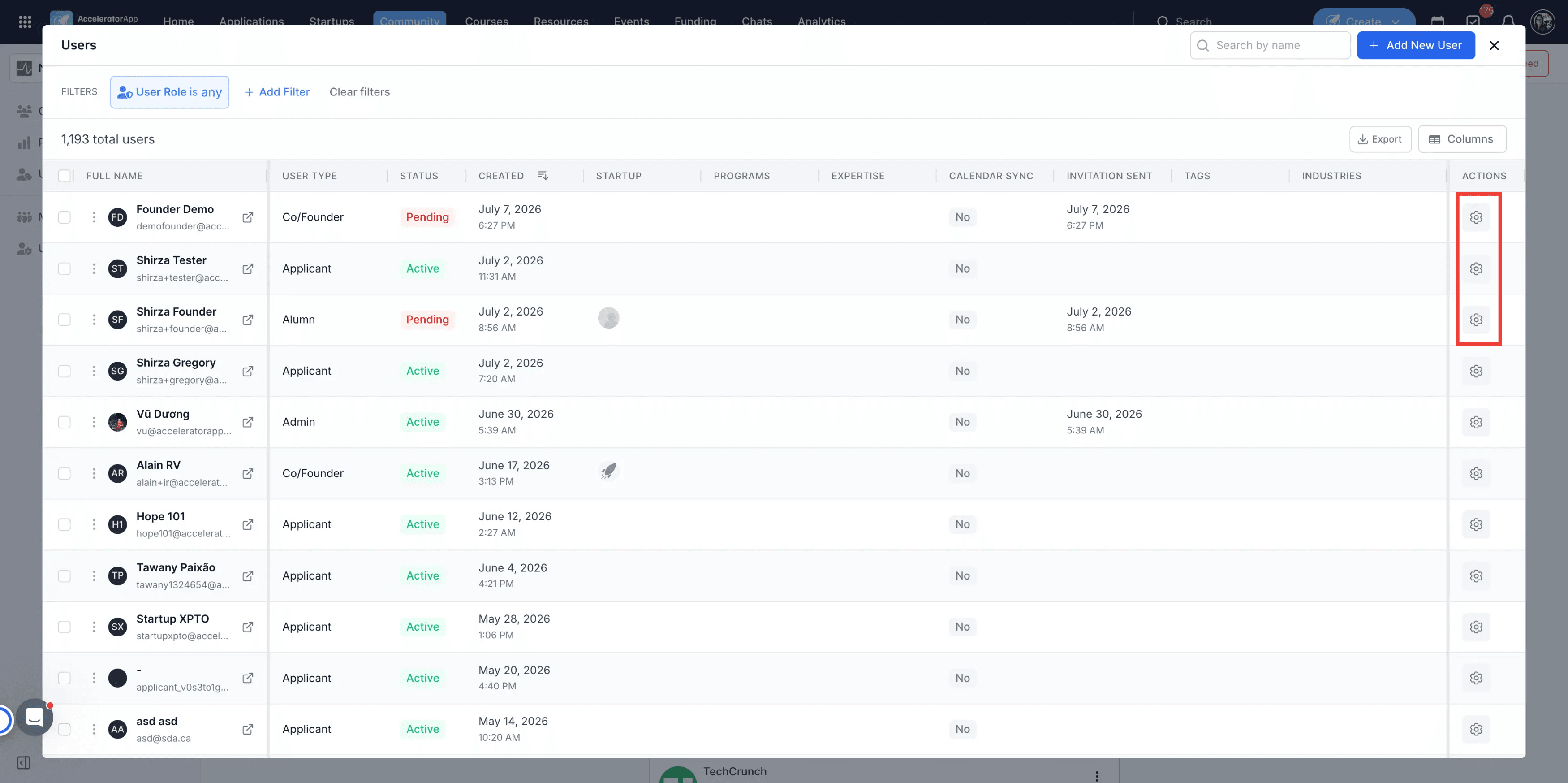
Or Navigate to Community > User Management
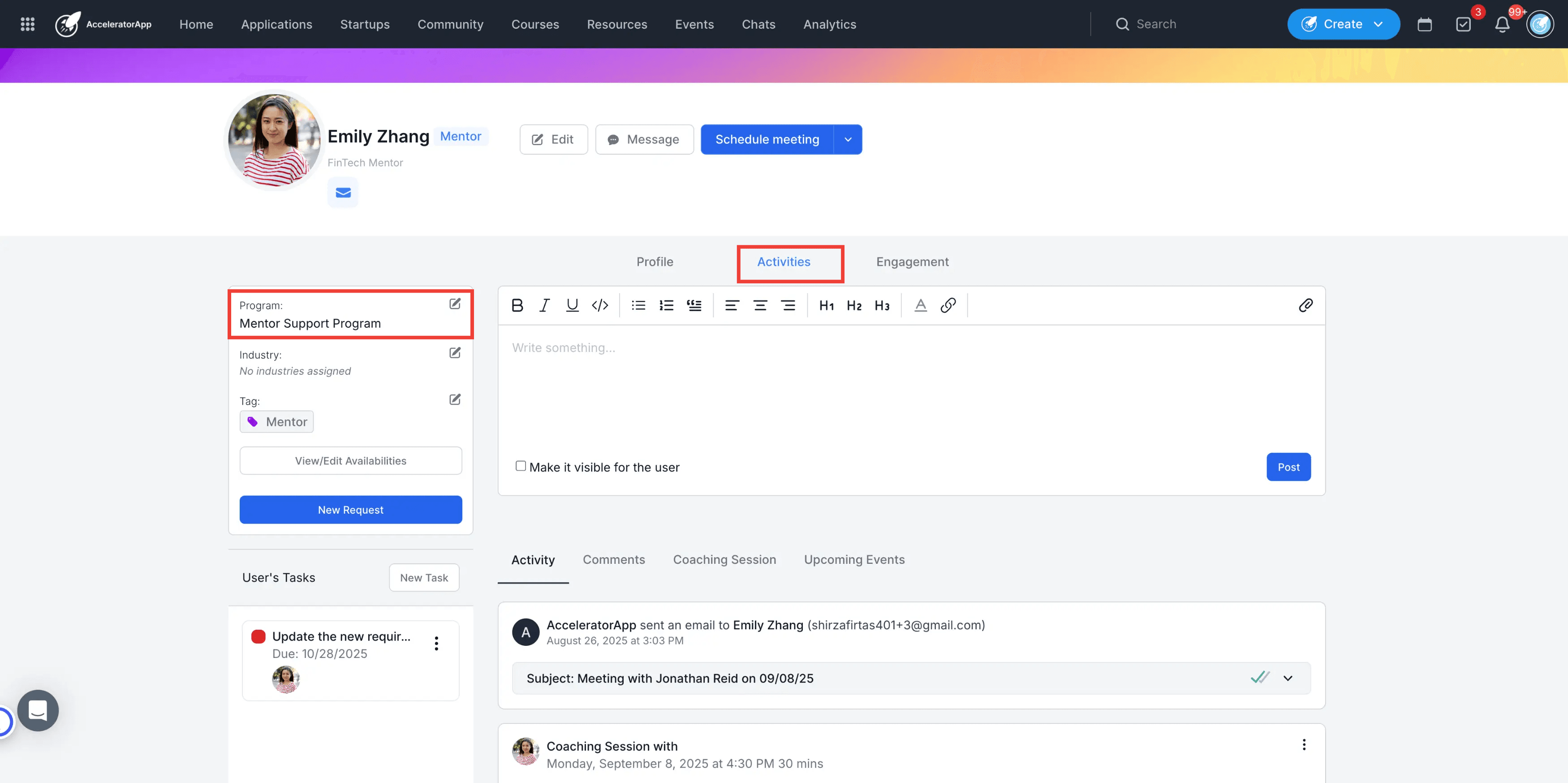
You can also access program settings directly within any individual User Profile.
Step by Step
1. Open the User Program Assignation dashboard
Navigate to the Community module in your platform panel and select User Program Assignation to display the current directory ledger.
2. Audit existing member profiles
Review the master table layout to analyze your list of currently assigned users alongside their linked program environments.
3. Validate user placement parameters
Examine the active Start Date, End Date, and calculated Duration metrics columns to track the exact lifespan of each individual cohort placement.
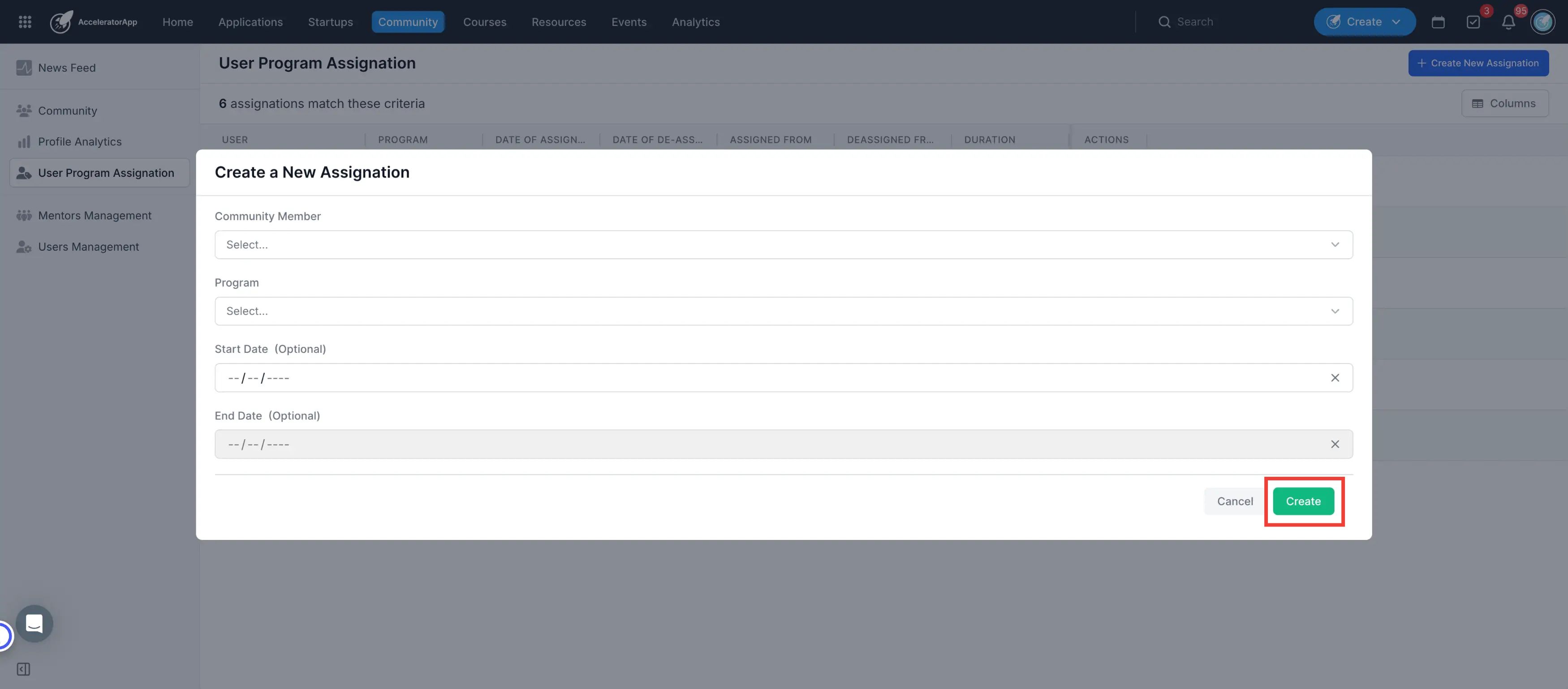
4. Launch the assignment setup window
Click on the blue New Assignation button positioned in the top-right toolbar section of the ledger screen.
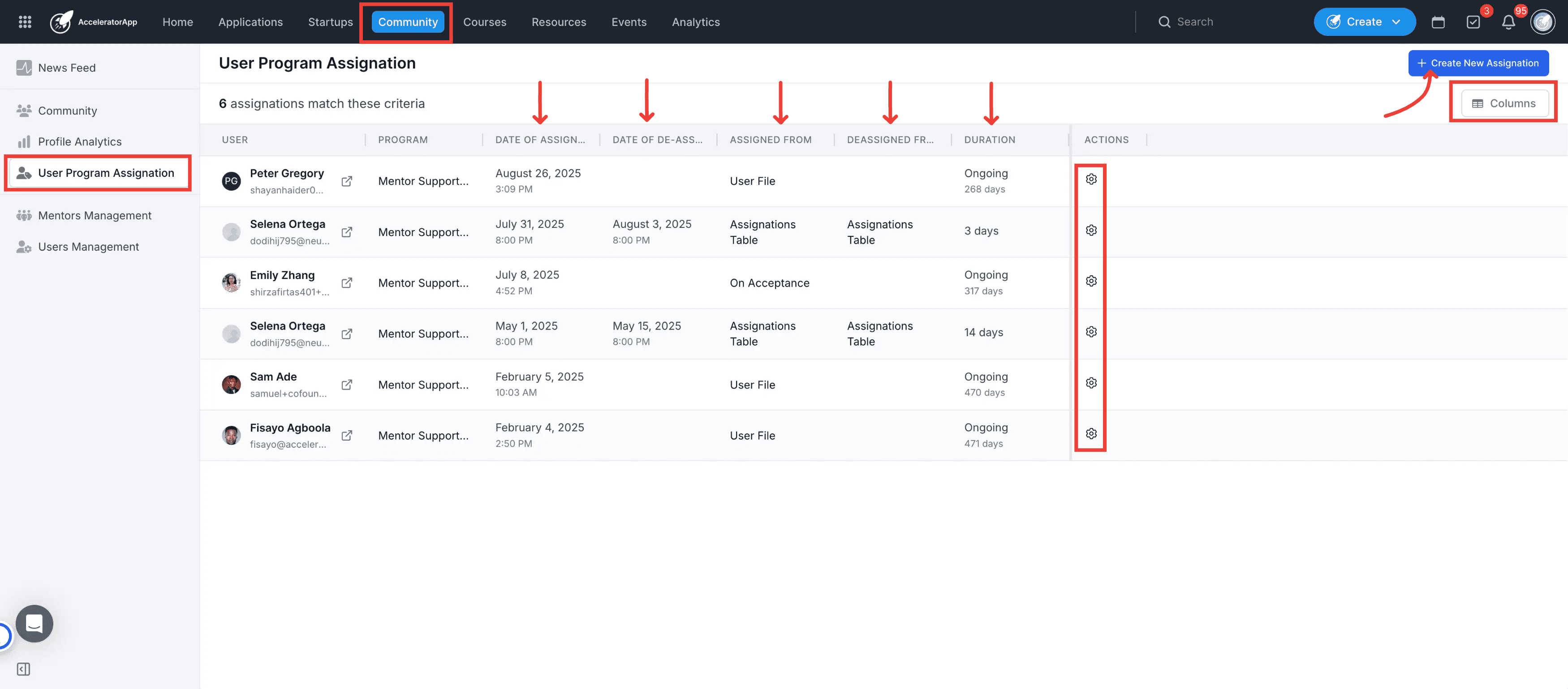
5. Link your ecosystem user and target program
Type or select your target community member's name from the user choice tool, then match them with the correct User Program from the corresponding field.
6. Define tracking timelines and save
Input your desired start and end execution boundaries, then click the confirmation action button to finalize the placement record and activate their track access.
7. Assign a program from User Management
Navigate to Community > User Management, locate the target user, click the gear icon and select Assign to Program
7. Select program and Save
Choose the target User Program, and click Save.
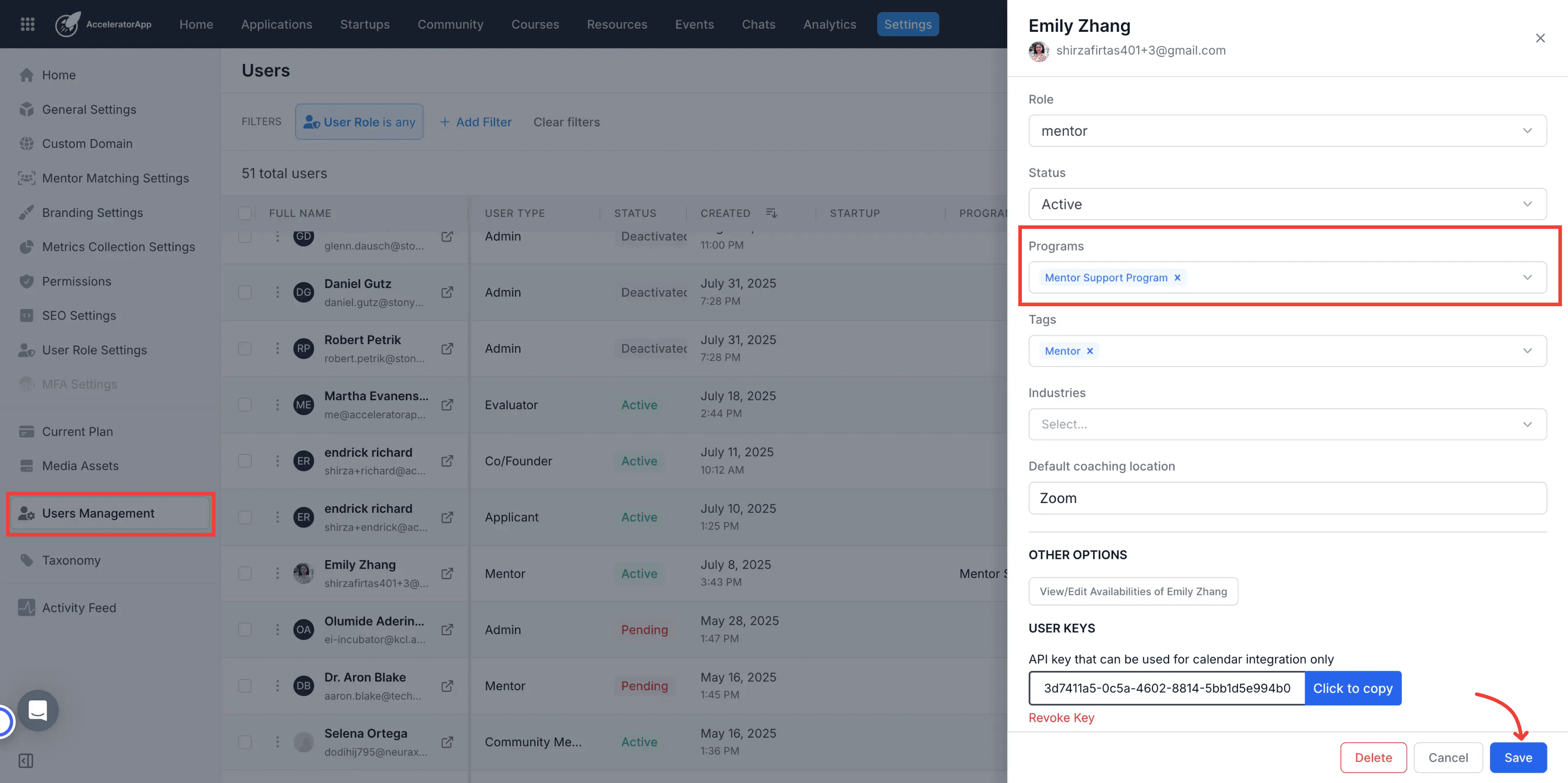
8. Assign a program directly from a User Profile
Navigate to Community > User Management, select a user to open their User Profile, and go to their Activity tab.
9. Complete assignment within the User Profile
Click on Program Edit Icon inside the profile and select the program
Best Practices
- Establish a routine audit cycle: Review your active individual assignation records regularly to verify that participant lifespans align with actual workspace engagements.
- Adjust parameters at the source: If an active participant's timeline parameters change unexpectedly mid-cycle, execute your manual edits directly within their primary user profile view to keep ecosystem tracking synchronous.
- Assign records prior to onboarding: Ensure new community members are formally registered within their program fields well in advance of their active start date so automated tasks deploy smoothly.
Additional Resources
- How to Assign Startups to Programs
- How to Manage Users in AcceleratorApp?
- How to Choose and Assign Types of Programs