


Intoduction to Sending and Tracking Event Emails
Keeping your event audience informed is essential — and knowing whether your messages actually landed is just as important as sending them. AcceleratorApp gives you full visibility into event email communications, so you can track what was sent, to whom, and whether it was opened.
All event emails are delivered directly to individual users. Since AcceleratorApp registers users rather than startup entities, emails are always tied to a specific person — making delivery tracking precise and actionable. You can monitor email performance in two places: the event's Communication tab for a high-level overview across all recipients, and the individual user file for a detailed delivery log per person.
Where to Find Event Emails
There are two places to track event email communications:
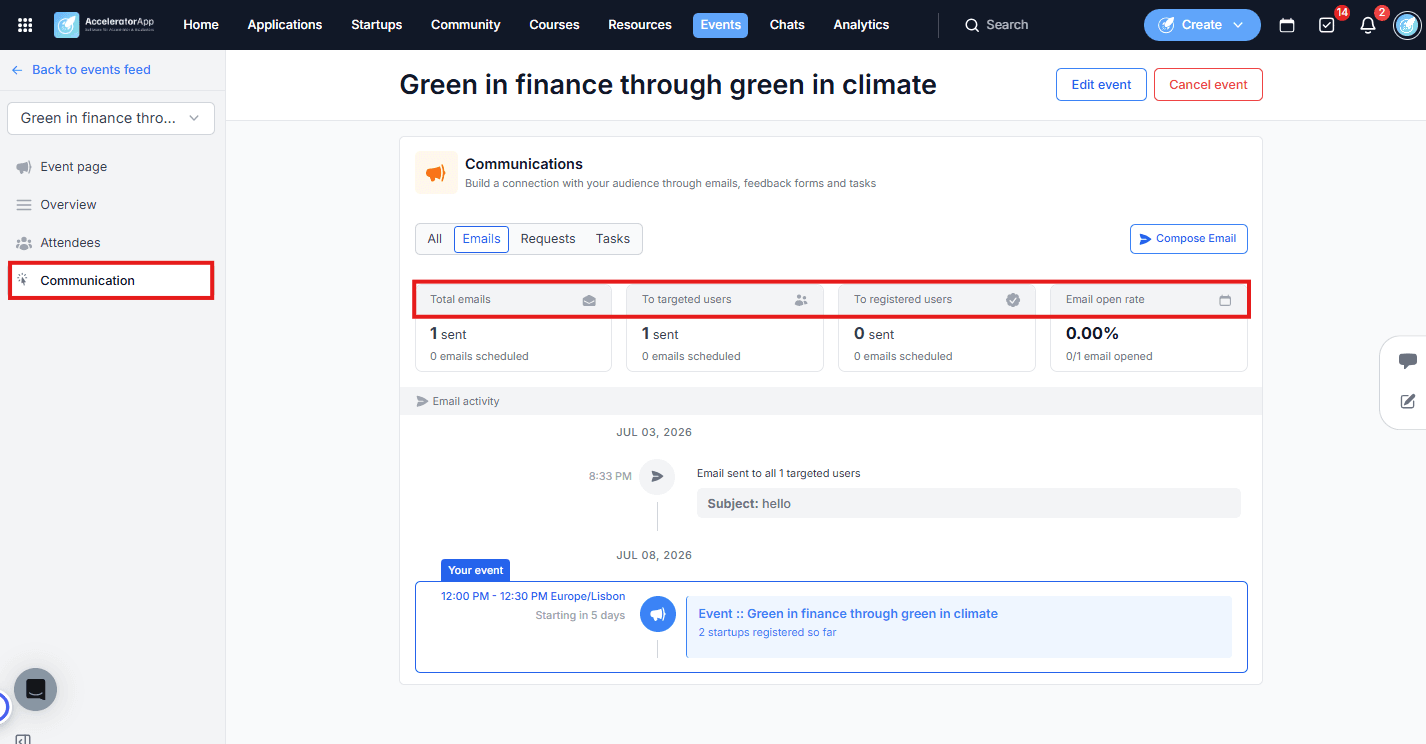
- Communication tab — open the event you want to manage and select Communication from the left sidebar. This is your central hub for all emails, feedback requests, and tasks tied to that event, including send statistics and open rates.
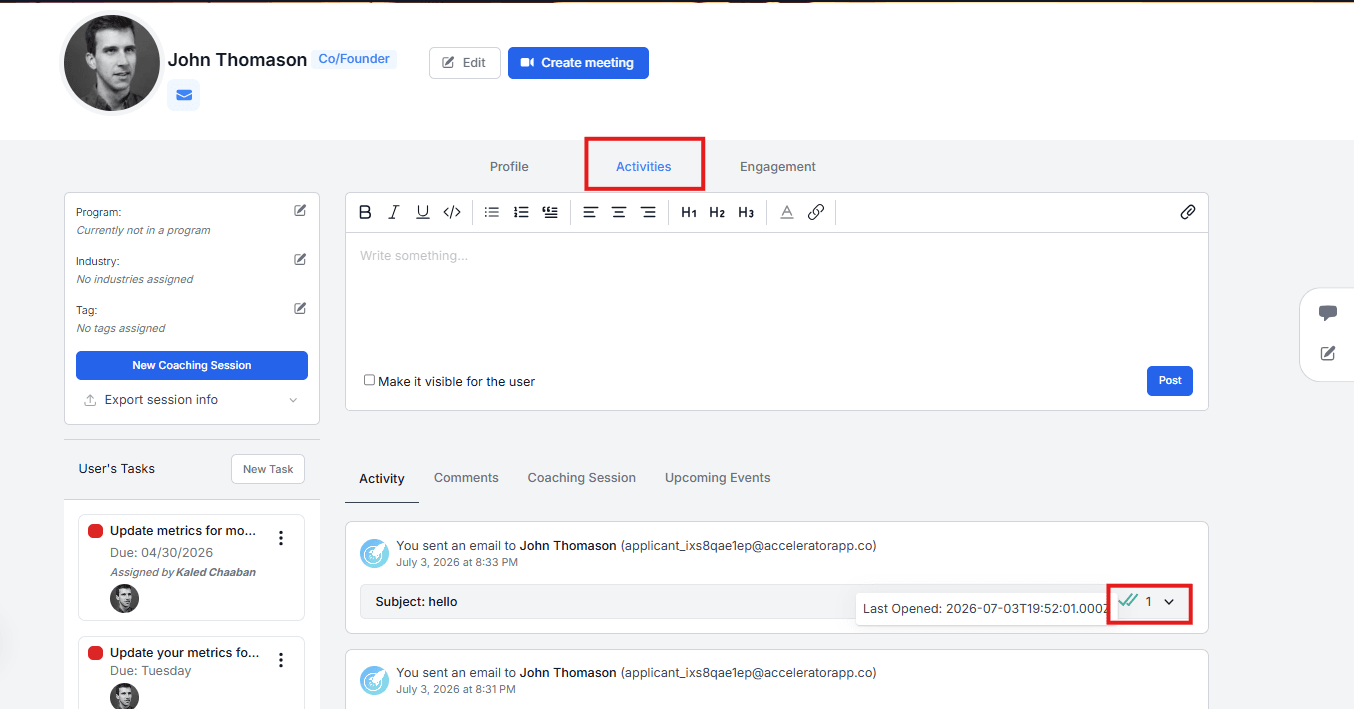
- User file — open any user's file and navigate to the Activities tab to see the full delivery log for that specific user, including all event emails they received.
Step-by-Step
1. Compose and Send an Email
a. From the event's Communication tab, click Compose Email.
b. Click Send now to deliver immediately, or choose Schedule for later to set a future send time.
2. Monitor Email Activity and KPIs
The Communication tab provides a real-time overview of all email activity for the event. At the top you will see:
- Total emails sent and scheduled.
- Emails sent to targeted users.
- Emails sent to registered users.
- Email open rate — the percentage of recipients who opened the email.
Below the KPIs, the activity feed shows a chronological log of all sent and scheduled emails, including the subject, audience, send time, and status (Upcoming, Completed, Failed, or Cancelled).
Use the tabs at the top to filter by Emails, Requests, or Tasks.
3. Track Email Delivery per User
Since emails are delivered to individual users — not to startups as entities — you can check delivery and open status at the user level:
a. Open the relevant user's file.
b. Navigate to the Activities section.
c. Here you will find the full log of emails sent to that user, including event emails, with delivery and open tracking details.
Best Practices
- Check the open rate after sending. A low open rate can indicate deliverability issues, a weak subject line, or that the wrong audience was targeted.
- Review the activity feed before the event. Confirm that all scheduled emails are set correctly — especially if the event has been rescheduled, as absolute-anchored emails do not move automatically.
- Track delivery at the user level when troubleshooting. If a startup reports not receiving an email, open the user file of the specific founder to check their individual delivery log.