


Introduction to Coaching Preferences
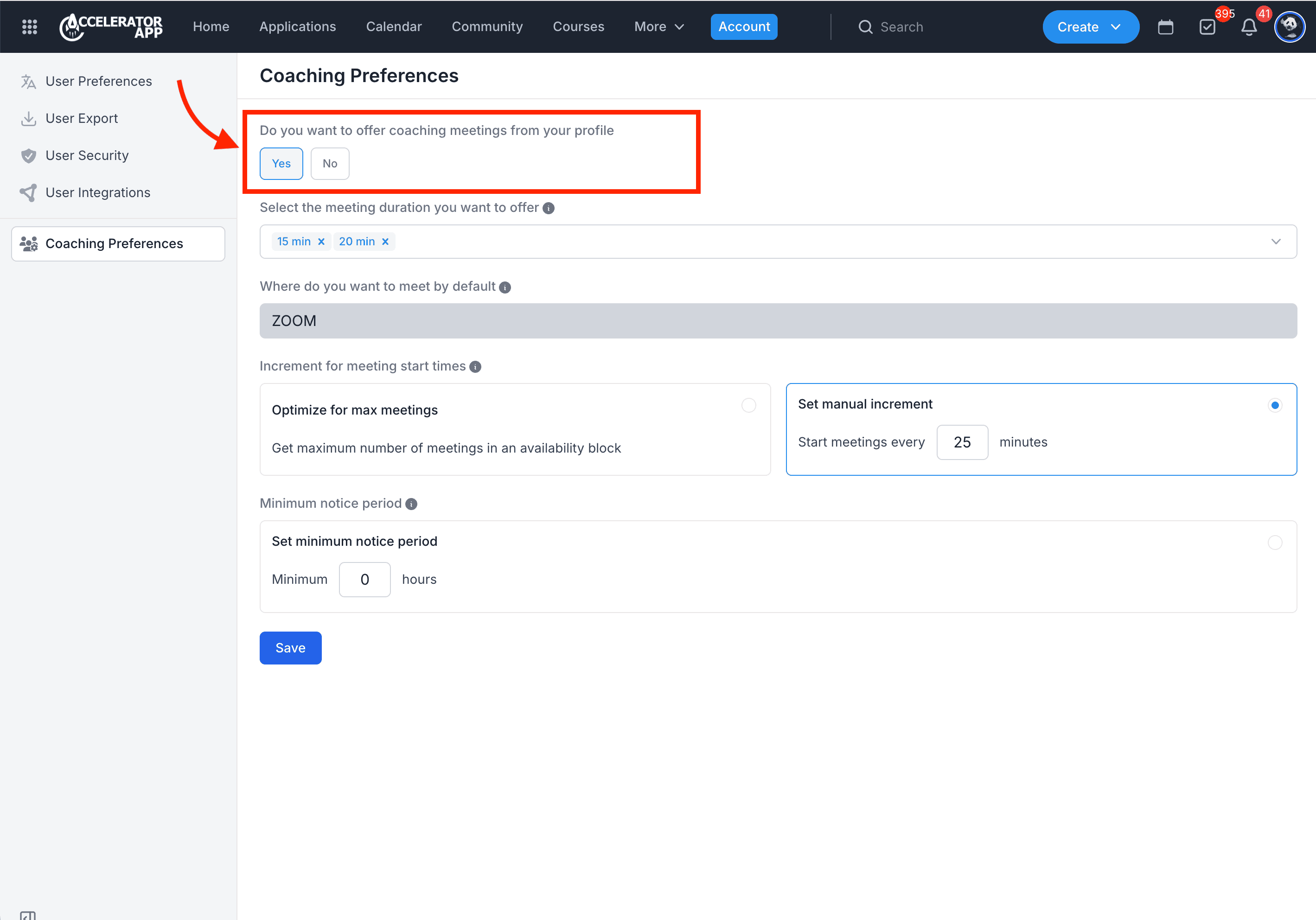
Setting your Coaching preferences allows you to indicate your availability to coach.
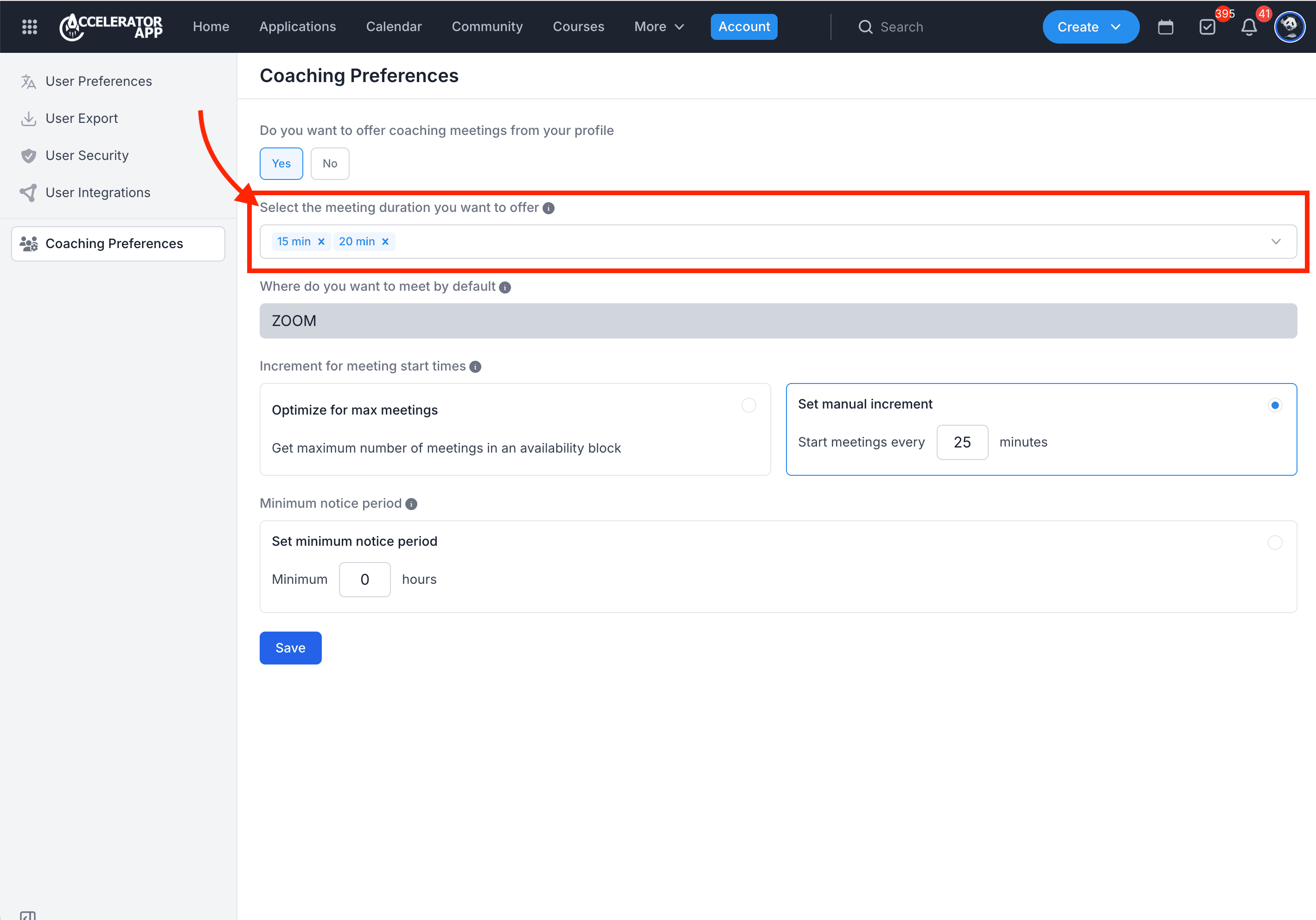
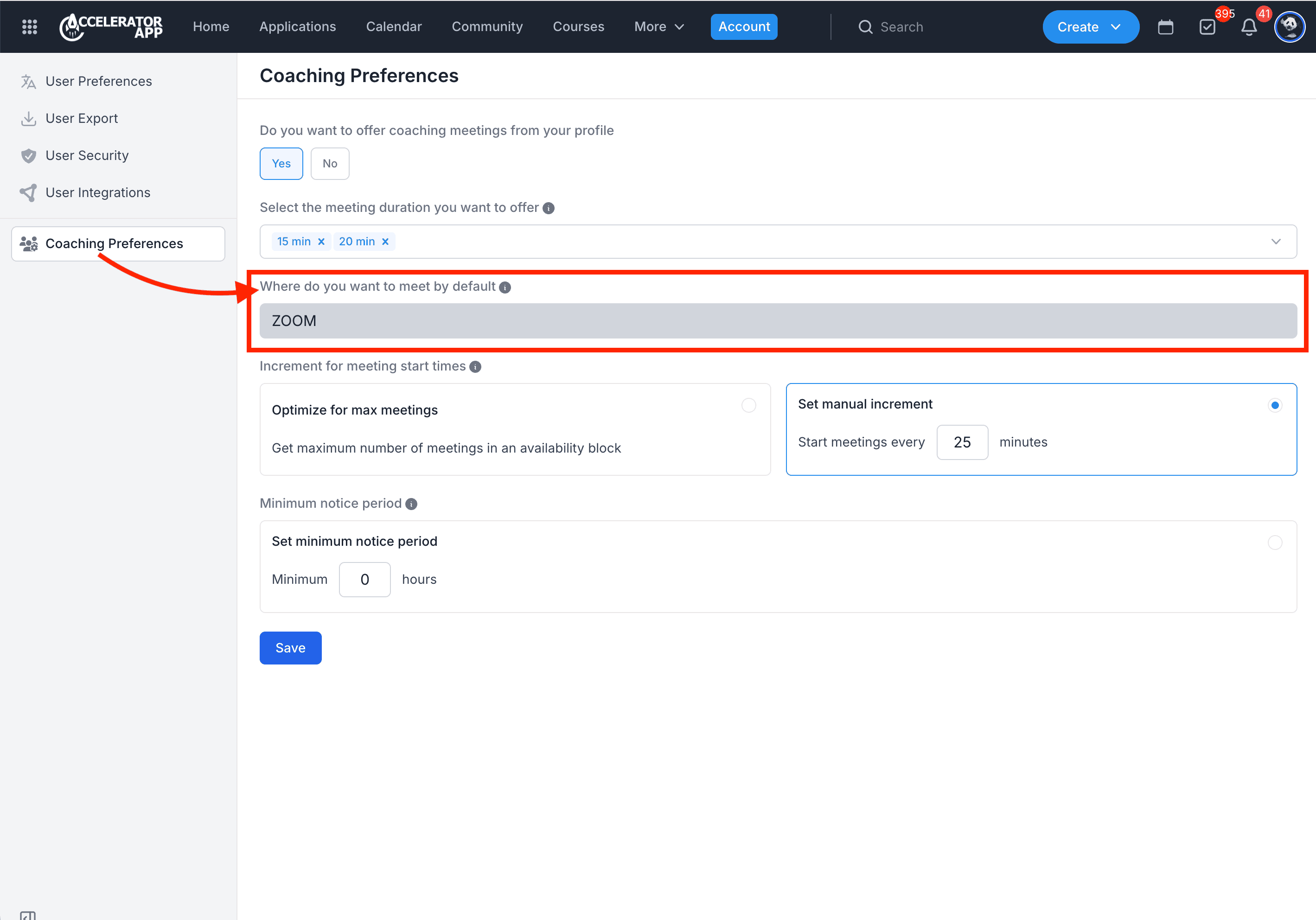
Be sure to specify the duration of each meeting and set a default meeting location which could be a physical location or a link to a virtual meeting platform such as Google Meet, Zoom, or Microsoft Teams.
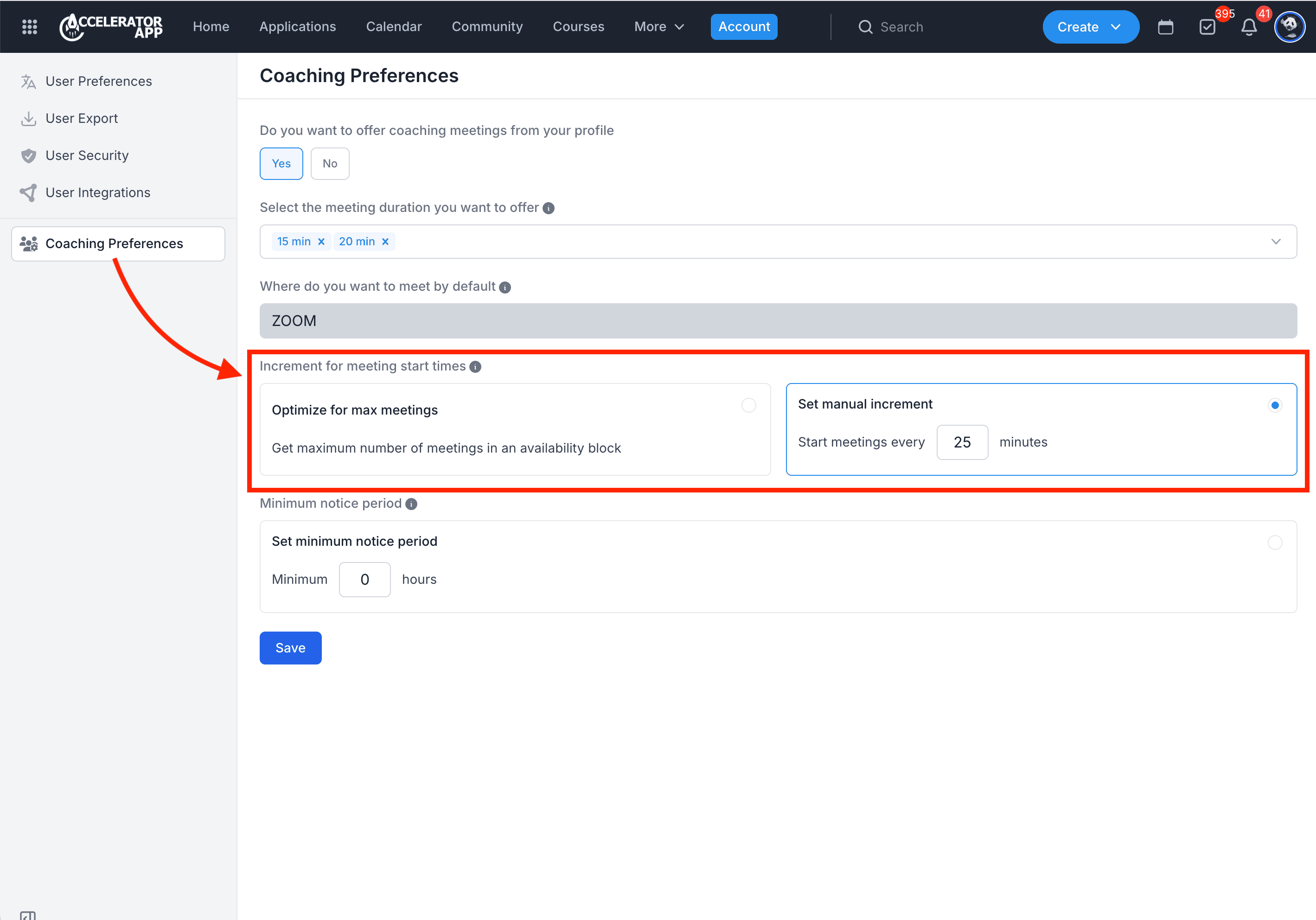
The increment in meeting start times creates a gap between meetings e.g. your calendar shows your availability from 8:00 am to 10:00 am, and your meetings are a duration of 30mins, setting an increment of 15 mins means 30 mins slots will be available every 15mins between 8:00 am to 10:00 am i.e. 8:00 am-8:30 am, 8:15 am-8:45 am...If someone books a slot at 8:15 am, they will have a 30mins slot and the next available slot is at 9:00 am.
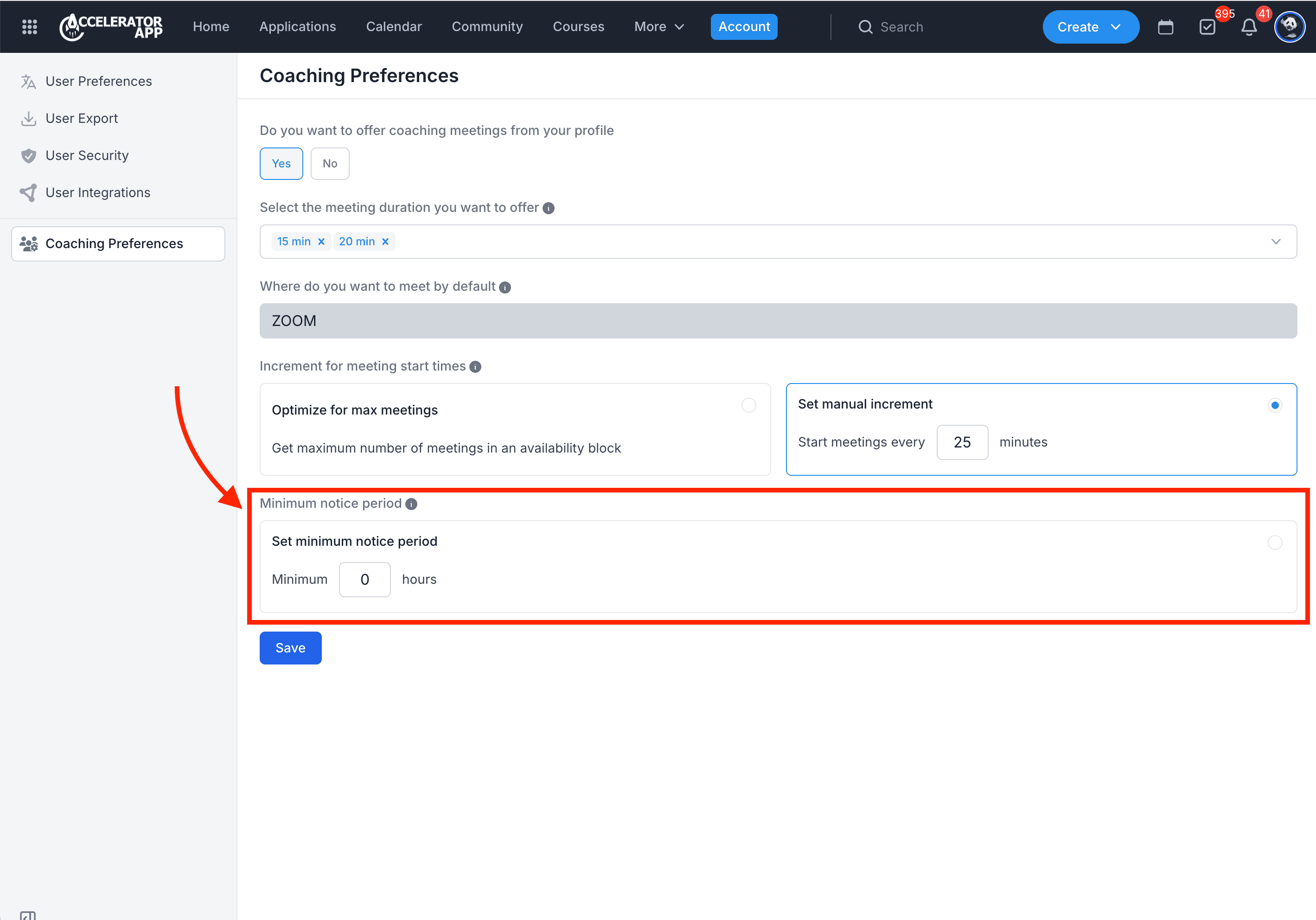
Adding a minimum notice period will determine when your next meeting can be scheduled.
Where to Set Coaching Preferences
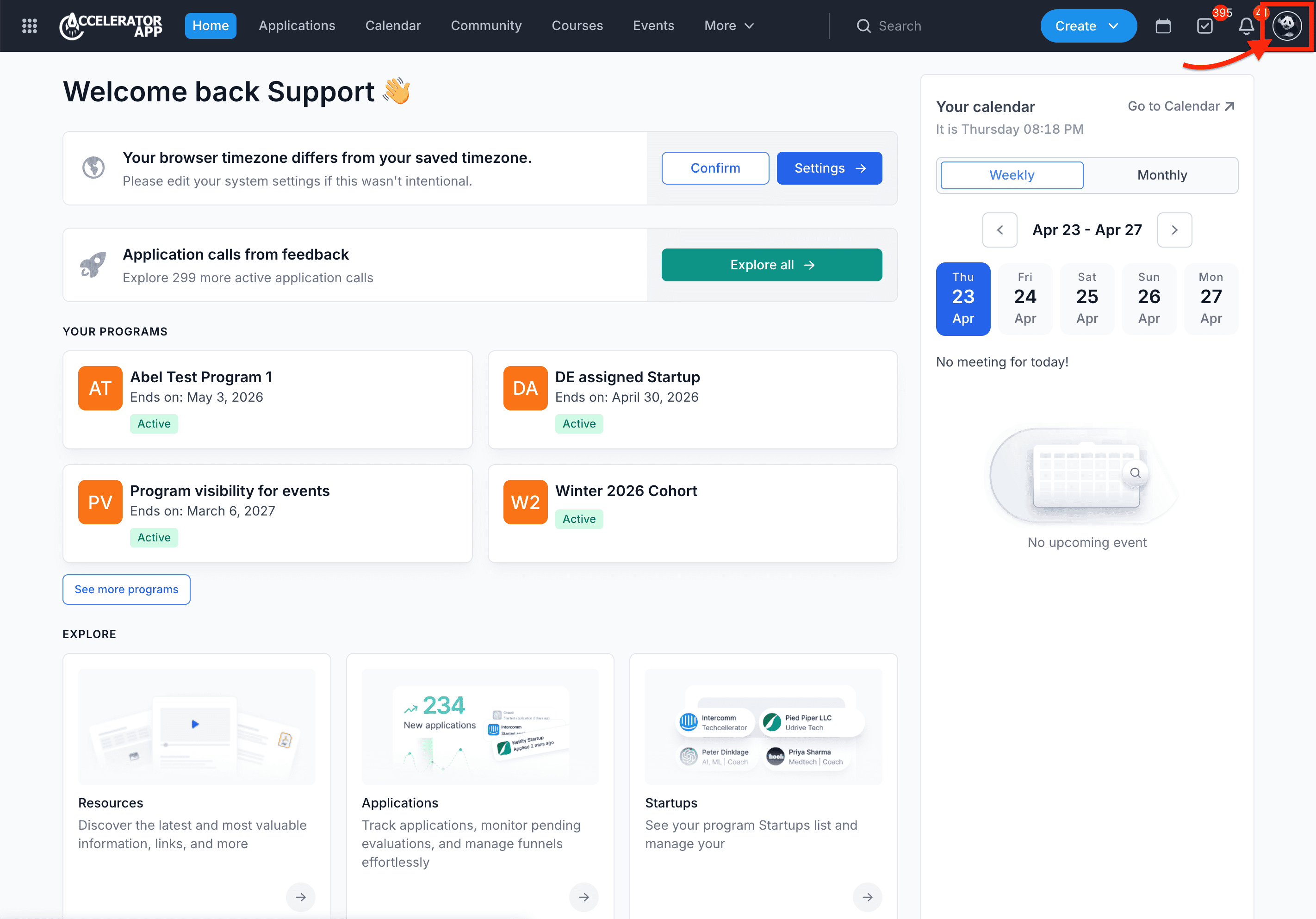
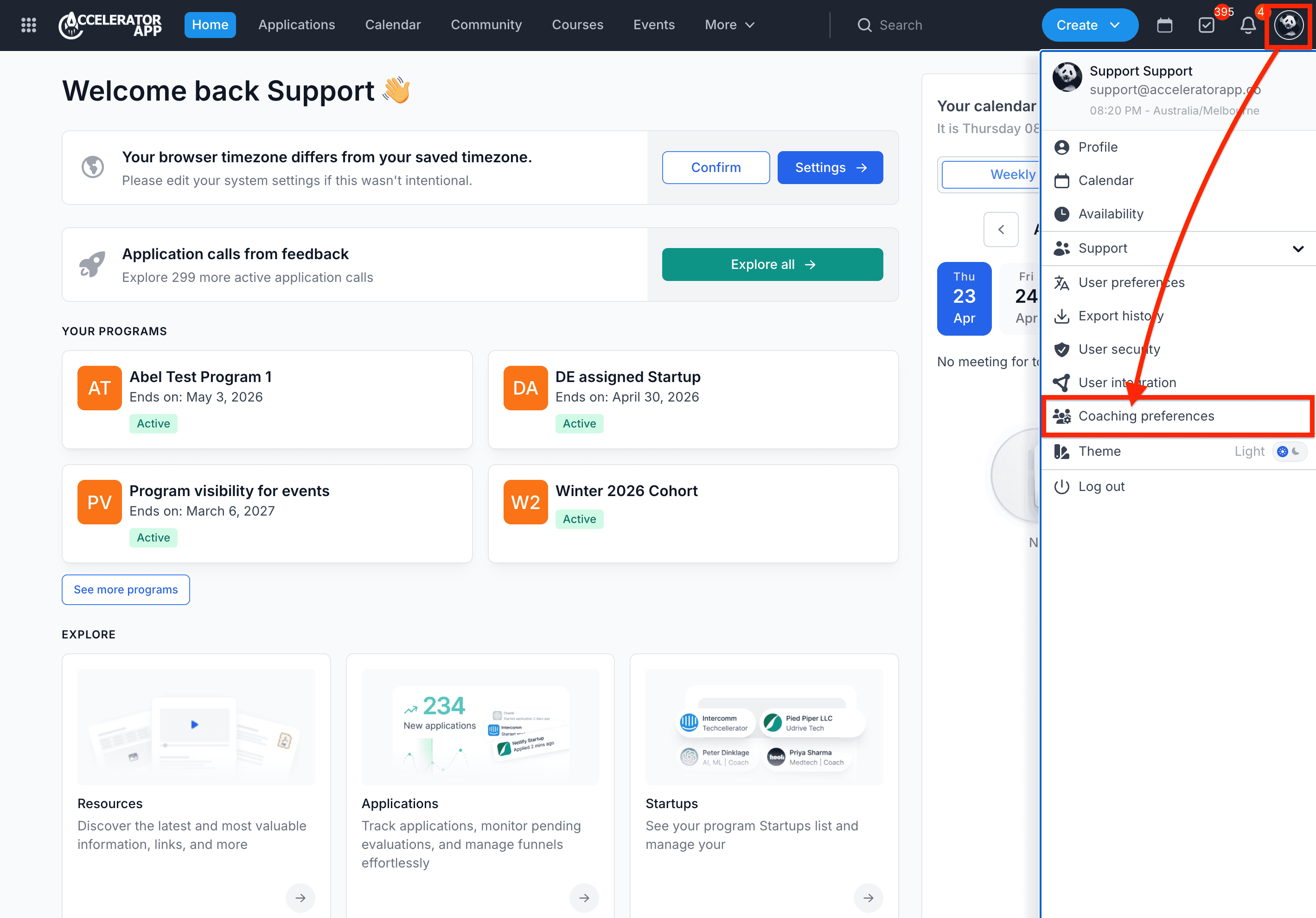
Click the Account icon in the top right, then select Coaching Preferences from the dropdown menu.
Step-by-Step
1. Click on the Profile Icon
2. Click on Coaching Preferences
3. Set Coaching Preferences
4. Set the duration for coaching sessions
5. Set the location for coaching sessions
This may be a link to video conferencing tools such as Zoom or an address to a physical location.
6. Set preferences on how to manage meeting slots
7. Set preference for minimum notice period in hours
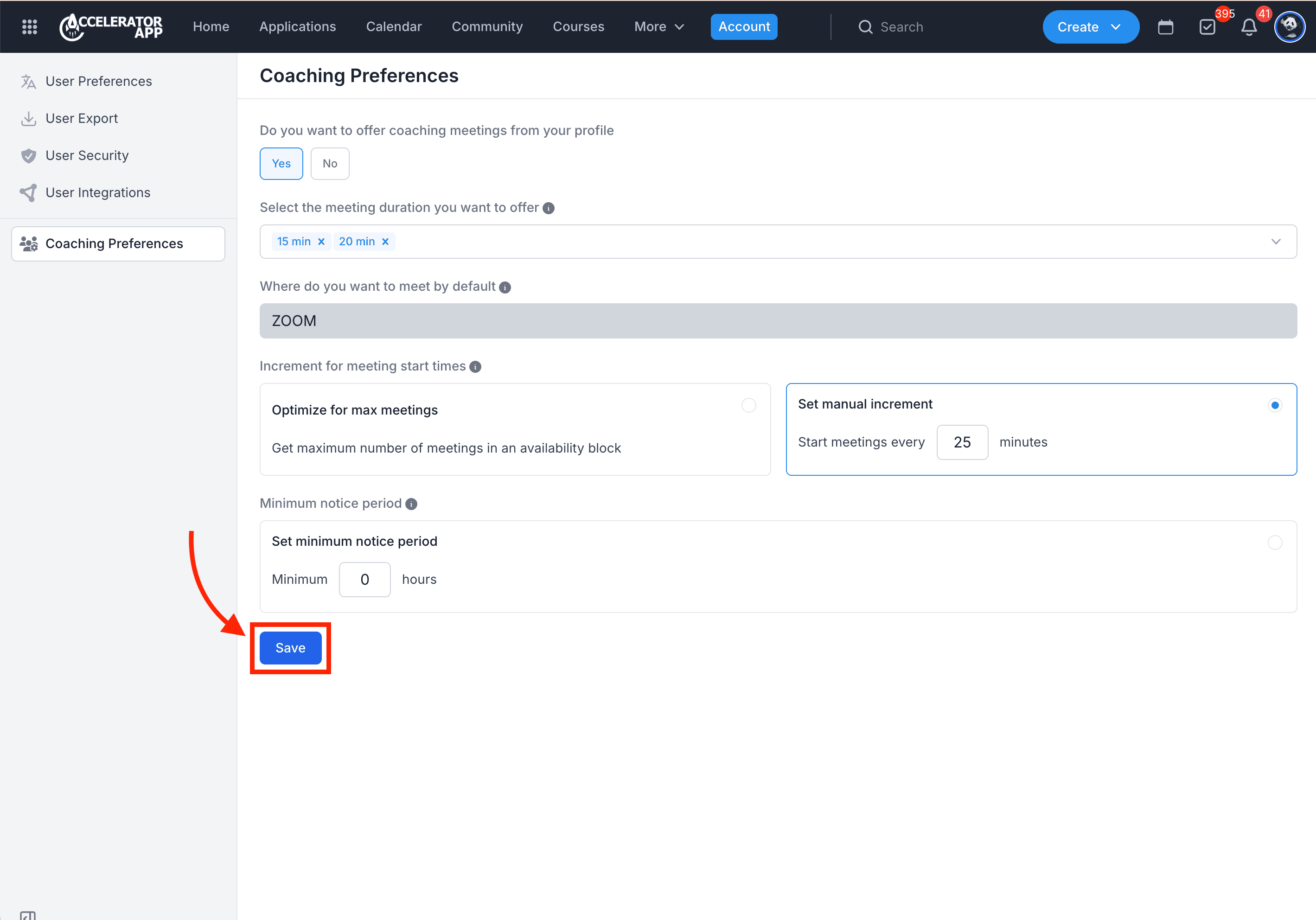
8. Click blue Save button when done
Best Practices
- Keep your availability updated by syncing your calendar.
- Integrate your virtual conferencing tools to make scheduling meetings seamless.
- Create group or one-on-one events to engage with program participants.