


Introduction to Linking your Calendar in AcceleratorApp
Linking your calendar is a critical step for mentors, coaches, and administrators. By enabling a two-way sync with Google or Microsoft, the platform can automatically manage your availability, preventing double bookings and ensuring your schedule is always up to date.
Key Benefits:
Real-time Sync: Events created in AcceleratorApp appear in your personal calendar and vice-versa.
Privacy First: External calendar details (like meeting titles or descriptions) are not visible to other users in AcceleratorApp; the system only marks the time as "Busy."
Eliminate Double Bookings: The platform checks your external calendar before allowing a founder to book a session.
Where to Link your Calendar
You can manage your integrations directly from your user profile settings.
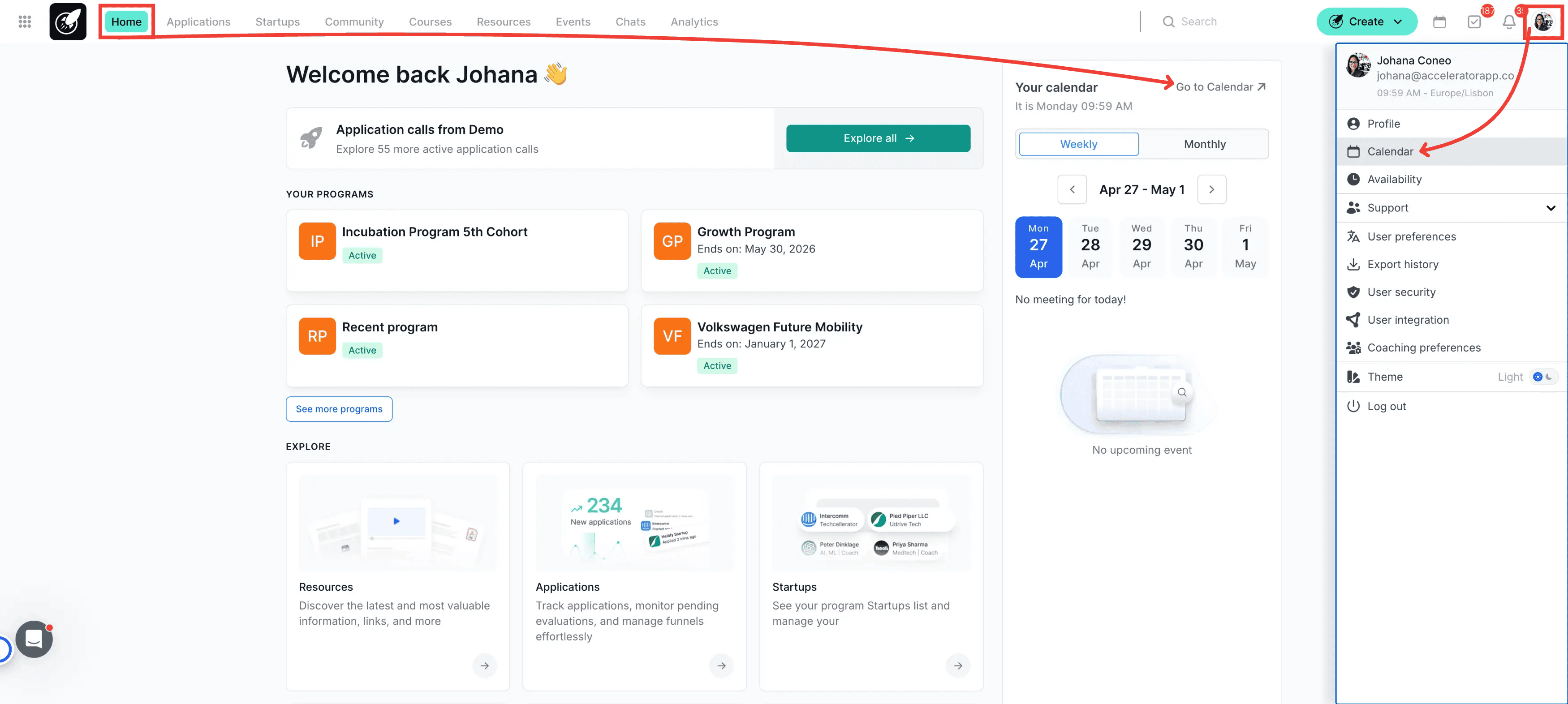
Navigation: Click the Profile Icon (top right) > Calendar
Shortcut: You can also access calendar settings by clicking Calendar on the home page or via the Scheduling section in your profile menu.
Step-by-Step Actions
1. Open Profile Menu and access your calendar
Click on your Profile Icon in the top right corner of the screen and click on Calendar
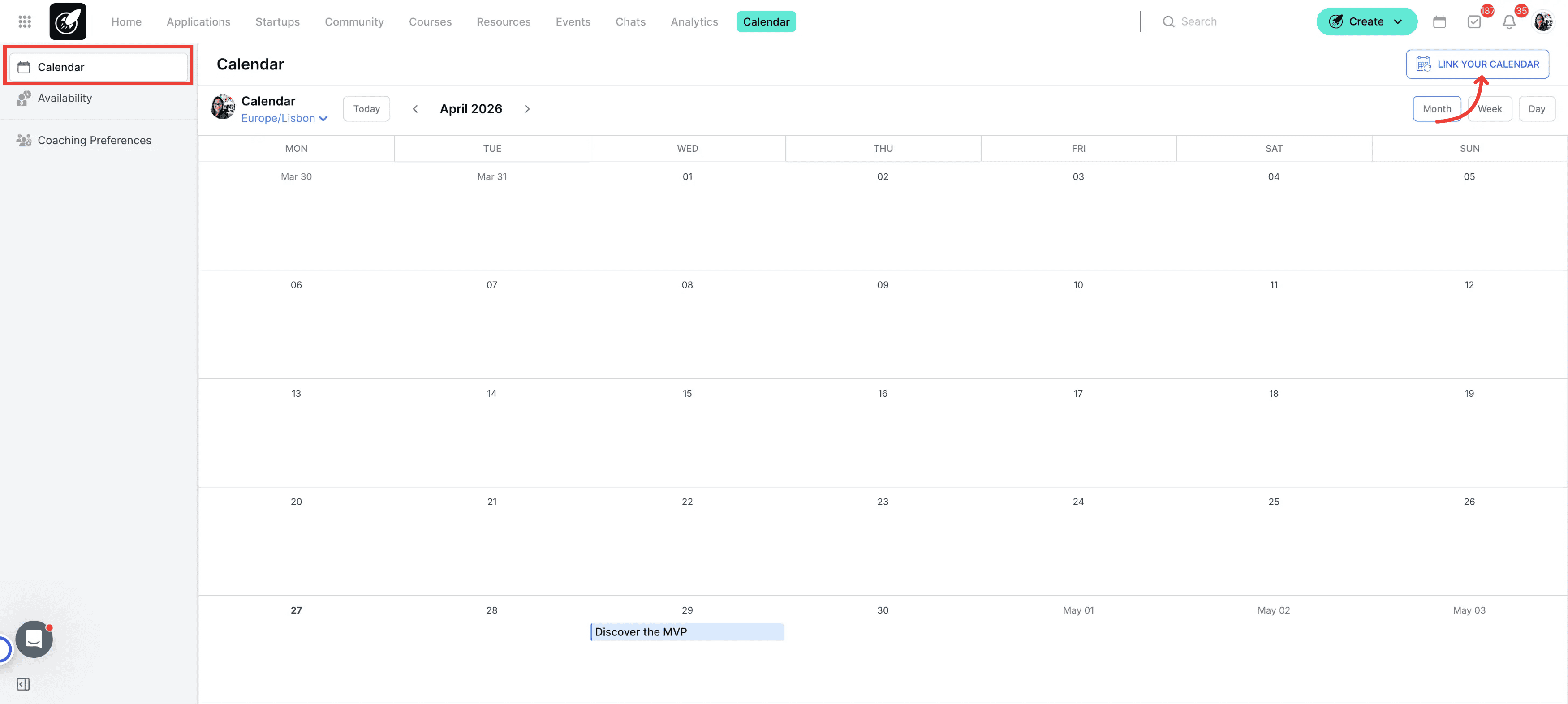
2. Connect Google or Microsoft
Click on the button Link Your Calendar located on the upper right corner.
3. Choose Your Provider
Select either the Google or Microsoft button. Follow the on-screen prompts to log in to your account and authorize AcceleratorApp to access your calendar data.
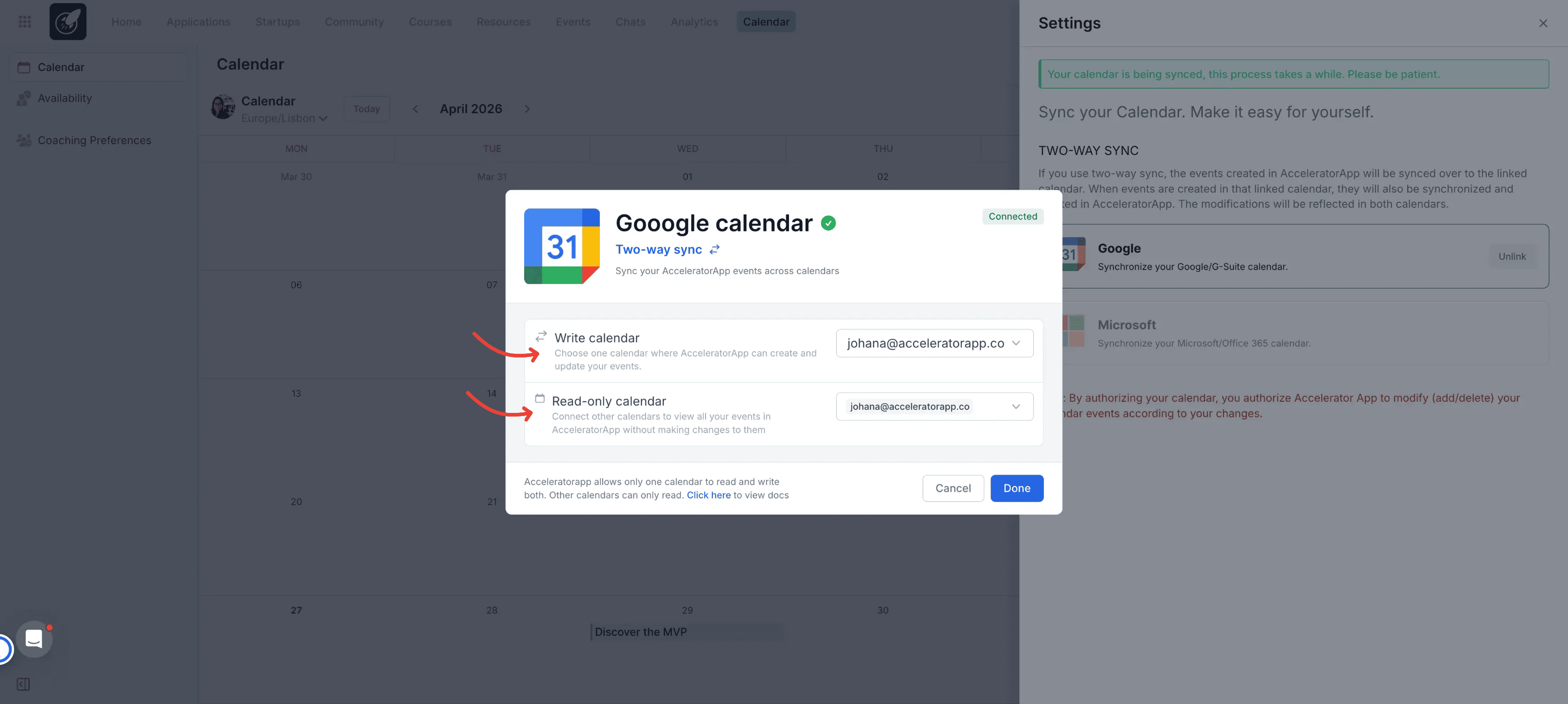
4. Configure Read & Write Permissions
Read & Write: Events created in AcceleratorApp will appear in this calendar, and vice-versa.
Read Only: You can connect additional calendars for the system to check for conflicts, but it will not create new events in them.
Acceleratorapp allows only one calendar to read and write both. Other calendars can only read. Click here to view docs
Best Practices
The "Primary" Rule: Always set your main work calendar as the "Read & Write" option to ensure your coaching sessions are automatically added to your daily schedule.
Privacy First: Details of your external personal events remain private. AcceleratorApp only sees the time blocks as "Busy" to prevent overlap.
Virtual Meetings: Once linked, add your Zoom or Teams link to your profile to ensure every synced event includes a meeting room.
Check Your Sync: If events don't appear immediately, allow a few moments for the API to fetch the latest data from Google or Microsoft.