


Introduction to Profile Skills
Profile Skills help you show other users in AcceleratorApp your professional competencies. They also make it easier for others to find you based on those competencies, since skills are searchable in the Community section. You can use this section to add new skills, update existing ones, and remove skills that are no longer relevant.
Where to Find Profile Skills
- Go to Profile from the left-side menu.
- Scroll to the Ask Me About section.
- From there, you can add, edit, or delete your skills.
Step-by-Step
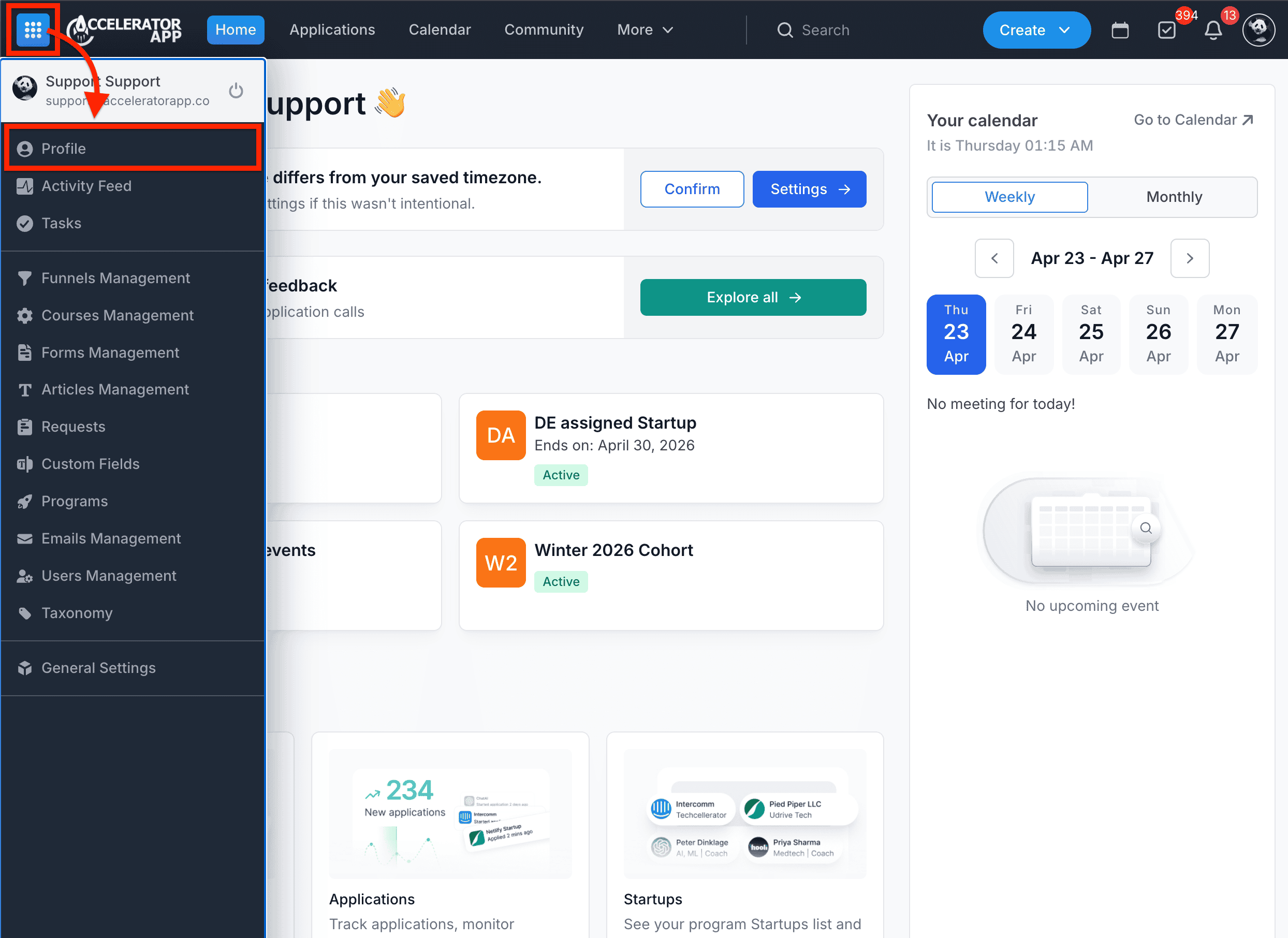
1. Open your profile
From the homepage, click on the Menu in the top left corner, and select Profile from the left-side menu.
This will take you to your profile page.
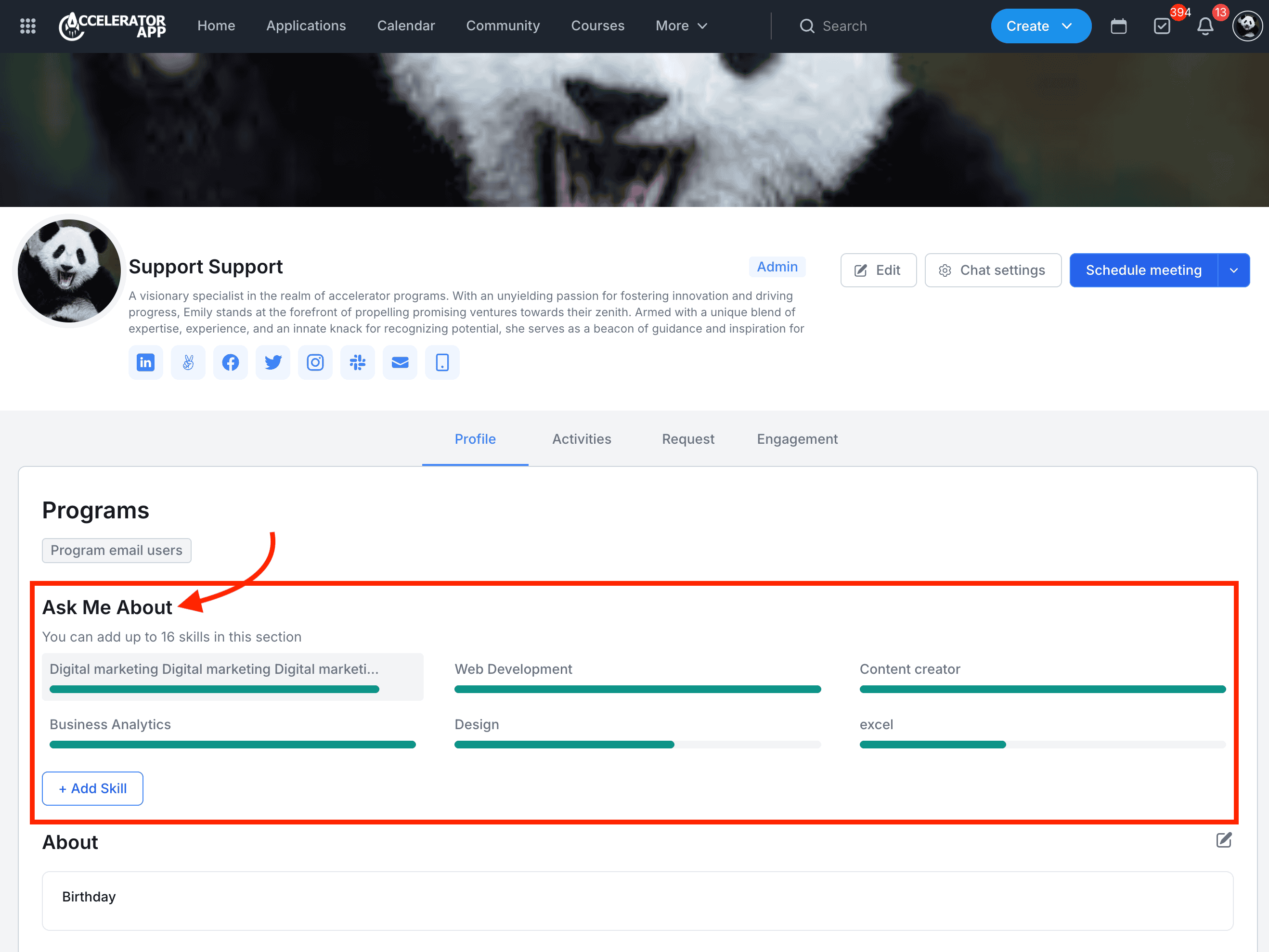
2. Go to the Ask Me About section
Scroll down to the Ask Me About section of your profile.
This is where your Profile Skills are managed.
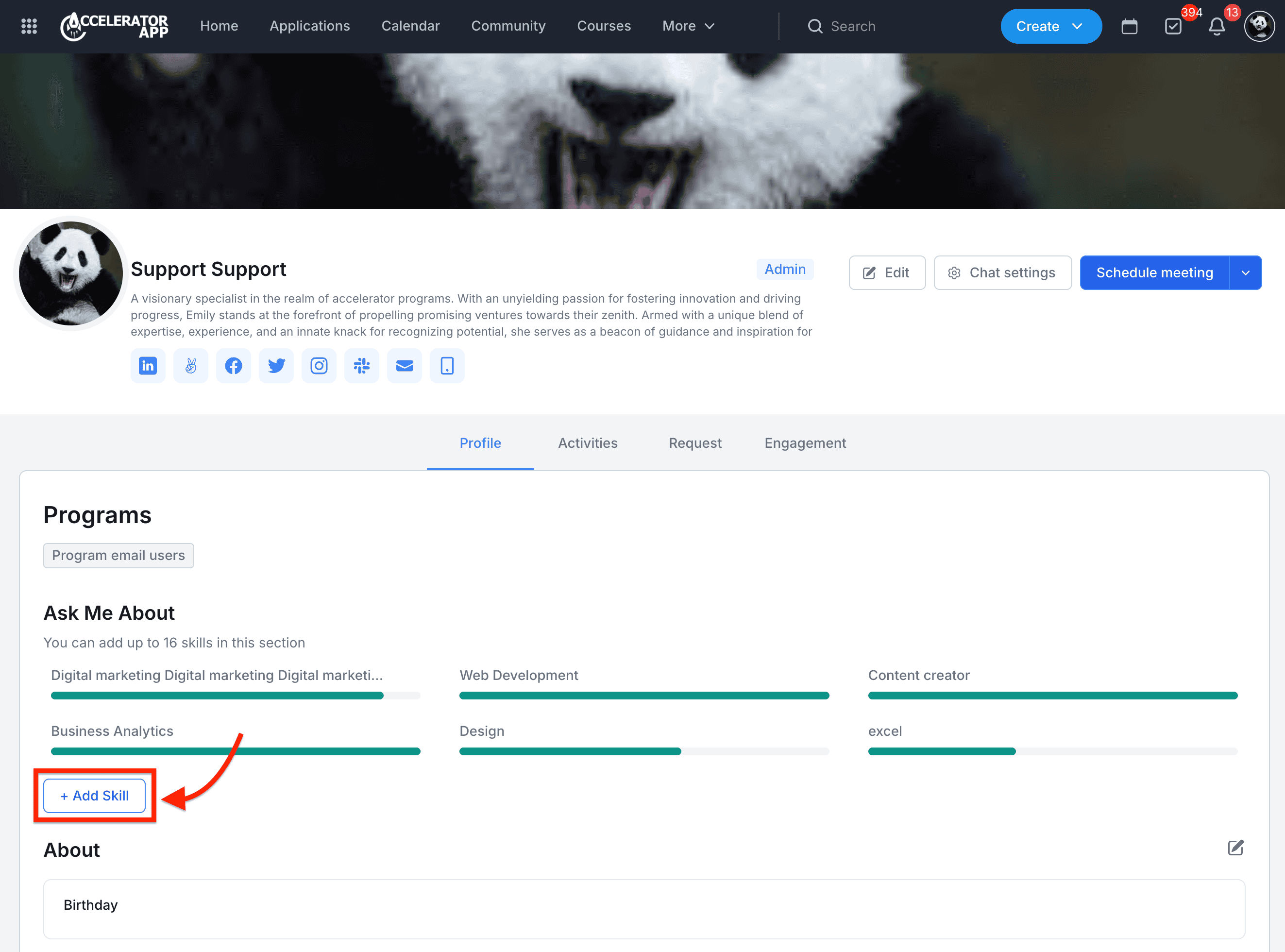
3. Add a new skill
Click the + Add Skill button.
The skill editor will open below the skills section.
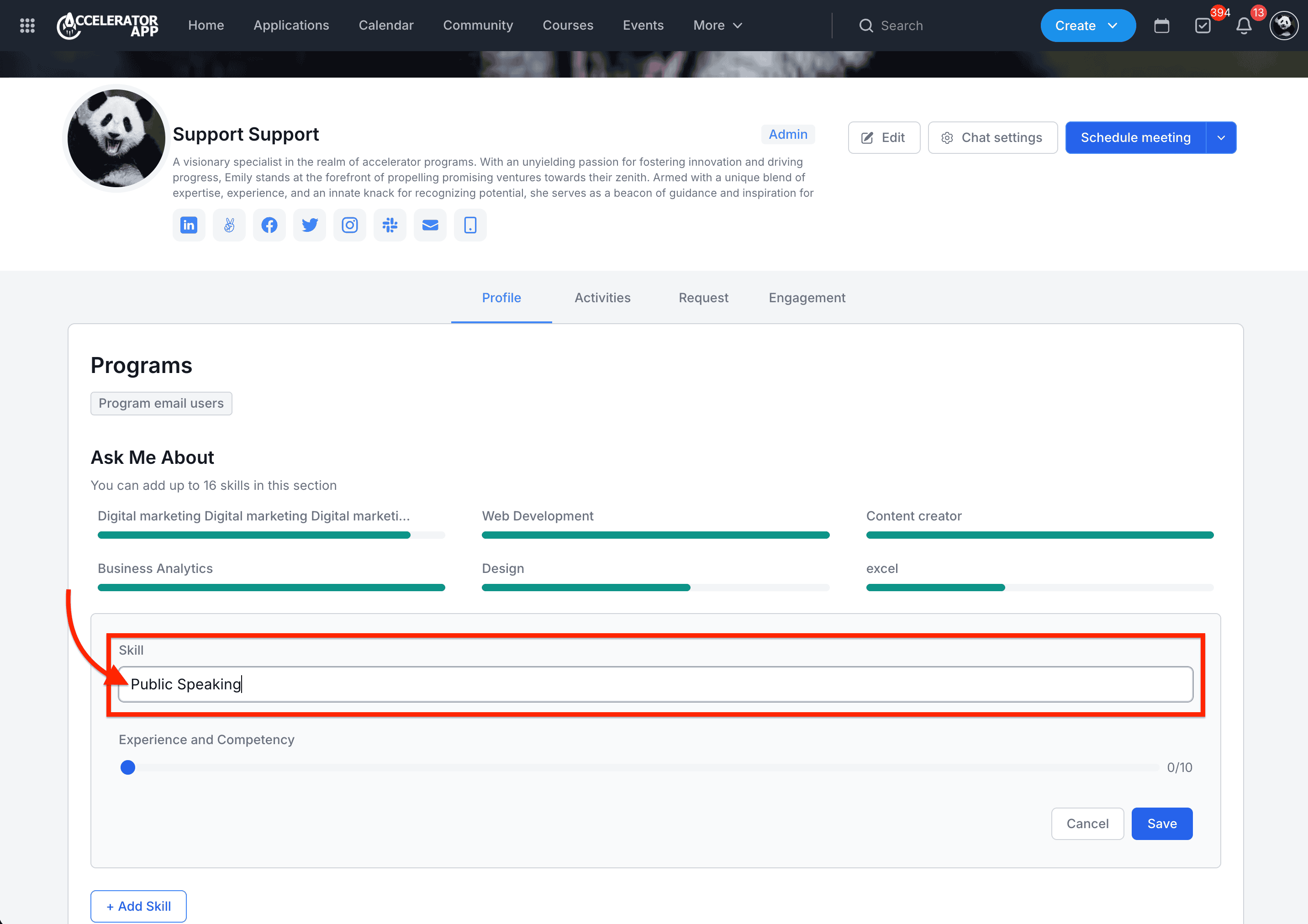
4. Enter the skill name
In the Skill input field, type the name of the skill you want to add.
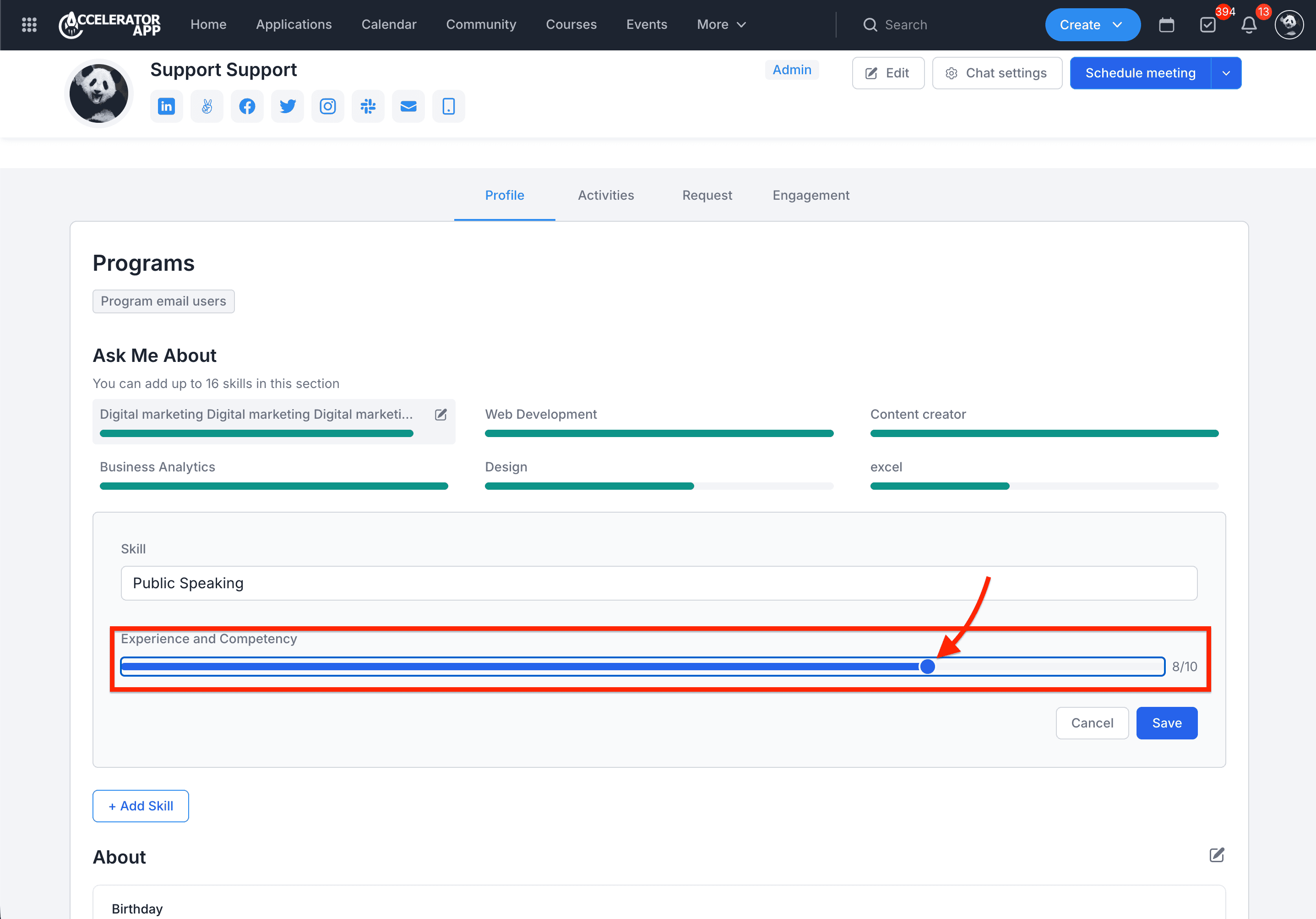
5. Set your experience and competency level
Below the skill input field, you will see the Experience & Competency bar. This bar represents your self-rated level of expertise for the skill you are adding.
The scale goes from 1 to 10.
Click on the bar or drag the slider to the level that matches your expertise. The selected rating will be displayed to the right of the bar.
6. Save the skill
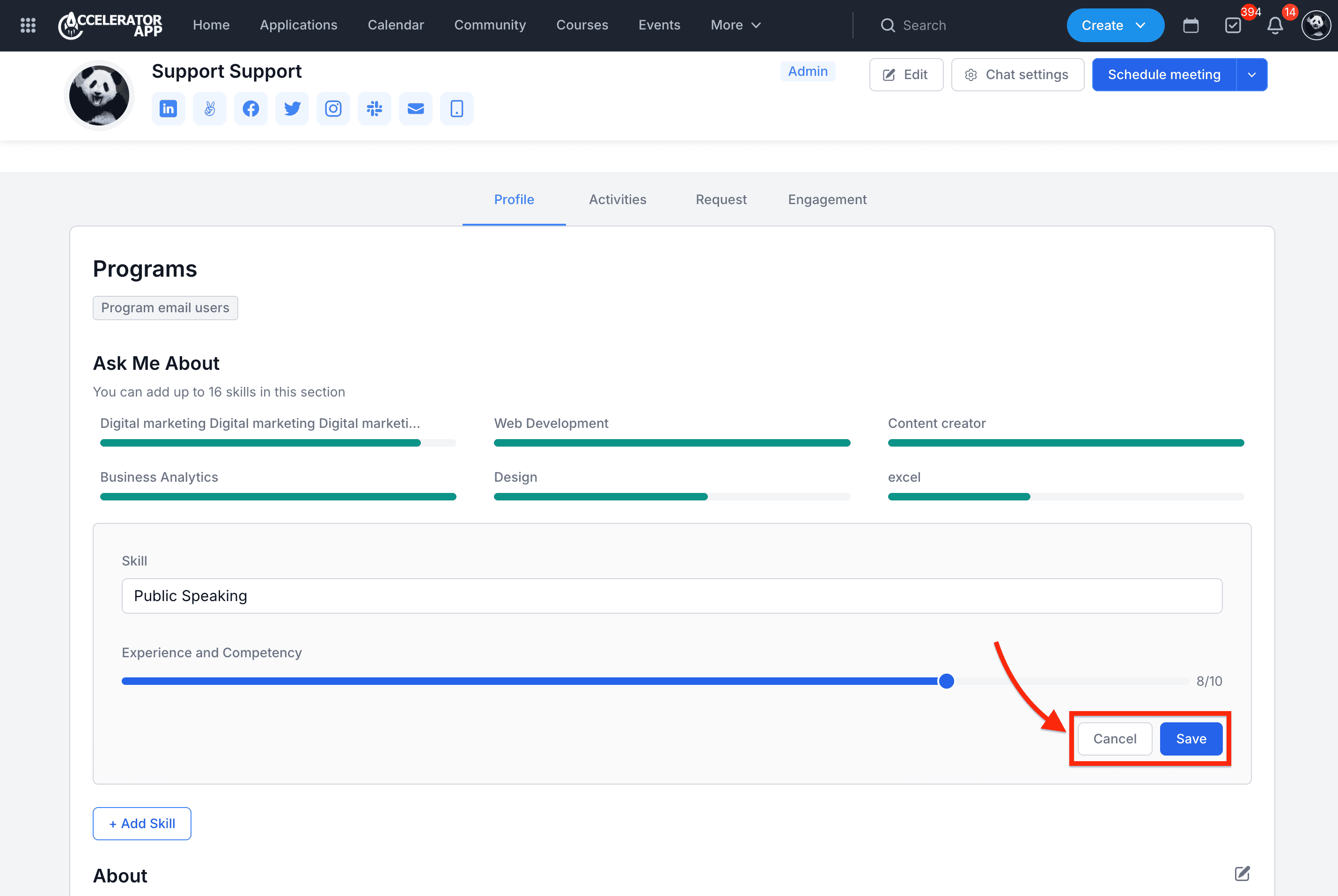
Once you are done, click the blue Save button to save the skill to your profile.
If you do not want to create the skill, click Cancel button instead.
7. Edit an existing skill
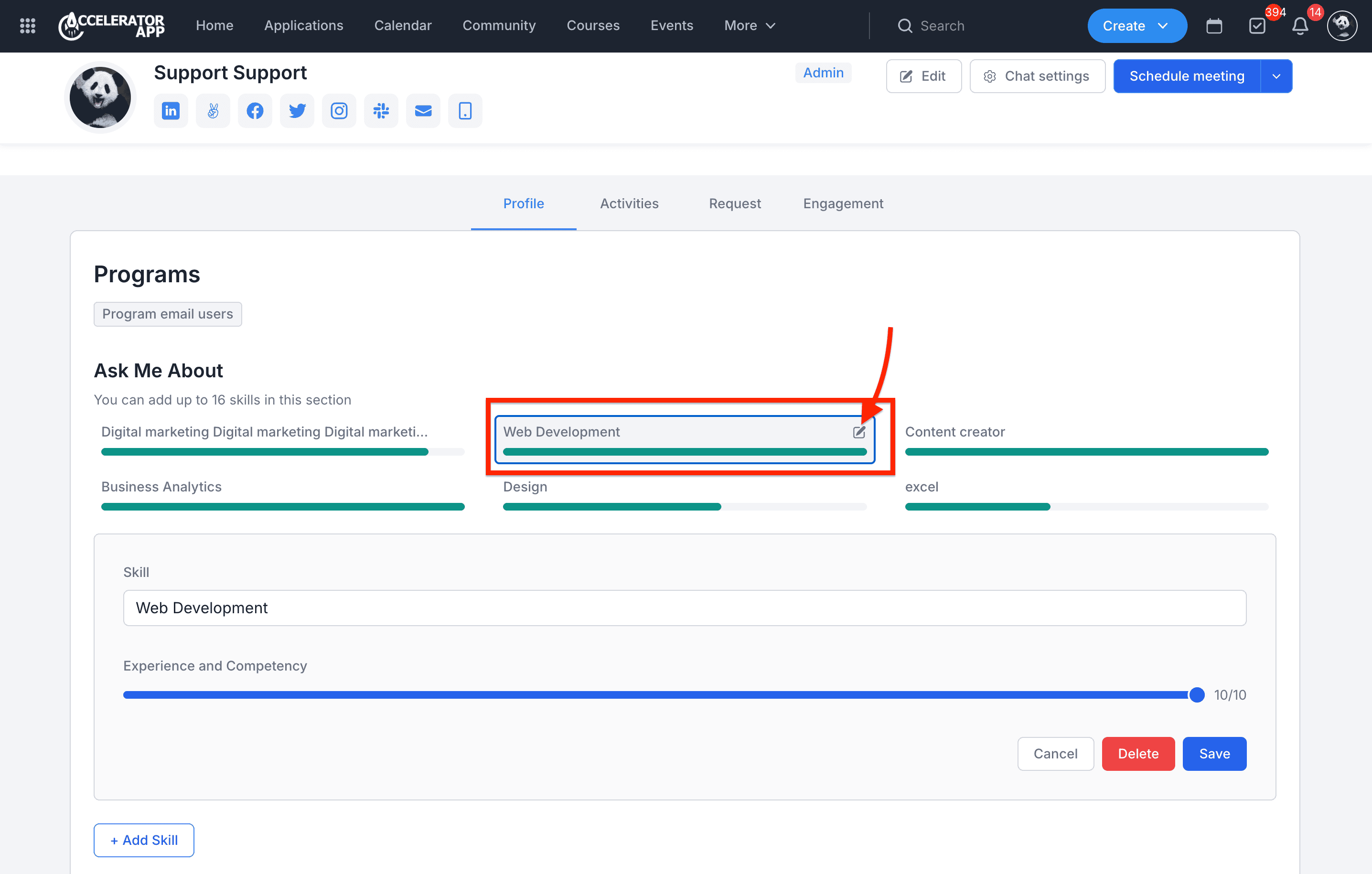
To edit a skill, go back to the Ask Me About section and hover over the skill you want to update. Click on the Edit (pen) icon.
The skill editor will open below the skills section.
8. Update the skill details
You can edit the skill name in the Skill input field.
You can also update the Experience & Competency level by clicking on the bar or dragging the slider to a new value.
9. Save or cancel your changes
Once you are done, click the blue Save button to apply your changes.
If you do not want to keep the changes, click Cancel.
10. Delete a skill
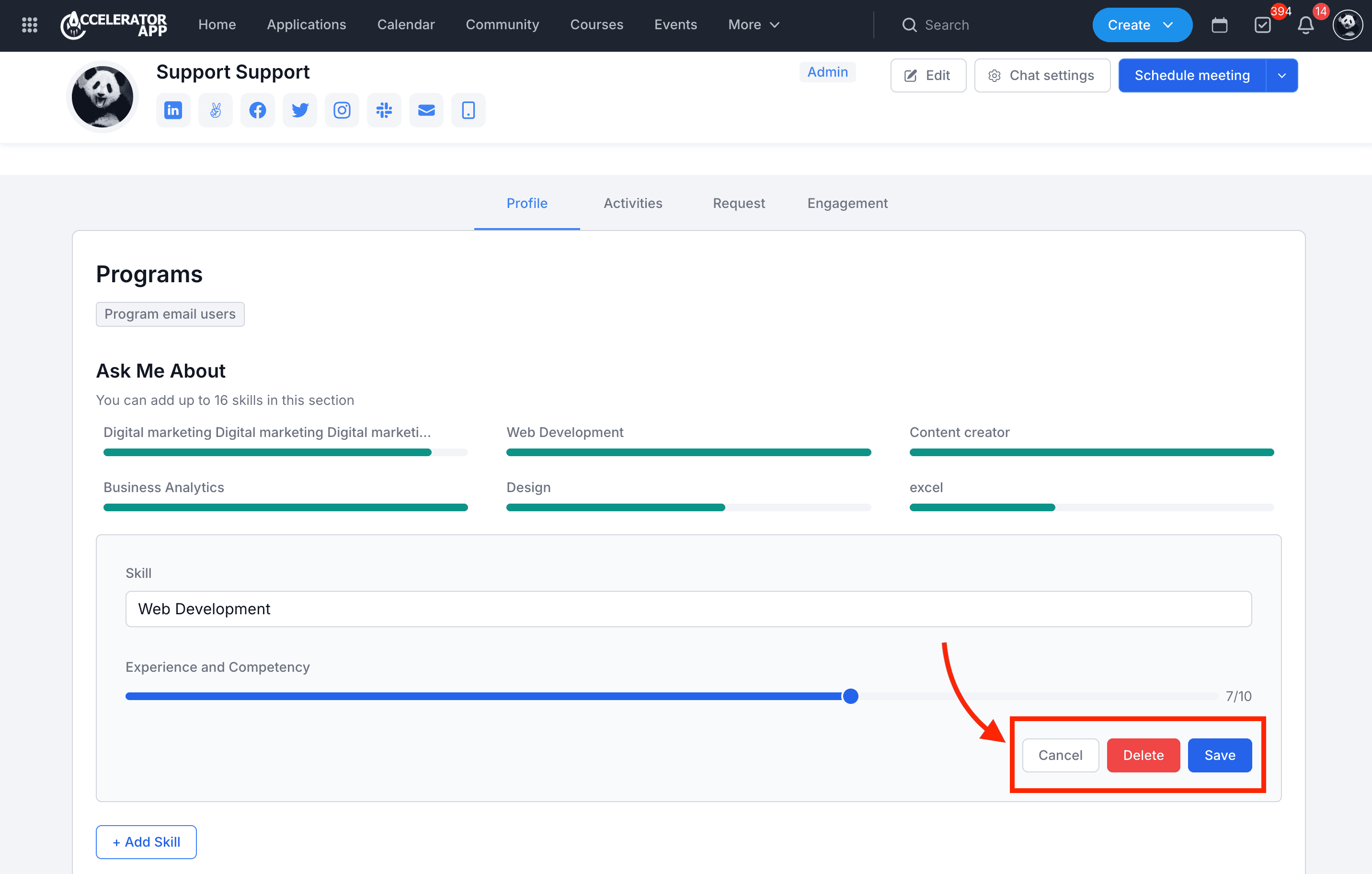
If you want to remove the skill altogether, click the red Delete button.
Tips & Best Practices
- Add skills that clearly reflect your real areas of expertise.
- Keep your skills updated so your profile stays accurate.
- Use the Experience & Competency scale consistently across your skills.
- Remove skills that are no longer relevant to keep your profile up to date, clear and useful.