


Introduction to Changing or Updating your Pasword
Maintaining account security is a top priority. The User Security settings empower you to take full control of your login credentials, allowing you to update your password at any time to protect your sensitive program data and personal information.
Where to Change or Update your Password
Password management is located within the Security tab of your user preferences.
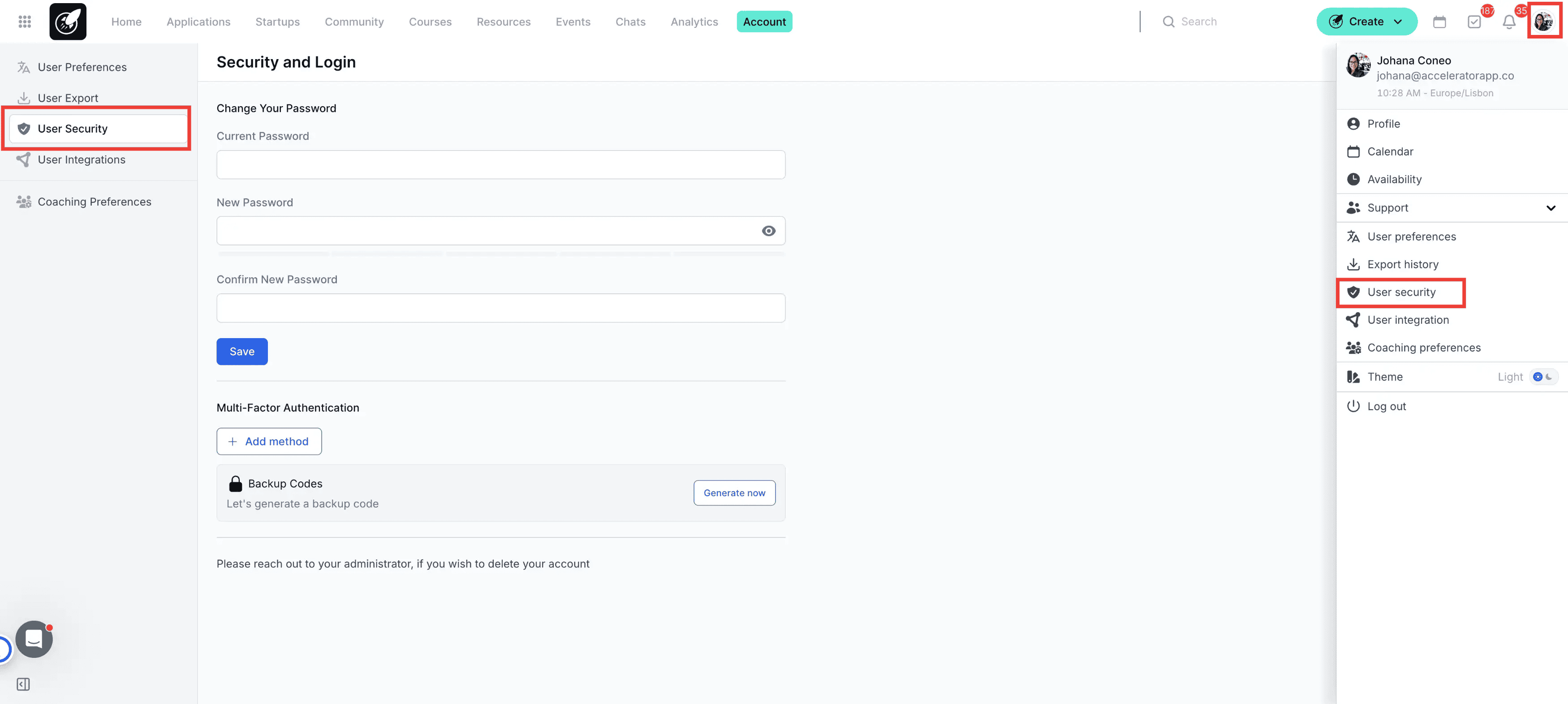
Navigation: Click on the Account Icon (top right) > User Security.
Recovery: If you cannot log in, use the "Forgot Password" button on the login page to initiate a reset via your registered email.
Step-by-Step Actions
1. Access to User Security
Click on your Account Icon in the top right corner of the screen and select User Security
2. Update and Confirm Password
Enter your new password in the designated field and re-enter it to confirm. Click Save to apply the change immediately.
You will receive an email. This email confirms that the password was changed. There will be no action required from the recipient of this email.
Best Practices
Password Strength: Use a unique combination of uppercase letters, lowercase letters, numbers, and symbols to create a robust password.
Routine Updates: For optimal security, consider updating your password every 3 to 6 months, or immediately if you suspect your account has been compromised.
Email Verification: Always ensure you have access to the email address associated with your account, as this is the only way to recover your password if it is forgotten.