


Introduction to the Learning Management System Evaluation Feature
The LMS Evaluation feature allows instructors, mentors, and program managers to assess learner performance directly within AcceleratorApp courses.
Evaluations are linked to course assignments or quizzes, using structured forms that ensure fair and consistent scoring and feedback.
This feature simplifies the feedback process, helps standardize evaluation criteria across your programs, and makes it easy to track progress and outcomes for each learner.
Note: This feature is available in the Online learning tier 2 and above or in Pro Bundle
Where can you Access the LMS Evaluation Feature?
Go to Courses Management, then click on the edit icon to access the course builder, after that select the unit you want to add the evaluation
Step-by-Step
1. Create the Evaluation Form
a. Click Create in the top-right corner and select Form from the dropdown menu.
b. Enter a name for your form in the top field (e.g., 4th Quarter Evaluation 2025).
c. Under Select the type of form you want to build, choose Evaluation, then click Create.
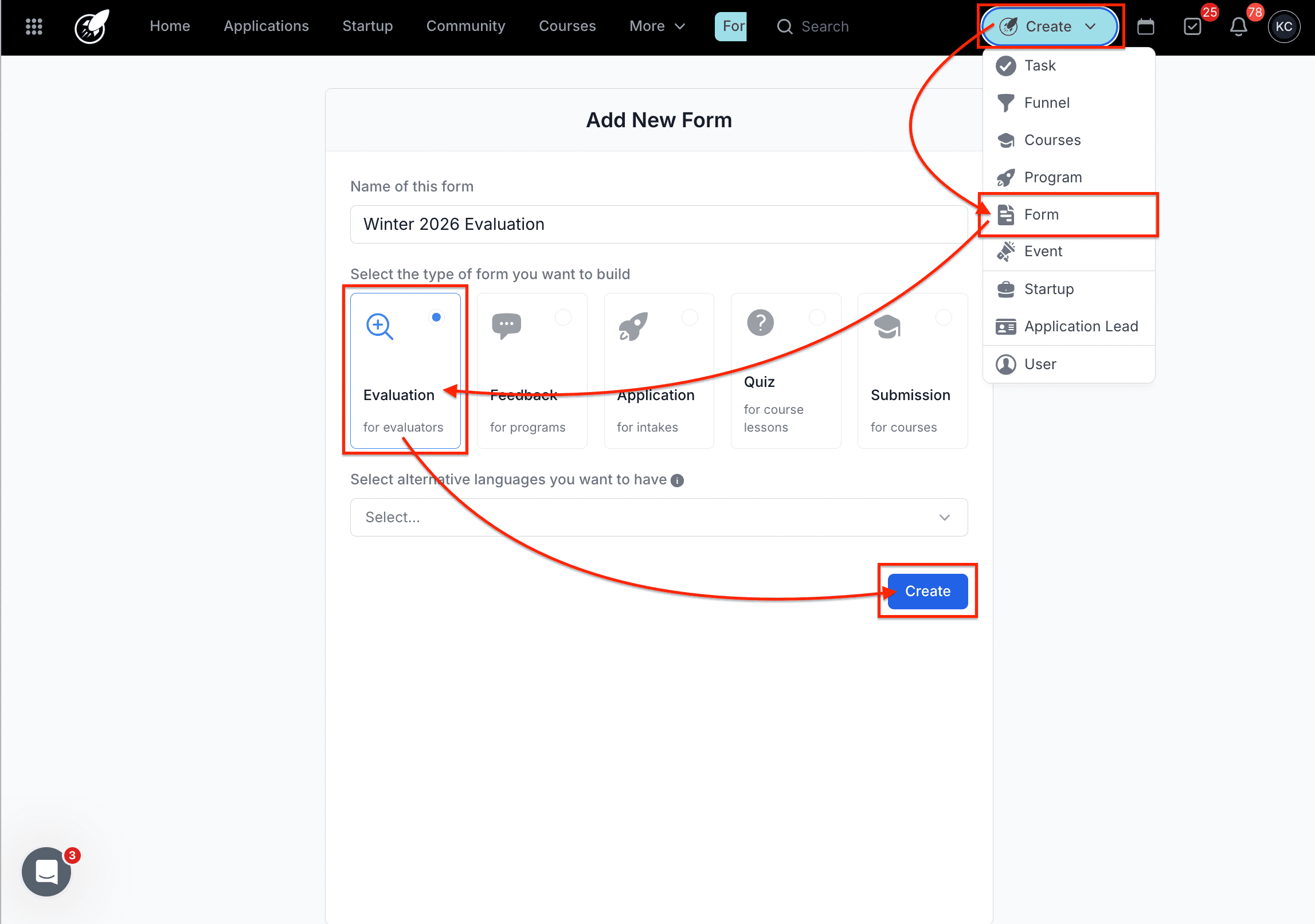
d. Build the body of your evaluation form using drag-and-drop elements such as:
- Scale (to rate from 1–10 or custom range)
- Long Answer or Paragraph (for written feedback)
- Single/Multiple Choice (for quick selections)
- Heading or Sub-header (for structure and section titles)
f. Click Save as you build. When finished, click Publish to make the form available for use. To know more about How to Create an Evaluation Form click here.
2. Attach the Evaluation Form to a Course Unit
a. Go to the Courses module → select Courses Management.
b. Locate the course you want to evaluate and click Edit.
c. Inside the course builder, select the assignment, quiz, or submission unit you want to evaluate.
d. Scroll to the Add an evaluation section.
e. From the dropdown, select the evaluation form you created (e.g., 4th Quarter Evaluation 2025).
f. Assign Unit Weightage, enter the percentage or numerical weightage for this unit in the Weightage field (e.g., 20% toward the final grade).
f. Click Save, then Publish the course updates.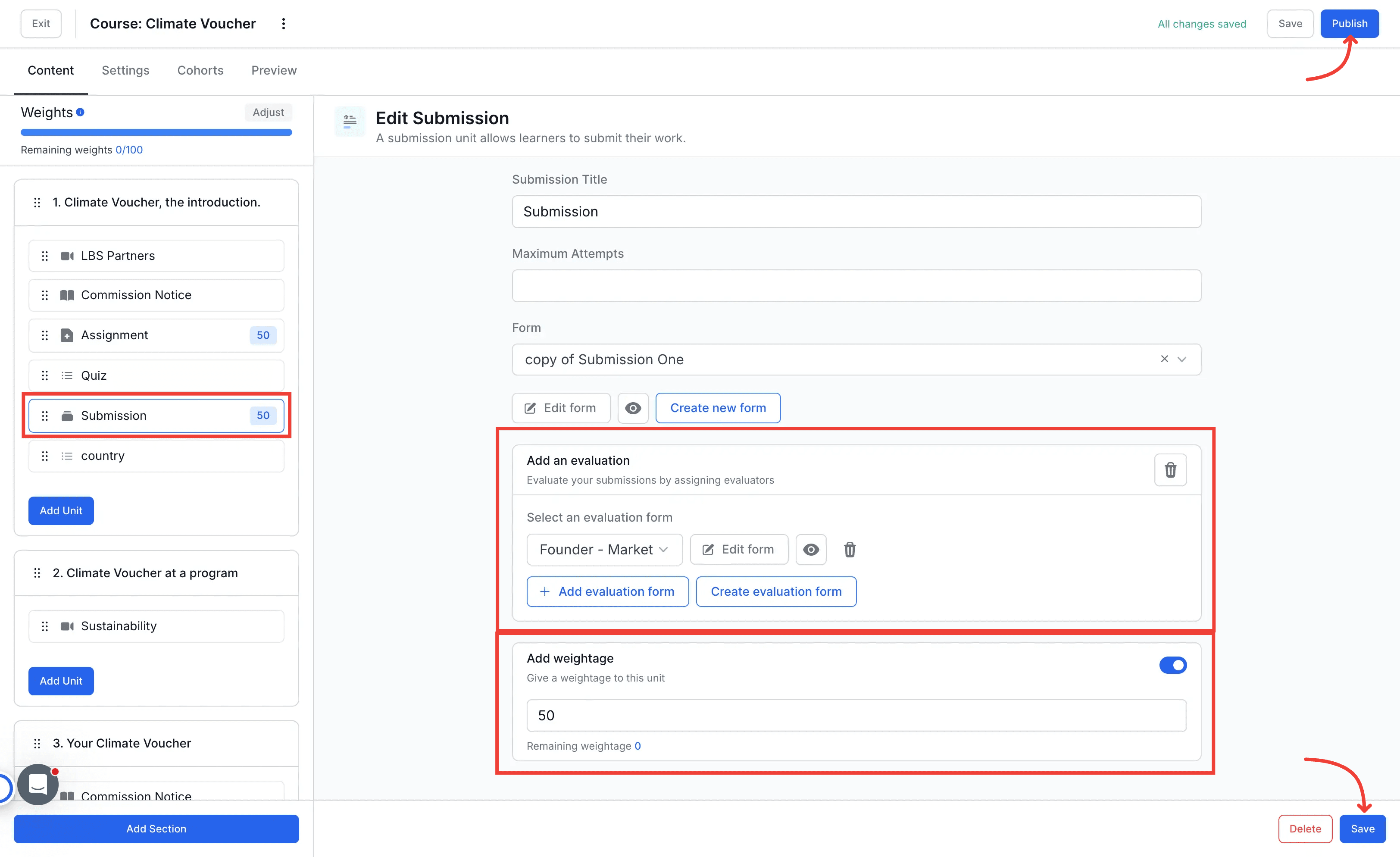
Your course is now ready for evaluators to use the form.
3. Assign Evaluators
Once your evaluation form is attached and published:
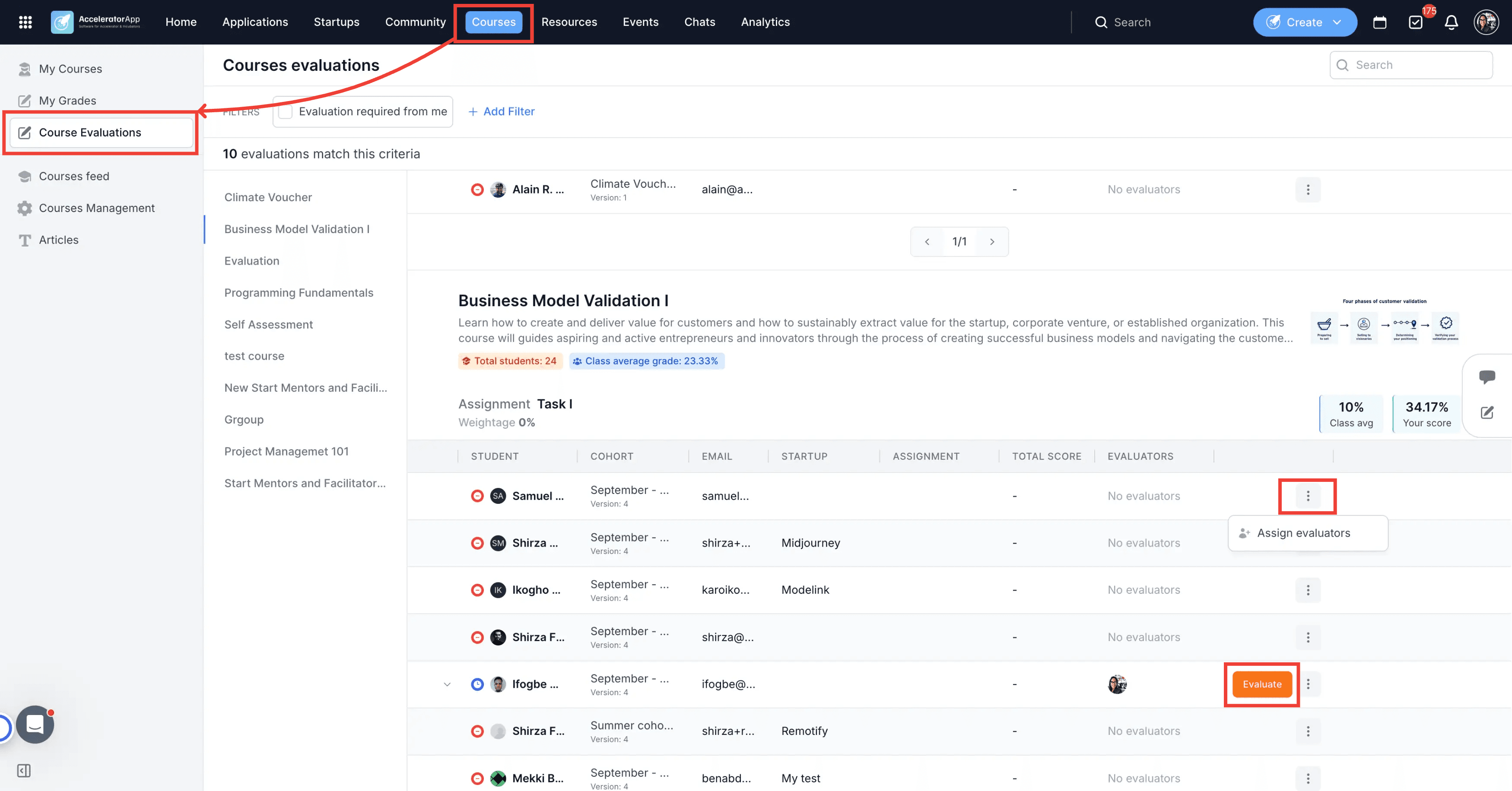
- a. Go to Courses → Courses Evaluations
- b. Select the Course you are working on
- c. You’ll see a list of learners who have started the course.
- d. Click on the 3 dots located on the right side of each learner line adn assign the evaluators or
- e. Select a learner’s name to open their detailed course view.
- f. On the right panel, you’ll see Evaluations for each assignment or submission.
- Click Assign to designate evaluators.
- Multiple evaluators can be assigned per learner or activity.
- Set deadlines for when evaluations should be completed.
Once assigned, evaluators can start their evaluation by clicking the orange Start my evaluation button.
4. Complete an Evaluation
a. Evaluators open the assigned learner’s course and click Start my evaluation.
b. The evaluation form appears on the right side of the screen, showing the learner’s submission on the left.
c. Evaluators can:
- Fill in scores and comments.
- Save progress to continue later (Save button).
- Submit their evaluation once complete (Submit evaluation button).
e. After submission, results become visible to administrators, and the evaluation is marked as complete.
5. Visualize Evaluation Data
Admins and evaluators can view completed evaluations directly from the Course Management > Dashboard.
- See which learners have been evaluated, pending evaluations, and overall scores.
- Filter by evaluator or learner to track progress.
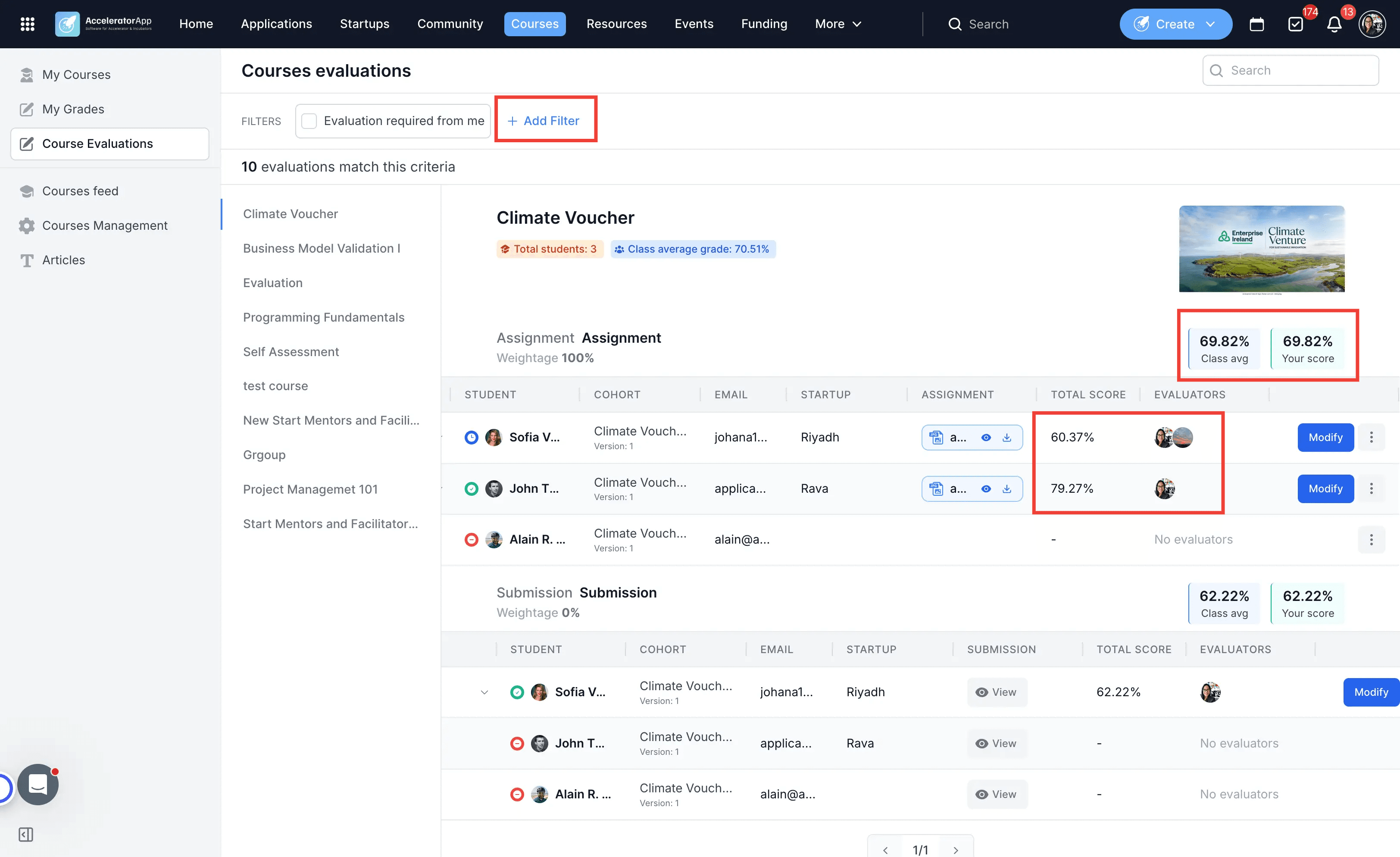
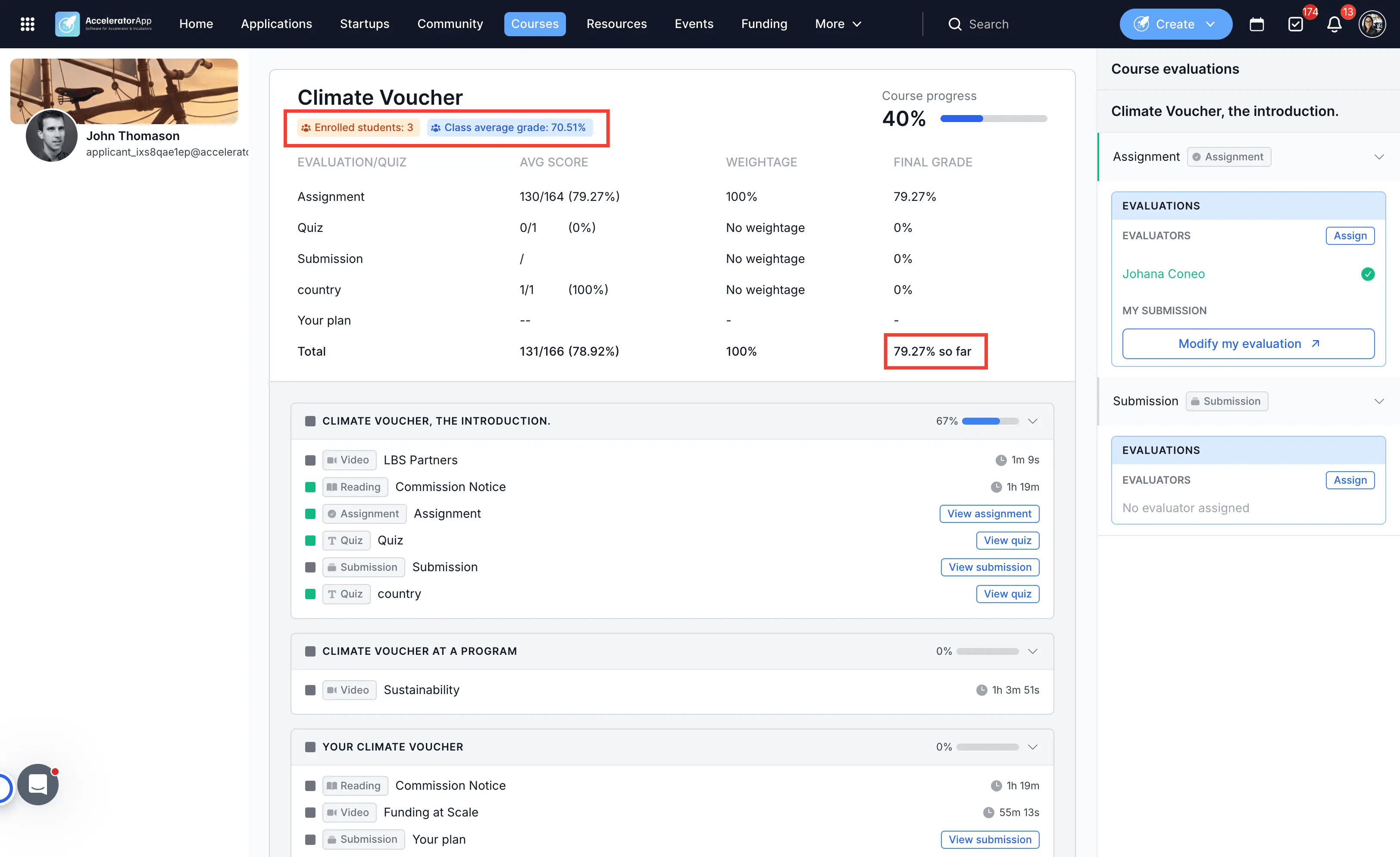
- Review Weighted Grades: Click the Gradebook tab inside the Learner File to view individual unit scores, assigned weightages, and the total calculated final score.
Best Practices
- Use standardized evaluation forms across similar courses for fairness and consistency.
- Add both quantitative and qualitative fields to capture complete feedback.
- Set evaluation deadlines when assigning evaluators to ensure timely reviews.
- Publish forms and courses before starting evaluations—draft items are not visible to evaluators.
- Encourage evaluators to save often when completing long forms.