


Introduction to One-on-One Events
One-on-One Events allow users to book individual sessions by automatically matching host availability with attendee needs. Ideal for coaching, mentoring, or office hours, they streamline scheduling, eliminate back-and-forth emails, and ensure participants can access support at the right time.
For One-on-One Events, bookings are self-service — users must select and book their own time slots based on the host's availability. Admins cannot register or schedule users on their behalf within this event type. If you need more control over scheduling, use the Create button → Meeting option instead, which allows admins to manually set up meetings and manage participants directly.
Where to Find One-on-One Events
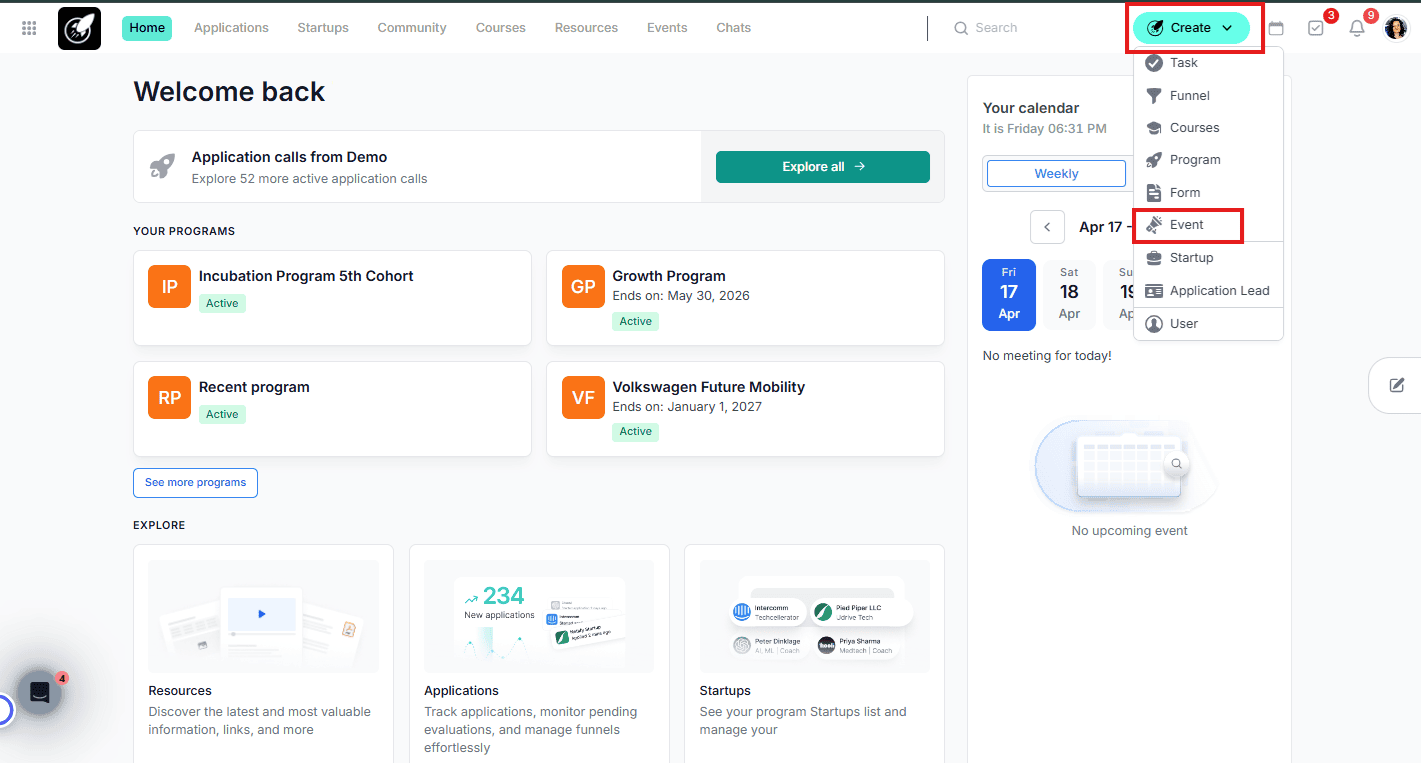
Click the Create button in the top navigation bar, or navigate to the Events page.
Step-by-Step
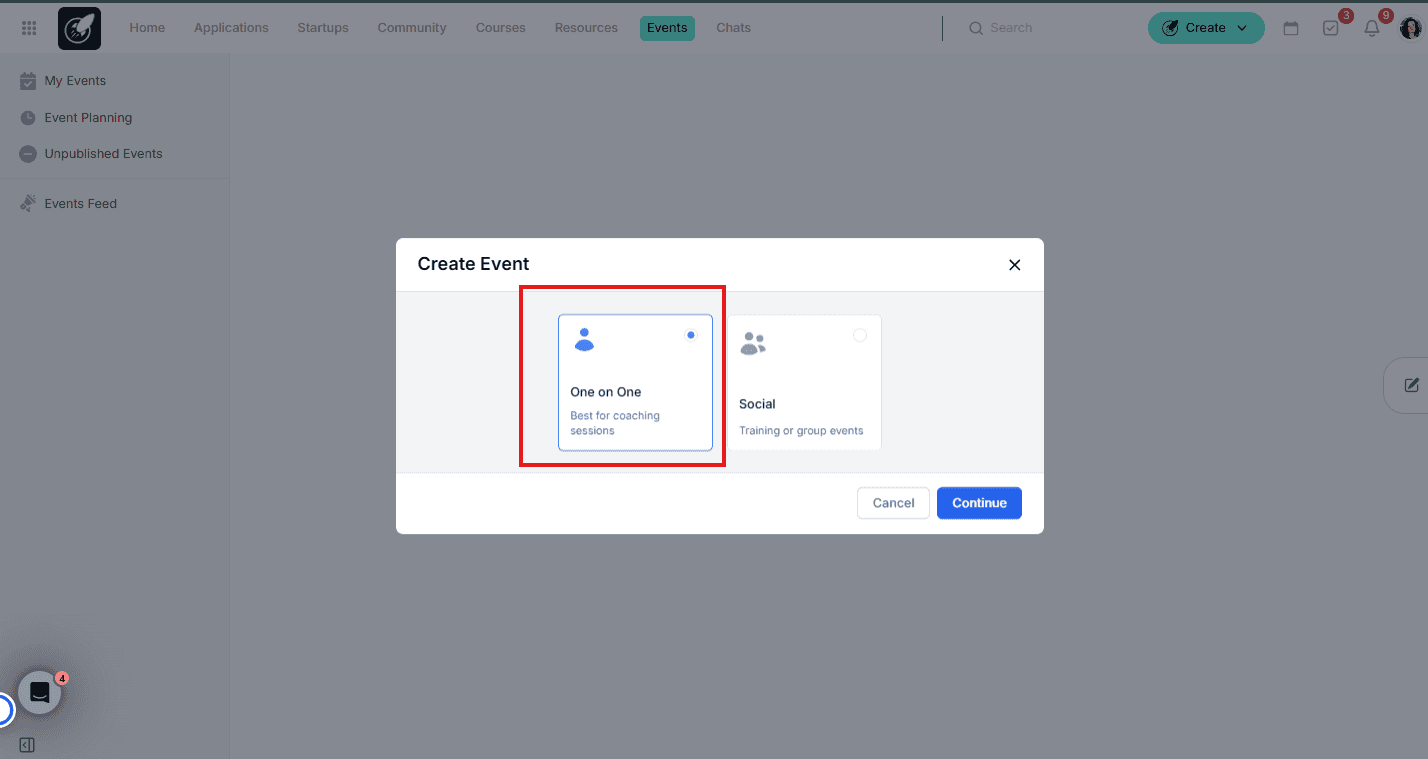
1. Select Event Type
Click Create in the top navigation bar, select Event, and choose One-on-One from the event type selection screen.
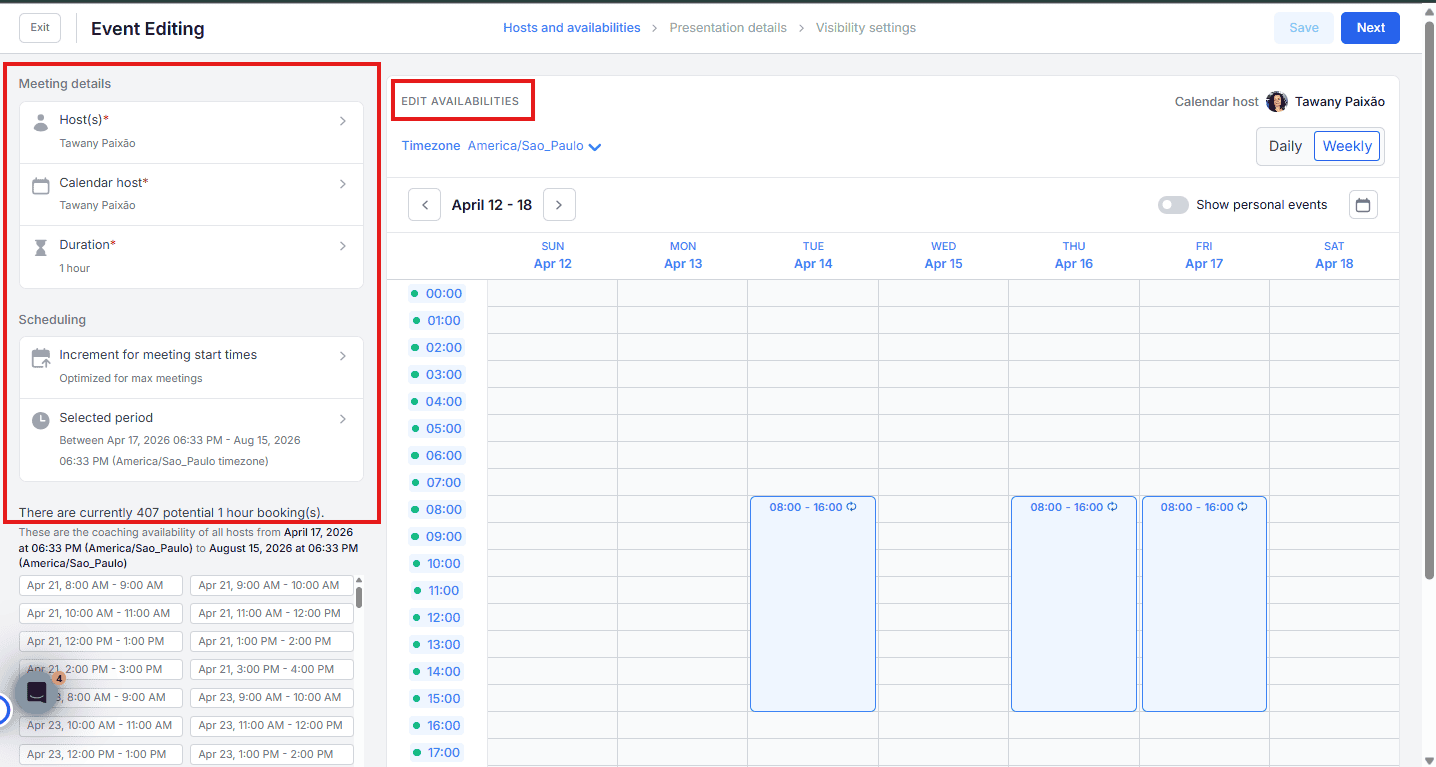
2. Set Hosts and Availability
- Select the host who will be conducting the sessions (e.g. a coach or mentor).
- Set the session Duration.
- Choose the Increment for meeting start times — either Optimize for max meetings or Set manual increment.
- Define the available period.
- Edit availability slots and click Save and Next.
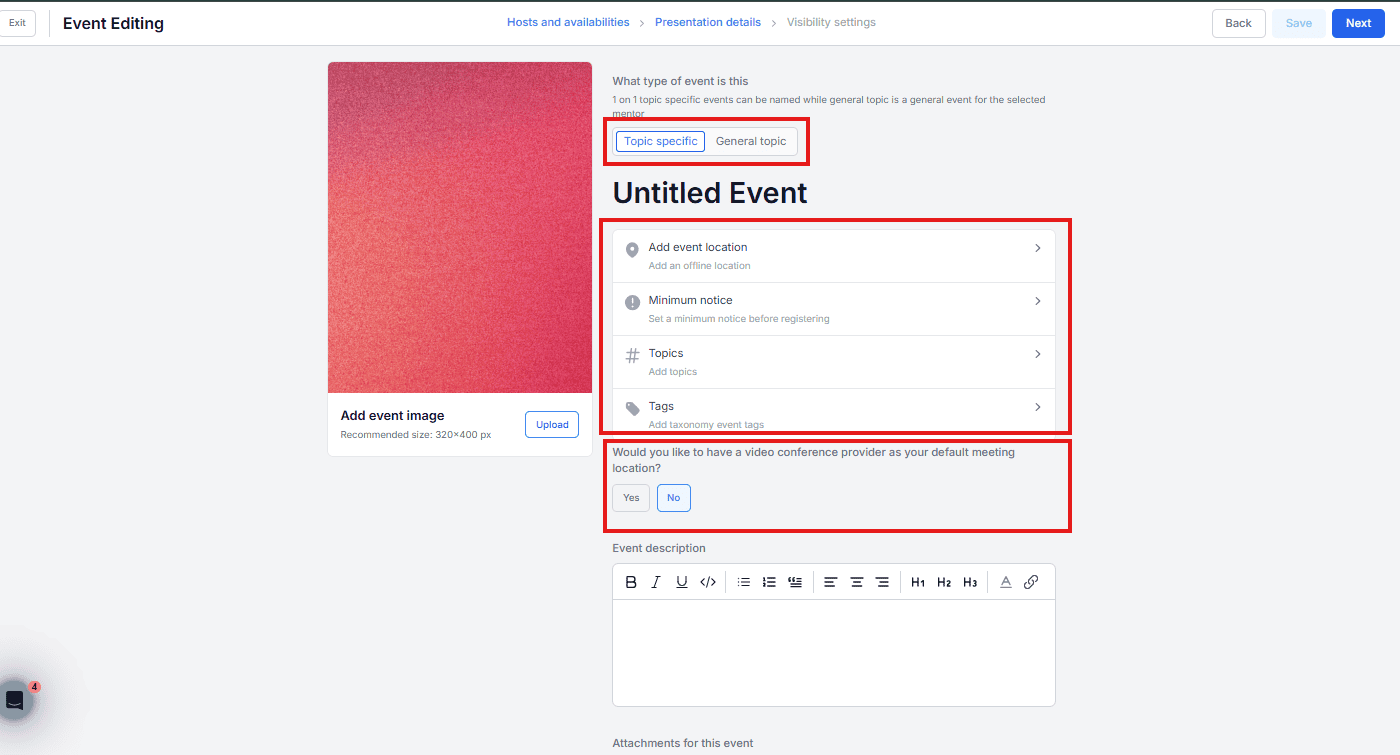
3. Add Presentation Details
- Select whether the event is General (host is the main attraction) or Topic Specific (subject matter takes center stage).
- Add a location — physical address for in-person sessions, or select a video conference provider. If nothing is selected, the host's default coaching preferences will apply.
- Set a minimum notice period before registration.
- Add Topics (Evaluation Criteria from Taxonomy) and Tags.
- Add a cover image, event description, and any attachments.
Click Next to proceed.
4. Configure Visibility
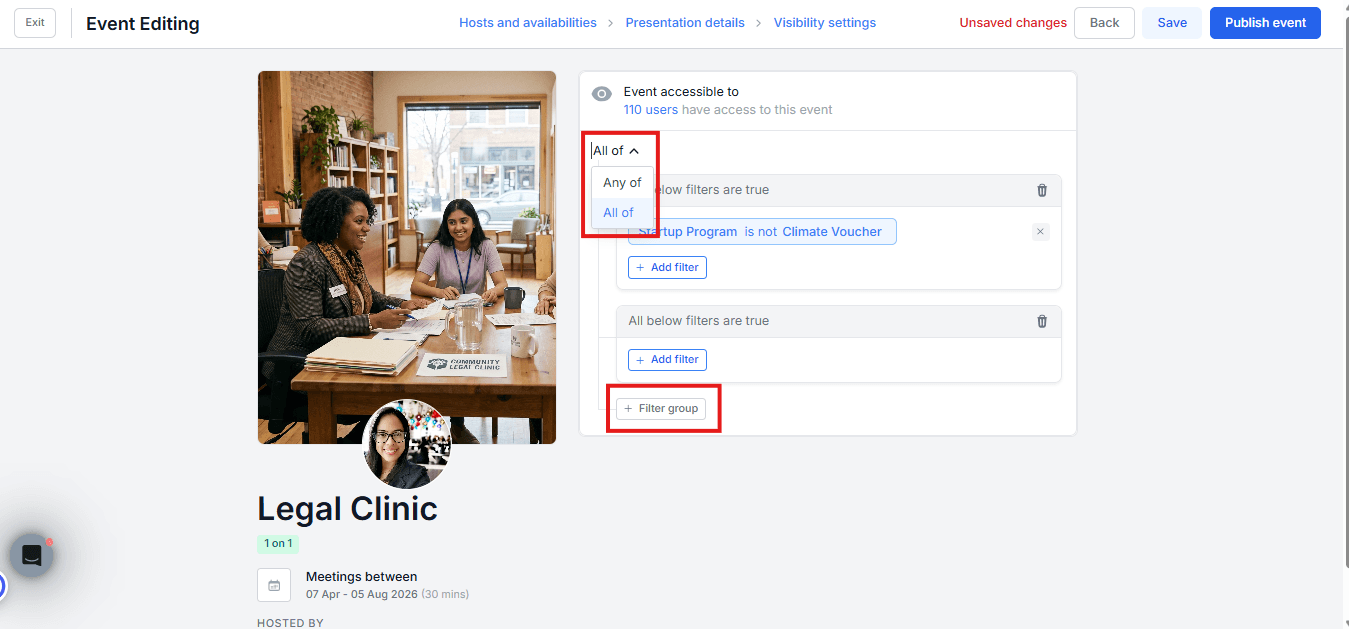
Use the Visibility settings to control who can see and book the event. You can combine different types of filters to build a precise target group:
- Include connected network users — a toggle that determines whether mentors and sub-admins linked to a program should be included in the target group.
- Filter Groups — each group acts as an AND condition. To create an OR condition, add a second filter group:
- Use Any of as the connector to include users who match either group.
- Use All of to include only users who match every condition across all groups.
Before saving, always check the Event accessible to users list at the top of Visibility Settings — it shows exactly how many people your current filters are reaching.
If your event update email is enabled, saving visibility changes will notify your entire target group. To avoid sending an unintended notification, disable the update email in Emails Management before saving.
5. Publish the Event
- If you do not click Publish Event, the event is saved as a draft — no notifications are sent and the event does not appear in the feed for users.
- When you click Publish Event, automated emails and notifications are triggered to all eligible users based on your visibility settings (if the relevant transactional emails are enabled in Emails Management).
6. Manage Attendees & Post-Event Actions
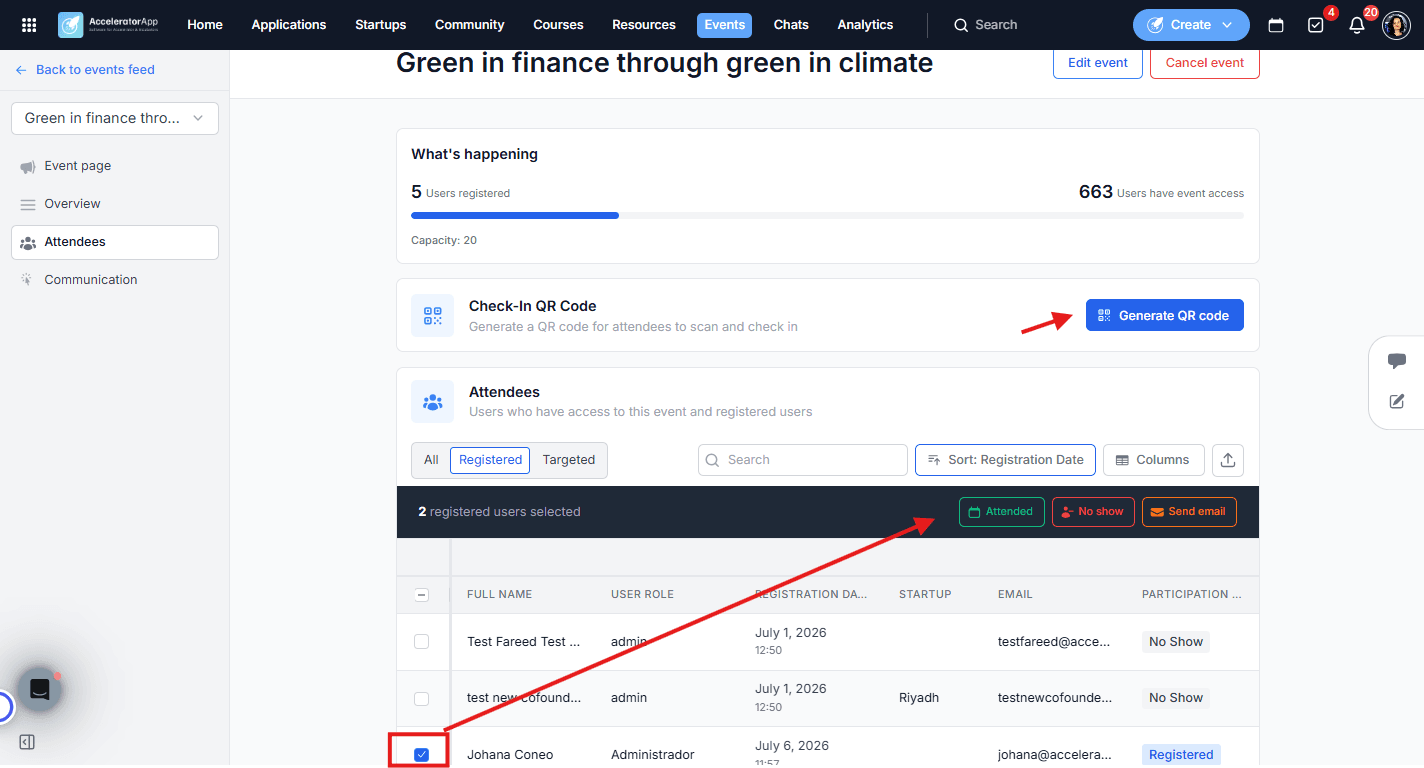
Once published, you will have access to the Overview, Attendees, and Communication tabs:
- Managing status — From the Attendees table, click the checkbox or the three dots next to a user's name to update their status (Attended, No Show, or send them an email).
- Communication — From the Communication tab, build a connection with your audience through emails, feedback request forms, and tasks. Send immediate communications or schedule them in advance to keep participants engaged before, during, and after the event. Depending on your plan, you can also schedule custom emails in advance.
- Cancellation — Once published, an event cannot be put back to draft or deleted, but it can be canceled. When canceled, an email and notification are sent to all registered users and hosts, and the event is removed from their connected calendars.
Best Practices
- Review existing events after visibility updates. Open published events, click Edit Event, and check Visibility Settings to confirm the target group is still configured as intended.
- Check the target group count before saving. The Event accessible to users line shows exactly how many people your filters are reaching — use it to confirm before publishing.
- Turn off the update email before making silent changes. Saving triggers a notification to the entire target group — disable it in Emails Management first if you want to update without notifying anyone.
- Set buffer times. Encourage hosts to build breaks into their availability slots to avoid back-to-back sessions without recovery time.
- Add availability on behalf of hosts. If a host runs out of slots, Admins can manually add more availability to the event on their behalf.
- Drive bookings with a targeted email. Once published, use the Communication tab to notify a specific audience and encourage immediate sign-ups.