


Introduction to sending emails
Communicating with startups, applicants, and event attendees is a core part of managing a successful program. The Email feature in AcceleratorApp allows you to send personalized, trackable messages directly from the platform. Whether you are reaching out to a single founder or bulk-emailing a specific cohort, this tool ensures your outreach is efficient and professional.
By using integrated templates and personalization variables, you can automate repetitive tasks while maintaining a personal touch. Each sent email is trackable, allowing you to monitor deliverability and engagement directly within the user's profile.
Note: Cofounders cannot send standalone emails through the AcceleratorApp platform. The email sending feature (via the Startup Portfolio, Events, Applications, or Requests tabs) is only available to Admins, Staff and Mentors roles.
Cofounders have the following options to contact their mentors:
- Chat Center — send direct messages to assigned mentors within the platform (requires Chat to be enabled at the instance level and the Cofounder role to have chat permissions configured).
- Notes — tag the mentor in a note on the startup's Activity Feed.
- Schedule a Meeting — open the mentor's profile from the Connections tab and click Schedule Meeting (requires the mentor to have availability set up on the platform).
- External email — the mentor's contact email is visible on their profile page and can be used to email them directly outside the platform.
Where to Find Email Tools
AcceleratorApp offers several locations to initiate communication, whether in bulk or individually.
Bulk sending:
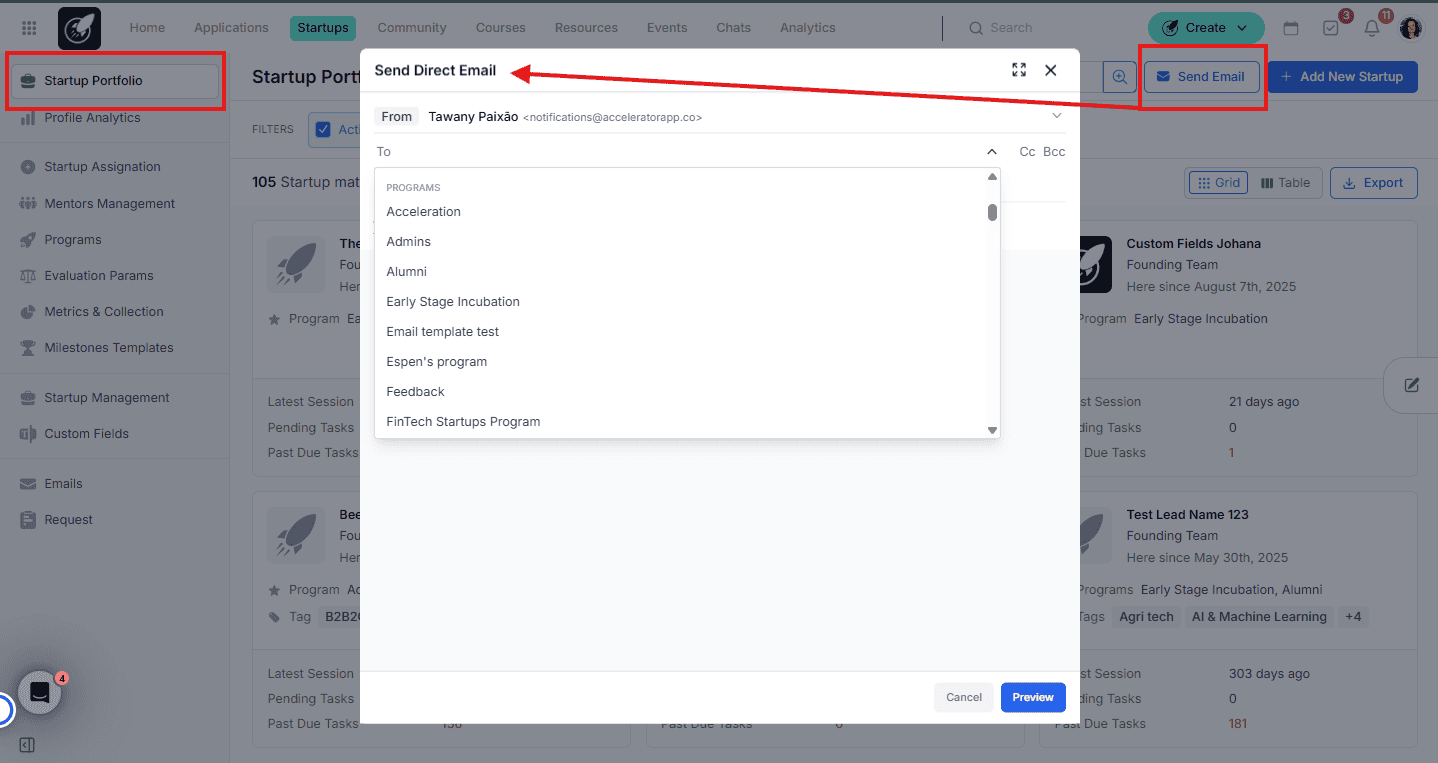
- Startup Portfolio — for reaching out to active startups, users, or specific programs and tags.
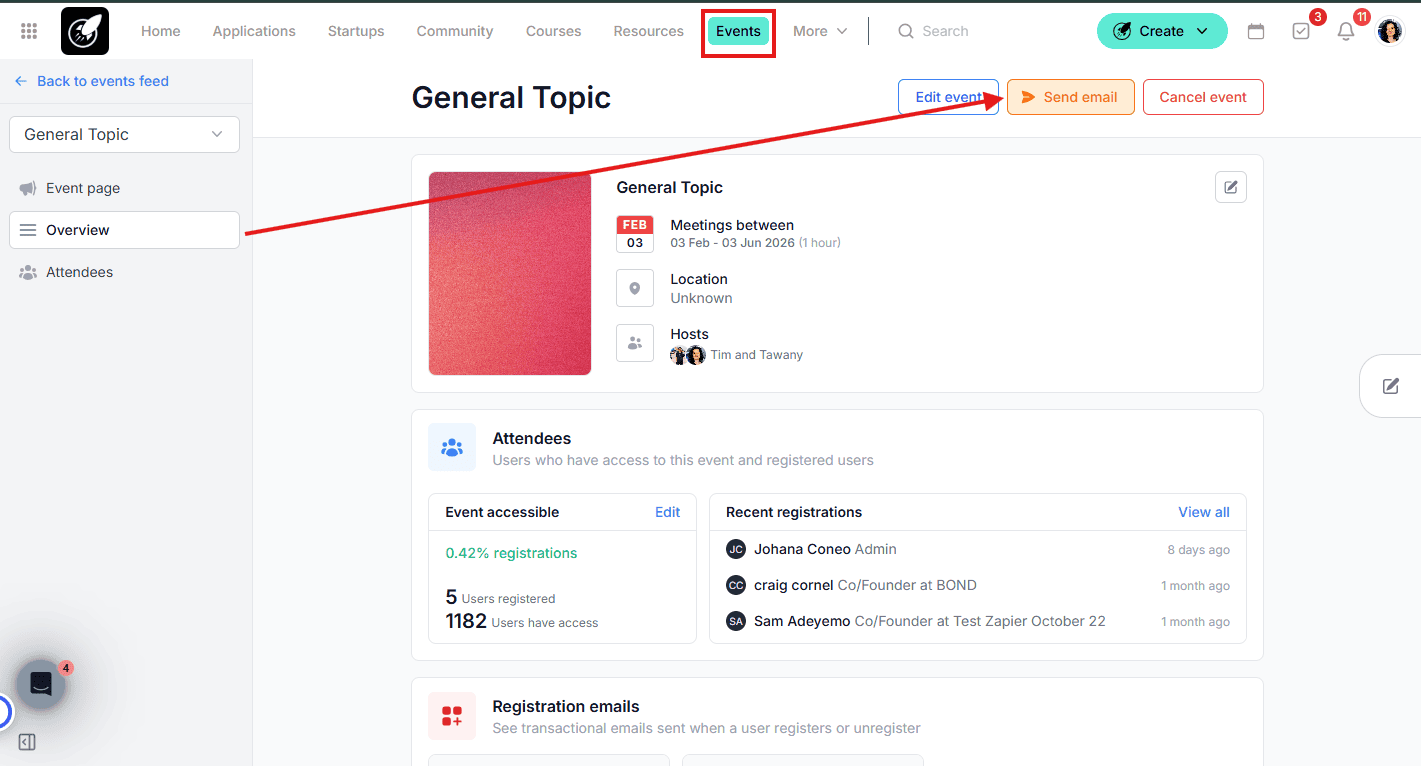
- Events — via the Communication tab inside a published event, for communicating with targeted, registered, attended, or no-show guests. You can also schedule emails from this tab and track how many were sent and opened.
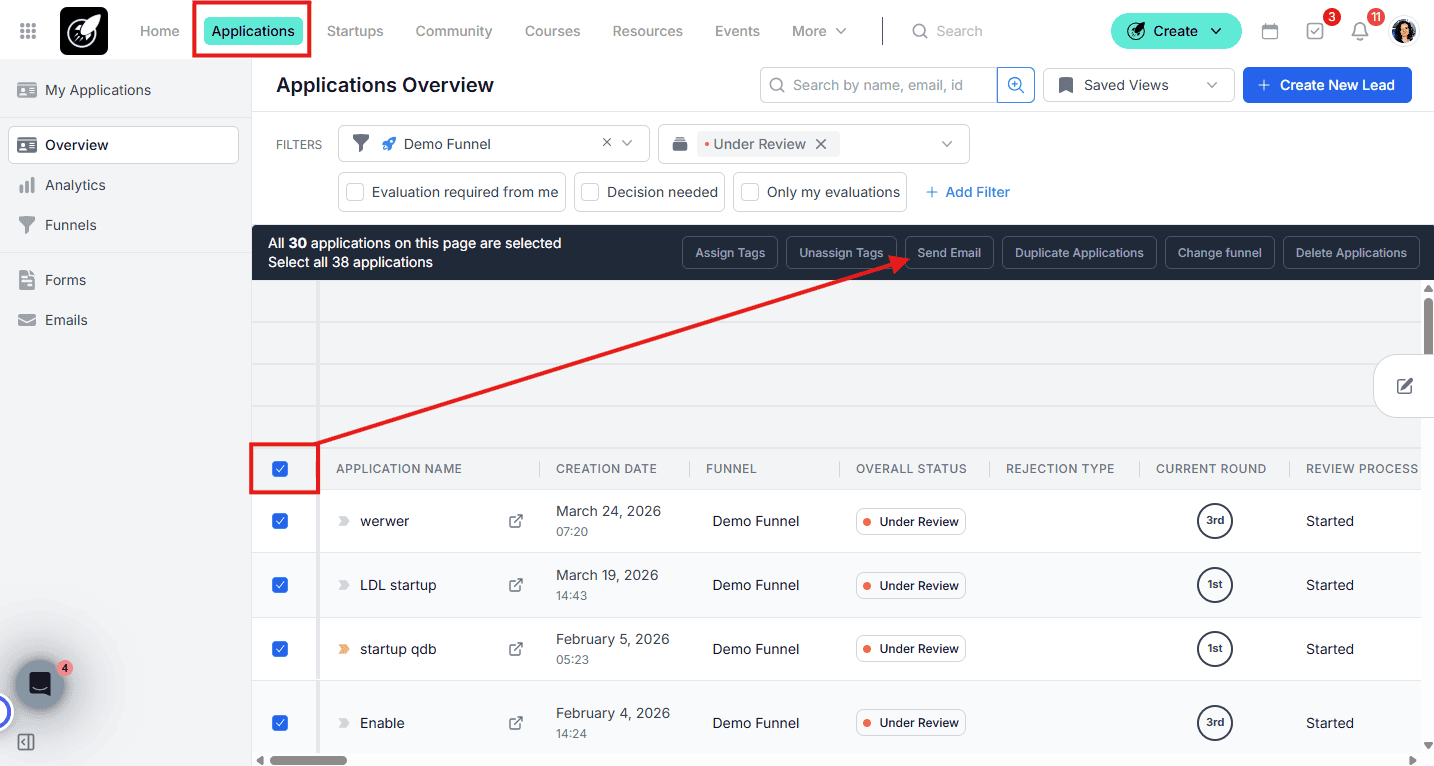
- Application Overview — for mass communication with candidates within an application funnel.
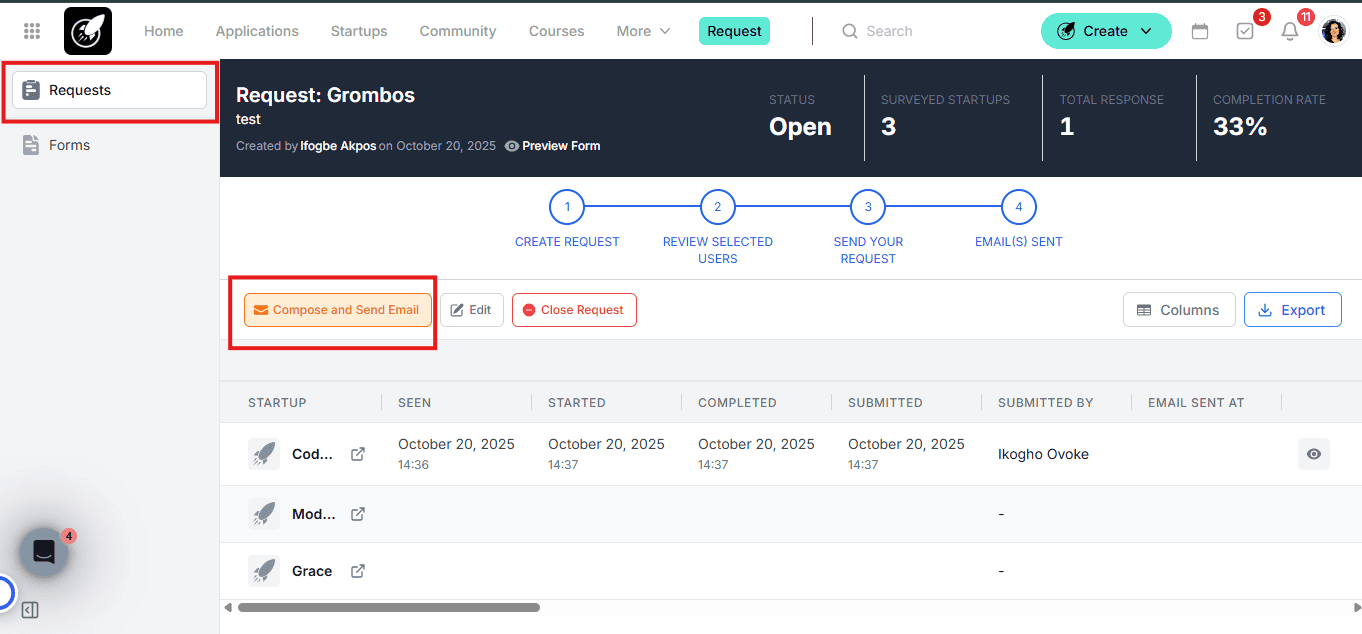
- Requests — for following up with users who have or have not completed a specific request.
Individual sending:
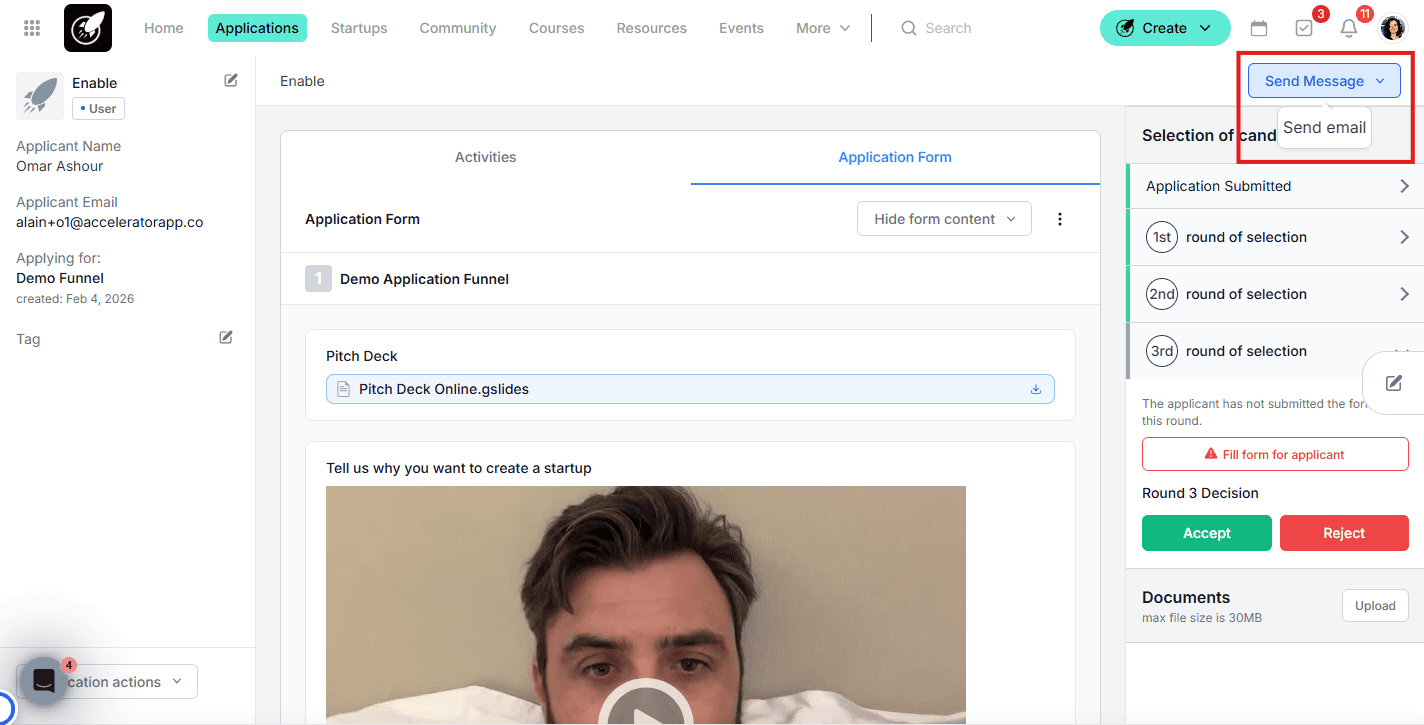
- Applicant or Startup File — for sending a direct, personalized email to a specific person by opening their individual file.
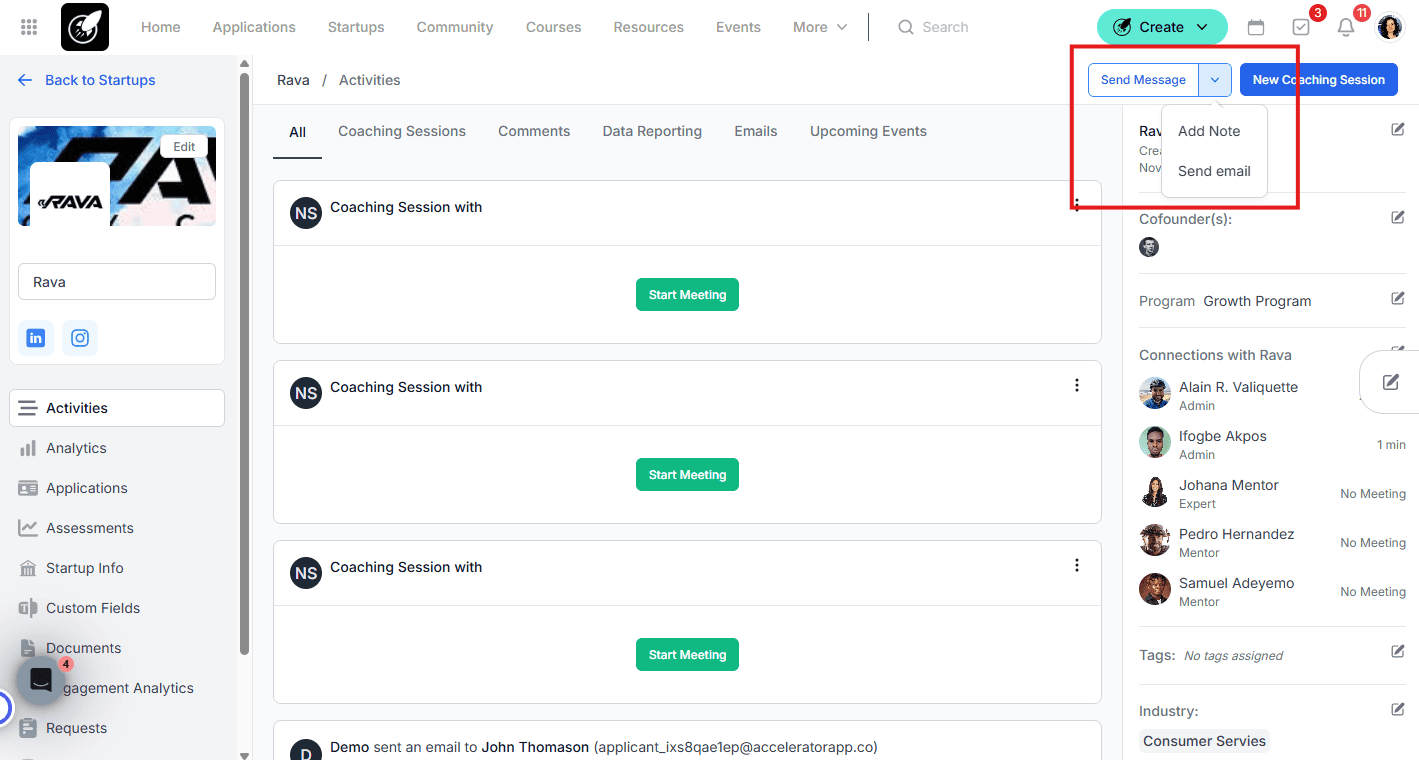
Step-by-Step
1. Send Emails from the Startup Portfolio
- Navigate to the Startups tab in the top menu.
- Select the startups, users, programs, or tags you want to contact and click Send Email.
2. Configure the Email
- From — select the sender address. You can choose your own user email or the default notifications@acceleratorapp.co. If a recipient replies to the default notification address, the reply is forwarded to the email set in your General Settings.
- To / CC / BCC — add individual recipients as needed.
- Personalization & Templates — use the Variables dropdown to add placeholders like {{first_name}}. Click Templates to load a saved template or save your current draft as a new one for future use.
- Subject & Body — enter your content, ensuring your subject line is clear and professional.
3. Preview and Send
- Click Preview to review how the variables will appear to the recipient.
- Click Send to deliver the message.
4. Send and Schedule Emails from Events
- Navigate to a published event and go to the Communication tab.
- Click Compose Email and choose your target audience: Targeted, Registered, Attended, or No Show.
- Send immediately or click Schedule for later to plan the send in advance.
- From the same tab, you can track the total number of emails sent and the open rate for that event.
5. Bulk Emails from the Application Overview
- Navigate to the Application Overview and select your funnel and a status (e.g. Submitted, Under Review).
- Select the checkboxes for the desired recipients.
- In the Bulk Actions banner at the top, click Send Email.
6. Send Emails via the Requests Feature
- Navigate to the Requests management page.
- Select a specific request to see the list of targeted users.
- Click Send Email to follow up — for example, sending a reminder to those who have not yet submitted, or next steps to those who already have.
7. Track Email Delivery and Engagement
To track results for individual emails, open a Startup or User File and locate the email in their activity history — you can see whether it was delivered or opened.
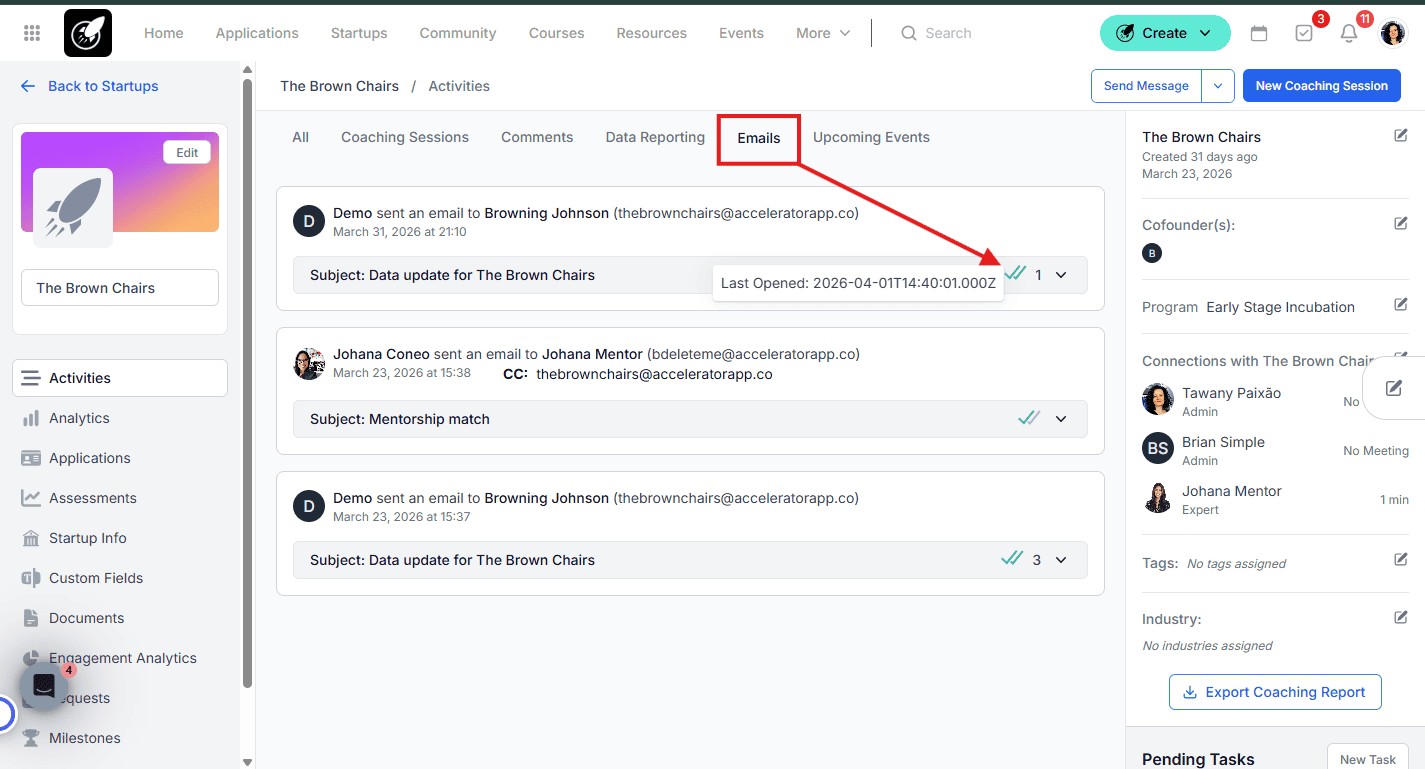
To track all emails sent across the platform in one place, navigate to General Settings in the left sidebar and select Email Settings. From here you can view, filter, and export a full log of all emails sent from the platform, regardless of where they were initiated.
Best Practices
- Use personalization variables. Always use {{first_name}} to increase engagement — a personalized subject line significantly improves open rates.
- Centralize replies. If you want replies to go to a shared inbox, make sure that address is correctly configured in General Settings.
- Create and reuse templates. Saving frequently used emails as templates saves time and ensures consistent communication across your team.
- Use the Communication tab for event emails. It gives you scheduling capability and real-time tracking of send volume and open rates — all in one place.
- Use Email Settings for a full audit trail. When you need to investigate a specific email or review overall send activity, General Settings > Email Settings gives you the most comprehensive view.