


Public API – Authentication Basics
Introduction to the Public API
AcceleratorApp’s Public API allows you (or your developers) to connect external tools, websites, or internal systems to your AcceleratorApp workspace.
The API enables programmatic access to your data — but only through secure authentication using your personal API key.
This guide explains how to find your API key and authenticate with our Public API server.
Please note: using the API requires technical knowledge (programming or scripting). After authentication, any advanced usage of the API must be handled by a developer.
If you simply need external automations or button-based integrations, we strongly recommend using Zapier, which requires no coding.
Where to Find Your Public API Key
To use the Public API, you first need to generate an API key from your AcceleratorApp account:
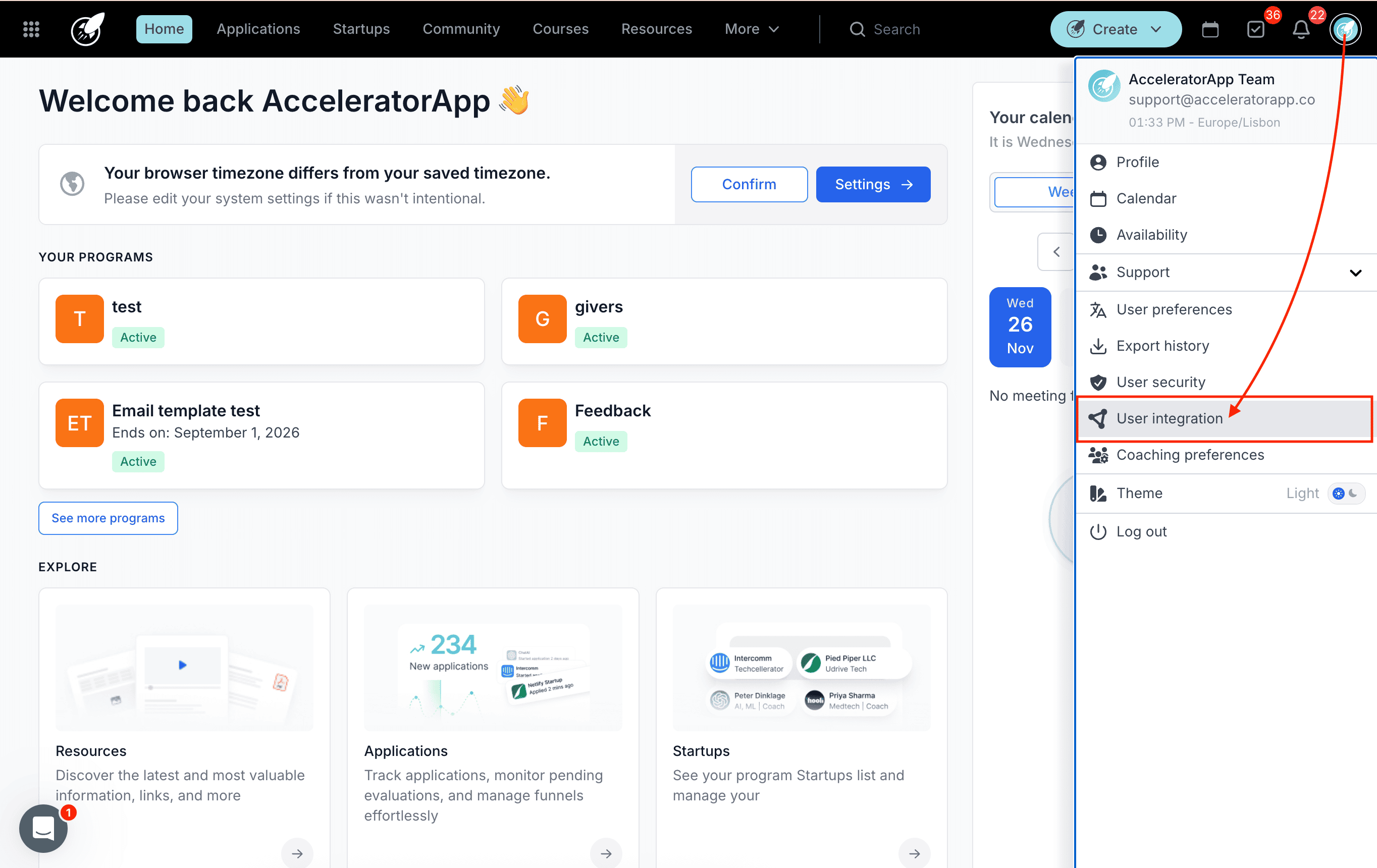
- Click your Profile Menu (avatar/initials) in the top-right corner.
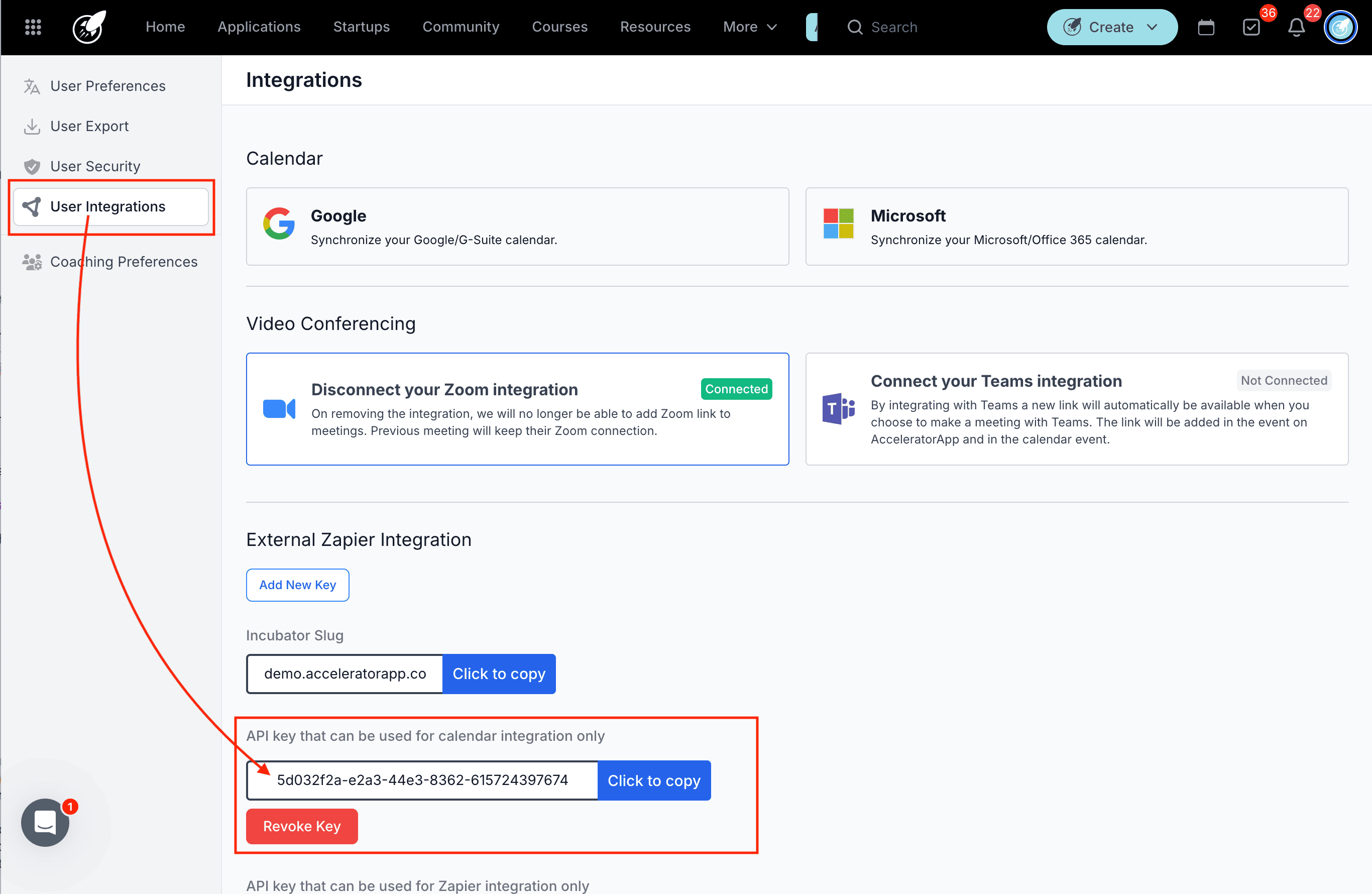
- Select User Integrations.
- Under External Zapier Integration, click Add New Key (or use an existing one).
- Click Copy to copy to save your API key.
This key identifies you securely when interacting with the Public API.
How to Authenticate With the Public API
Once you have your API key, you must include it in the HTTP Headers of your request so the server can authenticate you.
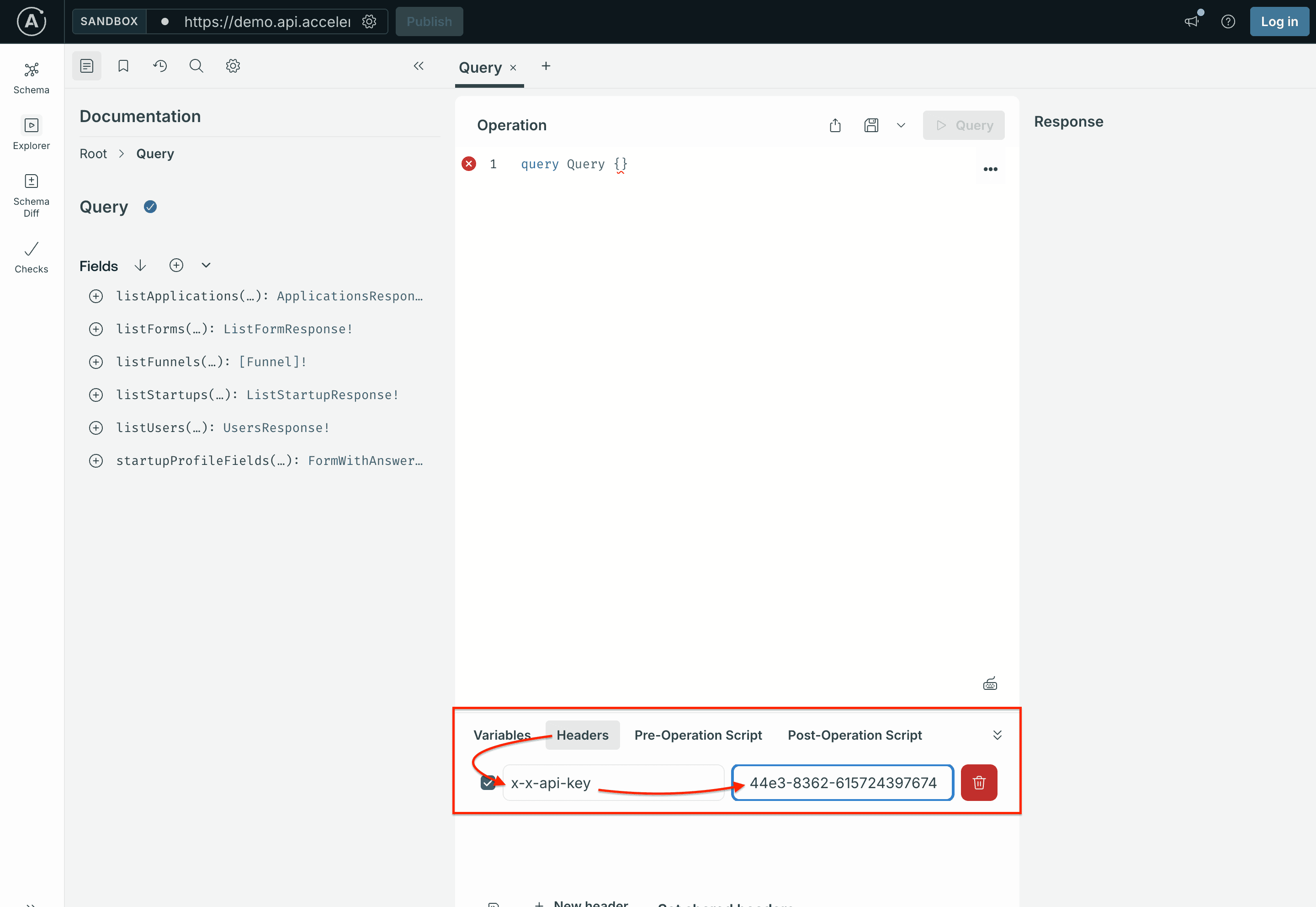
Open the your Public API environment.
Go to the Headers tab.
Add the following header:
- Key: x-api-key
- Value: Paste the API key you copied from AcceleratorApp
Once the header is added, the server automatically authenticates your identity.
What Authentication Does
When you send a request with x-api-key:
- The server verifies the API key belongs to your AcceleratorApp account.
- Your permissions and access rights are automatically applied.
- The system knows which user is making the request.
- Every API response is based on your user role and allowed data.
This protects your workspace and ensures secure access.
⚠️ Important Notes
- Your API key is personal and confidential — do not share it publicly.
- Anyone with your key can make API requests as you.
- You can revoke and regenerate your keys at any time in User Integrations.
- AcceleratorApp support cannot assist with advanced API development beyond authentication setup.
Using Zapier Instead of the Public API
If your goal is to build simple automations or button-based integrations, we recommend using Zapier, which is much easier and does not require programming.
Zapier is ideal for:
- Sending data to other platforms
- Trigger-based automations
- Connecting AcceleratorApp with thousands of apps (Google Sheets, Slack, CRM tools, etc.)
How to Find Your Zapier-Only API Key
AcceleratorApp provides a dedicated API key specifically for Zapier, separate from the Public API key.
To find the Zapier API key:
- Click your Profile Menu (avatar/initials) in the top-right corner.
- Select User Integrations.
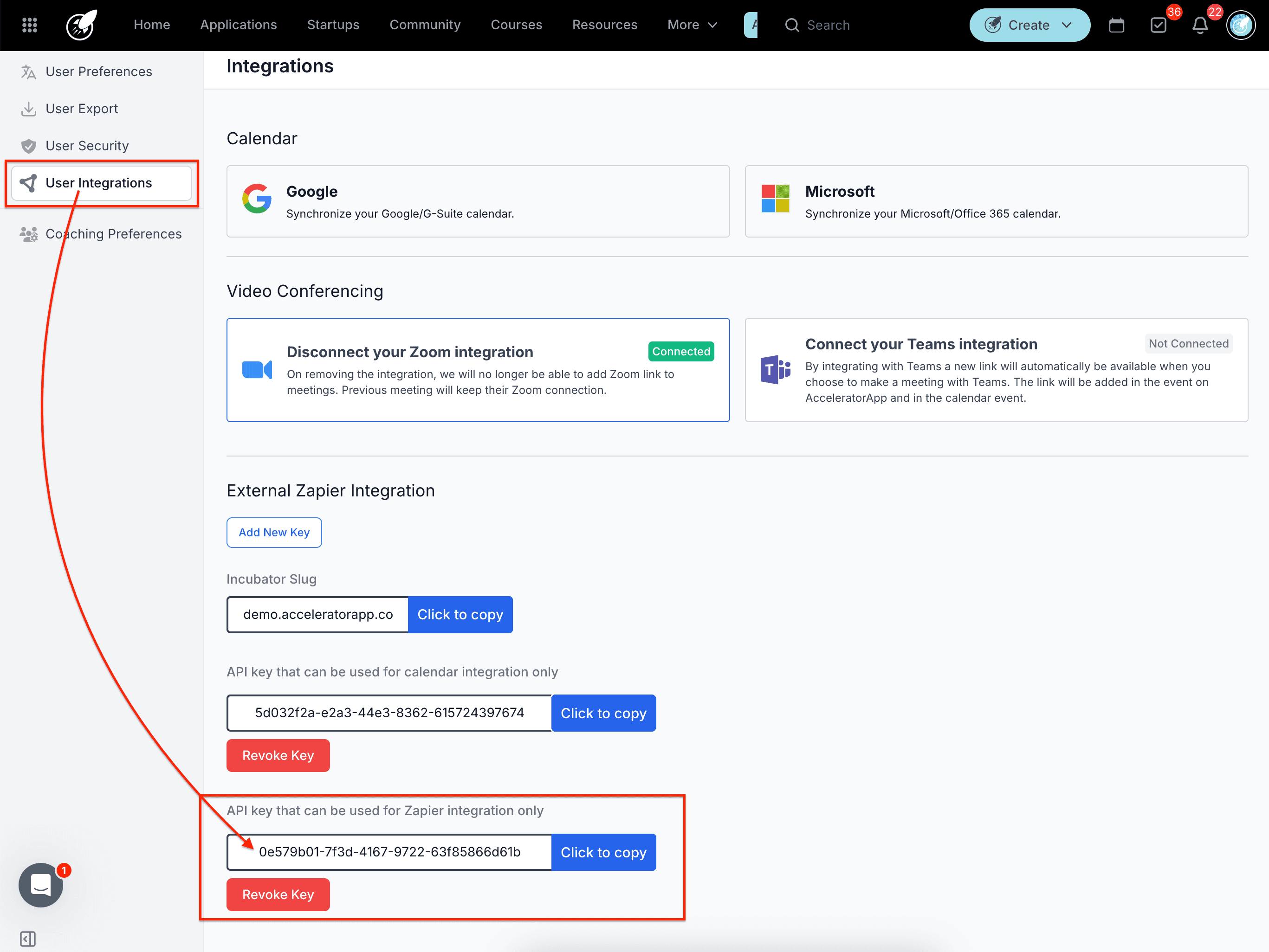
- Scroll to the section labeled External Zapier Integration.
- Look for the field titled:
“API key that can be used for Zapier integration only” - Click Copy to copy to save the key to your clipboard.
Use this key when connecting AcceleratorApp to Zapier.
Notes about the Zapier API key:
- It is only for Zapier.
- It cannot authenticate requests in the Public API.
- You may revoke and regenerate it at any time.
Additional Resources
- User Integration Settings
- Using Zapier with AcceleratorApp