


Introduction to Application Landing Page Customization
Learn how to customize your Application Funnel's landing page in AcceleratorApp — including the header, page background, content blocks, and apply form — to match your brand and attract applicants.
The Application Landing Page Customization feature allows you to fully personalize your Application Funnel's public page to match your brand and campaign goals.
Essential and Pro Bundle plans unlock additional customization — including images, videos, and FAQ accordions to turn your landing page into a fully branded program showcase.
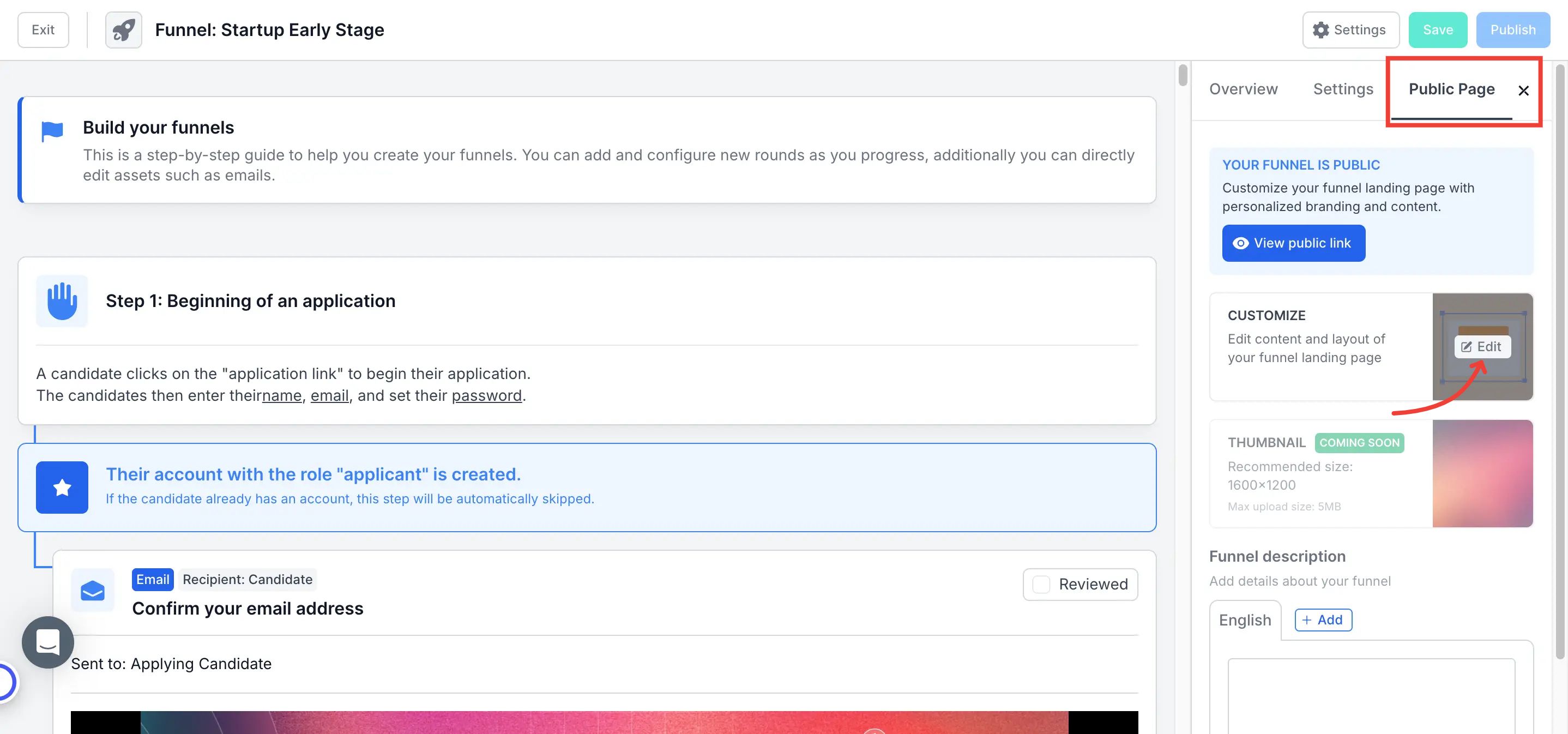
Where to Find Landing Page Customization
- Go to the application funnel you want to customize.
- Click on Public Page.
- Click Customize Page to open the Design Editor.
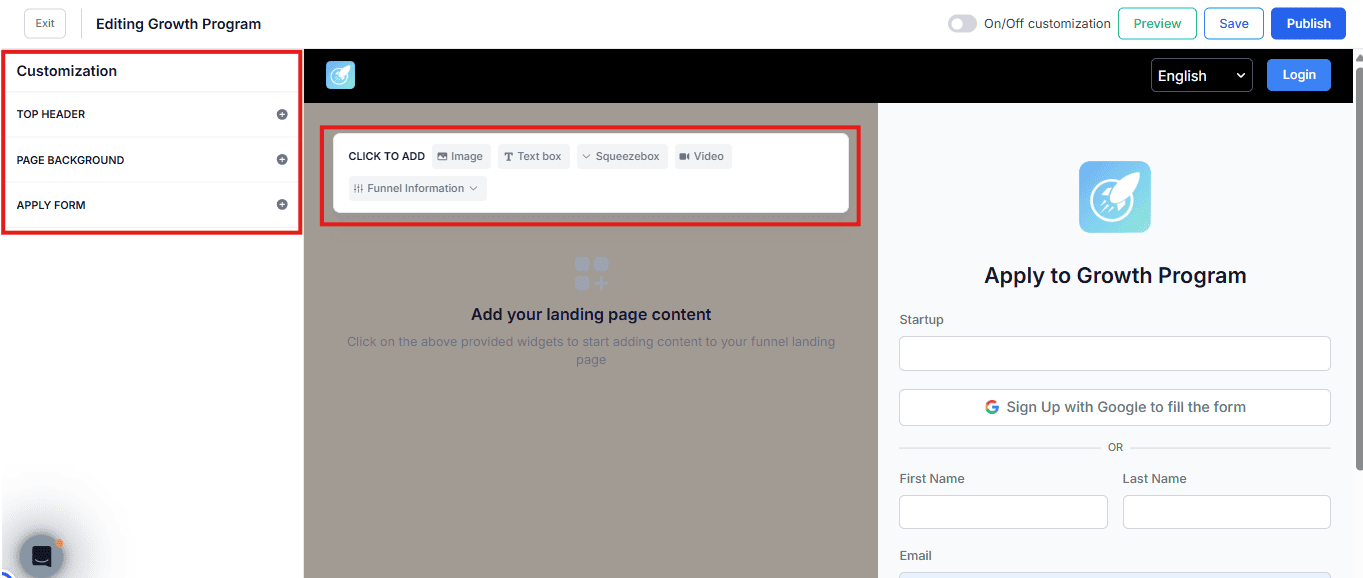
Step-by-Step
1. Header
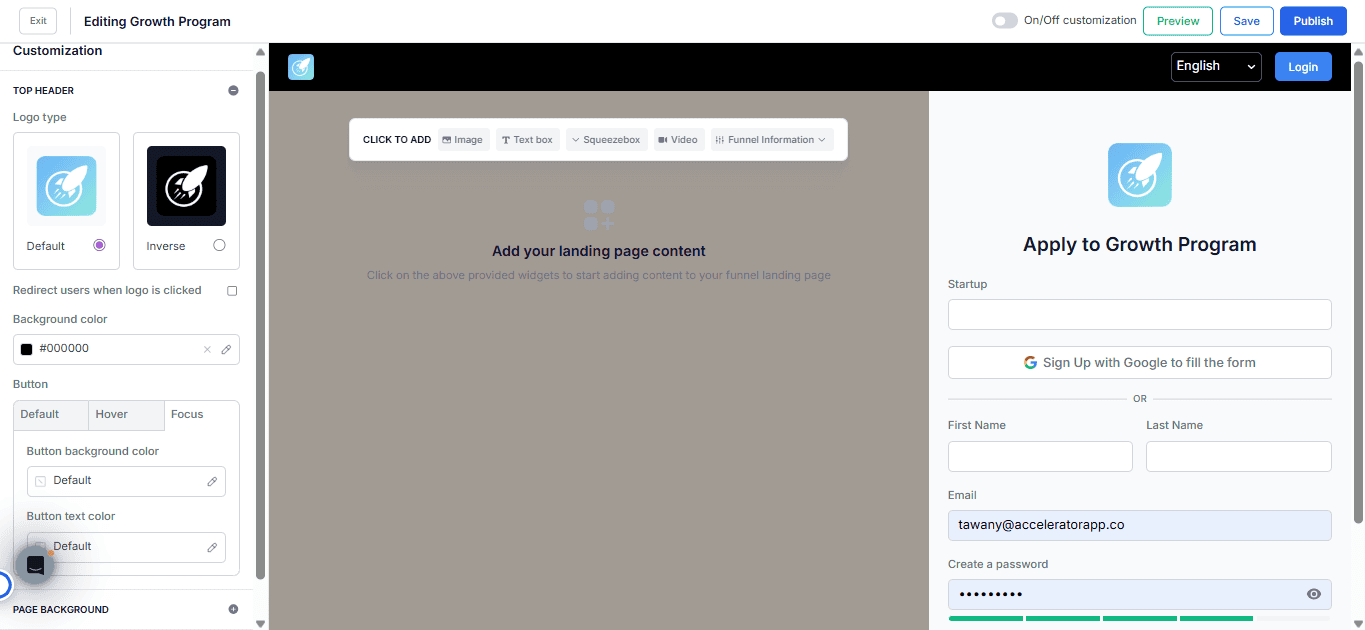
Configure the top section of your landing page branding:
- Logo Type — Choose between Default (light background) or Inverse (dark background) logo.
- Redirect users when logo is clicked — Enable this option to add a URL that users are sent to when they click the logo.
- Background color — Set the header background using a HEX code.
- Button — Customize the style of your CTA button across three states:
- Default — Standard appearance of the button.
- Hover — Appearance when the user hovers over the button.
- Focus — Appearance when the button is in focus (e.g. keyboard navigation).
- For each state, set the button background color and button text color.
2. Page Background
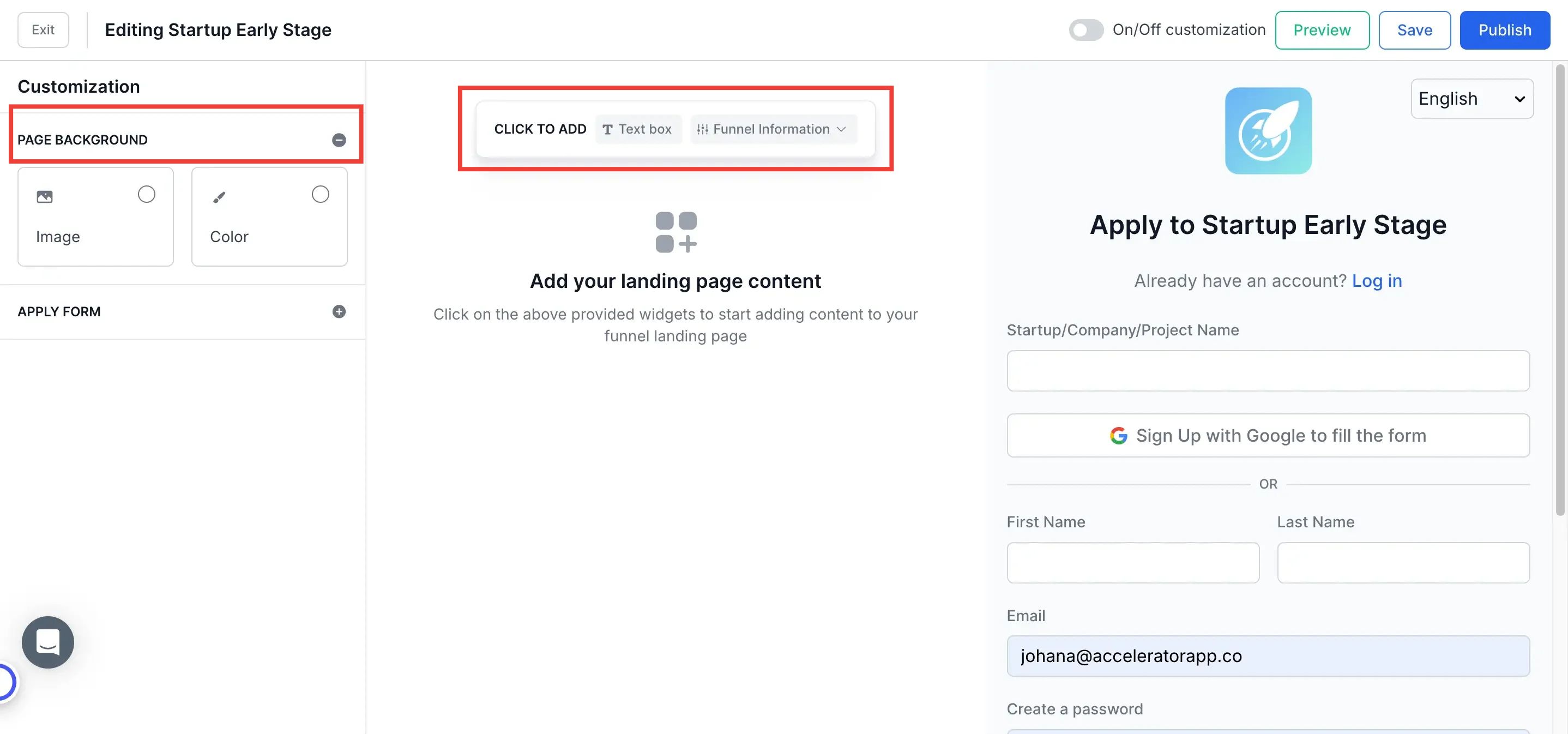
Customize the left side of the landing page (desktop) or top section (mobile):
- Choose a background color or upload a custom image.
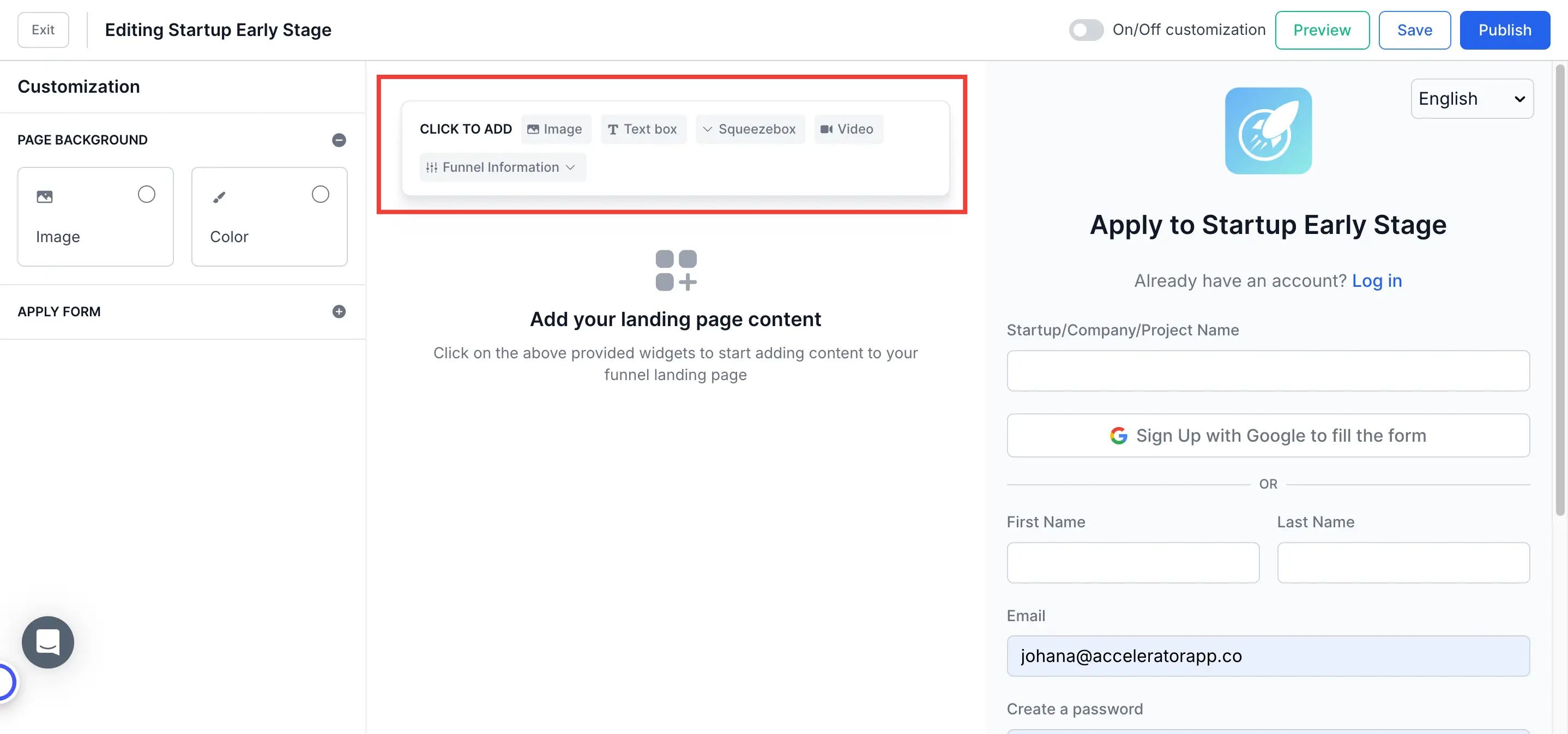
- Use Click to Add to insert content blocks.
Included in Launch Bundle:
- Text box — Add custom text content.
- Funnel Information — Dynamically display program details such as name, description, thumbnail, deadline, countdown to deadline, start and end date, attendance mode, and location.
Included in Essential and Pro Bundles:
- Squeezebox — FAQ accordion for structured Q&A content.
- Image — Upload a custom image block.
- Video — Upload a video file or embed directly from YouTube.
3. Apply Form
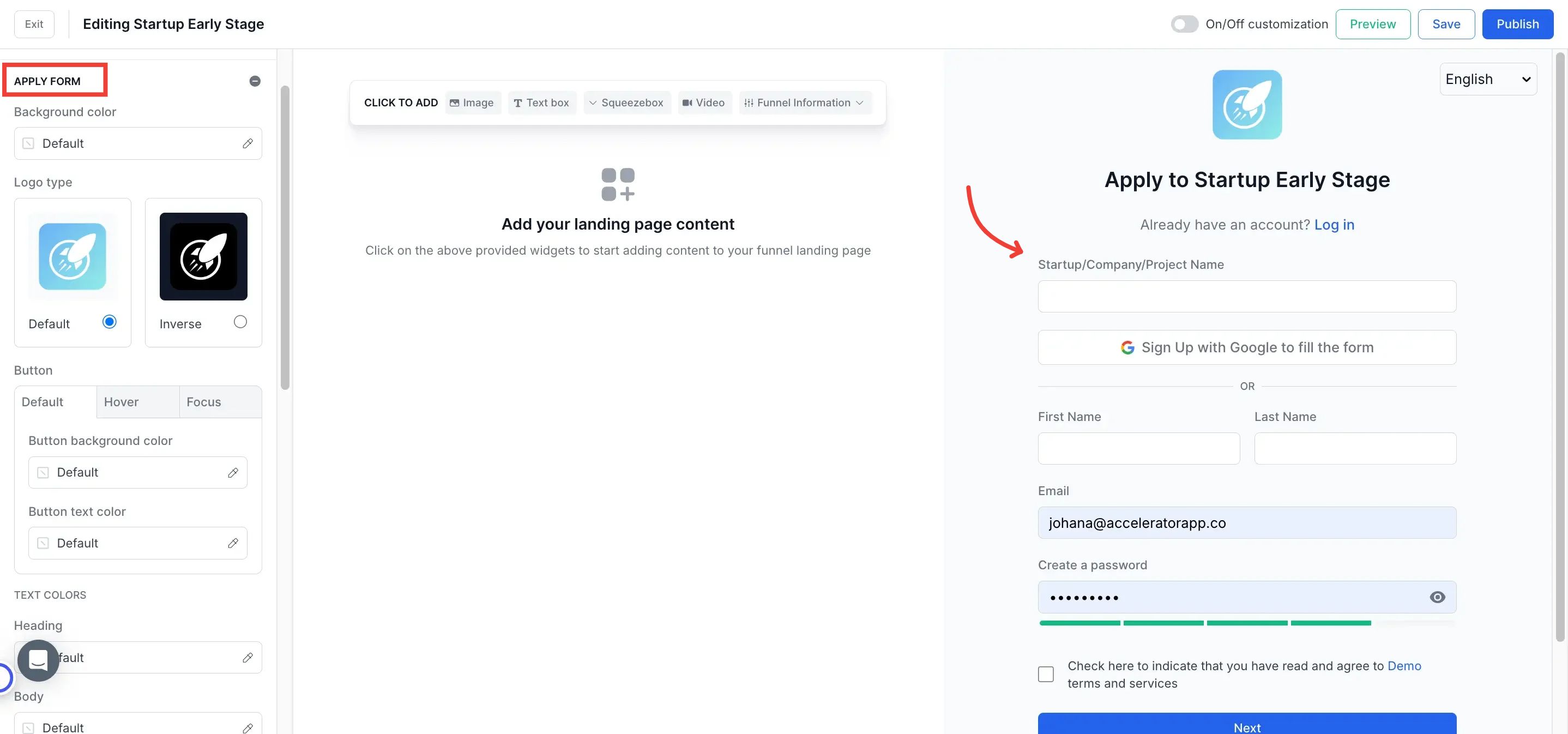
Personalize the form section of the landing page:
- Background color
- Logo
- Button style and text color
- Confirmation checkboxes (with multi-language support)
- Form content (customize fields as needed)
4. Preview & Publish
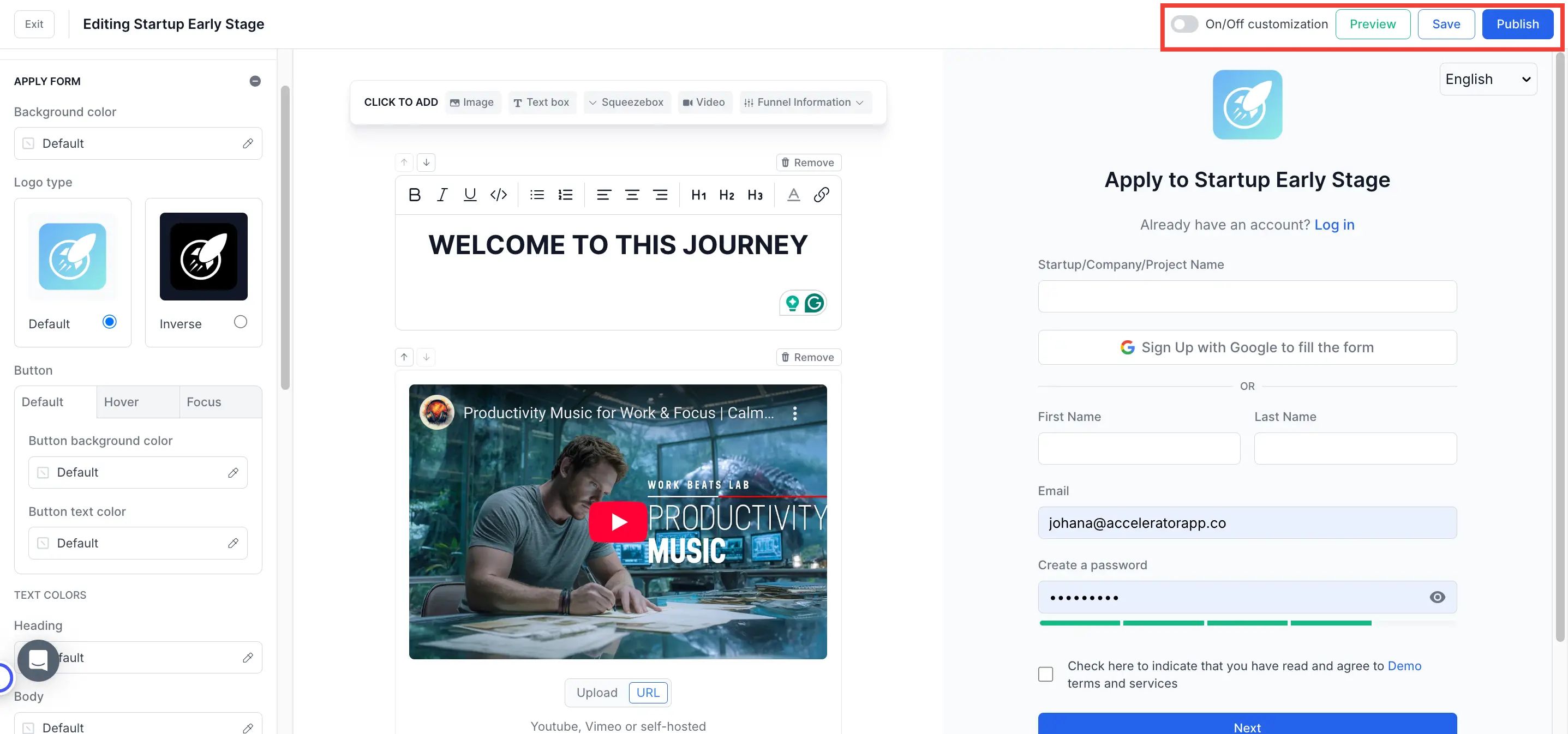
- Switch to Preview Mode to check how your page looks on desktop and mobile.
- Once satisfied, click Publish and toggle Customization ON to activate your personalized landing page.
Best Practices
- Set a logo redirect URL. Linking your header logo to your organization's website adds a professional touch and gives applicants a clear path to learn more about you.
- Use Funnel Information blocks instead of manual text. They pull live data from your funnel settings, so deadline and date info always stays accurate without manual updates.
- Always preview on mobile. The layout shifts significantly between desktop and mobile — what looks great on a wide screen may need adjustments for smaller viewports.
- Toggle Customization ON after publishing. Without this step, applicants will still see the default landing page even after you've published your changes.