


Introduction to Custom Fields Use Cases
Custom Fields allow administrators to define, collect, and manage structured data across AcceleratorApp. They can be created once and reused across multiple areas of the platform, including profiles, application forms, workflows, and reports, without duplicating data.
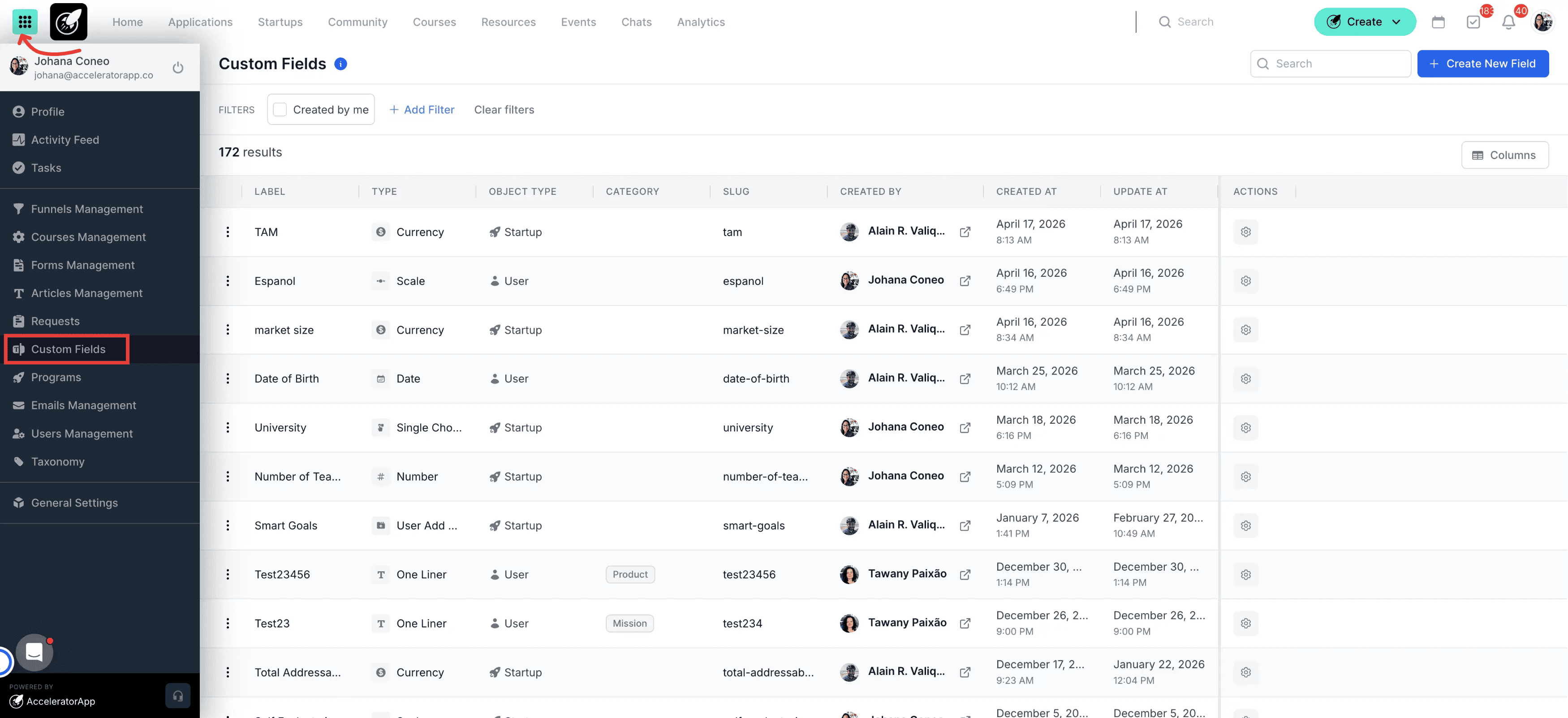
Each Custom Field has a field type (e.g. One Liner, Currency, Scale, Single Choice), an object type (User or Startup), optional categories, and visibility and access controls. Once created, answers collected through Custom Fields are stored centrally and reused wherever that field is displayed.
This feature is available to Accelerator/Incubator administrators only.
Where to Find Custom Fields
Click on the Menu icon in the top-left corner of the page, then click on Custom Fields in the left side menu. From here, you can view, create, edit, and manage all Custom Fields across your workspace.
Custom Fields can be displayed and reused across multiple parts of the platform, including User Profiles, Startup Profiles, Application Forms, Review and Selection Rounds, Program Management, and Reporting and Analytics.
Step-by-Step
1. Structure Startup and User Profiles
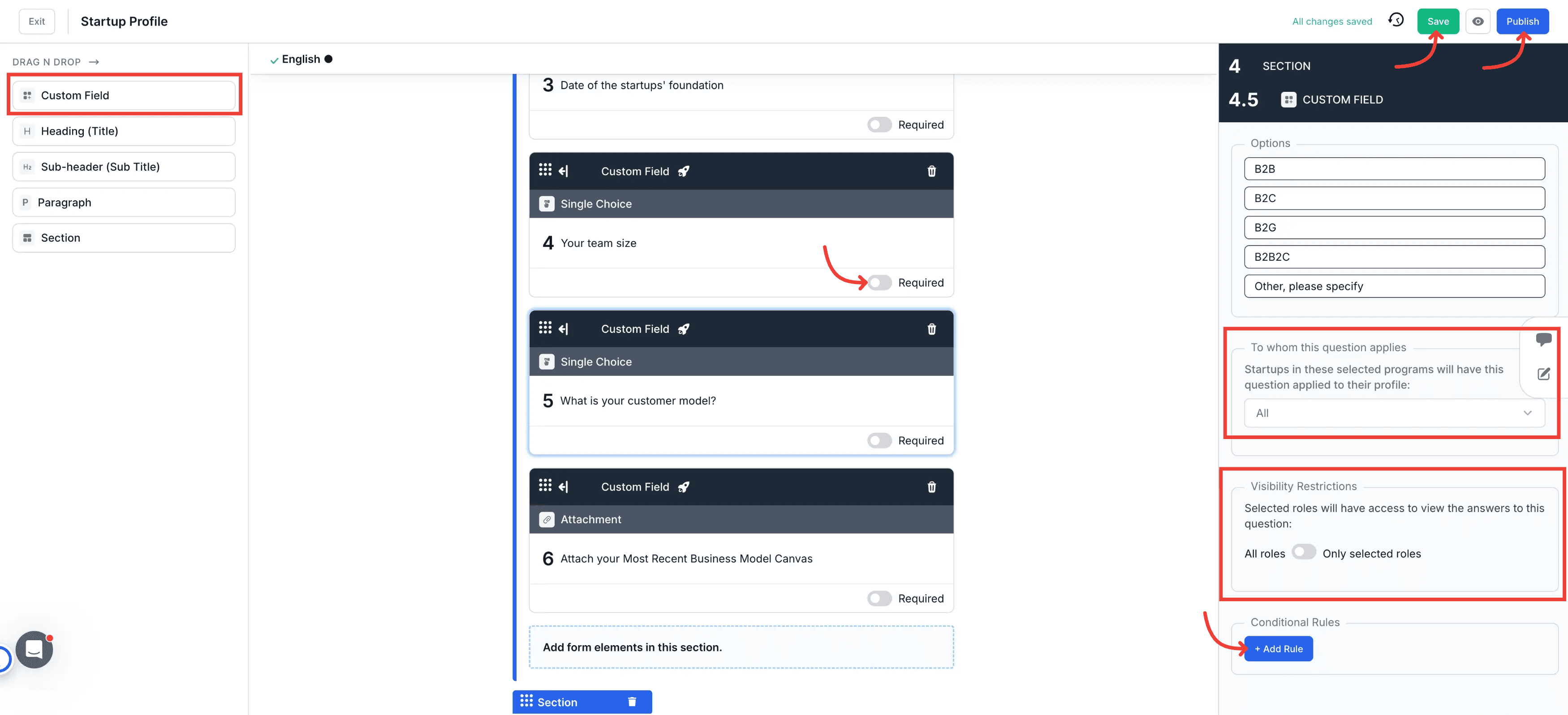
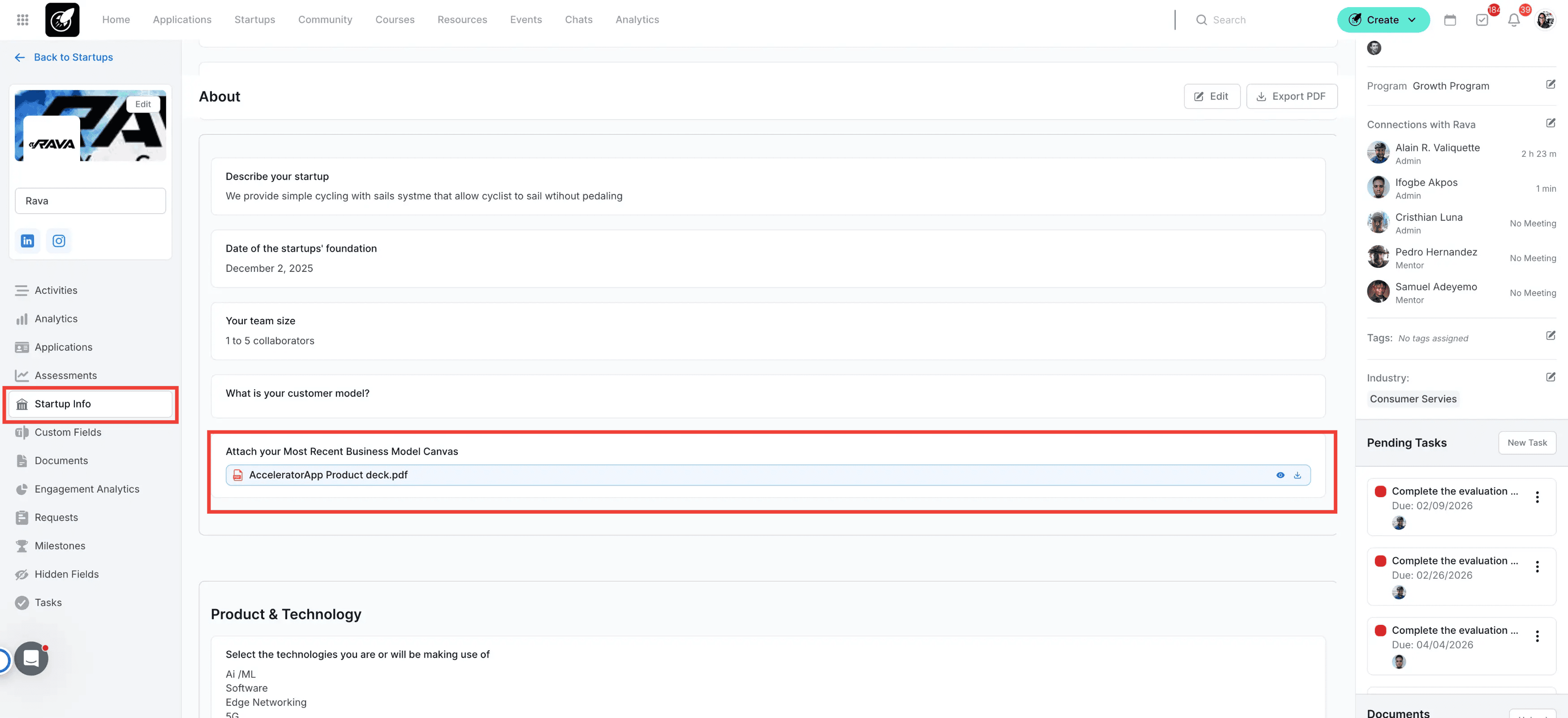
Use Custom Fields to standardize the information collected on Startup and User Profiles. Structured field types make profiles easier to search, filter, and analyze across your program.
Examples: Startup stage, industry or sector, team size, total addressable market, areas of expertise.
2. Customize Application Forms
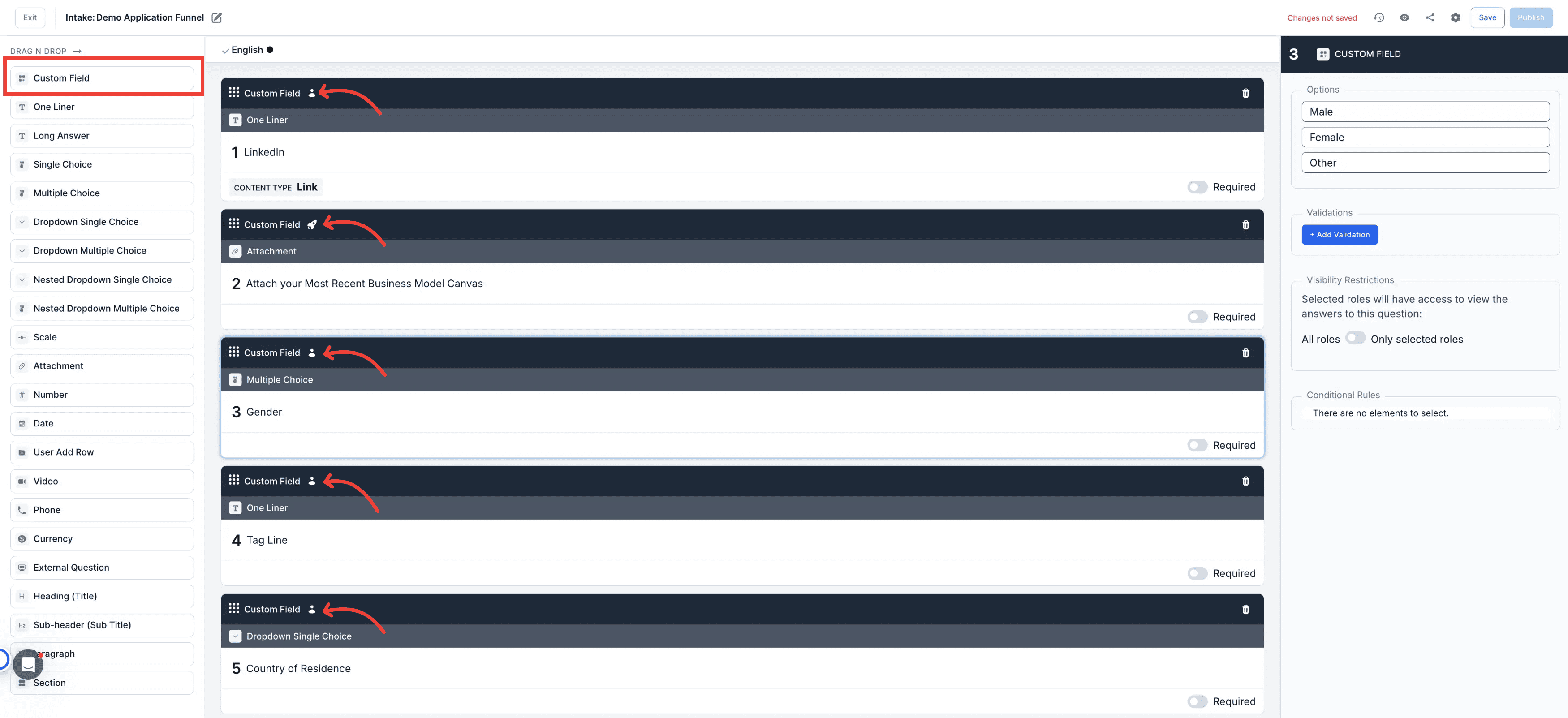
Add Custom Fields to application forms to collect program-specific information from applicants. When submitted, the data is saved and can automatically populate the applicant's Startup Profile or Application record.
Examples: Market size, revenue model, validation strategy, supporting documents.
3. Support Eligibility and Validation
Use Custom Fields to determine whether an applicant or startup meets eligibility criteria. Reference these fields in workflows to ensure only qualified submissions move forward.
Examples: Incorporated (Yes/No), operating region, minimum revenue threshold, program-specific requirements.
4. Improve Review and Selection Processes
Surface Custom Fields during review rounds to support structured evaluation. Using the same fields across all reviewers improves consistency, fairness, and decision-making.
Examples: Scoring fields, self-evaluation scales, reviewer notes, readiness indicators.
5. Segment and Filter Data
Use Custom Fields to filter and segment data across the platform. This is especially useful for cohort management, targeted communications, and reporting.
Examples: Filter startups by sector or stage, identify mentors by expertise, group applicants by track or cohort.
6. Track Program Outcomes and Impact
Use Custom Fields to track outcomes during and after a program. Collecting this data over time supports program evaluation and stakeholder reporting.
Examples: Jobs created, funds raised, milestones achieved, KPIs or impact metrics.
7. Manage Post-Acceptance and Internal-Only Data
Not all data needs to be collected during the application process. Use Custom Fields for internal or post-acceptance information and apply visibility restrictions so only selected roles can view or edit these fields.
Examples: Assigned mentor, internal notes, program status, compliance tracking.
Best Practices
- Use structured field types instead of free text whenever possible — this improves filtering, reporting, and consistency.
- Keep field labels clear and descriptive so users know exactly what information is being requested.
- Avoid creating duplicate fields for the same data — reuse existing fields across forms and profiles.
- Apply visibility restrictions for sensitive or internal information.
- Minimize required fields to reduce friction for users and startups completing their profiles.
- Use categories to keep large sets of Custom Fields organized and easy to manage.