


Introduction to the Video Question
The Video Question field allows program managers to prompt applicants for recorded video and/or audio responses directly within an application form. Instead of relying solely on written text, evaluators and administrators can assess an applicant's presentation skills, communication style, and pitch authenticity directly inside their application submission.
Administrators can customize the recording experience by setting preparation timers, restricting answer durations, limiting re-recording attempts, and specifying whether video, audio, or both are required. The system embedded recorder automatically handles device permissions and attaches the media response directly to the applicant's record.
Plan Restriction: Video Questions are available exclusively on the Application Module Tier 3 plan.
Where to Find Video Question
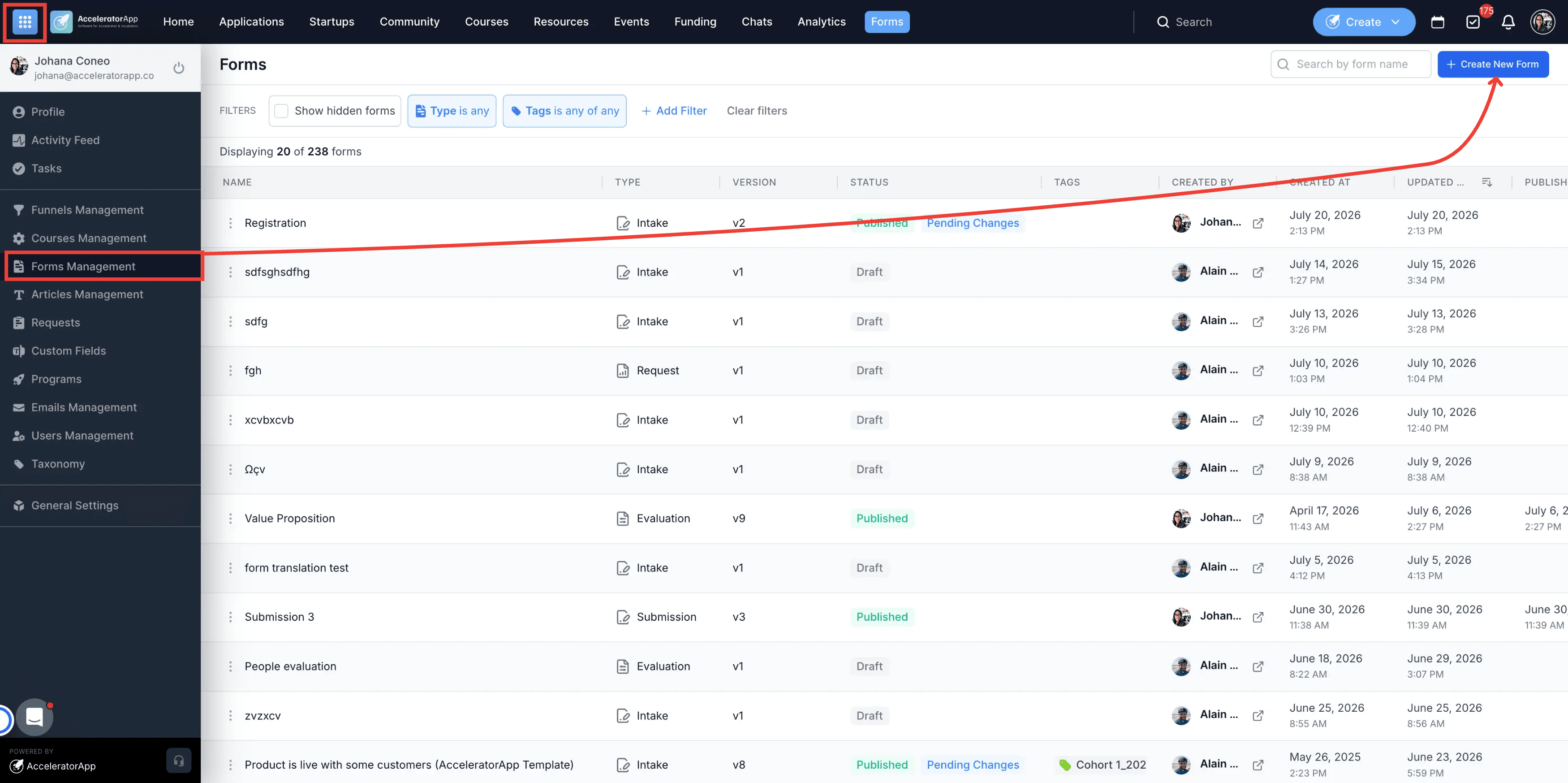
Navigate to Form Management and select an existing form to edit or create a new form set.
Step-by-Step
1. Access Form Management
Navigate to Form Management from your main platform navigation menu.
2. Select or create a form
Click on an existing form set to edit it, or click Create Form to build a new application form.
3. Add a new question field
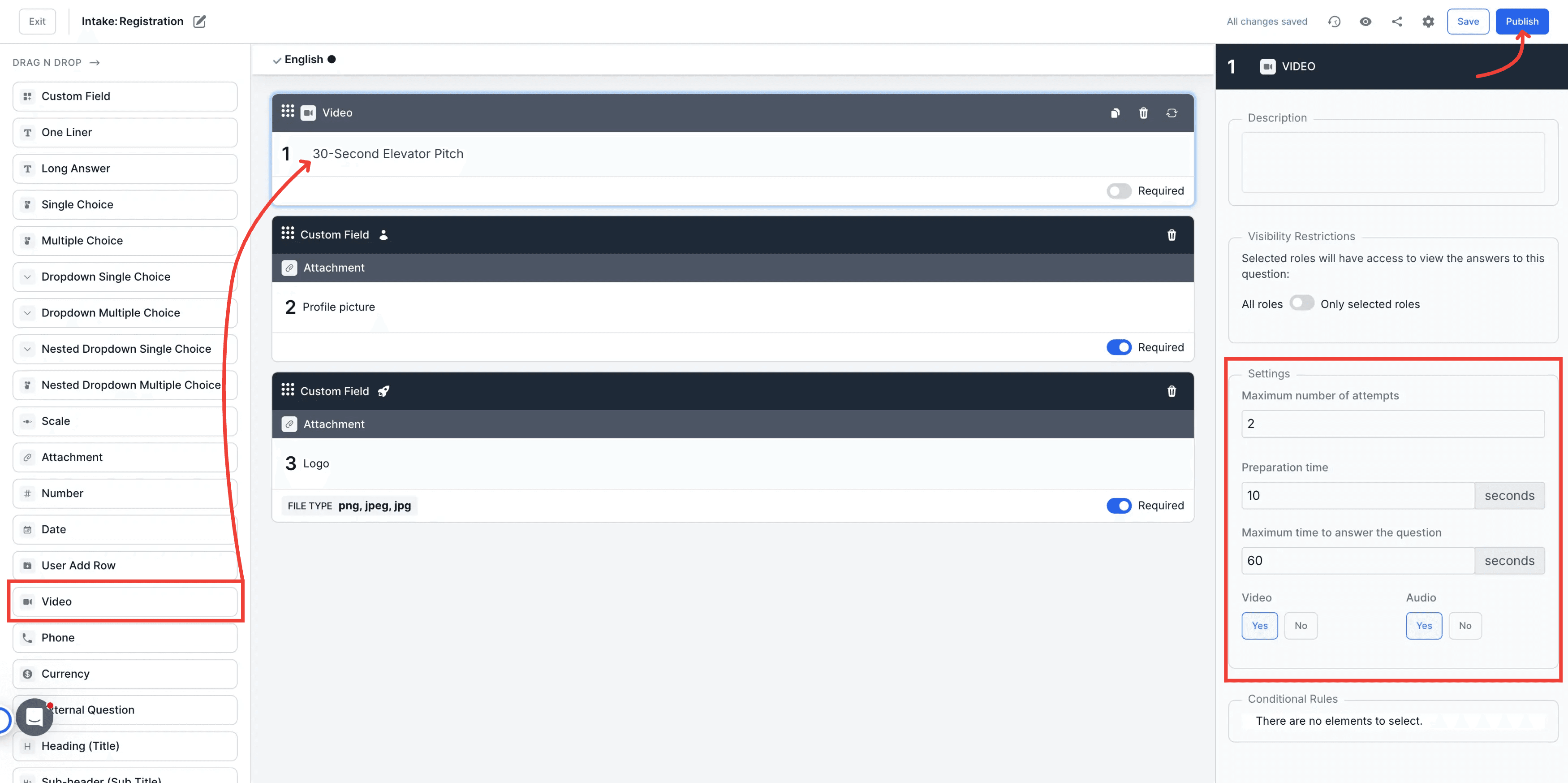
Inside the form editor, drag and drop the Video Question field into your desired form section.
4. Enter question title and instructions
Enter your question prompt (e.g., "30-Second Elevator Pitch") and provide clear guidance for the applicant in the description field.
5. Set maximum recording attempts
Enter a numerical value under Maximum number of attempts to specify how many times an applicant can re-record their response before submitting.
6. Configure preparation time
Specify the Preparation time (in seconds) granted to applicants after reading the prompt before recording automatically begins.
7. Define maximum answer duration
Set the Maximum time to answer the question (in seconds) to limit the total runtime of the final recording.
8. Enable or disable Video/Audio input
Toggle Video/Audio to Yes or No to determine if camera access and video recording are required.
9. Save and Publish the form
Click Save and Publish in the form builder to apply the Video Question settings to your application form.
10. Review submitted video recordings
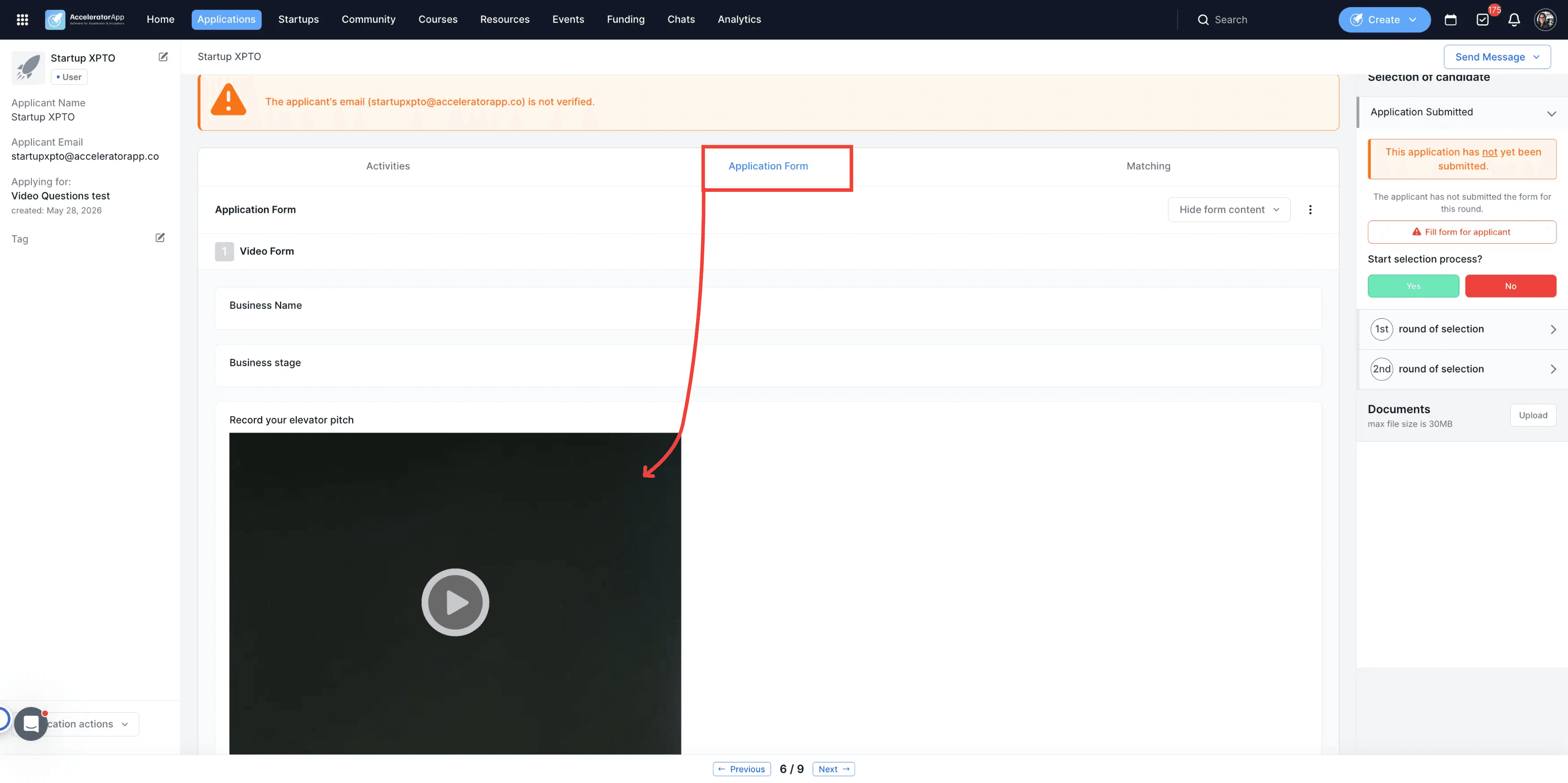
When applicants submit their form, navigate to Applications > Applicant File to view and play embedded recordings directly inside their profile.
Best Practices
Inform applicants about browser permissions: Add a note in the question description reminding applicants that the system will request browser permissions for their camera and microphone upon reaching the question.
Provide adequate preparation time: Giving 30 to 60 seconds of preparation time helps applicants structure their thoughts before recording starts.
Keep maximum duration concise: Restricting answer duration to 60–120 seconds keeps video reviews manageable for evaluation teams during high-volume intake cycles.
Test in preview mode: Test the form in preview mode before publishing to verify that camera and audio permission prompts trigger smoothly.