


Introduction to Editing a Coaching Session
You can edit a Coaching Session in AcceleratorApp to update session details, topics covered, evaluation answers, notes, and other session content.
To edit a Coaching Session, you must be a host of that session. If you are not a host, you will only be able to view the session and you will not be able to switch it to Editing mode.
Where to Find Coaching Sessions
- Go to Startups from the top navigation bar.
- Open the Startup File of the startup you want to review.
- Click Coaching Sessions in the top sub-menu.
- Select the Coaching Session you want to edit.
Step-by-Step
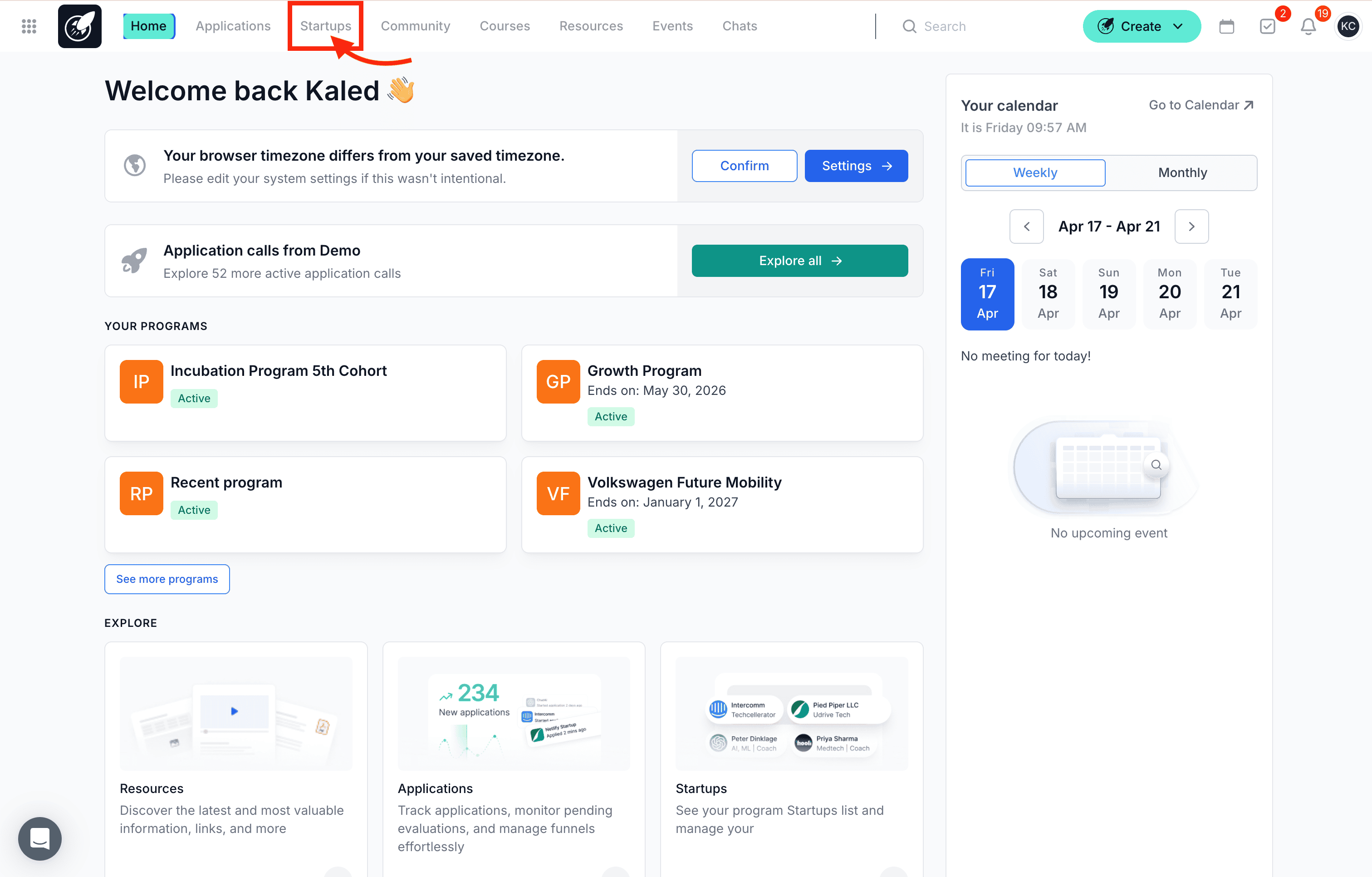
1. Open the Startups section
From the homepage, click Startups in the top navigation bar.
This opens the list of startups in your AcceleratorApp account.
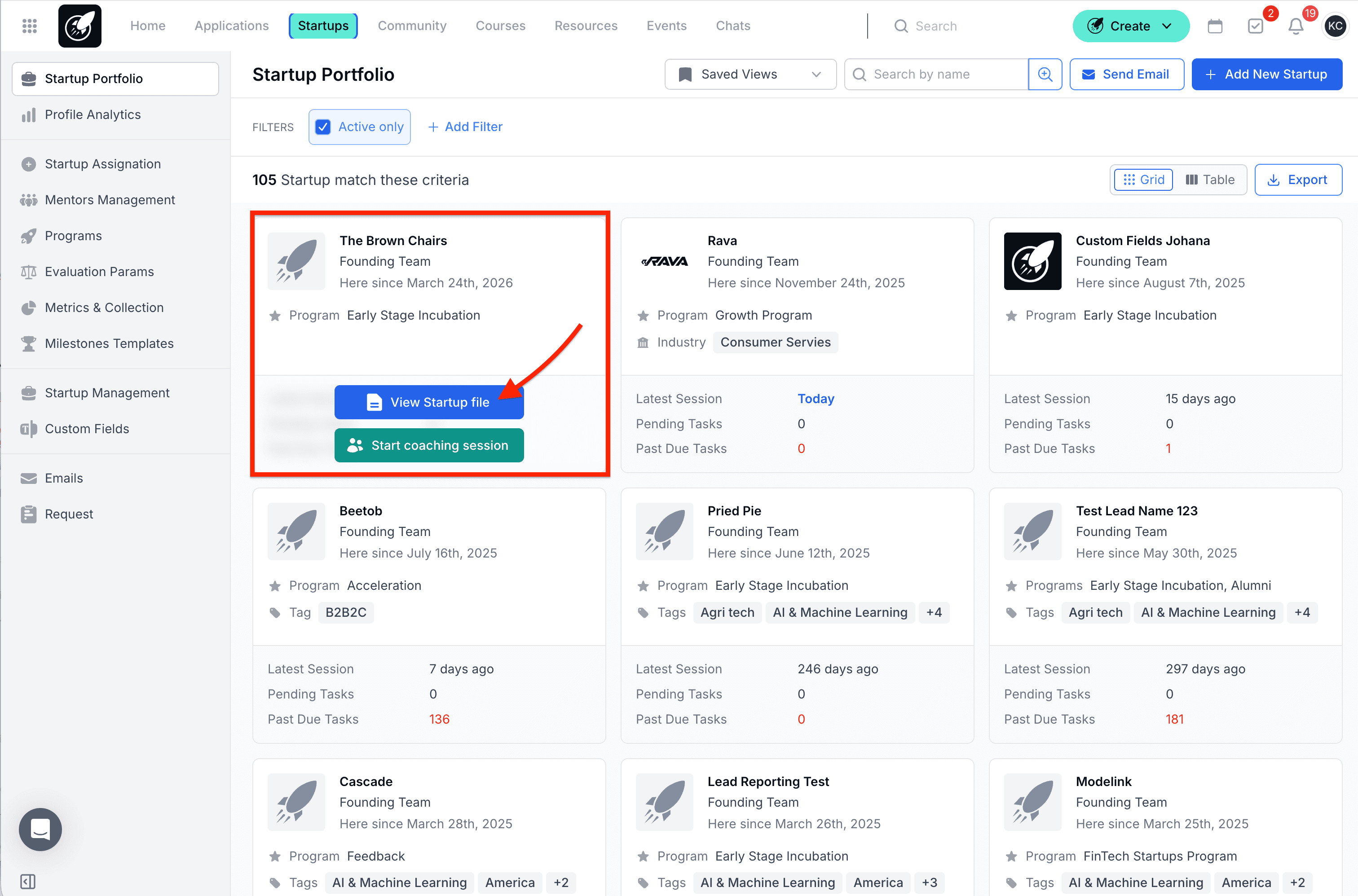
2. Open the Startup File
Find the startup you want to review.
Hover over the startup card, then click View Startup file.
In this example, the selected startup is The Brown Chairs.
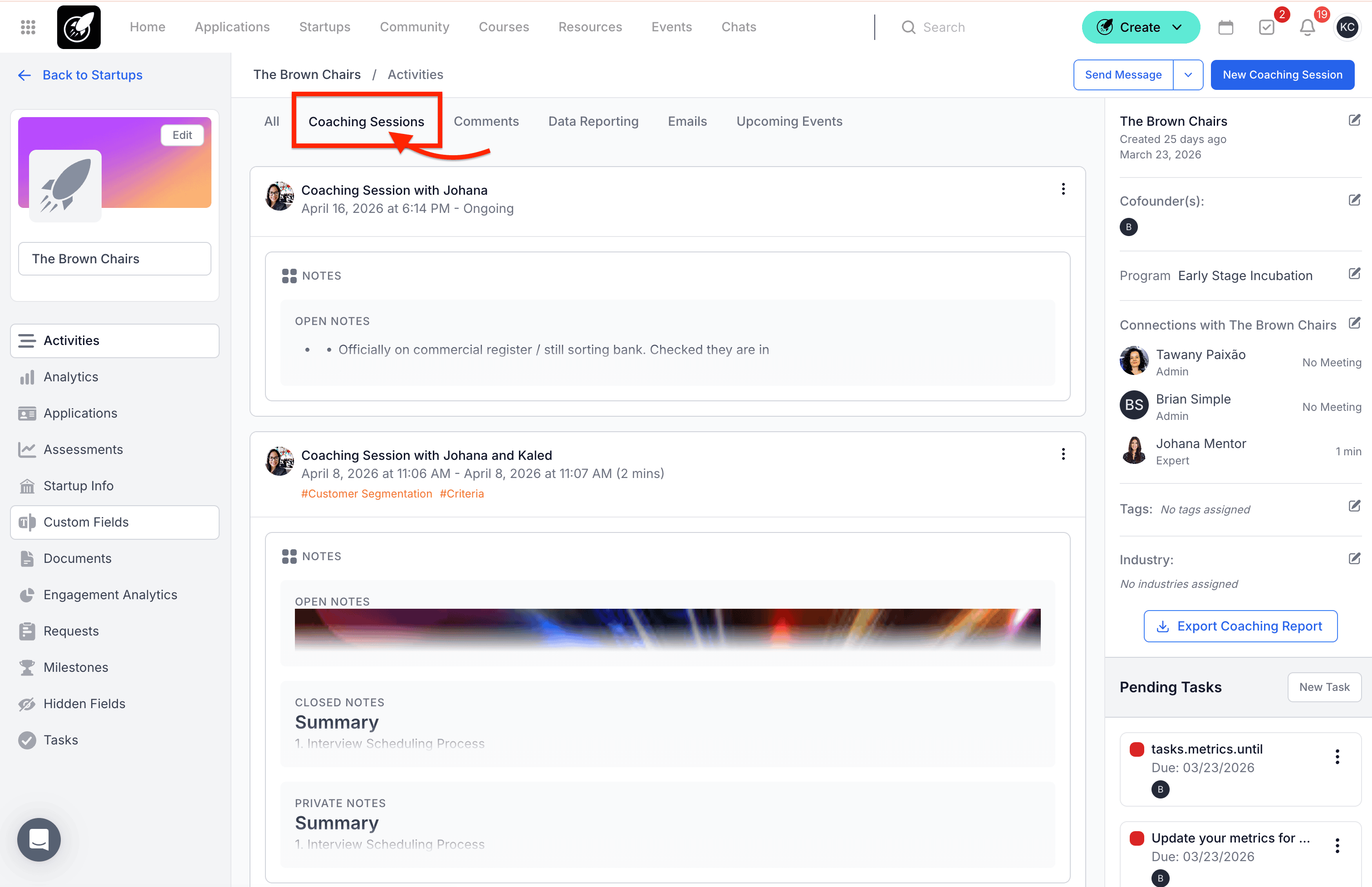
3. Open the Coaching Sessions tab
Inside the Startup File, click Coaching Sessions in the top sub-menu.
This will display the past coaching sessions linked to that startup.
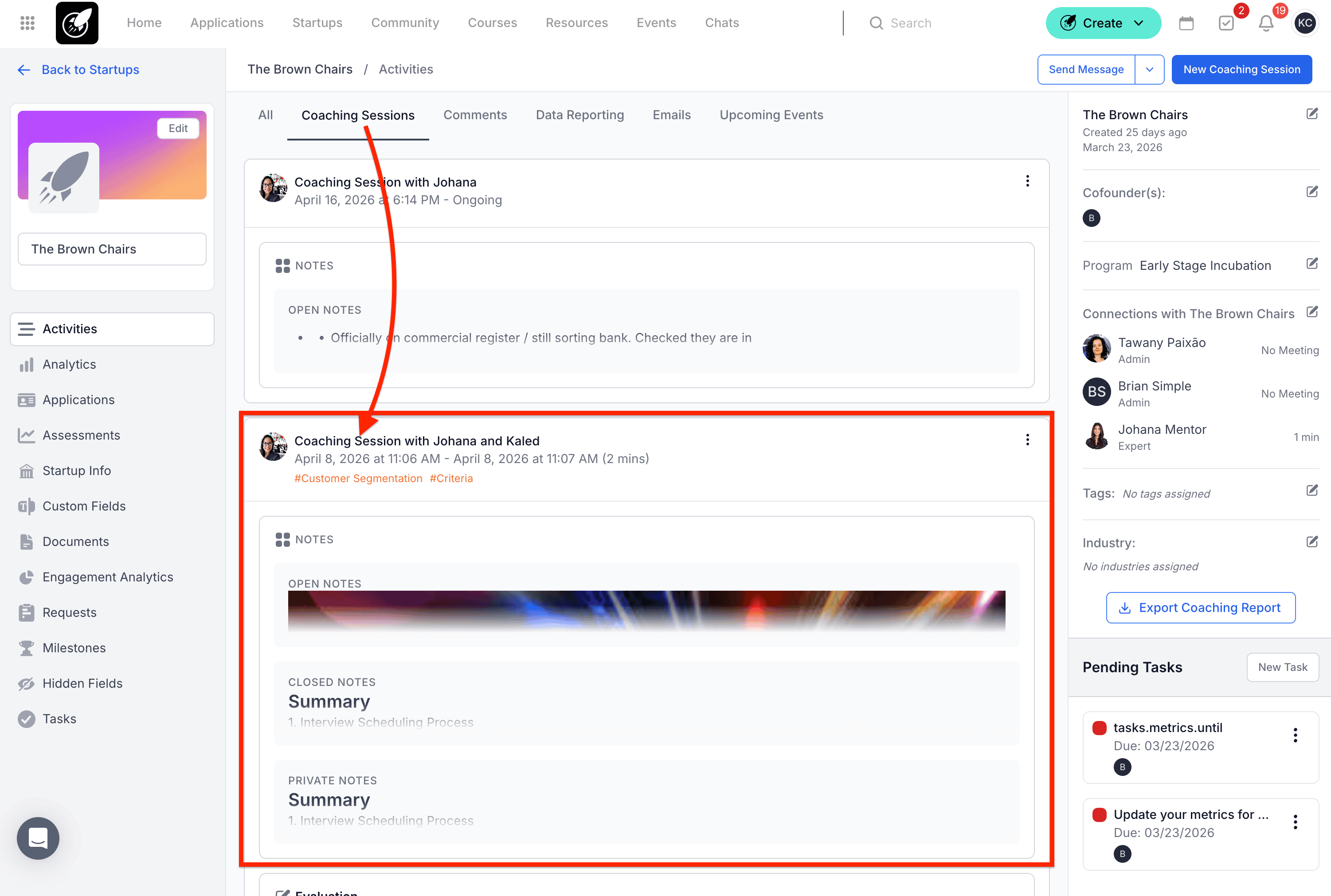
4. Select the Coaching Session you want to edit
From the list (feed) of coaching sessions, click the session you want to open (edit).
This will take you to the Coaching Session page.
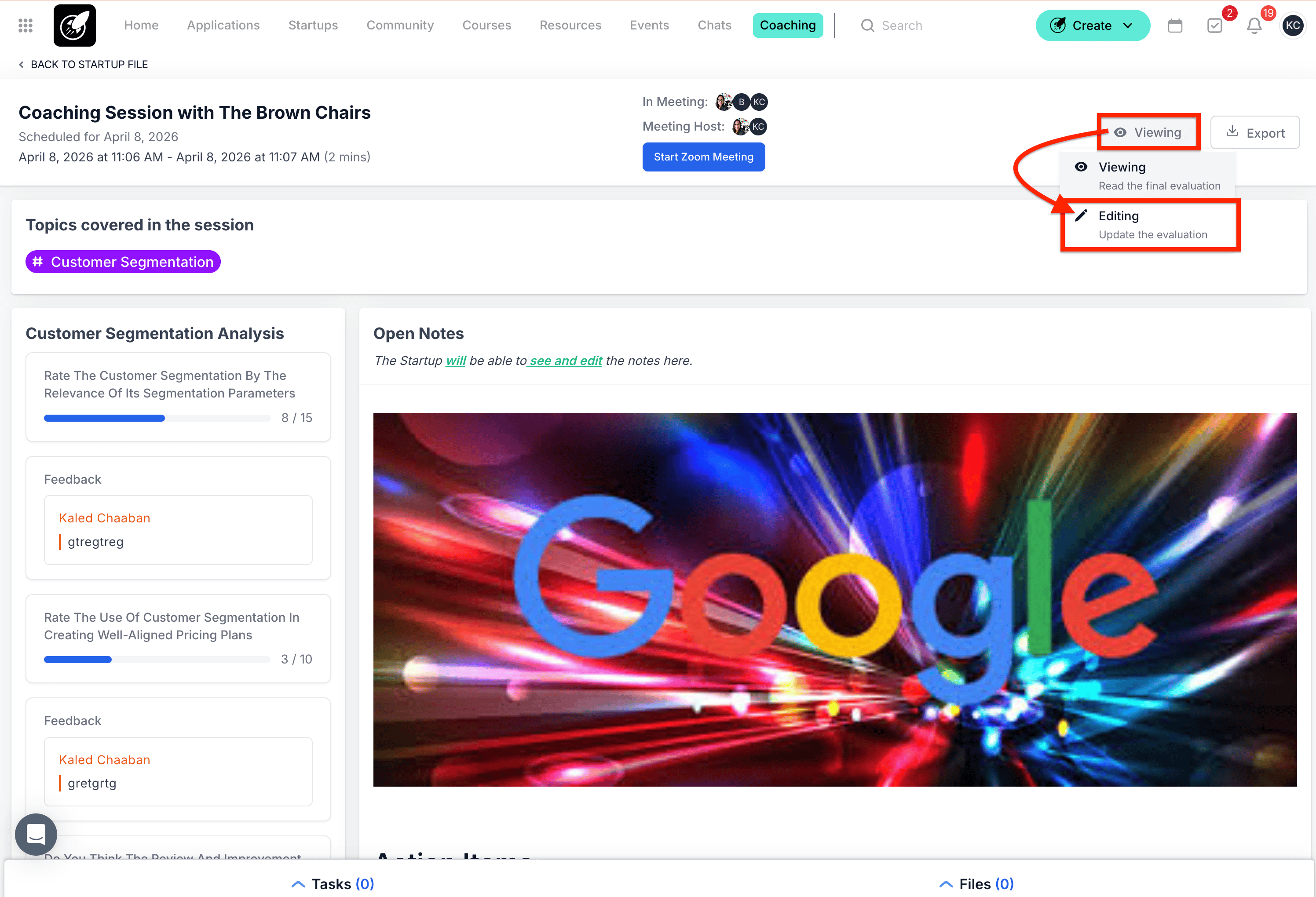
5. Change the session from Viewing to Editing
In the top right corner of the Coaching Session page, click the Viewing button.
From the dropdown menu, select Editing.
If you are not a host of the session, you will not be able to switch to Editing mode.
6. Make your changes
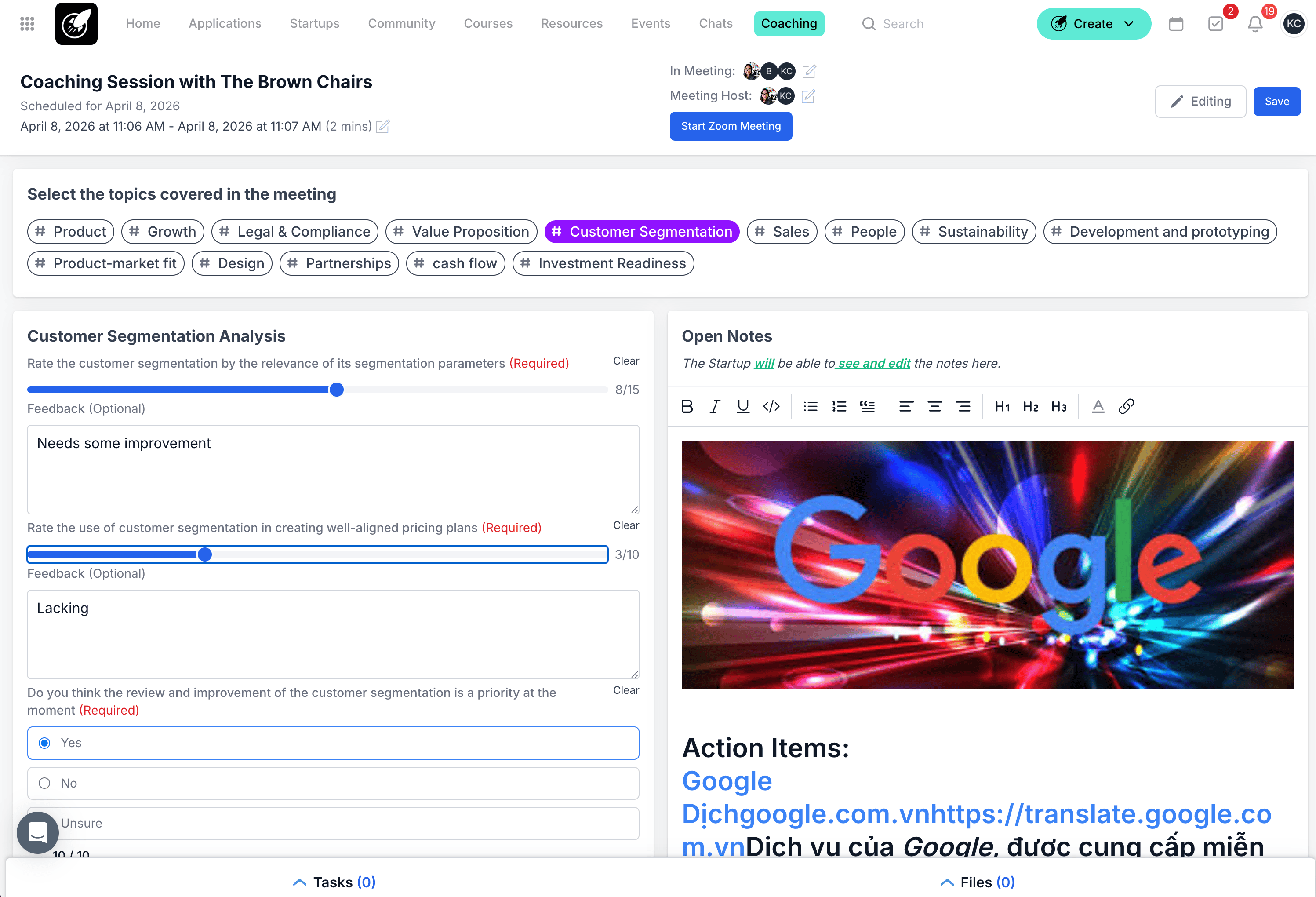
Once the session is in Editing mode, update the parts of the Coaching Session you want to change.
Depending on the session setup, this may include:
- Topics covered in the meeting
- Evaluation answers
- Feedback fields
- Open Notes
- Action items
7. Edit the date and time of the Coaching Session
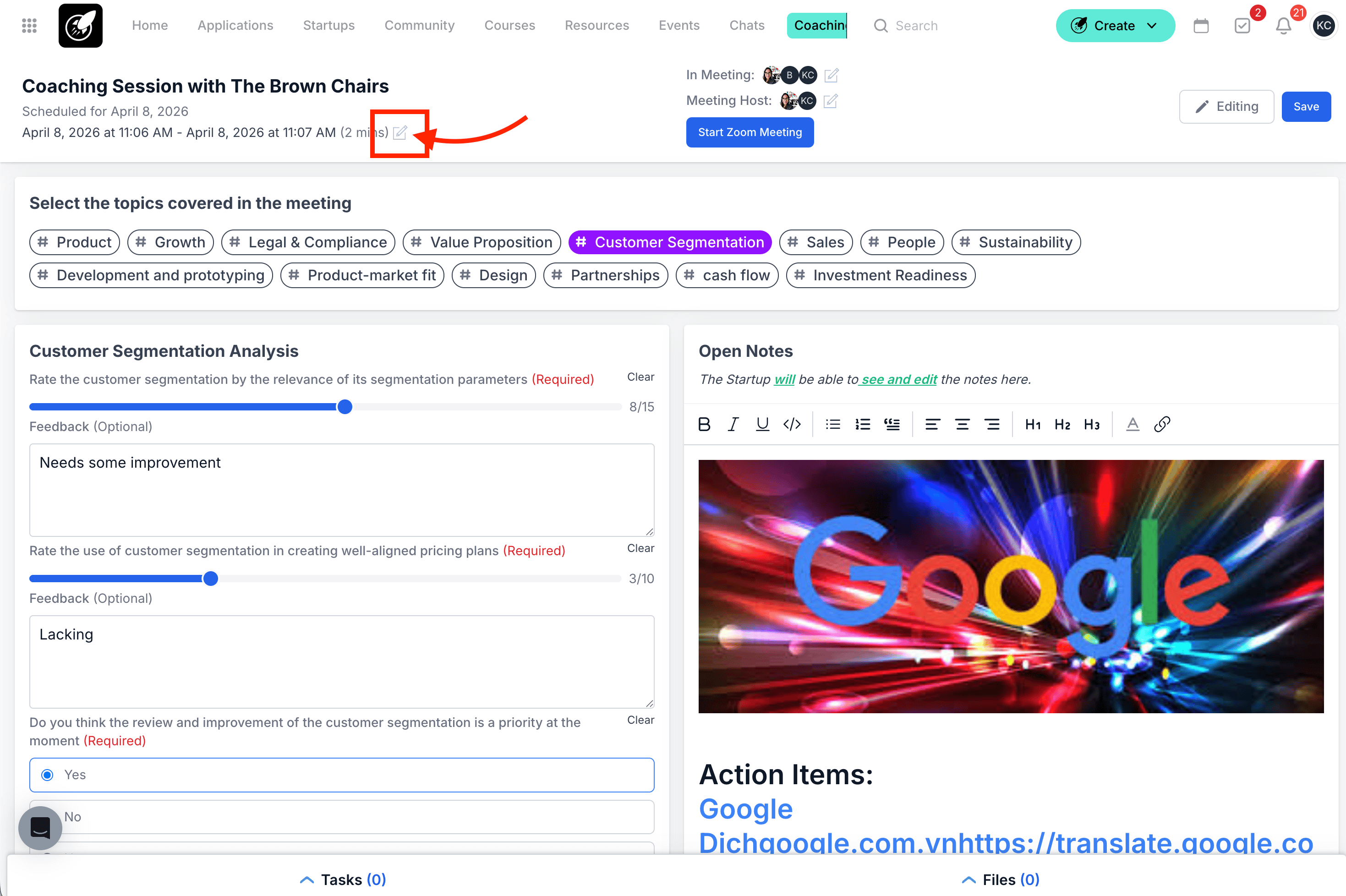
To change the date, time and/or duration of the Coaching Session, click the Edit (pen) icon next to the session date and time.
This will open the date and time fields so you can update the session schedule.
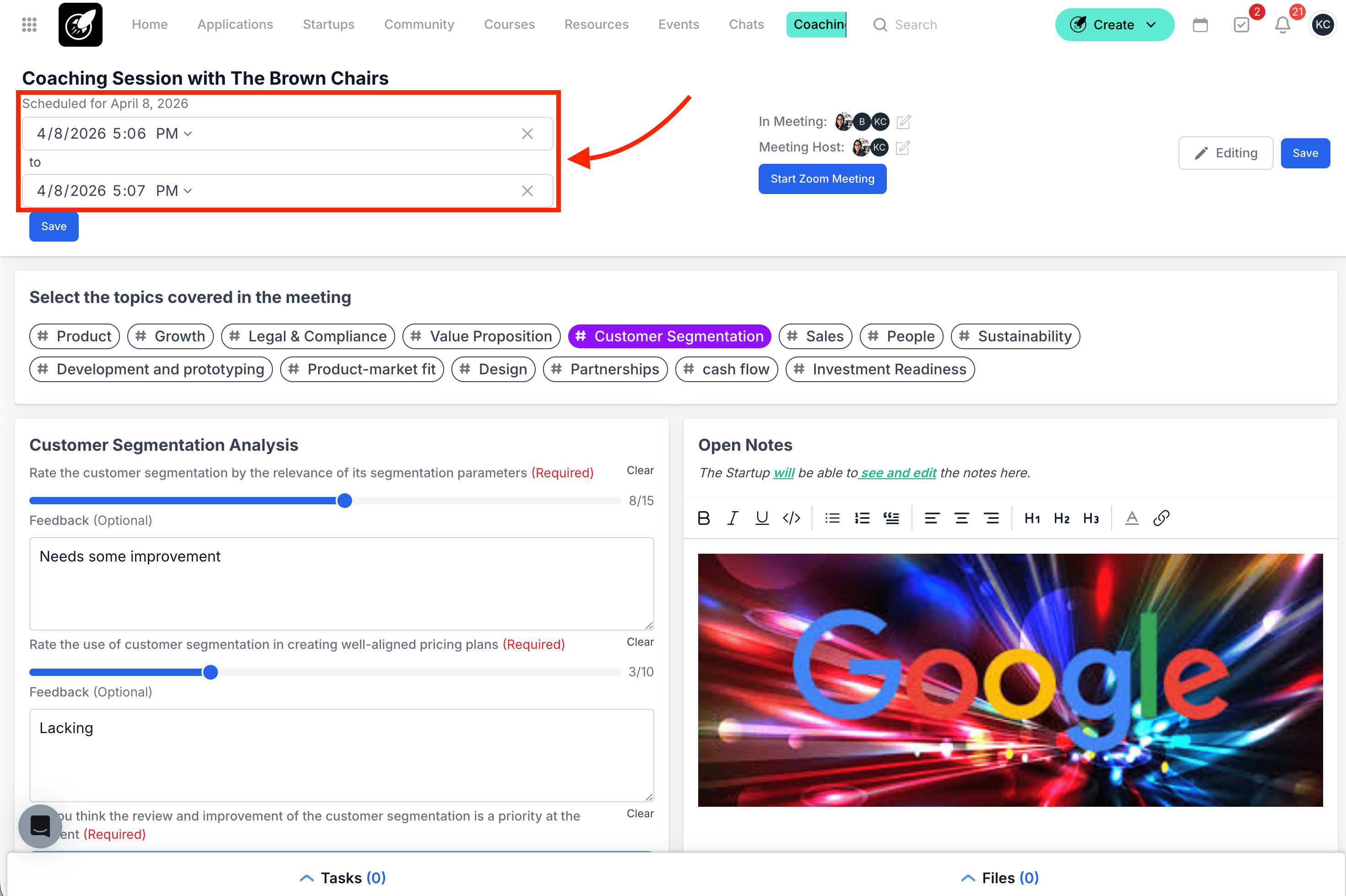
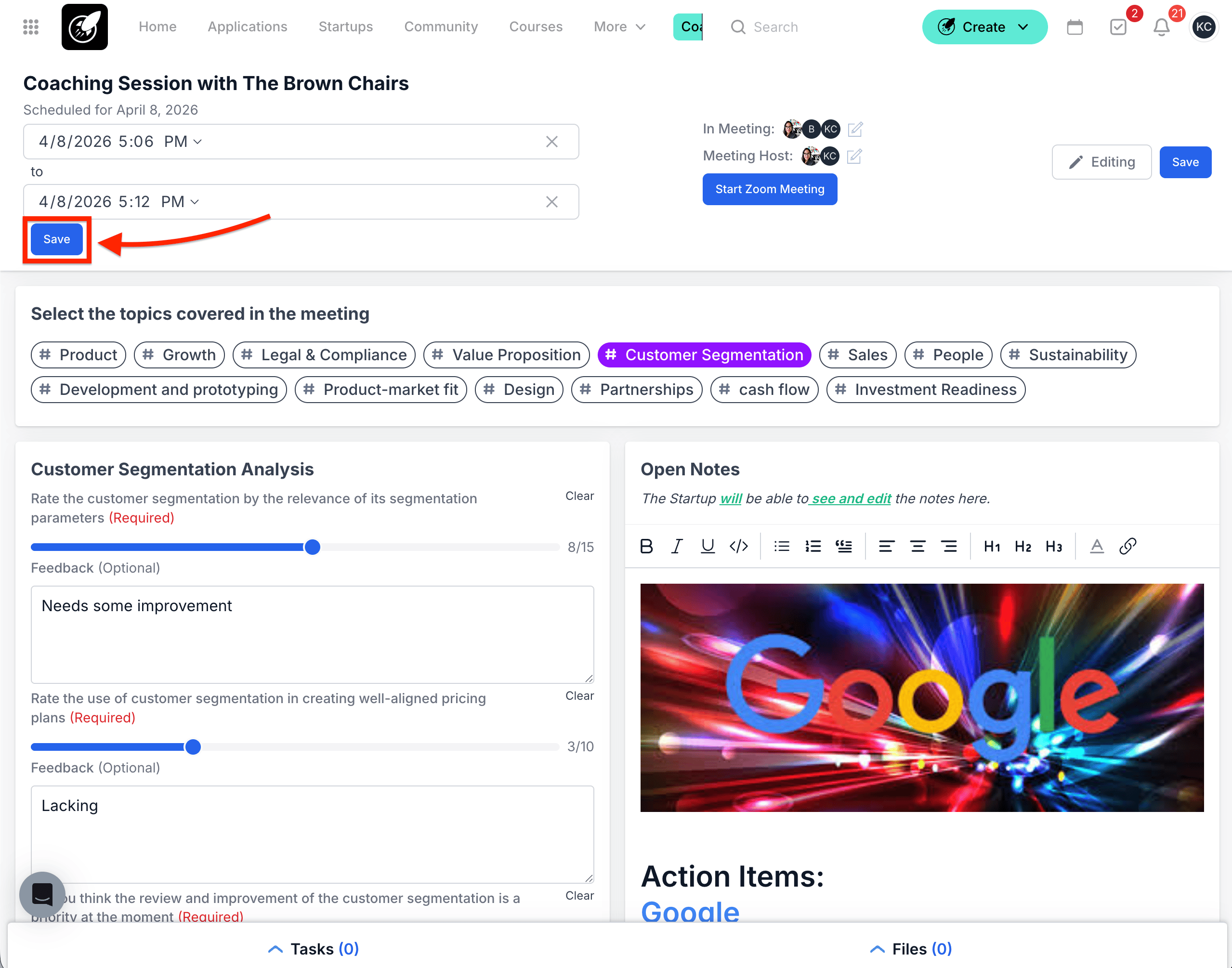
8. Update the start and end time
Adjust the Start and/or End time of the Coaching Session as needed.
9. Save the new date and time
After making your changes, click the blue Save button below the date and time fields.
This saves the updated schedule inside the date and time section.
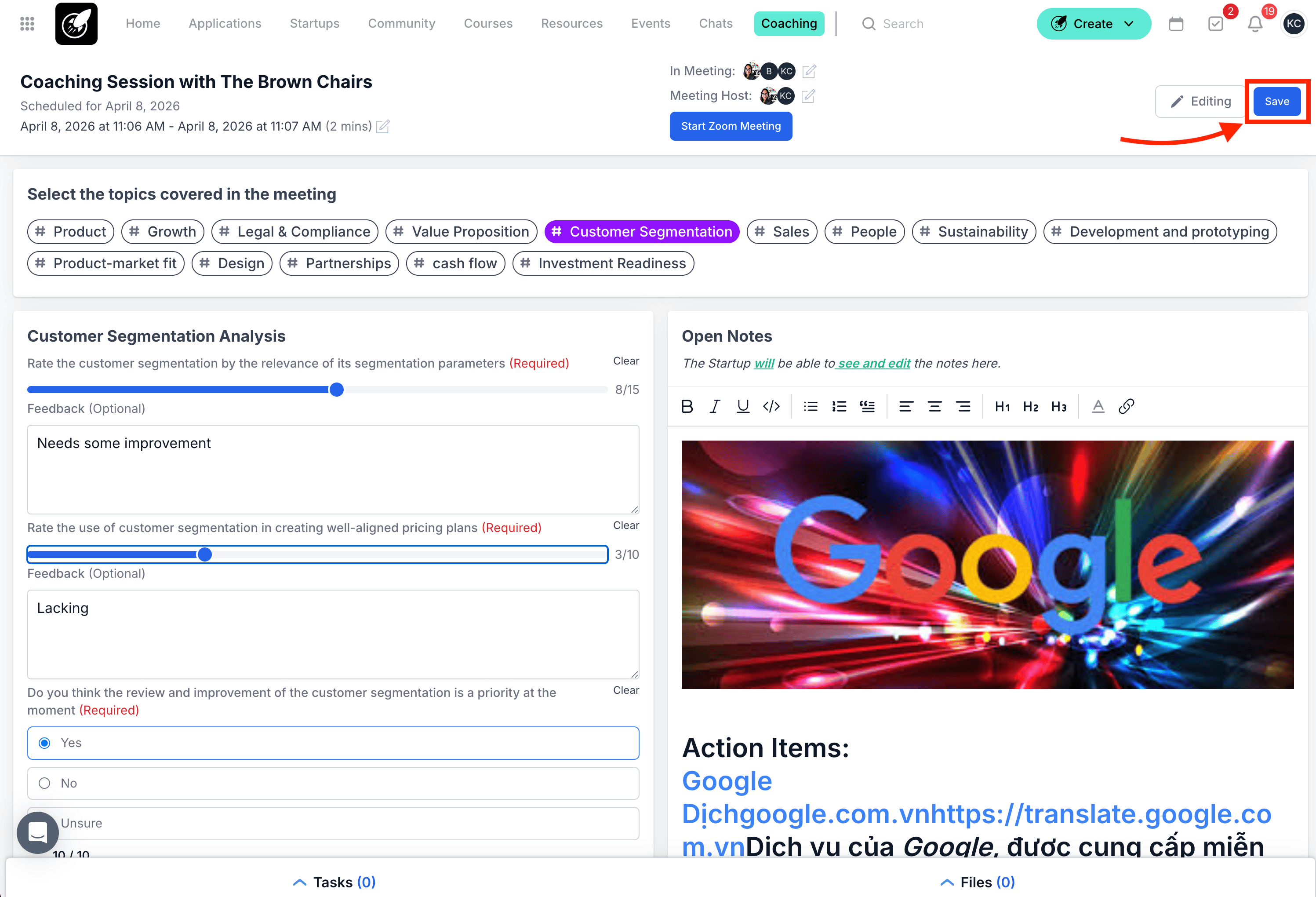
10. Save the Coaching Session
After making your changes, click the blue Save button in the top right corner.
Your updates will be saved to the Coaching Session.
Tips & Best Practices
- Make sure you are a host of the Coaching Session before trying to edit it.
- Review your changes before clicking Save.
- Use Editing mode only when you need to update the session content.