


Introduction to the General Applicant Landing Page (Explore)
Learn how to customize the General Applicant Landing Page in AcceleratorApp — including layout, content blocks, funnel display options, visible fields, and CTA buttons — to create a branded hub for all your public programs.
The General Applicant Landing Page allows you to showcase all your programs in one central hub, giving applicants a clear and engaging overview of your public funnels. Using the Global Funnel Directory, you can display available application funnels in either a List View or a Card View, ensuring a professional and visually appealing presentation.
Premium and Enterprise plans unlock additional customization — including custom content blocks, images, and videos to create a fully branded program showcase.
Where to Find Page Customization
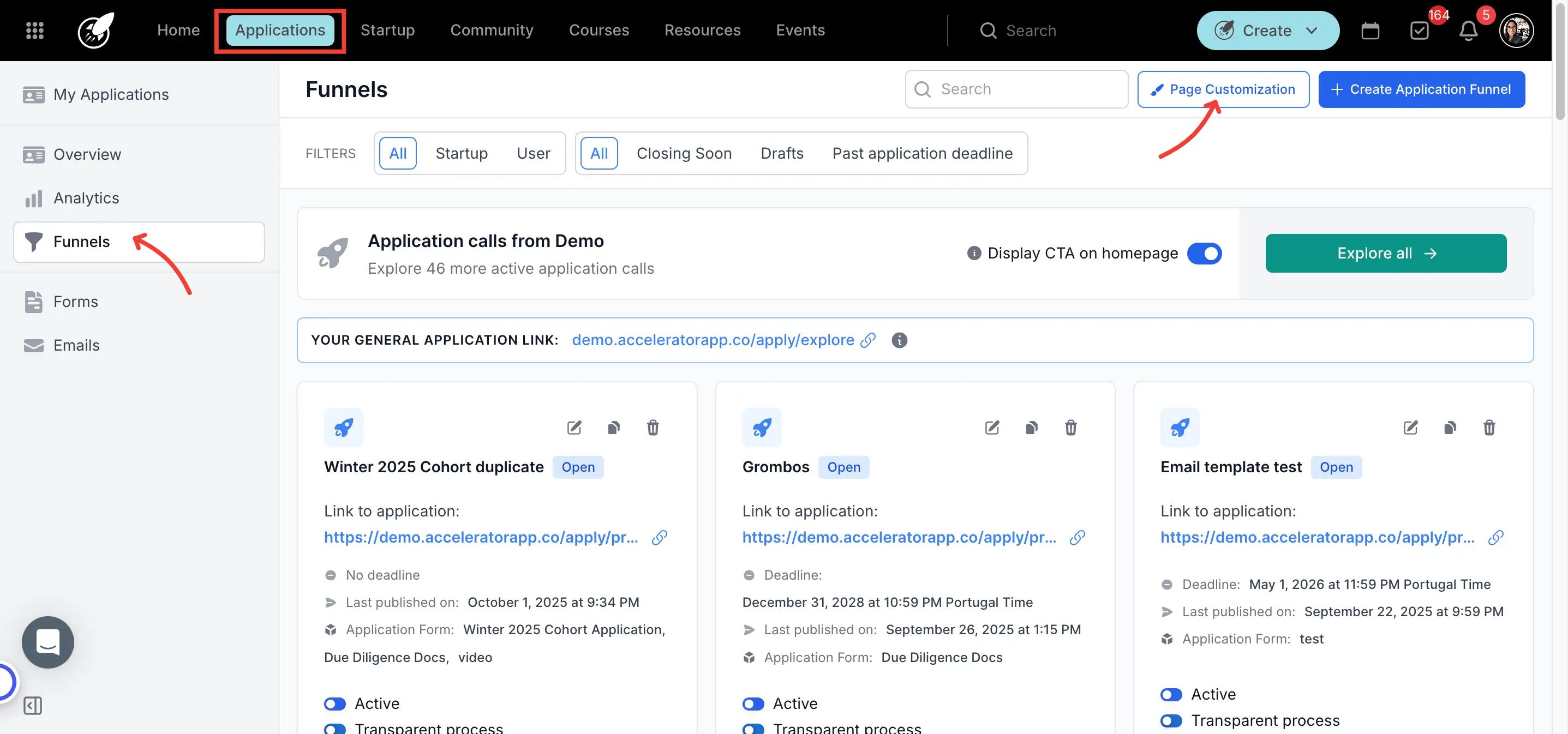
- Open the Applications module.
- Go to the Funnels tab.
- Click Page Customization in the top-right corner.
Step-by-Step
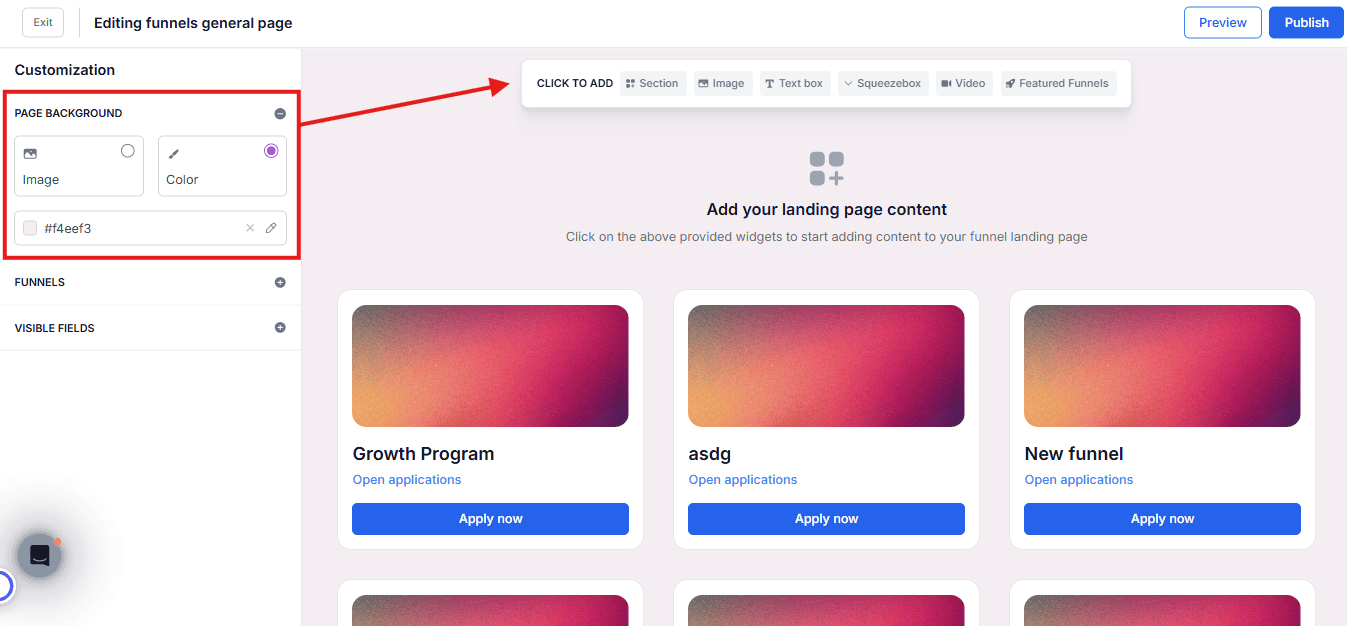
1. Page Background
Choose a background color or upload a custom image to set the overall look of your landing page.
2. Add Landing Page Content
Use the "Click to Add" option to insert content blocks into your page.
Included in Launch Bundle:
- Text box
- Section
Included in Essential and Pro:
- Featured funnels
- FAQ accordion (Squeezebox)
- Image
- Video upload or YouTube embed
3. Funnels
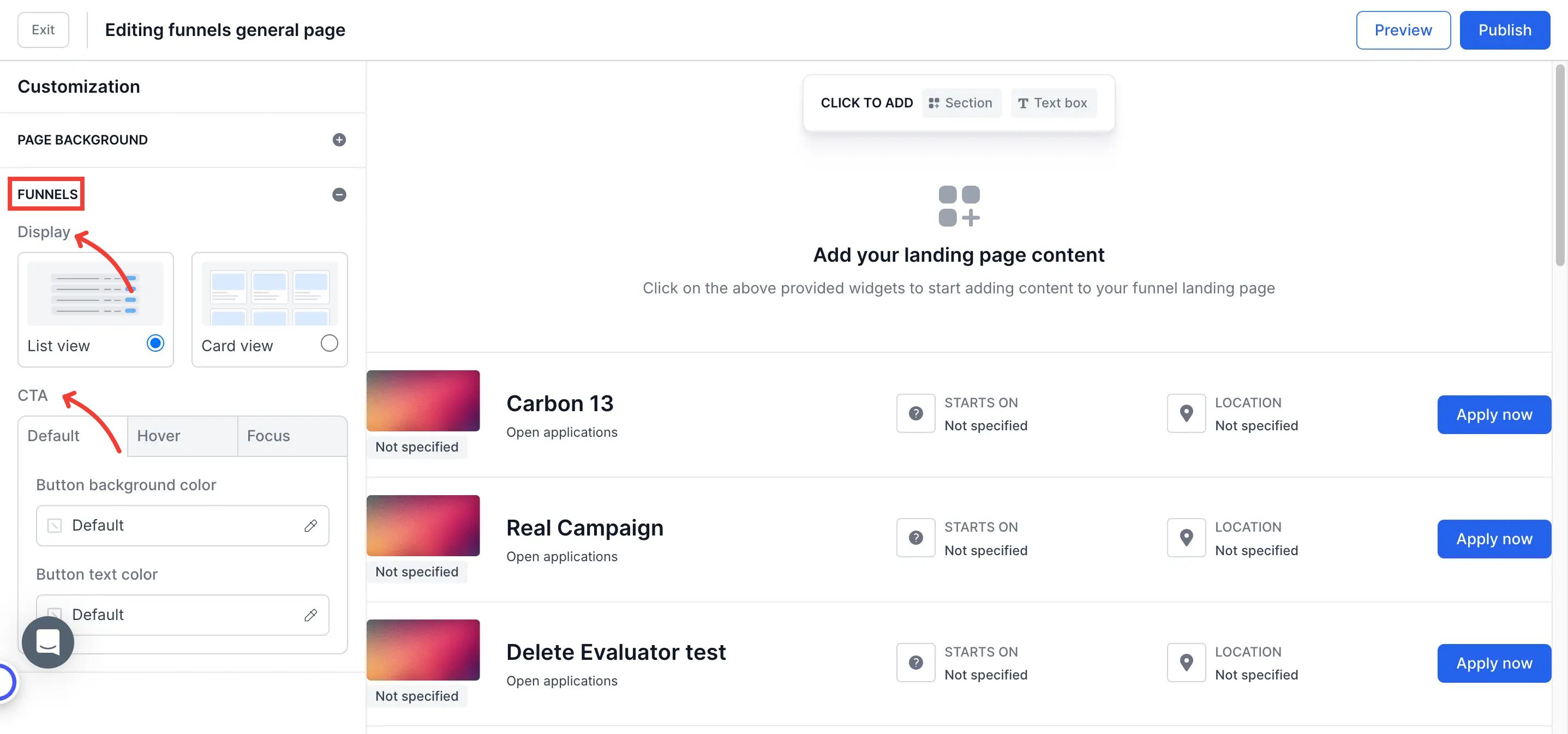
Display — Select List View or Card View to control how your application funnels appear on the page.
Visible Fields — Choose which funnel details are shown to applicants on the landing page. Available fields:
- Attendance Mode — Whether the program is in-person, online, or hybrid.
- Location — The physical or virtual location of the program.
- Start Date — When the program begins.
CTA (Call to Action) Buttons — Customize the style of your apply buttons, including:
- Default background color
- Default text color
- Hover state
- Focus state
4. Preview & Publish
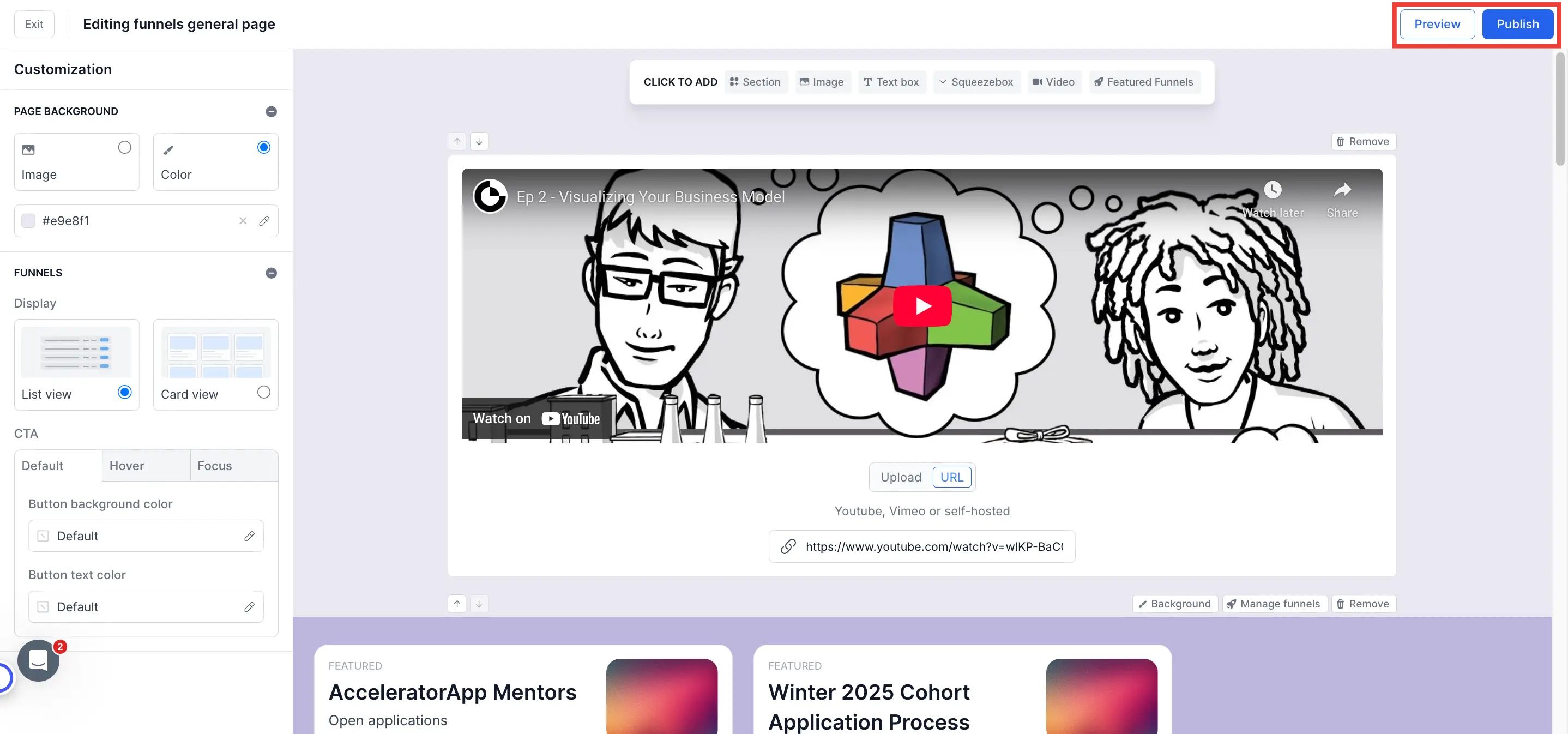
- Use Preview Mode to review the landing page on desktop and mobile before going live.
- Once satisfied, click Publish to make the page live.
Best Practices
- Enable only the fields your programs use. If all your funnels are online, hiding the Location field keeps the page clean and avoids confusion.
- Use Card View for visual-heavy programs. If your funnels have strong branding or images, Card View creates a more engaging presentation than List View.
- Always preview before publishing. Check both desktop and mobile views — layout differences can be significant on smaller screens.
- Use Premium content blocks strategically. A well-placed FAQ accordion or featured funnel section can significantly reduce incoming support questions from applicants.