


Broad Search
Introduction to Broad Search
The Broad Search feature is like having Google built right into AcceleratorApp.
It allows you to search across all your program data — startups, applicants, notes, messages, and documents — from one place.
Whether you’re trying to find an old compliance discussion, every mention of “climate tech,” or an applicant conversation before an interview, Broad Search instantly brings everything together in seconds.
It’s designed to help teams find information faster, make decisions with context, and never lose track of valuable insights again.
Available for Premium and Enterprise plans.
Where can you Access Broad Search?
You can use Broad Search in two main areas of AcceleratorApp:
- Applications Overview
- Startup Portfolio
To access it:
- Go to either the Applications Overview or Startup Portfolio section.
- Locate the Search bar at the top of the page.
- Click the Broad Search icon (🔍➕) on the right side of the search bar to open Broad Search.
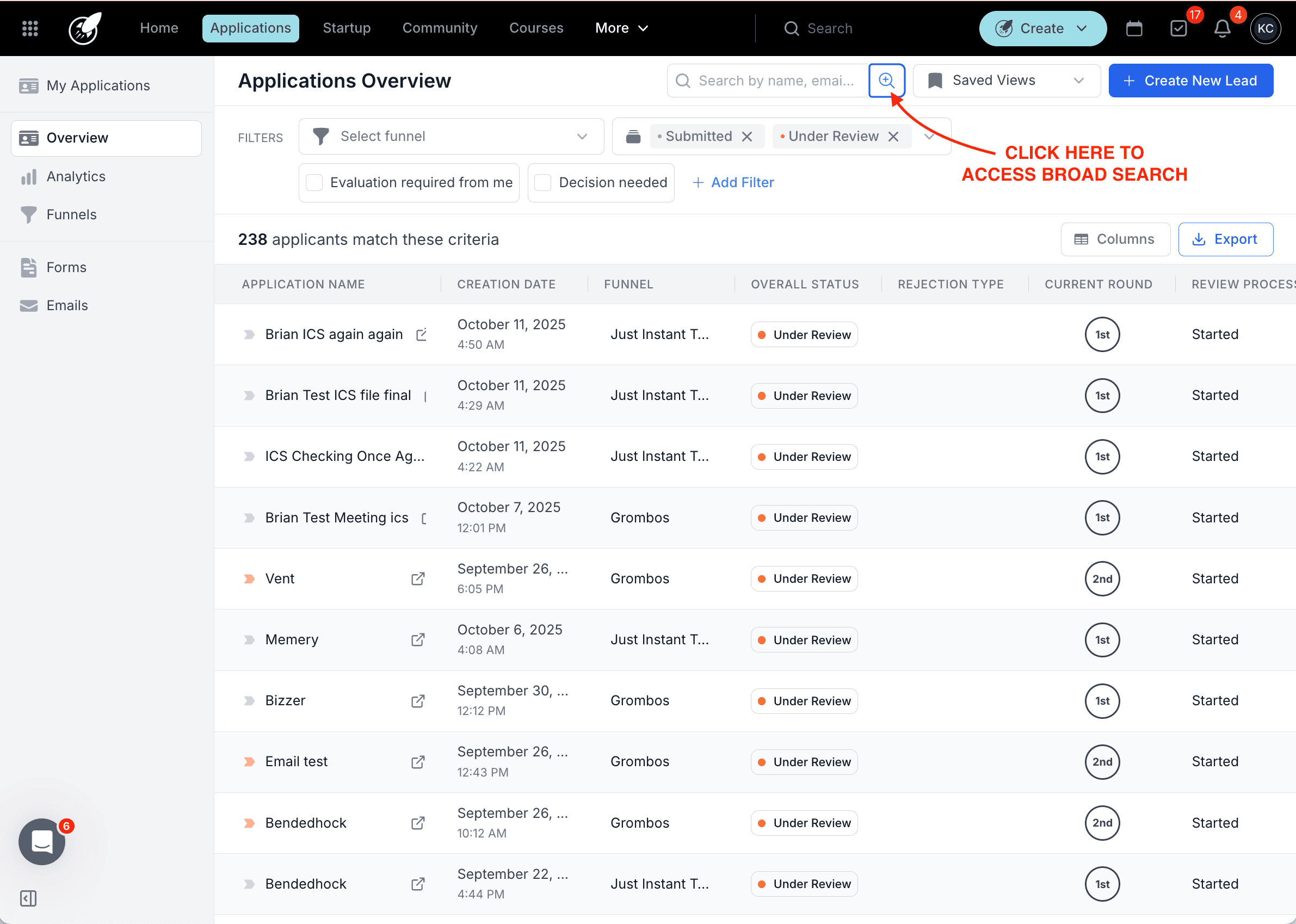
Once opened, you can type any keyword or phrase to begin searching across your data.
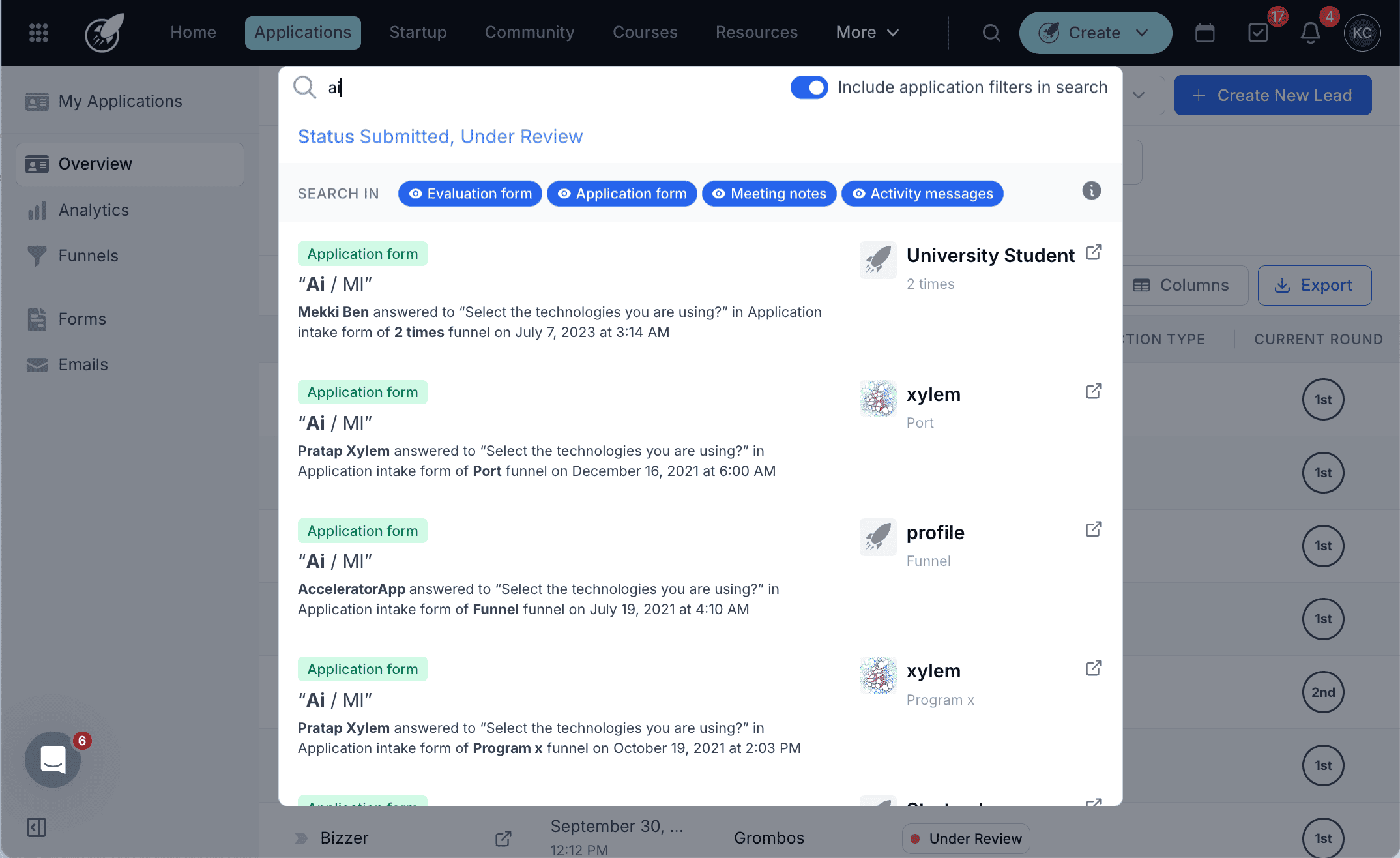
Step-by-Step Usage
1. Broad Search in Applications Overview
From the Applications Overview, Broad Search scans across:
- Evaluation forms
- Application forms
- Meeting notes
- Activity messages
This allows you to instantly find all applicants, evaluations, or related messages connected to a specific topic or keyword — even if they were mentioned weeks or months ago.
2. Broad Search in Startup Portfolio
From the Startup Portfolio, Broad Search lets you explore your entire portfolio in one search. It looks through:
- Messages
- Profile forms
- Documents and notes
This view is ideal for program managers, mentors, or compliance officers who need a complete overview of startup activities, communications, or specific topics mentioned across their portfolio.
3. Analyze and Export Findings
Broad Search displays all the relevant results for your query, and each result links directly to its source (such as a startup, applicant, or note).
Teams can also export search results to share with compliance, audit, or management stakeholders.
Best Practices
- Use clear and specific keywords to improve result accuracy.
- Enable filters like “Include application filters in search” or “Include startup portfolio filters in search” for refined results.
- Combine searches across Applications and Startups for a complete overview.
- Monitor key terms (e.g., “contract,” “compliance,” “delay”) to identify potential risks early.
Additional Resources
- Managing Applications and Startup Portfolios
- Exporting and Reporting Data
- Platform Search and Filtering Guide