


News Feed
The News Feed is a social space designed to foster a sense of belonging and continuous engagement within your incubator. It moves beyond static management by allowing members to publicly interact, share insights, and stay informed without manual intervention from administrators.
Usability & Value:
For Members: Post articles, share interesting links, and engage in threaded discussions to learn from peers and stay connected.
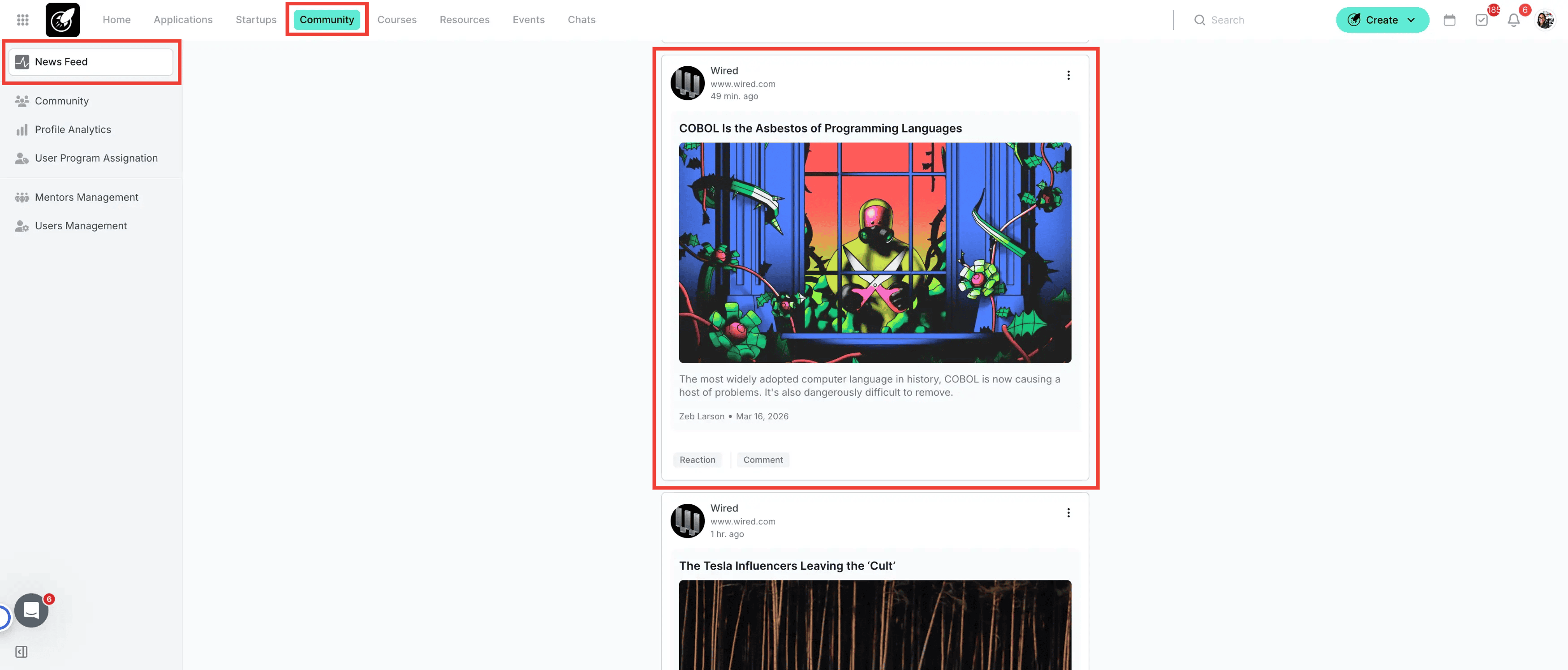
For Administrators: Keep the community active effortlessly. By subscribing to RSS feeds, the platform automatically populates the feed with relevant industry news every 30 minutes, ensuring the ecosystem feels alive even when you aren't actively posting.
Note on Availability: While the News Feed is available to most users, access for Applicants is restricted by default. If you wish to engage applicants through the feed, please visit your the user role settings to manage applicants permissions.
2. Where to Find the News Feed
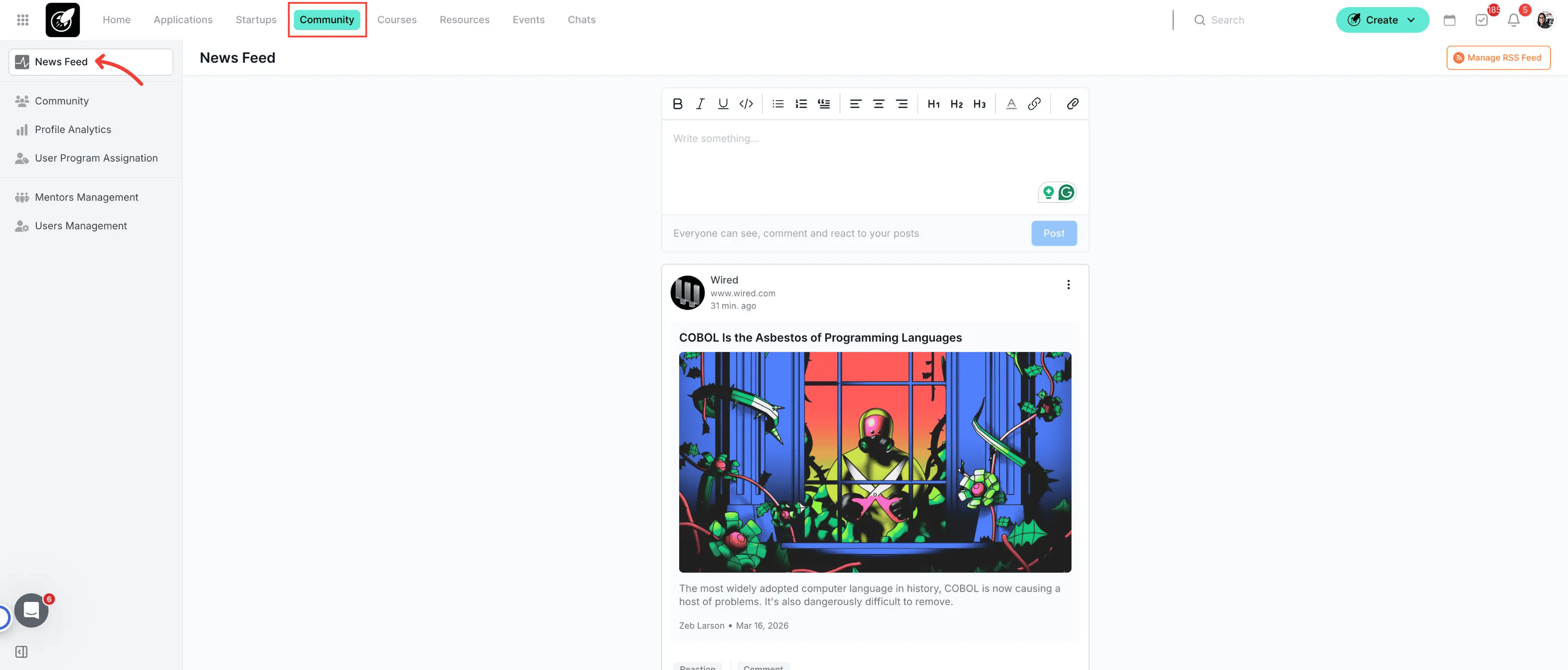
The News Feed is the primary landing page when clicking on the module called Community
3. Step-by-Step Actions
1. Creating a Post
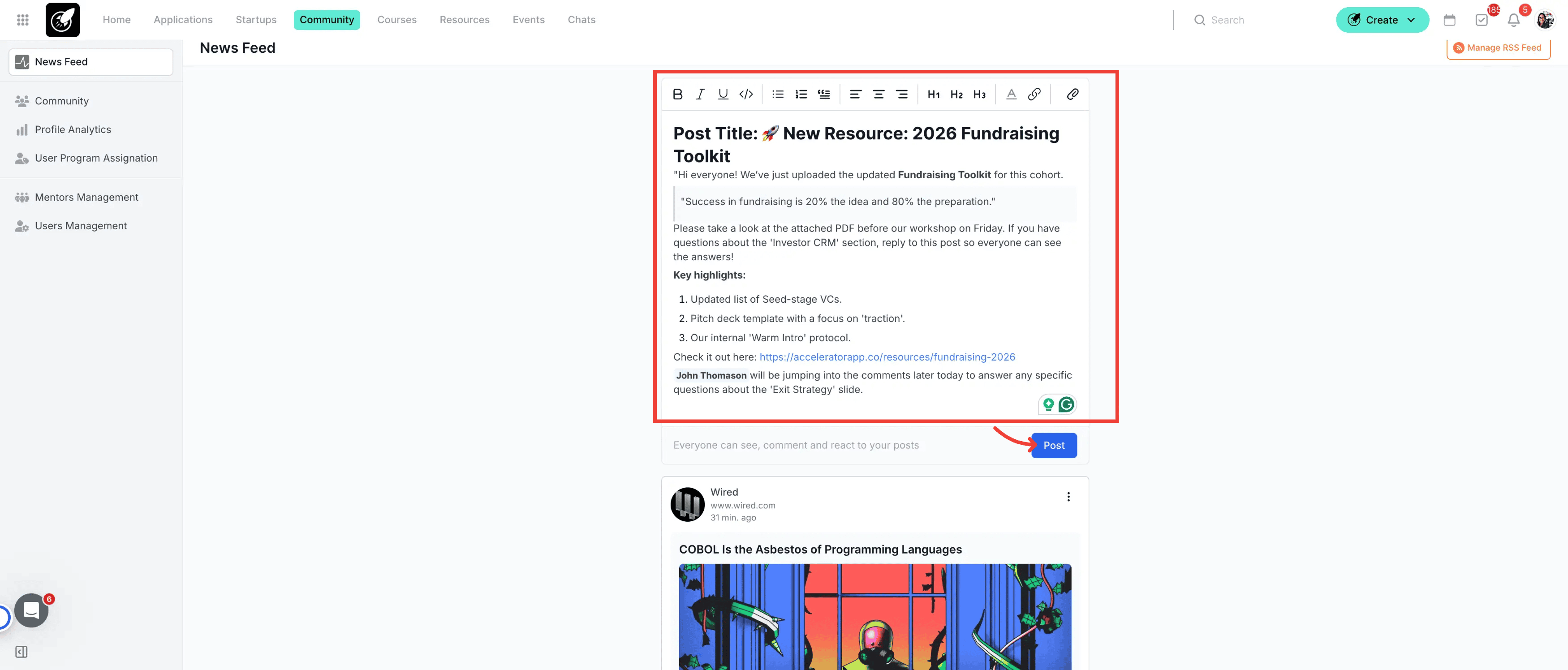
Open the Editor: Click on the post creation box at the top of the feed.
Rich Text Formatting: Use the toolbar to add Bold, Italics, Underlines, or Blockquotes. You can also organize information using Bulleted or Numbered lists.
Add Media & Links: * Upload images, videos, or file attachments directly.
Paste a URL to generate an automatic Link Preview (including title, image, and snippet).
Publish: Hit "Post" to share it with the incubator.
2. Engaging with the Community
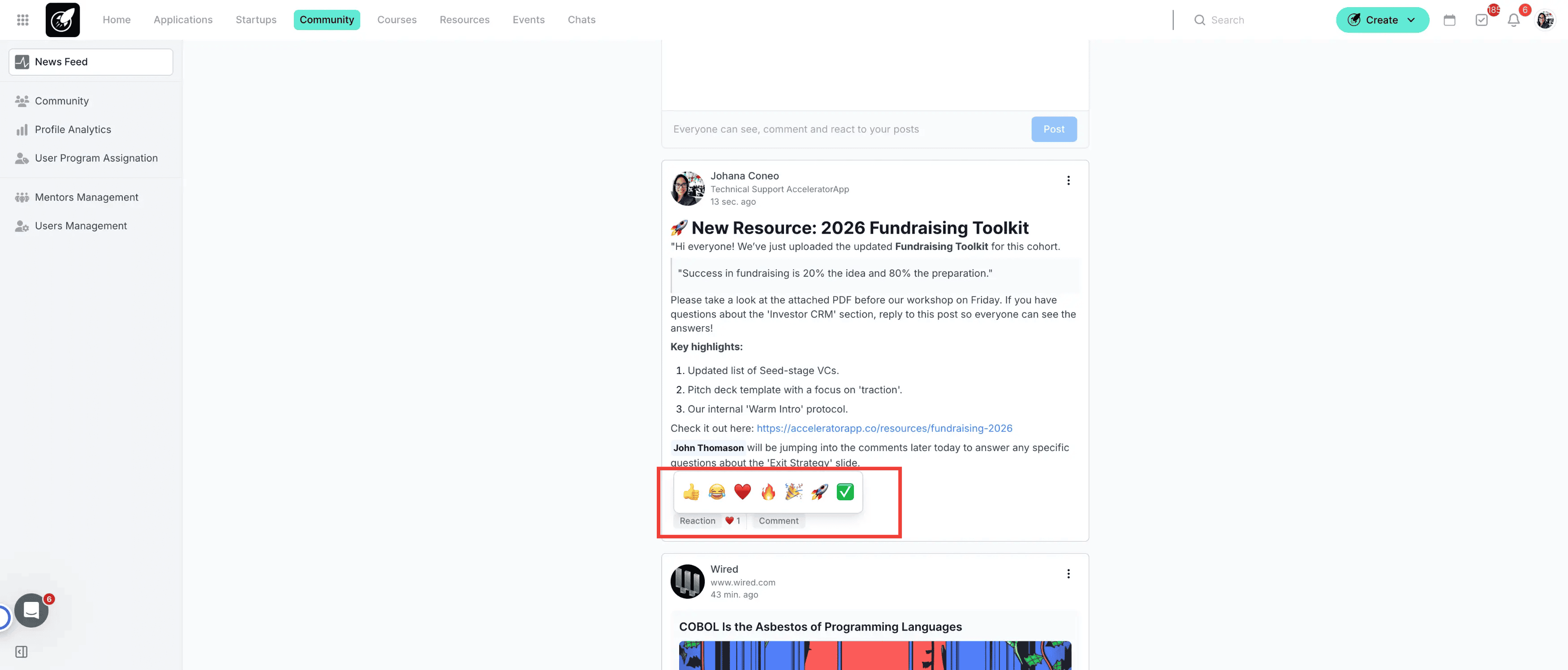
Reactions: Use Emojis to react to posts or specific comments.
Threaded Conversations: Engage in deep discussions with a 2-level thread limit (Post → Reply → Nested Reply).
Mentions: Type @ followed by a name to tag a user. This triggers an immediate notification to that person.
3. Admin: Setting Up Automatic News (RSS)
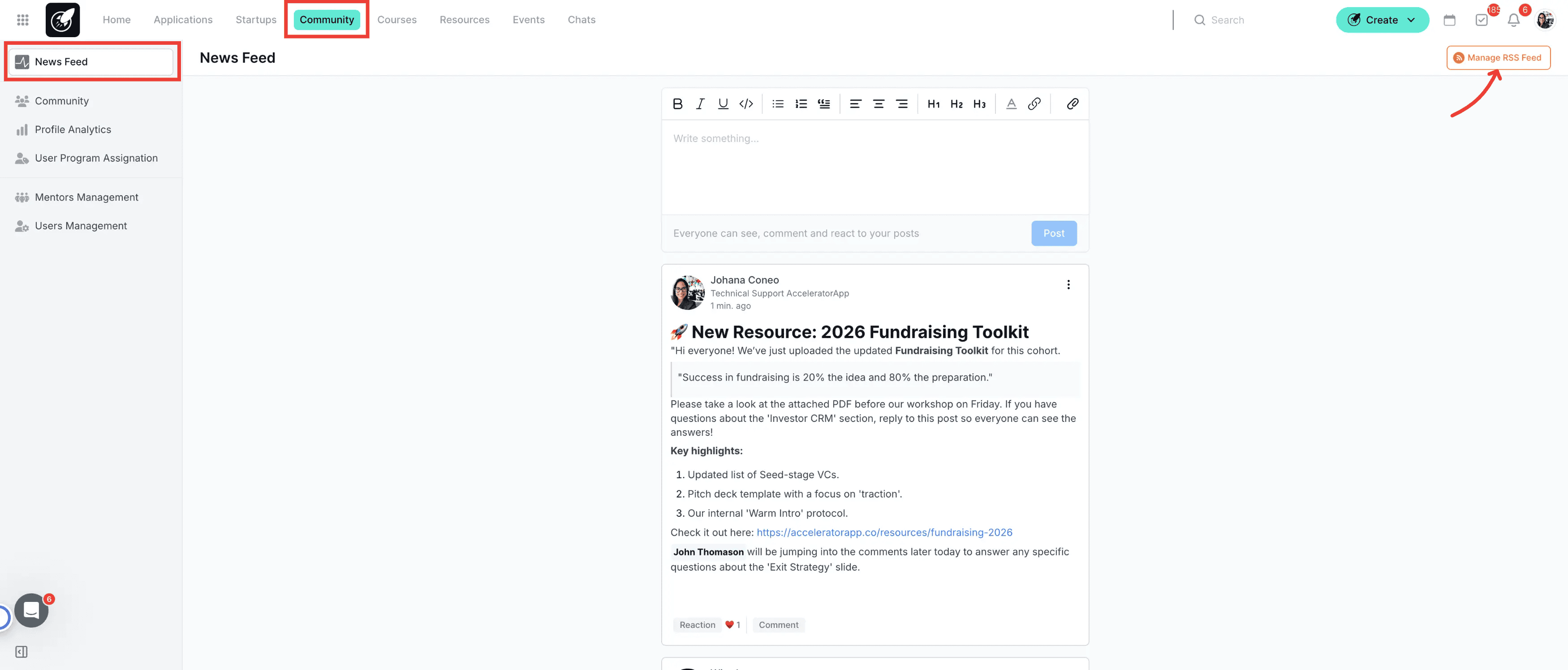
- Manage RRSS Feed: Hit the orange button called "Manage RRSS Feed" (requires RSS Subscribe admin permission).
- Add Feed: Enter a valid RSS Feed URL. The system will immediately validate the link and pull the first set of articles.
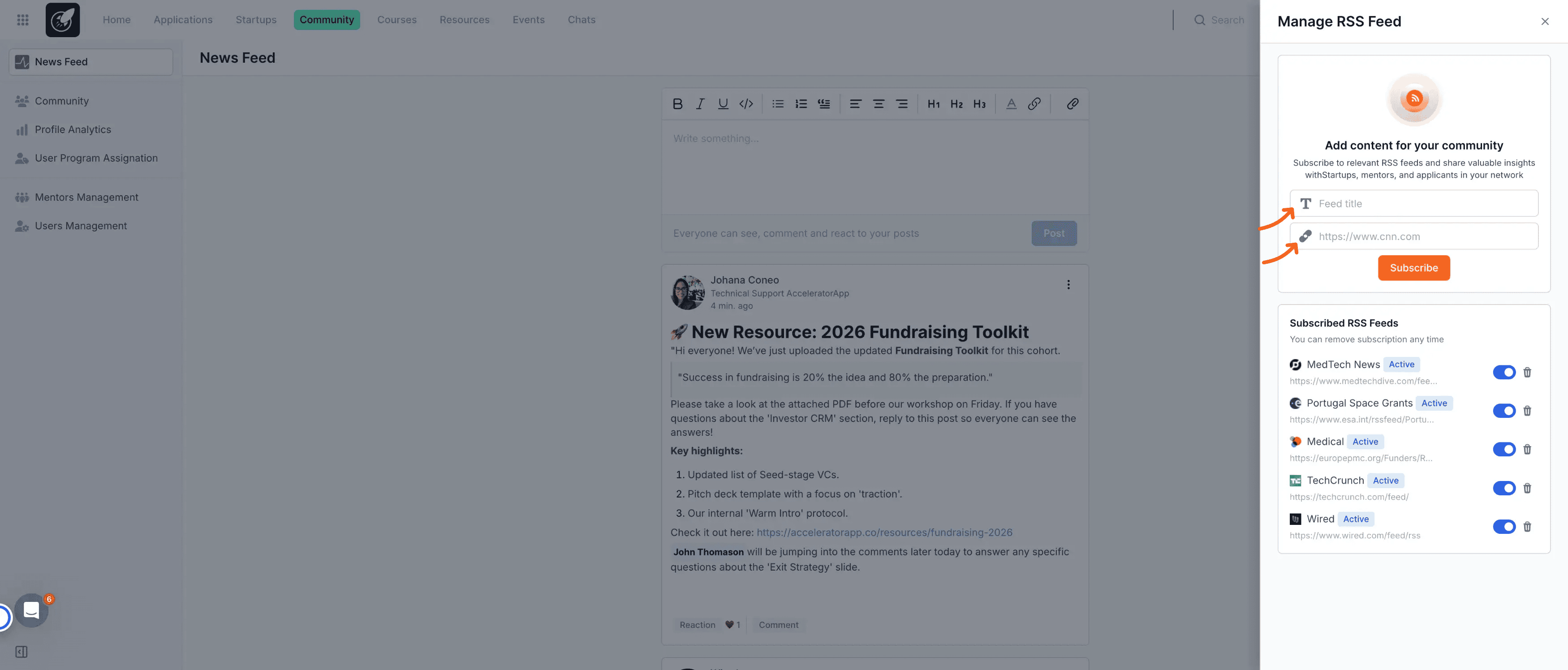
- Automated Updates: Once active, AcceleratorApp checks the feed every 30 minutes and automatically creates a new post for every new item found.
Best Practices
- Automate Value with RSS: Use the RSS Subscribe tool to pull in niche industry news. This keeps the feed active 24/7 and provides founders with constant, relevant insights.
- Foster "Ask & Give": Encourage founders to post specific needs or offers. This turns the feed into a high-value resource where the community solves problems in real-time.
- Implement "Theme Days": Use the rich text editor to host recurring threads (e.g., #MondayMotivation or #FeedbackFriday). Since everyone can react and reply, this builds a predictable habit of engagement for the whole community.