


The Startup Profile
A Startup Profile page allows startups to present their company, team, and progress in a structured and consistent way. Program managers, mentors, coaches, and administrators can easily view, understand, and assess startups based on the information provided.
The information entered in the Startup Profile is displayed based on permissions set in User Role Settings. Startup Profiles can be searched, filtered, and reported on.
Customizing the Startup Profile Page template allows you to collect the data that matters most for your programs; such as traction, market size, goals, documents, or validation strategies. This data can then be used to support decision-making, program analysis, and reporting.
The Startup Profile page is customized using custom fields. The answers submitted by startups are saved and and synced across the platform. Custom FIelds can be reused wherever that field is displayed (e.g. forms, workflows, reports).
Where to Edit the Startup Profile Page Template
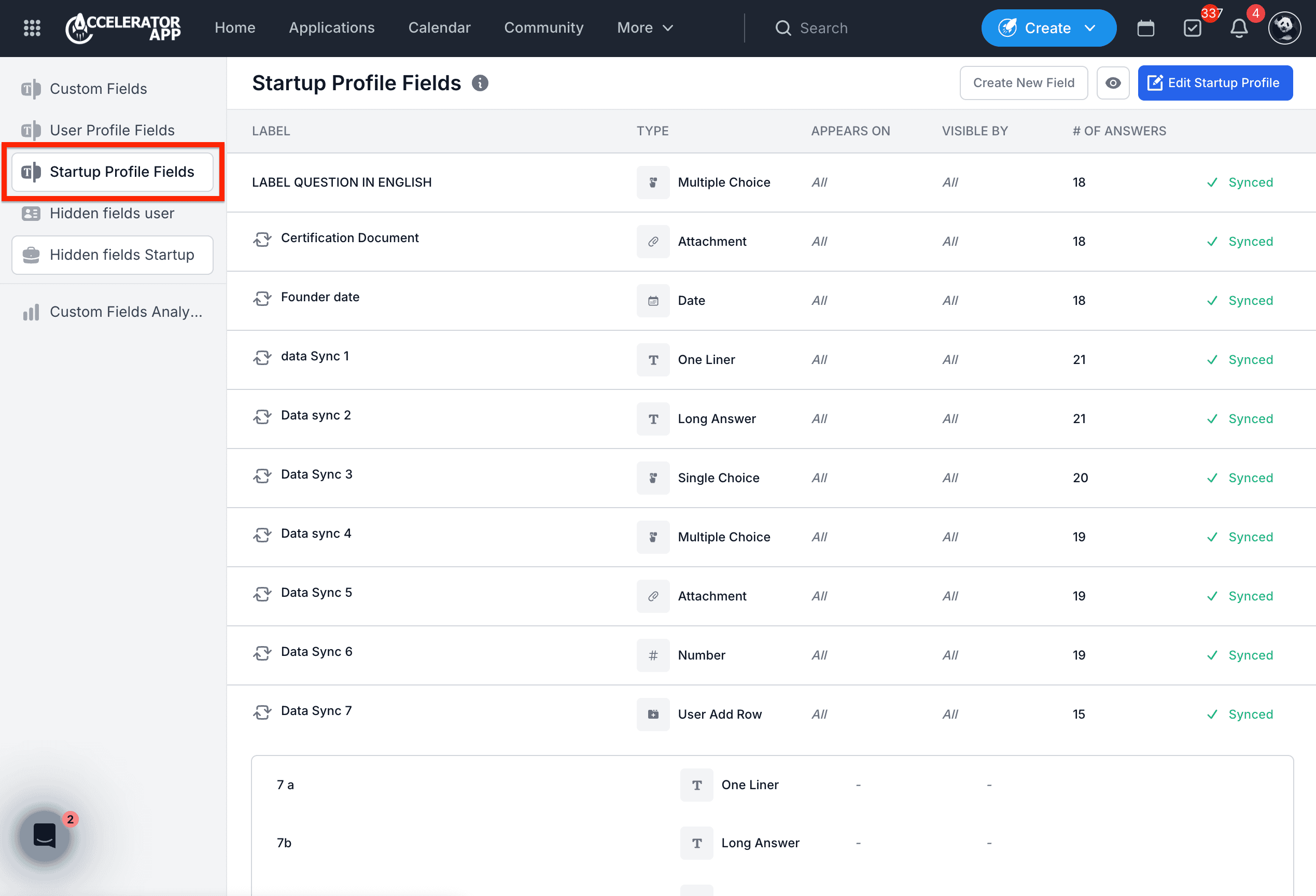
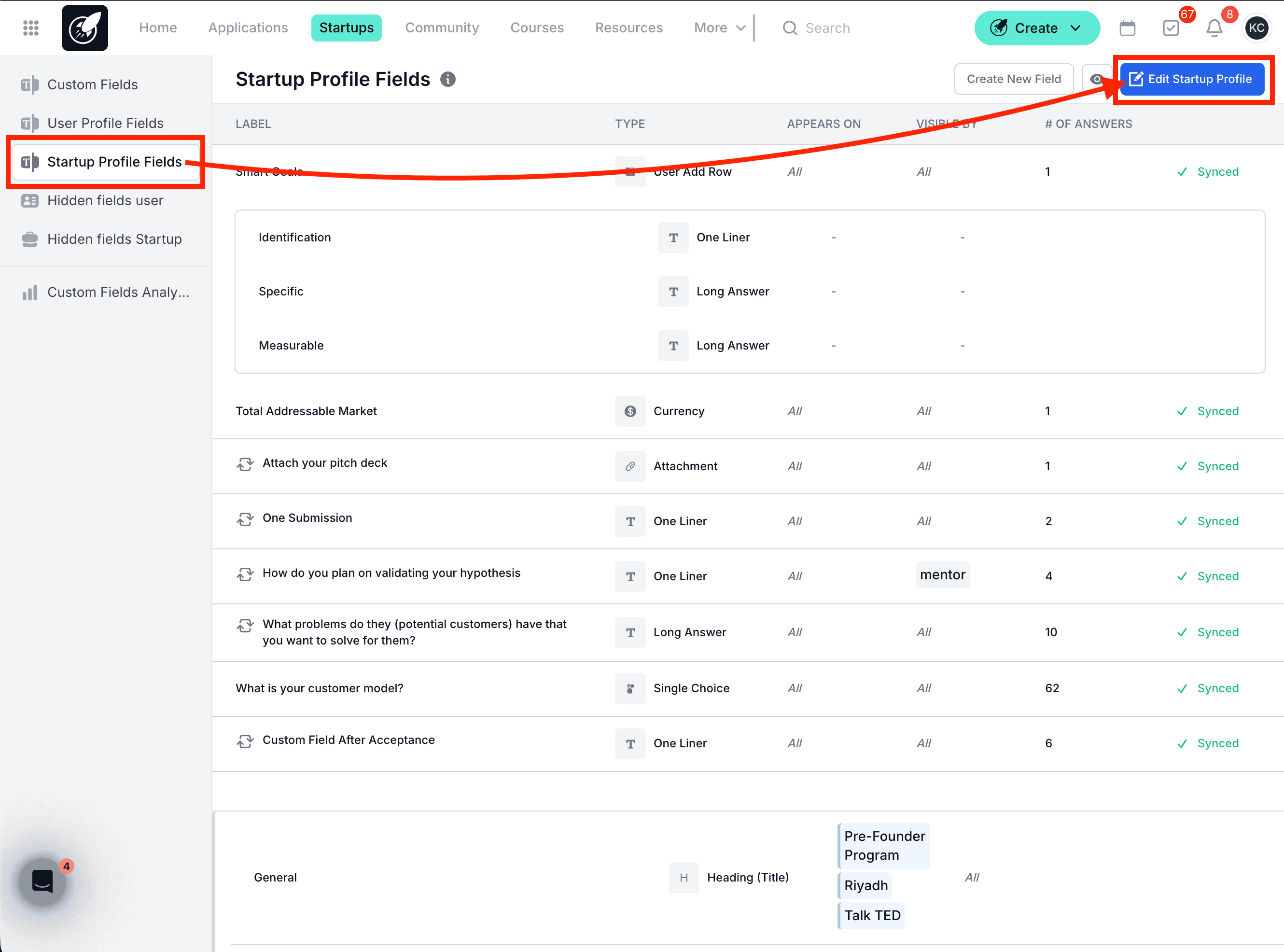
On the top left of your page, click on the Menu icon. Next, click on Custom Fields tab on the left side menu. And then click on the Startup Profile Fields tab in the menu. And finally, click on the blue button in the top right corner **Edit Startup Profile".
Step-by-Step Actions
STEP 1: Click on the Menu icon.
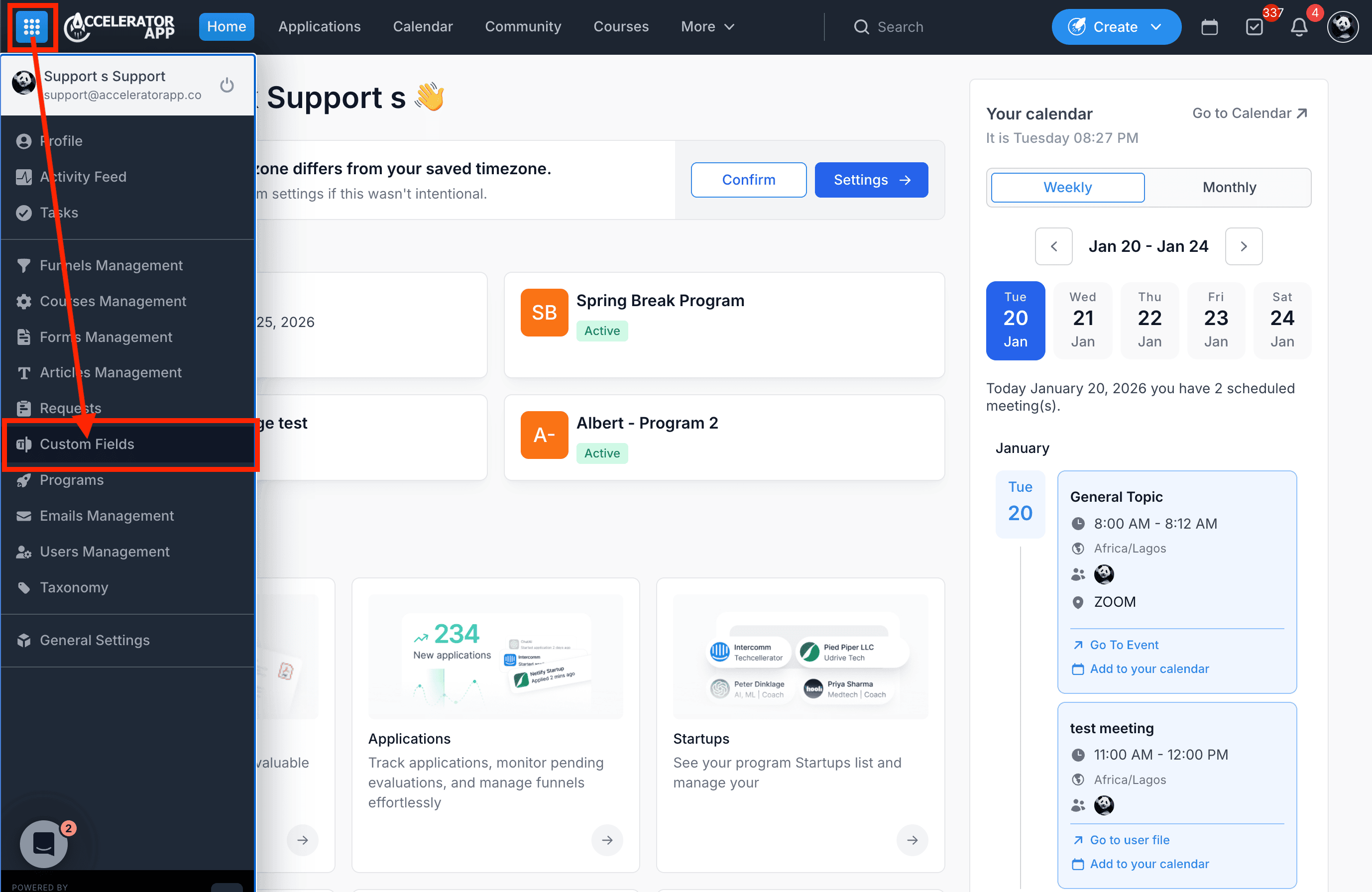
STEP 2: Click on Custom Fields.
STEP 3: Click on the Startup Profile Fields tab.
STEP 4: Click on Edit Startup Profile.
STEP 5: Drag and drop Custom Fields, Sections, Headings, or other components into the Startup Profile template.
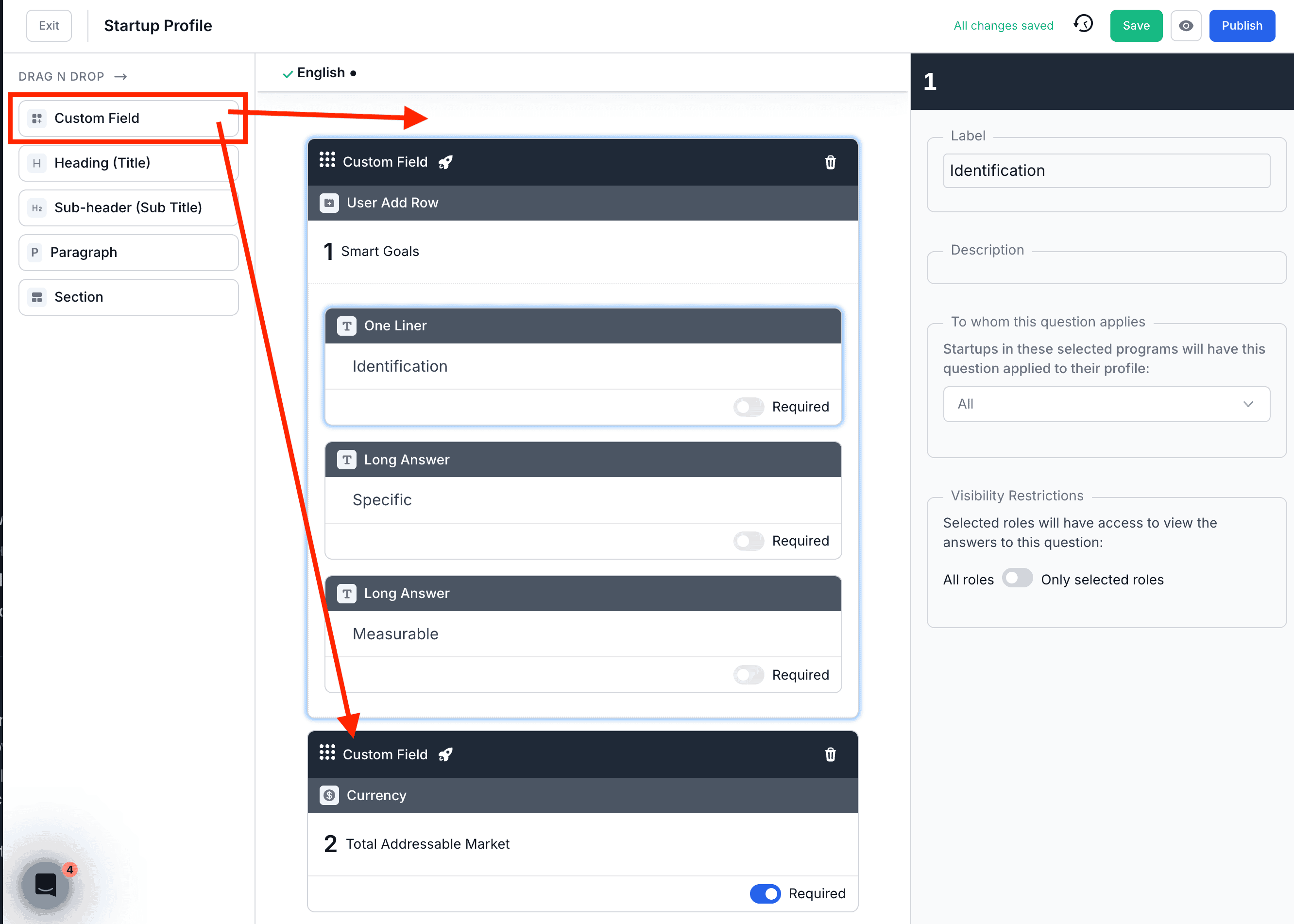
STEP 6: Select a Custom Field and configure its settings.
You can define:
- Field label and description
- To whom the question applies
- Whether the field is required or not
- Visibility restrictions (who can view the answers)
STEP 7: After editing the fields and their settings, click on Save.
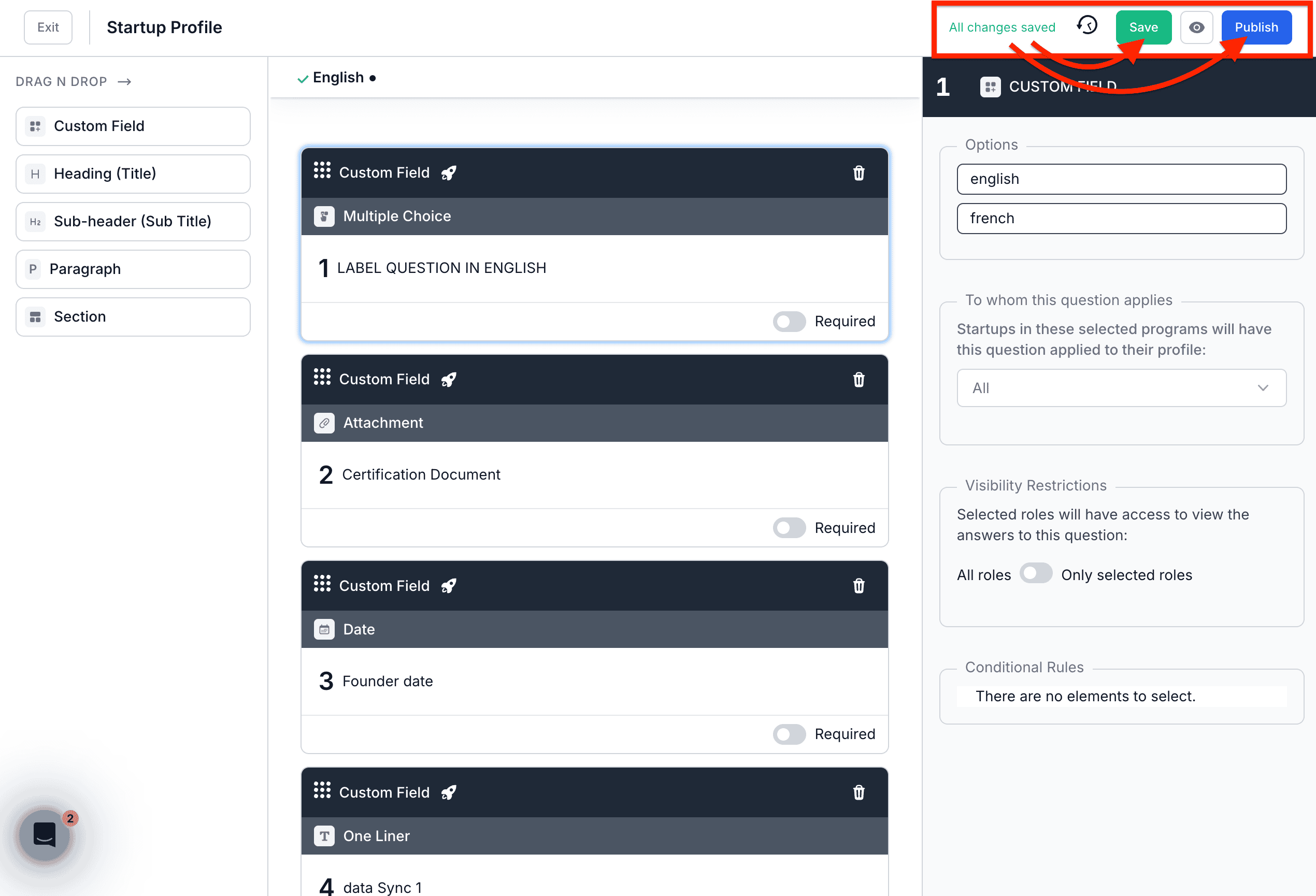
STEP 8: Click Publish to apply the changes to the Startup Profile.
Tips & Best Practices
- Use Sections and Headings to keep the Startup Profile organized and easy to complete.
- Apply visibility restrictions to internal-only or mentor-only fields.
- Use structured field types (dropdowns, numbers, currency) to improve reporting.
- Group related questions using User Add Row for repeatable data (e.g. goals, milestones).
- Avoid making too many fields required to reduce friction for startups.