


How to Manage the Application Process
Introduction to Managing the Application Process
Application Process Management allows Funnel Admins and Managers to track, review, and progress candidates throughout every stage of the application funnel.
From reviewing submitted forms and scheduling meetings to assigning evaluators and sending acceptance or rejection emails — everything is managed in one central place.
Managing applications effectively ensures a smooth candidate experience and a transparent review process for your team.
Where can you Manage Applications?
You can access and manage applications directly from the Applications section in AcceleratorApp.
- From the top navigation bar, click Applications.
- Select Overview from the sidebar to view all active applications.
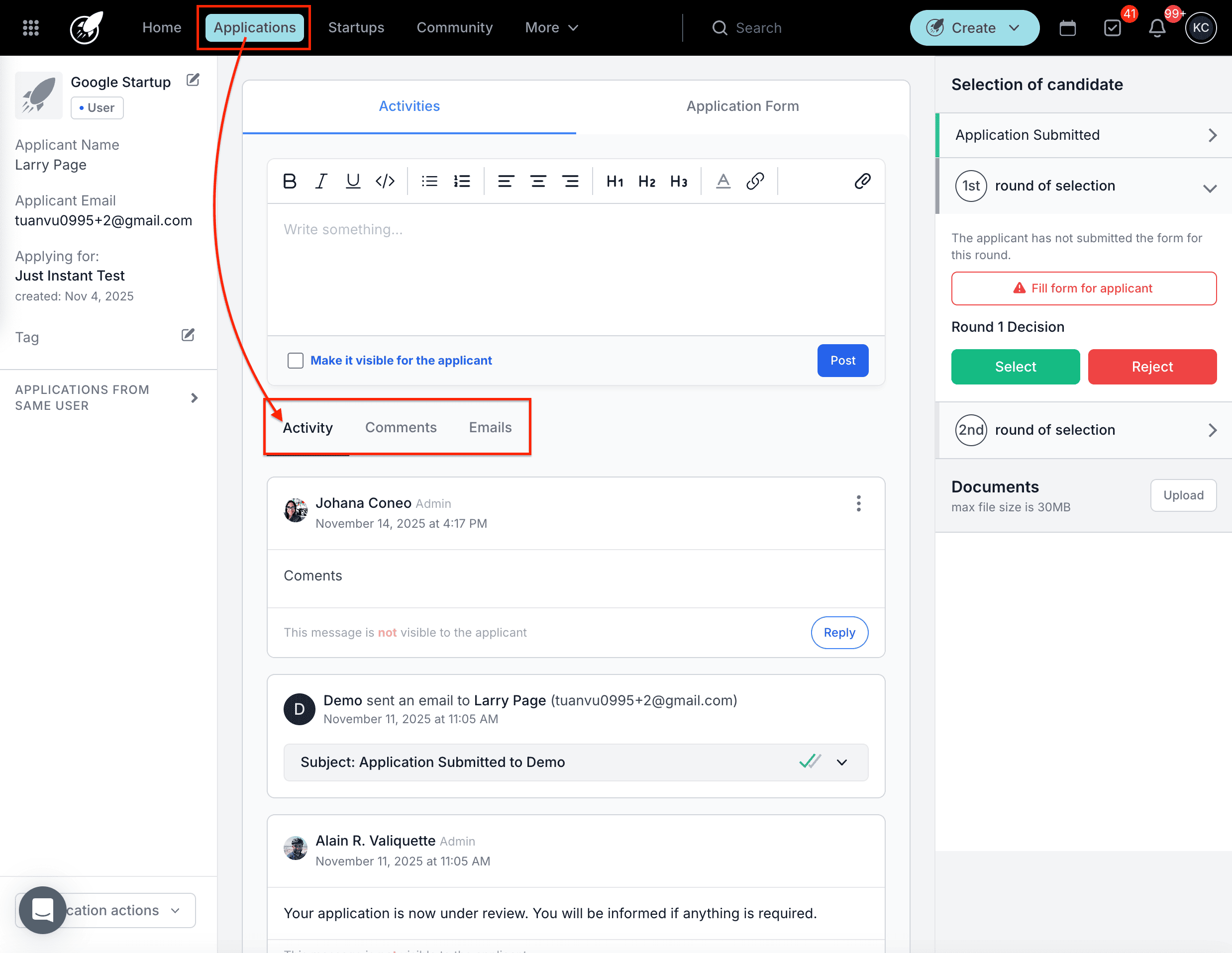
- Click on an applicant’s name to open their Application File.
- Inside the file, navigate between the Application Form, Activity, Comments, and Emails tabs to review and take action.
Step-by-Step Actions in Managing Applications
1. Reviewing Applications
When a candidate submits their application:
- The Funnel Admin receives a notification.
- Applications appear in the Applications Overview section.
- Click the candidate’s name to open the Application Form tab and begin reviewing.
In the right-hand panel, you can view all Application Rounds defined in the funnel.
After reviewing the form, decide whether to move the candidate forward or reject their application.
If you decide not to proceed, you can send a rejection email (from your transactional email templates) immediately or schedule it for a later date.
2. Managing Application Forms
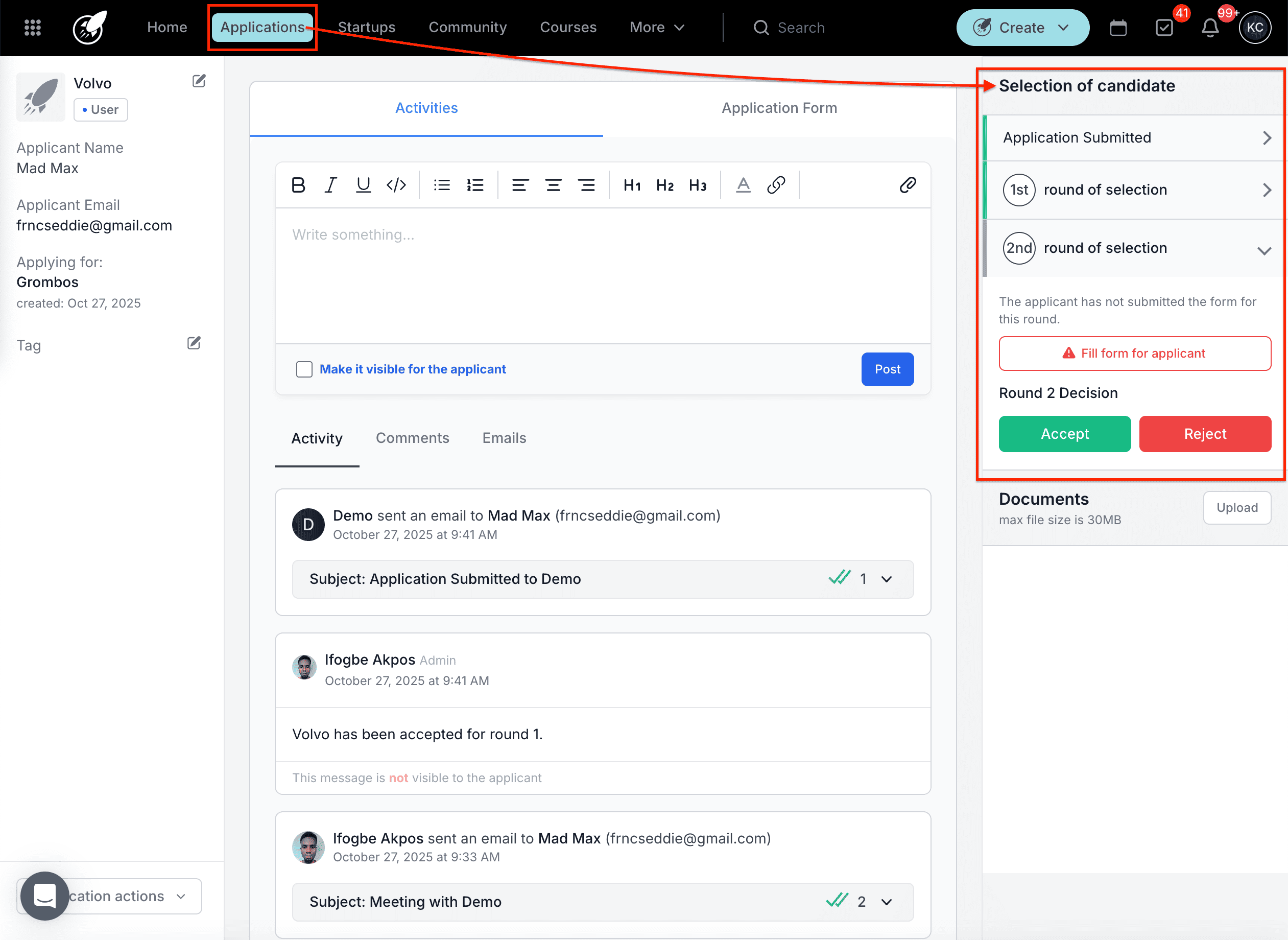
When a candidate is required to complete an additional form as part of the application:
- The candidate receives an automated instruction email.
- Once submitted, the form responses appear in the Application Form tab.
- The submission date and time are visible in the corresponding round details.
3. Managing Meetings and Interviews
When a candidate advances to an interview round:
- They receive an email with a link to book a meeting based on the interviewers’ availability.
- Candidates can also book directly from their Application File.
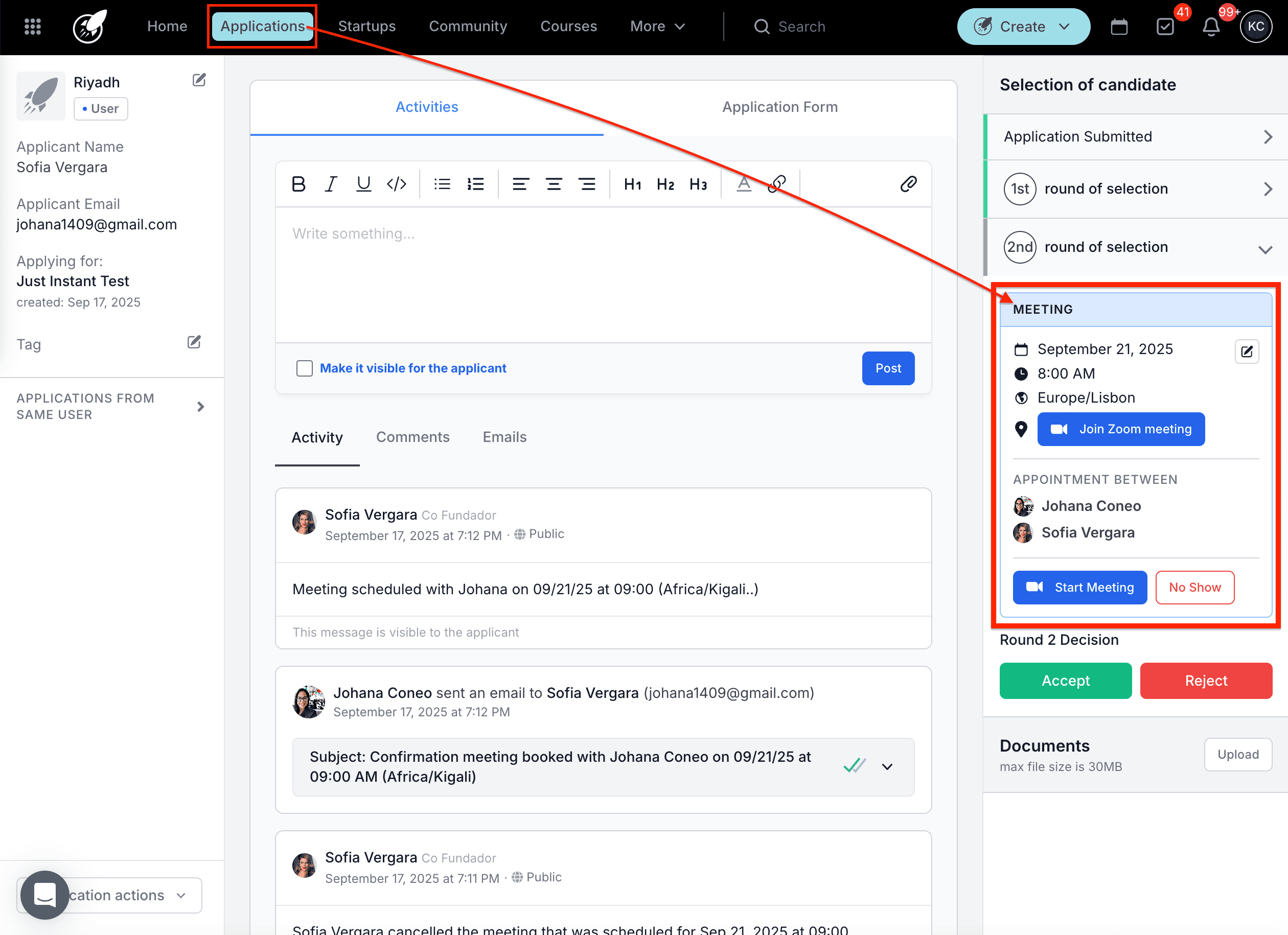
Once scheduled, admins can:
- Reschedule or cancel the meeting via the three-dot menu.
- Mark as no-show if the candidate doesn’t attend.
- Start the meeting from within the file when the interview begins.
- Save the session after clicking End Meeting once it’s complete.
4. Evaluation Forms
Evaluation forms are used to score and review applications objectively.
- Evaluators only see the applications they are assigned to.
- Funnel Admins or Managers can view all evaluations and results.
- Evaluators can be pre-assigned in the funnel or added manually during the review.
- Once assigned, the evaluator receives a task to complete their evaluation.
- When the form is submitted, the task is marked as complete automatically.
5. Accepting or Rejecting Candidates
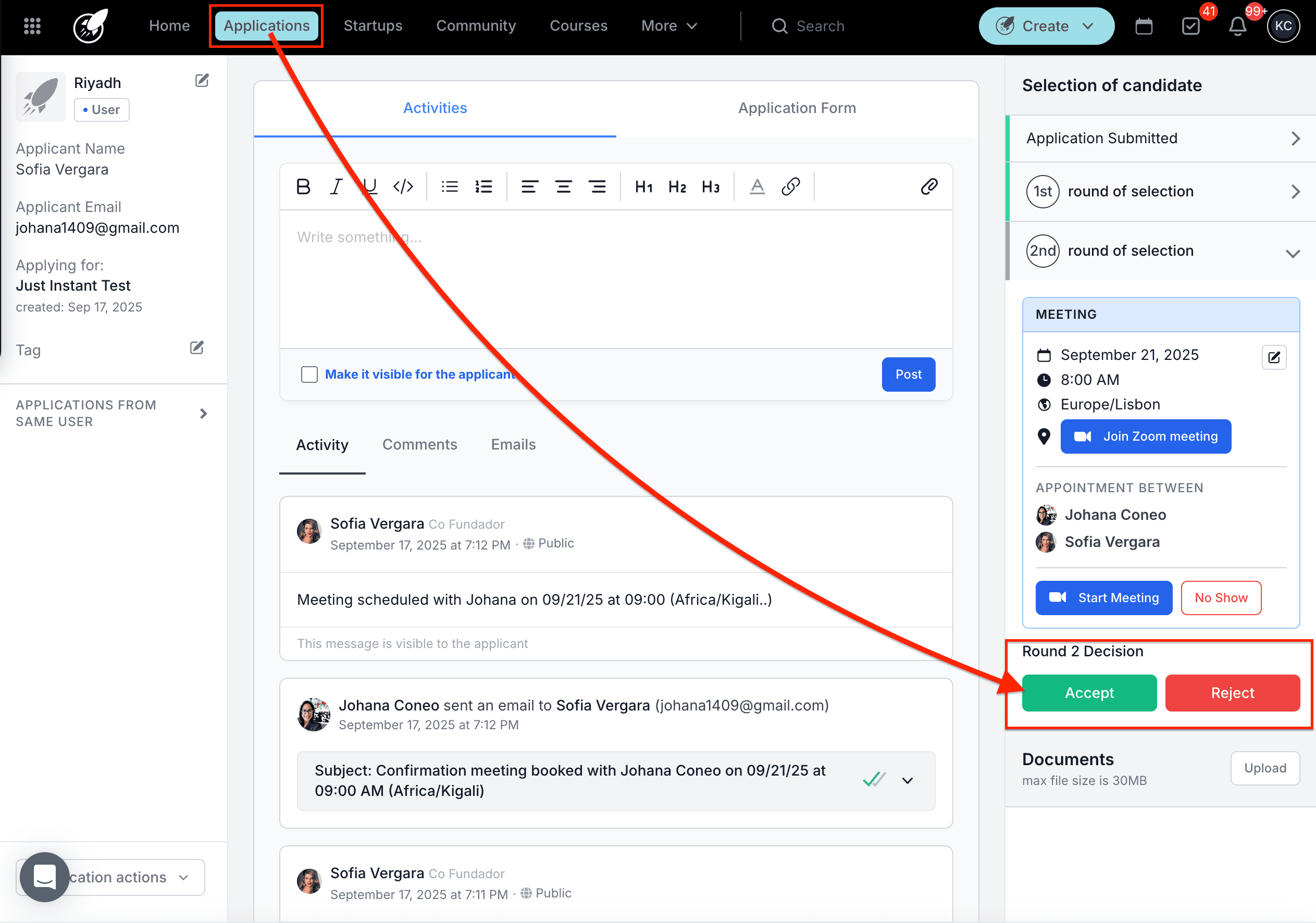
At the end of each round, the Funnel Admin can accept or reject applications.
If rejecting:
- Send a rejection email using one of your transactional email templates.
- Choose to send immediately or schedule for later.
If accepting:
- Select the program(s) and startup tag(s) the candidate should be linked to.
- The candidate will receive an automatic acceptance email confirming their selection.
⚠️ Notes and Reminders
- If a funnel is archived or the deadline passes, incomplete (draft) applications will automatically be archived.
- Submitted applications will continue through the review process normally.
- Resetting an application back to draft mode can be done if a candidate needs to make changes (see related article).
Best Practices
- Keep communication clear with applicants — use automated emails to notify them at each stage.
- Assign evaluators early to ensure feedback is received on time.
- Regularly monitor your Overview page to track application progress and pending actions.
- Archive funnels only once all applications have been processed to avoid data loss.
Additional Resources
- [Transactional Emails in AcceleratorApp]
- [Creating an Application Funnel]
- [Resetting an Application Back to Draft Mode]
- [Scheduling and Managing Interviews]