


Introduction to Programs
Programs in AcceleratorApp functions as a grouping system, allowing administrators to organize startups and users into distinct cohorts. Programs facilitate tailored support frameworks, enabling targeted resources, tracking, and management for each group.
This feature is essential for segmenting participants, aligning them with specific goals, and tracking metrics relevant to each unique program.
Programs solve the challenge of managing diverse groups within an incubator or accelerator. For example, you might create separate programs for early-stage startups, growth-stage startups, or community-focused initiatives, each with dedicated resources, events, courses, communication, and metrics.
Program administrators benefit by having a streamlined way to organize and support different types of participants based on their unique needs.
Where to Create Programs
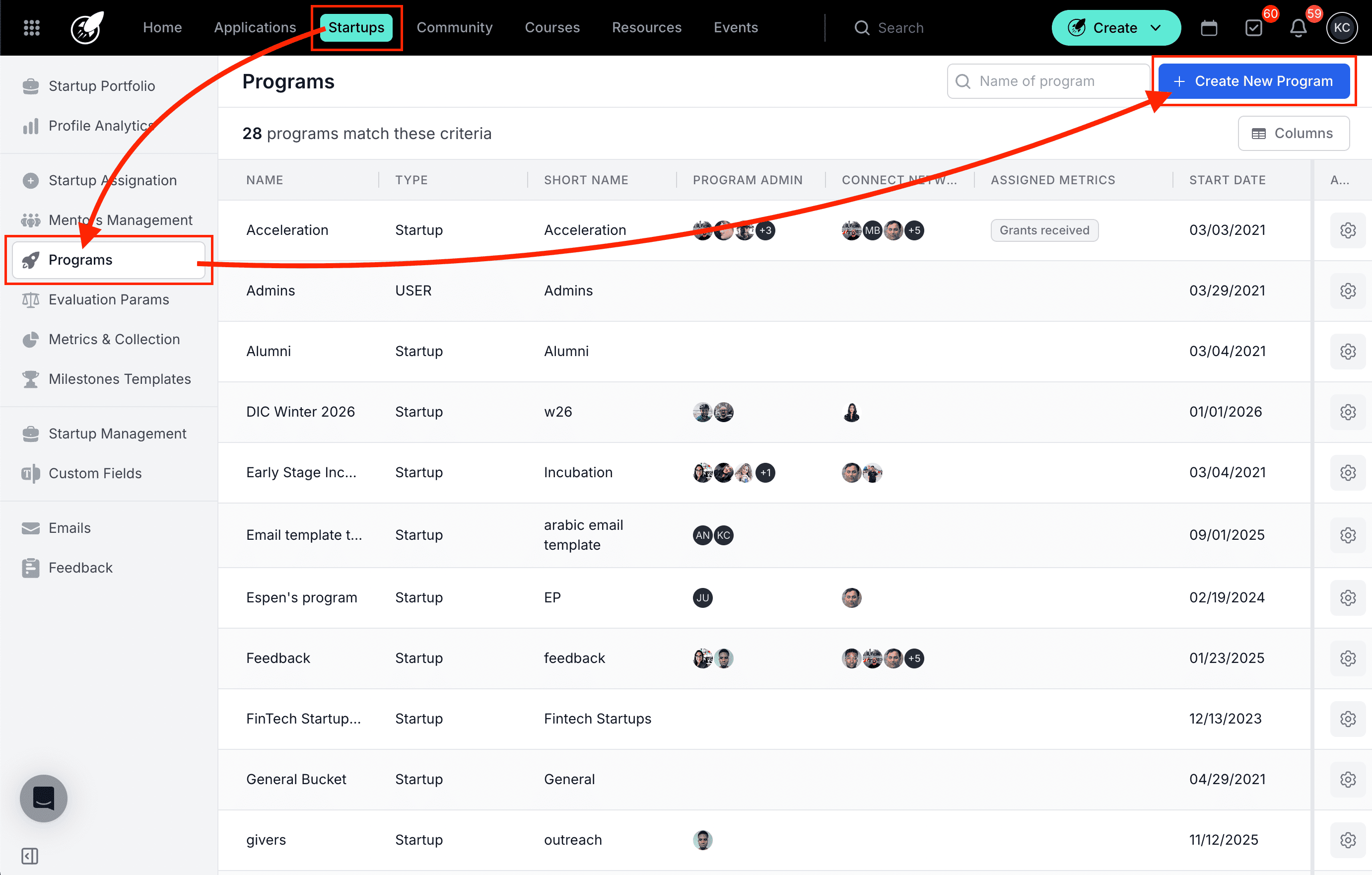
To access and create programs, go to Startups in the top nav menu and select Programs in the left side menu. This page displays an overview of existing programs and includes options for creating, editing, or deleting programs.
Step-by-Step Actions to Create a Program
STEP 1: Click on Startups from the top menu or the Home Page.
STEP 2: Click on in the left side menu Programs.
STEP 3: Click on Create New Program (blue button) in upper right corner.
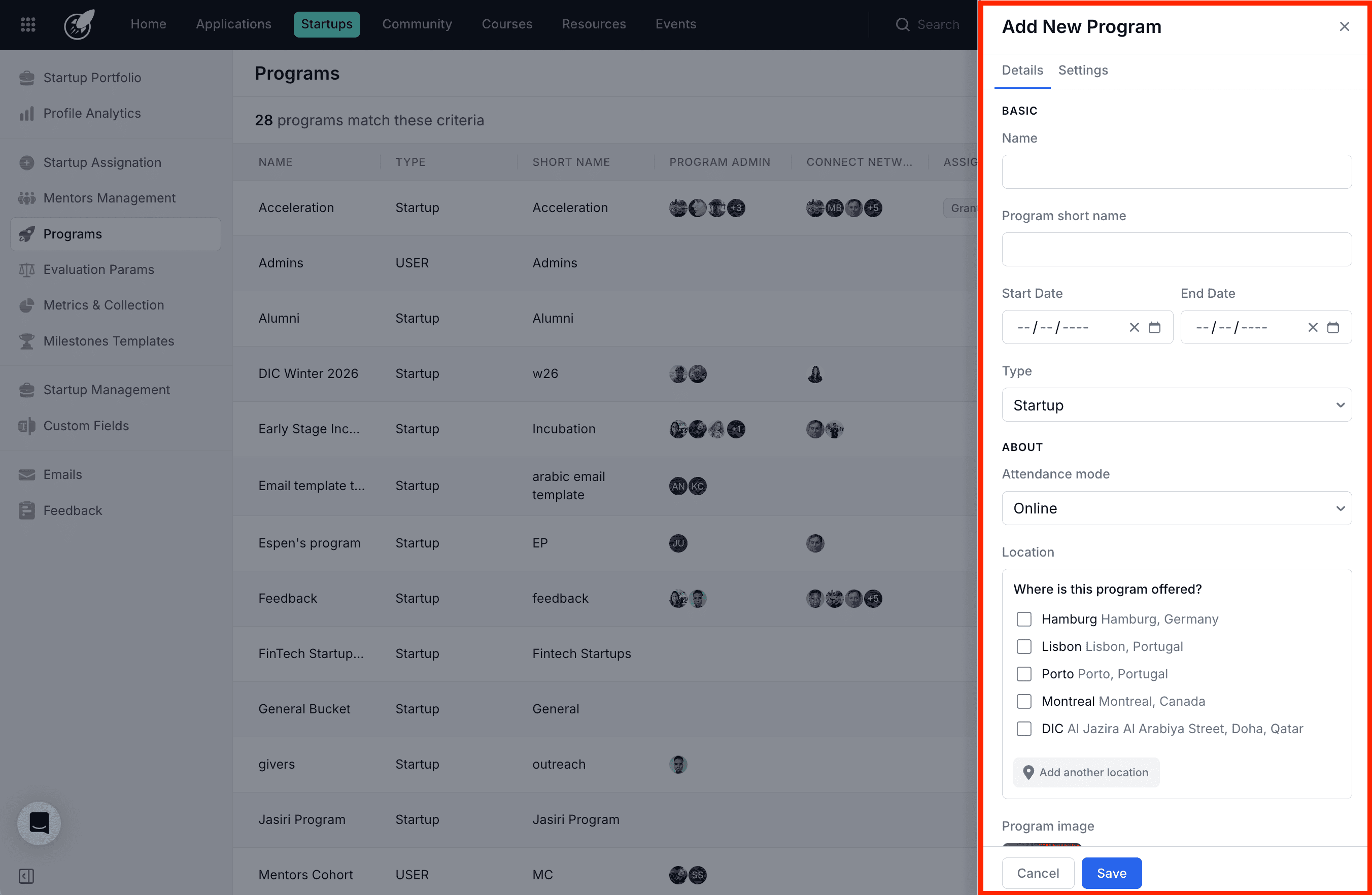
STEP 4: Add the Program details and click Save.
Filling in Program Details:
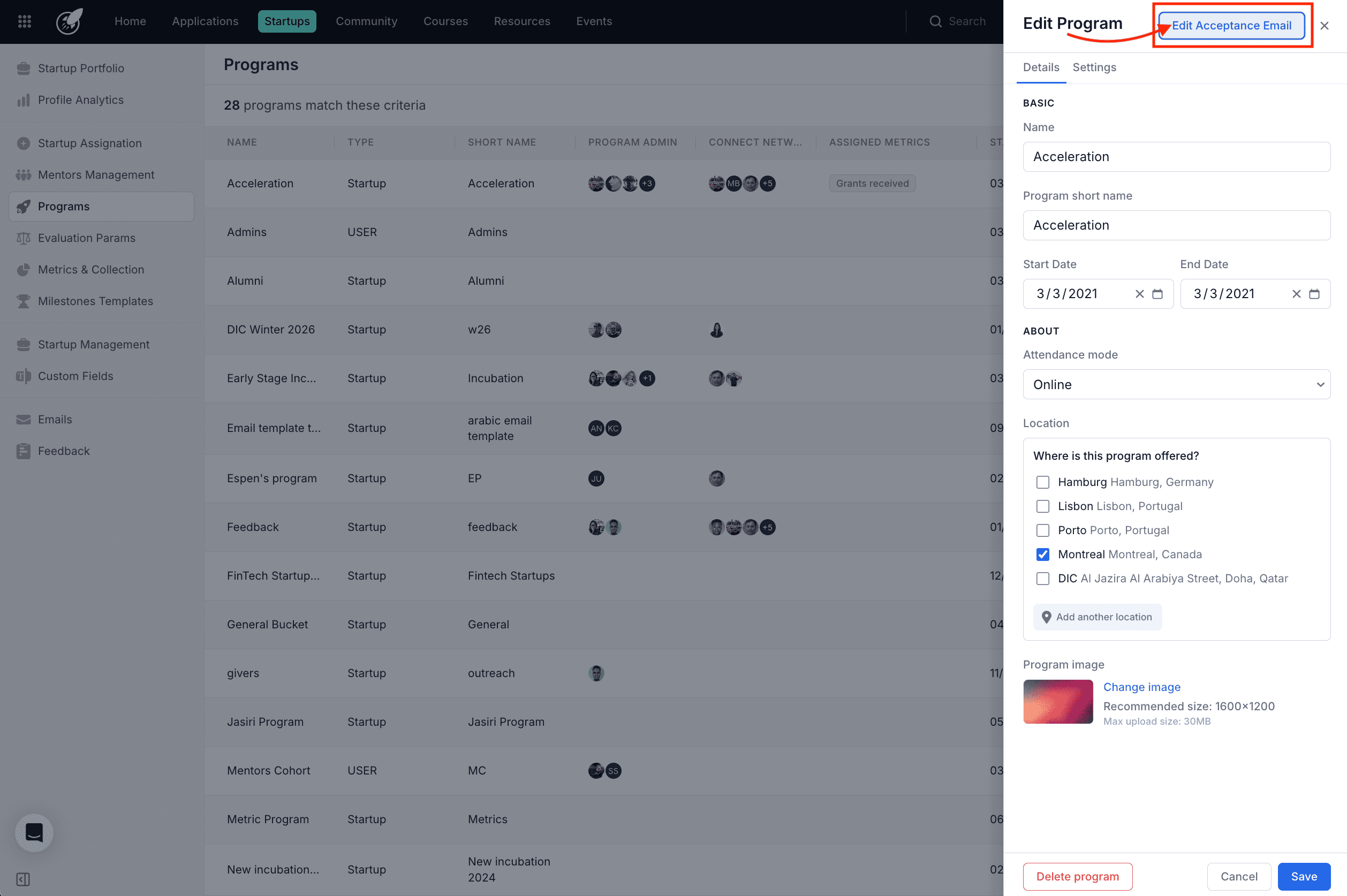
BASIC
- Name and Short Name: Enter a unique name and short name for the program.
- Start Date and End Date: Enter a start and end date for the program.
- Select Program Type: Choose Startup for startup-focused programs or User for user-centric ones. Startup programs can only include startups, while User programs are for other community members.
ABOUT
- Attendance mode: Select one of three types of attendance modes from the dropdown: either Online, Offline or Hybrid.
- Location: Where is this program offered? Select a location from the list, where this program is offered. You also have the option to add another location at the bottom.
- Program image: You can select or change your program image here.
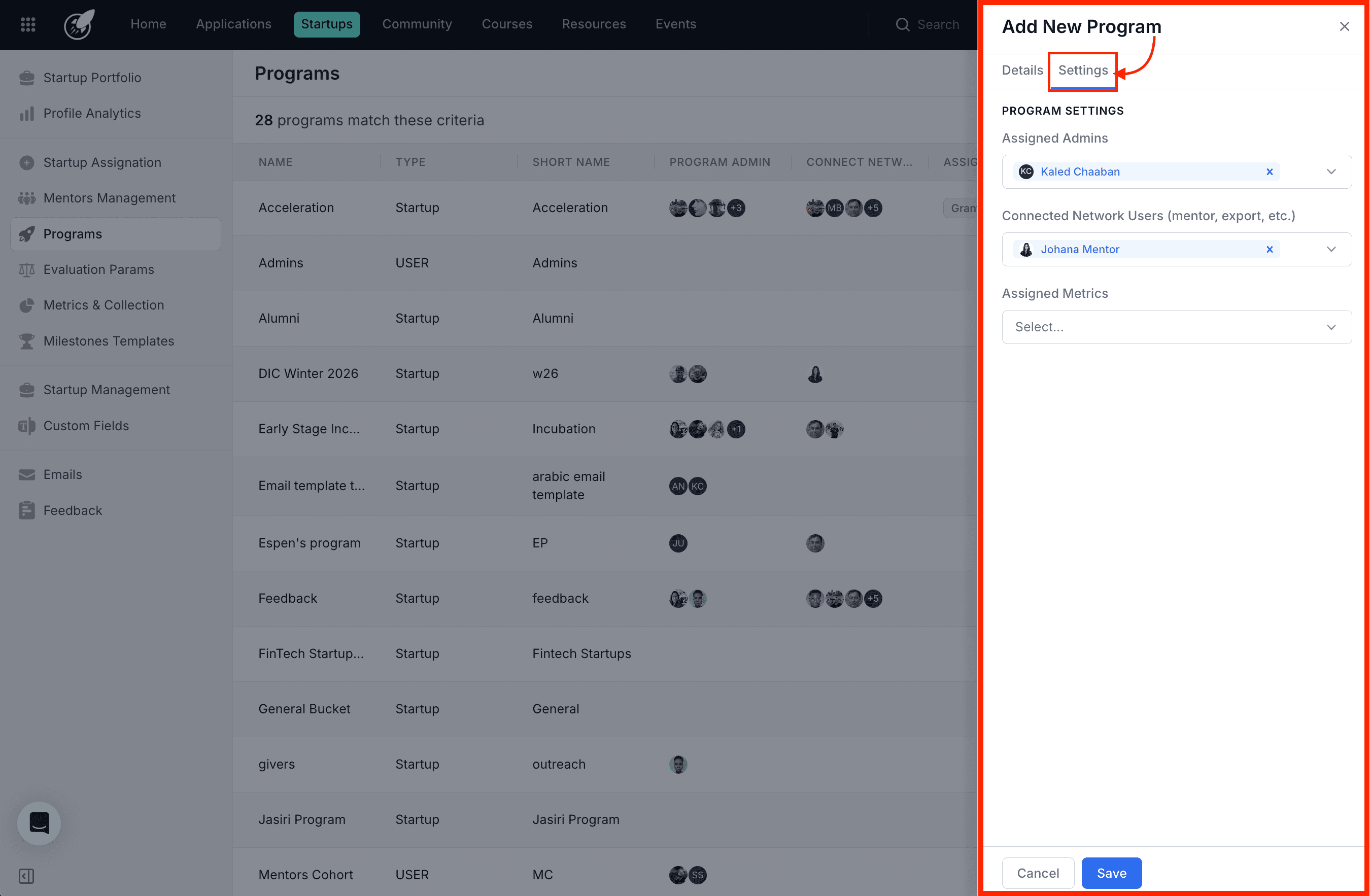
Filling in Program Settings:
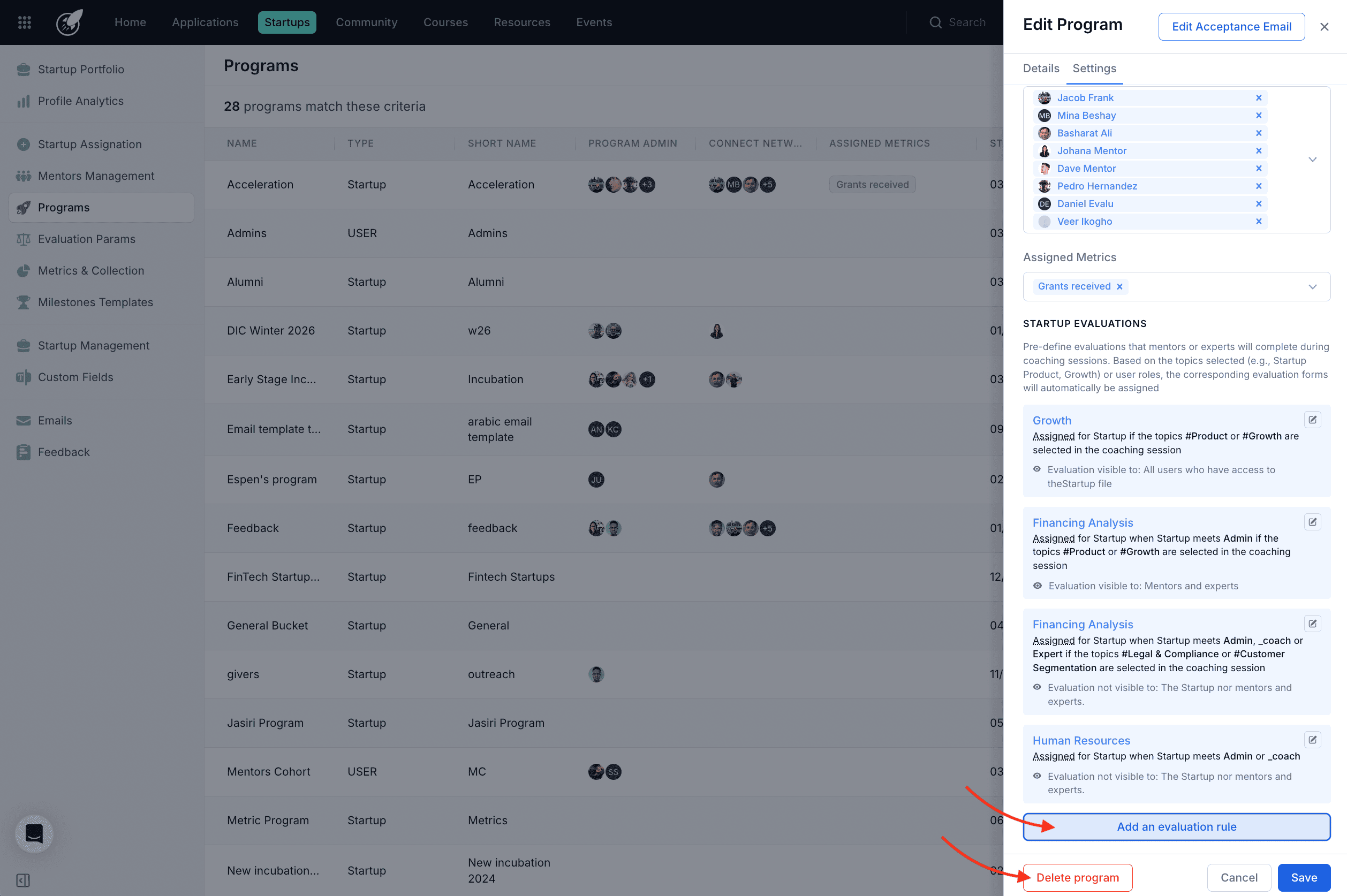
- Assigned Admins: Assign an administrator for the program. This can only be Admin, sub-admin, or Coach role.
- Connected Network Users: Select team members (e.g., mentors, experts,) to be part of this program.
- Assigned Metrics: Choose metrics to track for this program.
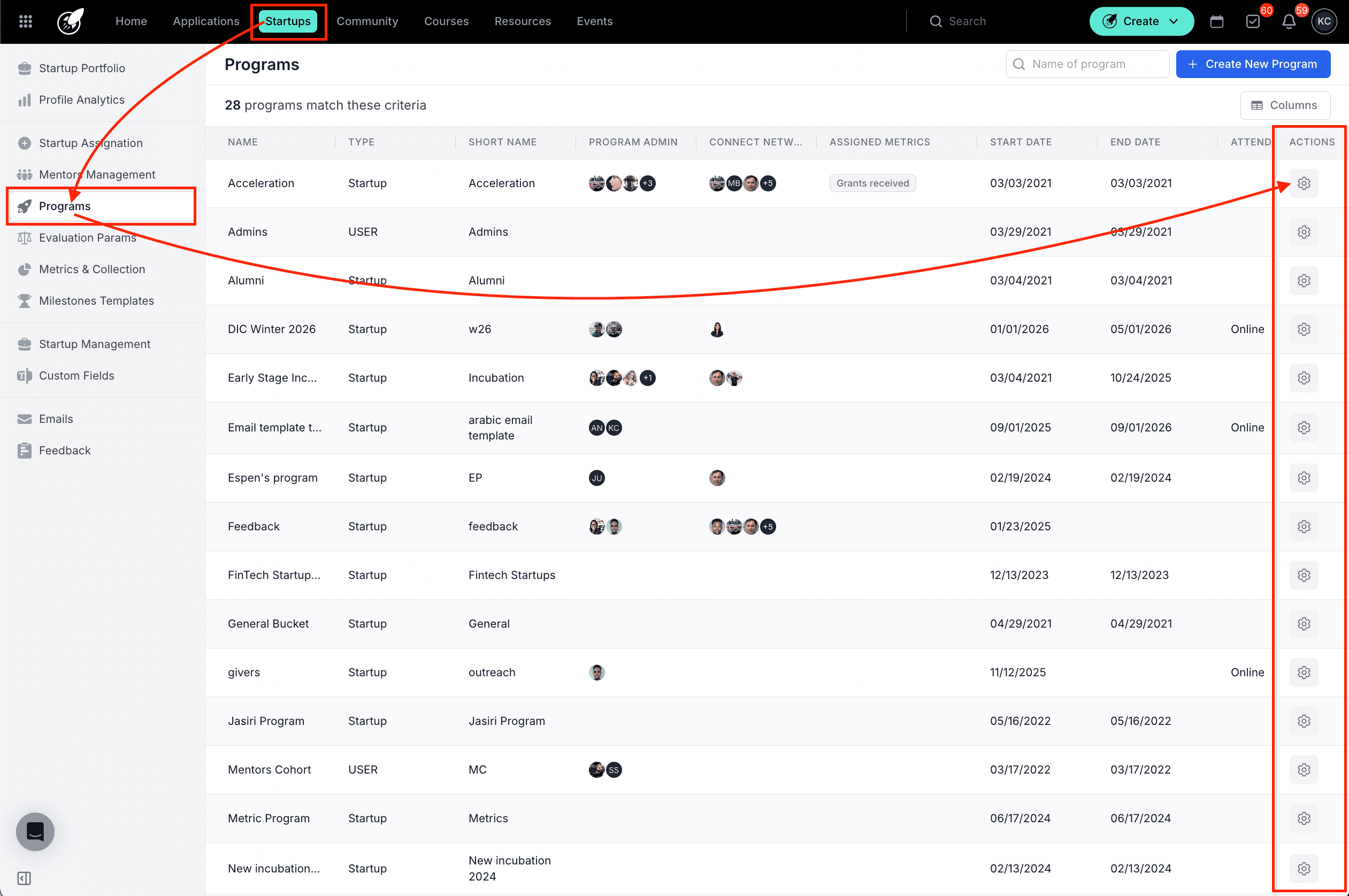
Step-by-Step Actions to Edit a Program
STEP 1: Click on Startups from the top menu or the Home Page.
STEP 2: Click on Programs.
STEP 3: Click on the Edit icon new to the Program Name.
STEP 4: Click Edit Acceptance Email to change the email applicants will receive when accepted into a program.
STEP 5: Click **Delete program ** to delete this program. ** Click **Add an evaluation rule ** to change the evaluation assignations.
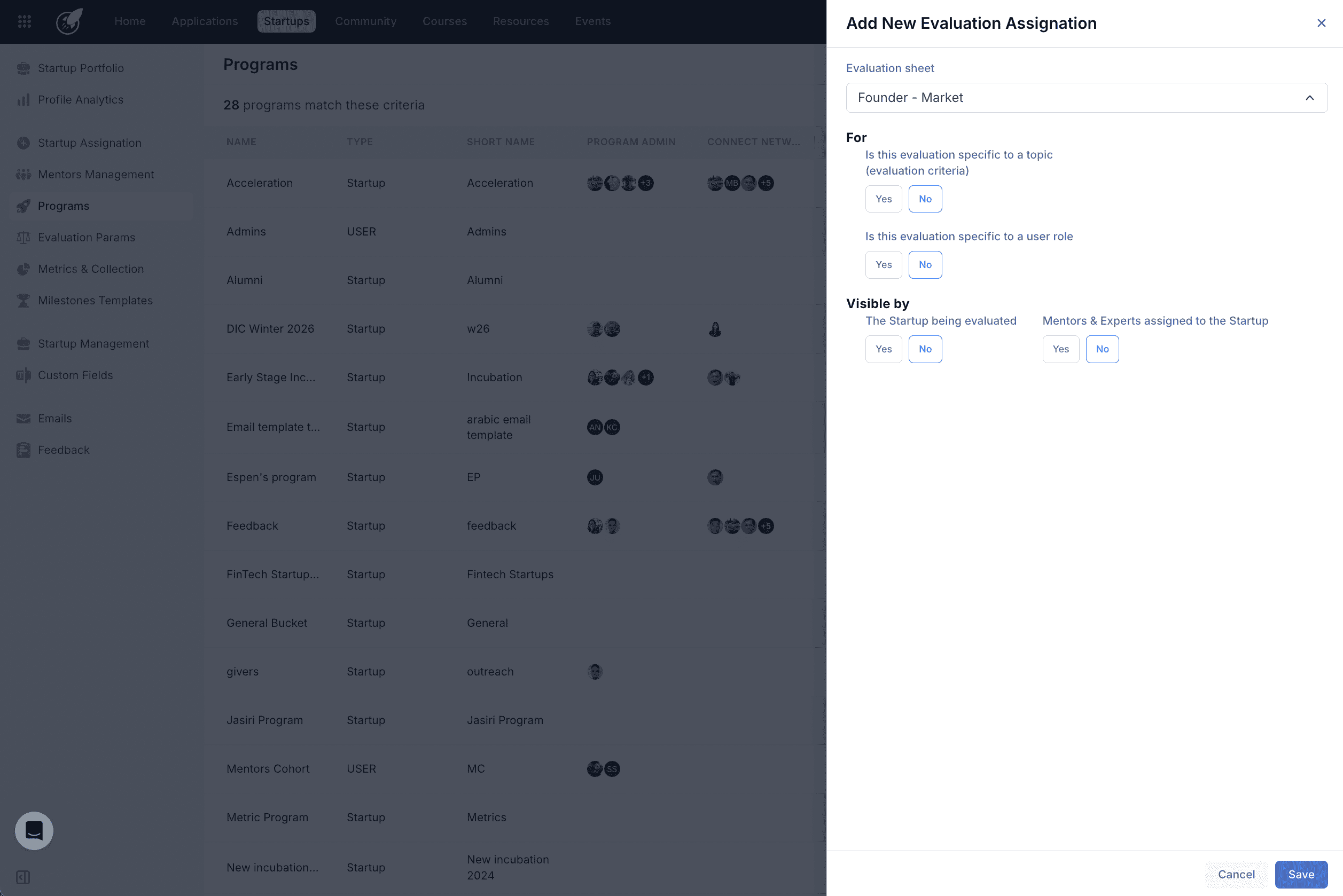
STEP 6: Inside **Add an evaluation rule ** you can change the evaluation assignations or change evaluation visibility settings.
Tips & Best Practices:
- Ensure each program has a unique name to avoid confusion.
- Regularly review team assignments to keep program participants updated.
- Customize acceptance emails to welcome startups or users with tailored information about the program.