


Introduction to Visibility Settings
Visibility Settings in AcceleratorApp allow you to control who can see sensitive information collected through profiles, forms, and applications. By using question-level hidden fields and visibility restrictions, you can anonymize responses and ensure that only specific user roles have access to certain data. This is especially useful when handling confidential or sensitive information, while still enabling collaboration across different teams.
*Notes: Admins always have access to all answers, regardless of visibility restrictions. These features are available within the Application call module, tier 3.
Usability & Value This feature is particularly valuable in scenarios such as:
- Protecting sensitive personal or business information during evaluations.
- Allowing mentors or evaluators to assess applications without seeing identifiable data.
- Ensuring compliance with internal data access policies or privacy best practices.
- In day-to-day operations, hidden fields help teams work more efficiently by limiting unnecessary data exposure while preserving transparency for admins.
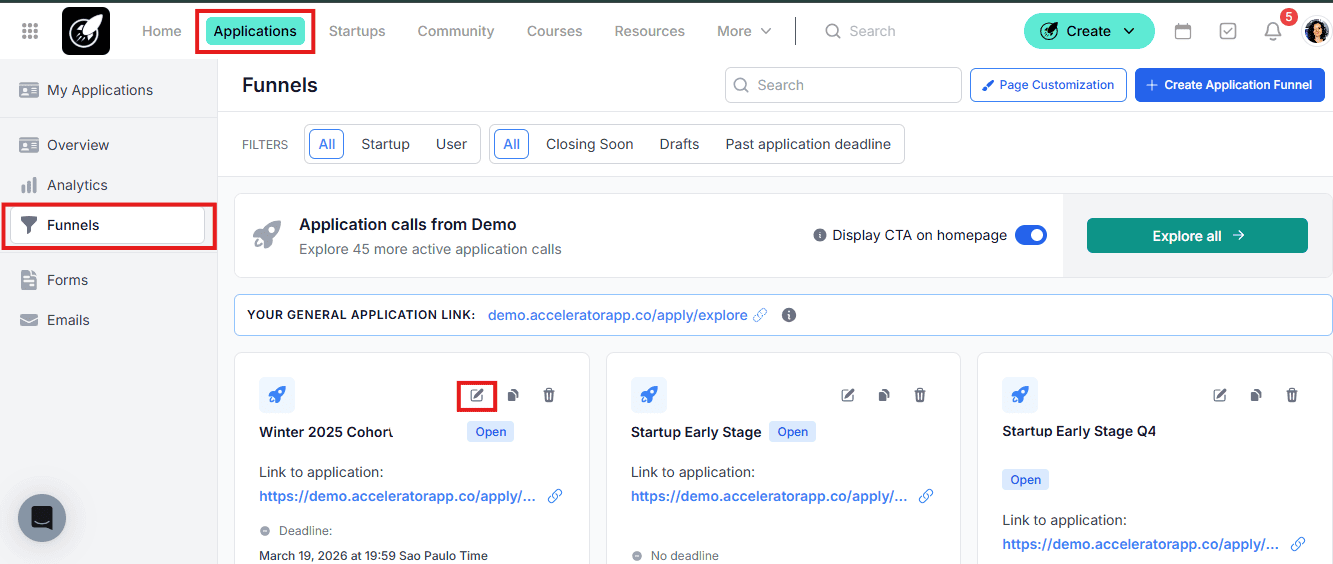
Where to Change the visibility restrictions of Applicant Personal Information
Applications from the top bar menu.
Step-by-Step
- Click on Funnels in the side bar menu.
- Select the funnel and click on the pencil icon to edit it
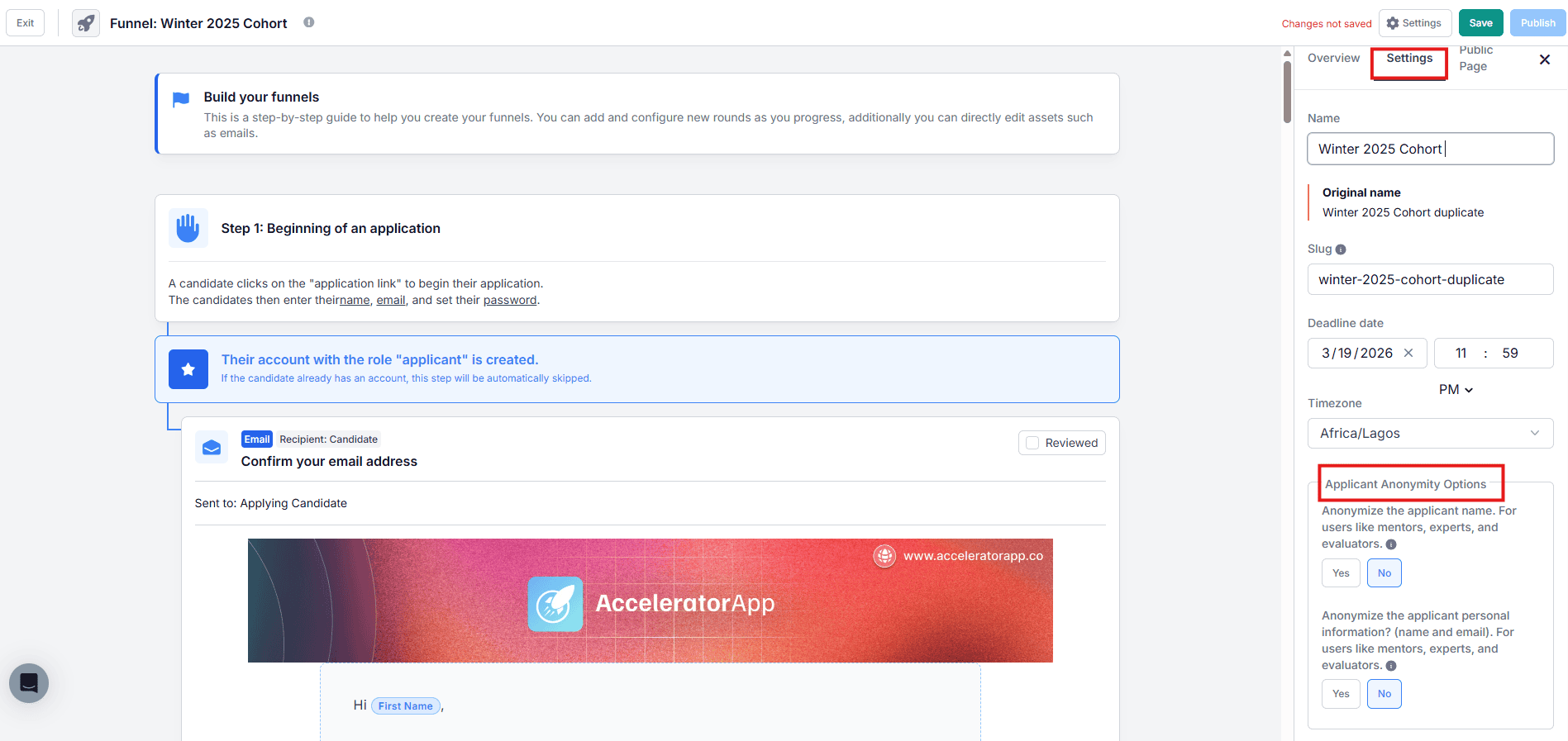
- On the right menu, click on Settings
- Set the anonymization preferences: "Anonymize the applicant name. For users like mentors, experts, and evaluators" and "Anonymize the applicant personal information? (name and email). For users like mentors, experts, and evaluators."
- Save and publish your changes.
Where to Change the visibility restrictions of Profile Fields
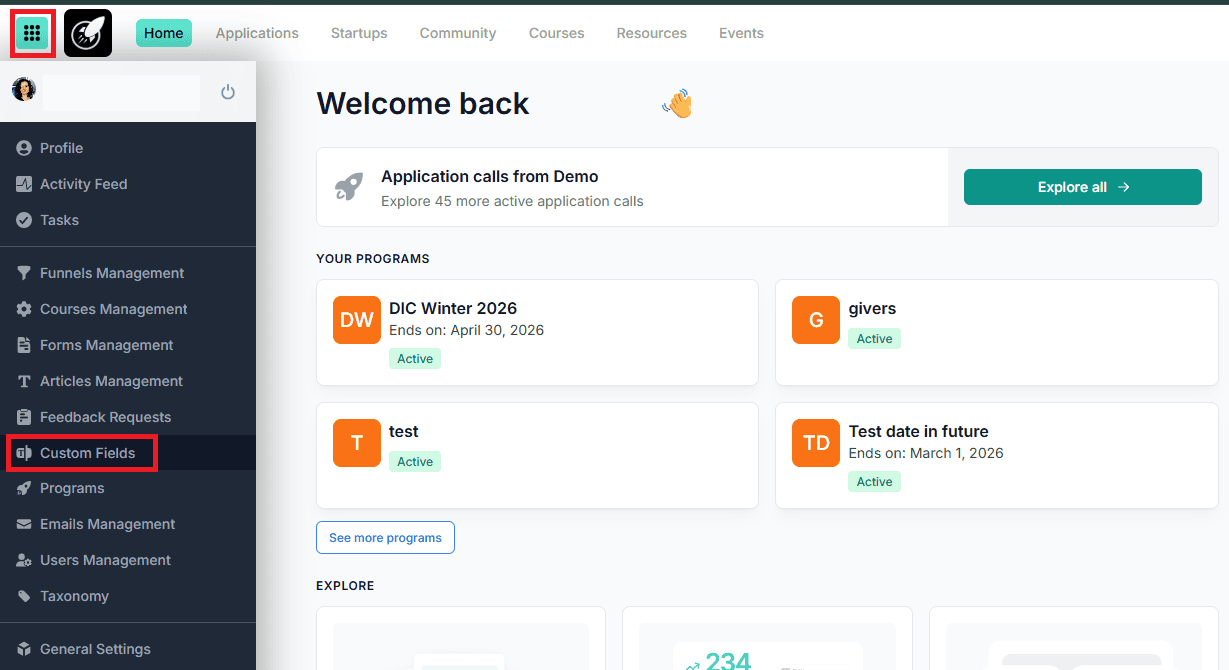
Custom Fields from the side bar menu.
Step-by-Step
- Select User Profile Fields.
- Click on Edit User Profile
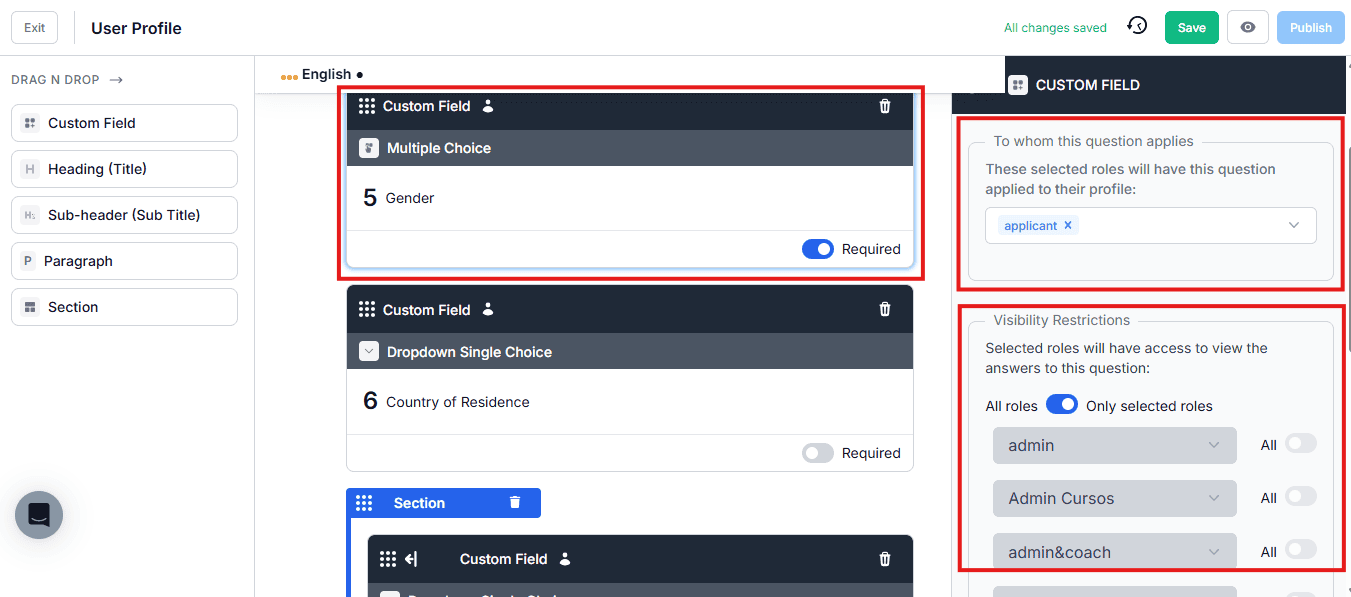
- Click on the field you want to define the restriction.
- From the side bar in the right, select To whom this question applies (these selected roles will have this question applied to their profile) and the Set the Visibility Restrictions (selected roles will have access to view the answers to this question).
- Save your changes and Publish it.
- *Same goes for Startup Profile Fields
Where to Change the visibility restrictions of Application Forms Answers
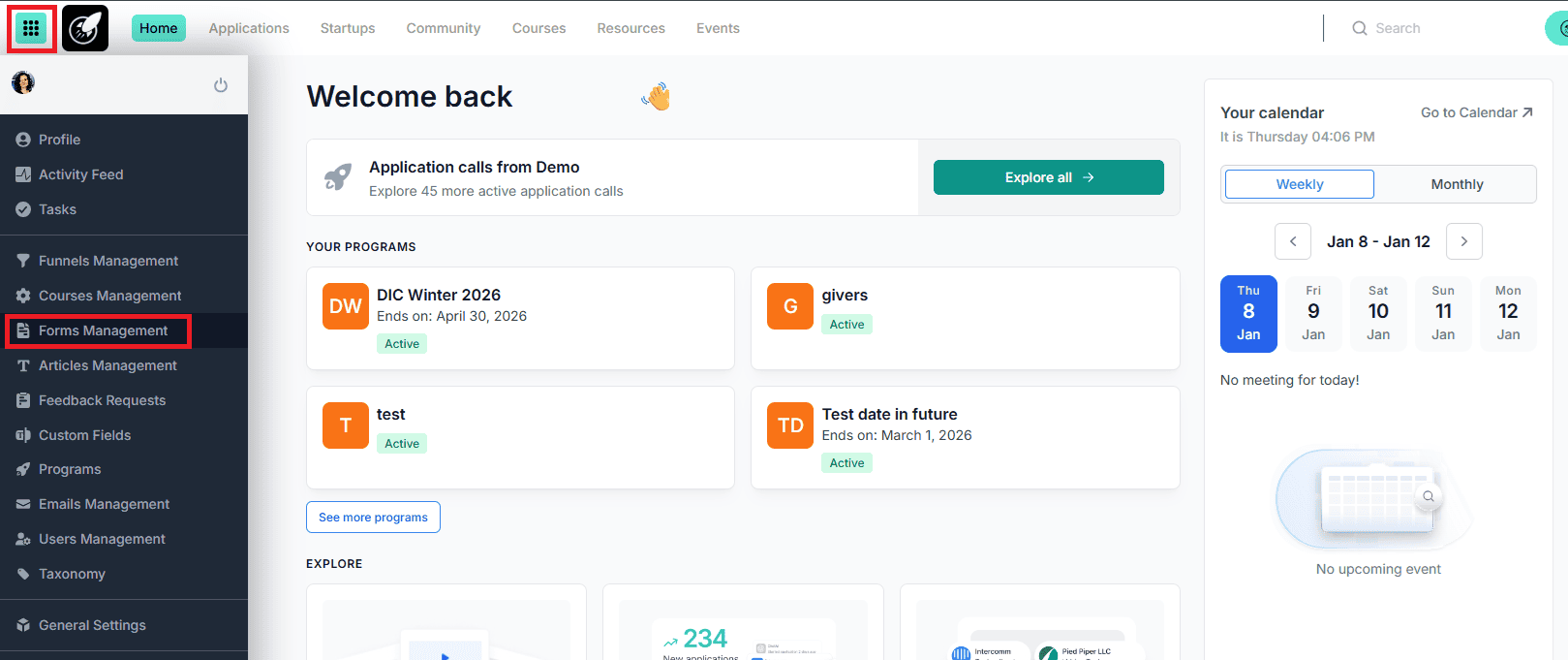
Click on Forms Management from the side bar menu.
Step-by-Step
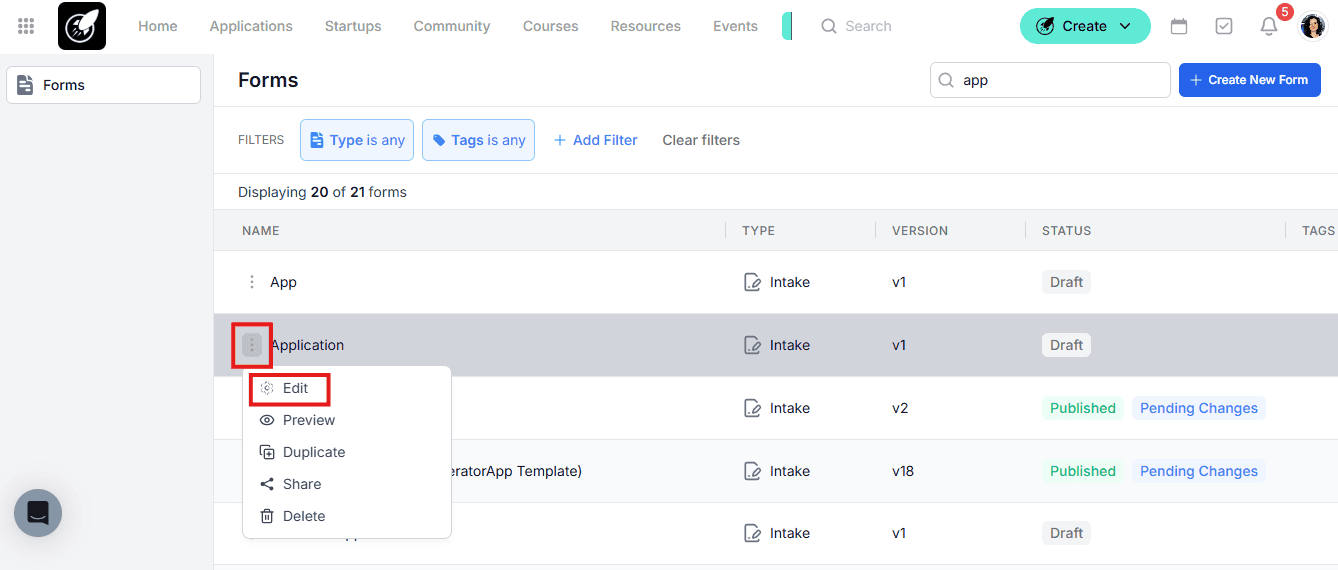
- Click on the three dots to edit the selected intake form.
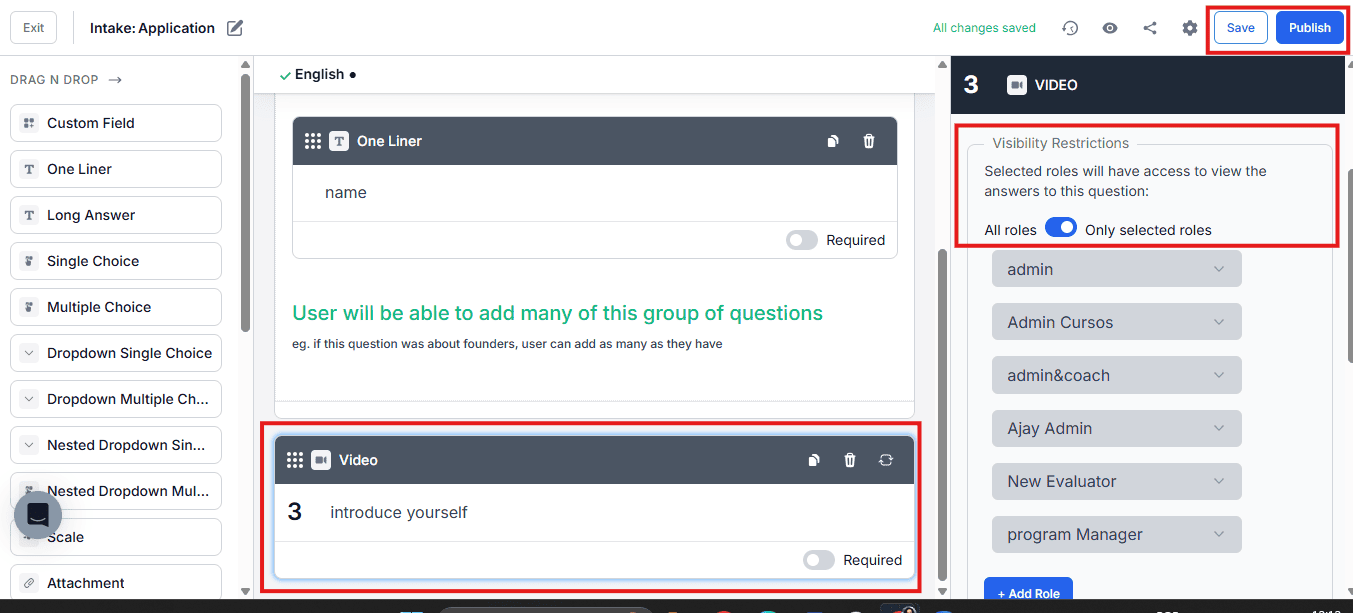
- Click on the question you want to edit.
- From the side bar in the right, Set the Visibility Restrictions (selected roles will have access to view the answers to this question).
- Save your changes and Publish it.
Best Practices
- Use hidden fields for highly sensitive data such as personal identifiers or confidential business details.
- Review user role permissions regularly to ensure access levels are still appropriate.
- Clearly document which fields are restricted, especially in collaborative programs.
- Avoid over-restricting data if it’s essential for evaluators to make informed decisions.