


Introduction to Mentors and Startups Connections
Mentors and startups are the heartbeat of the entrepreneurship ecosystem. The Mentor and Startup Connection feature allows administrators to bridge the gap between expertise and innovation. Whether you are pairing a single specialist with one founder or assigning an entire cohort of mentors to a program, this feature ensures that collaboration is organized, scalable, and impactful.
Where to Find
You can manage these connections from four primary areas within AcceleratorApp:
- Program Settings: Best for "1-to-many" assignments where mentors are linked to an entire program.
- Startup File: Located in the Startup Portfolio, ideal for individual "1-to-1" connections from the startup's perspective.
- Mentor Management: Found under the Startups tab in the top menu; best for managing a specific mentor’s entire roster.
- Startups Management: Also under the Startups tab; used for bulk assigning mentors to multiple startups simultaneously.
Step-by-Step
1. Assigning Mentors to an Entire Program (1-to-Many)
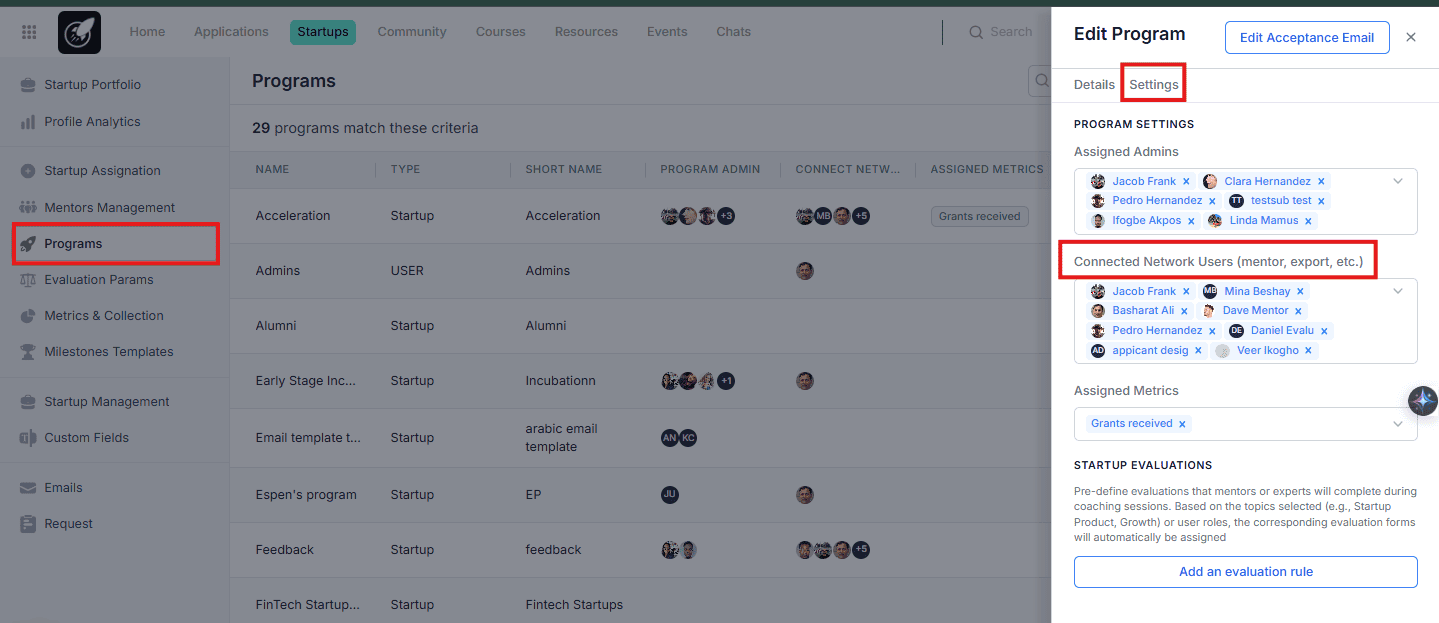 Use this method to link a mentor to every startup within a specific program.
Navigate to the Program Page and enter the Settings of that specific program.
Add the mentor to the program participants/mentors list.
Use this method to link a mentor to every startup within a specific program.
Navigate to the Program Page and enter the Settings of that specific program.
Add the mentor to the program participants/mentors list.
Outcome: The mentor is automatically assigned to all startups in that program and receives an automated email notification.
2. One-by-One from the Startup File (1-to-1)
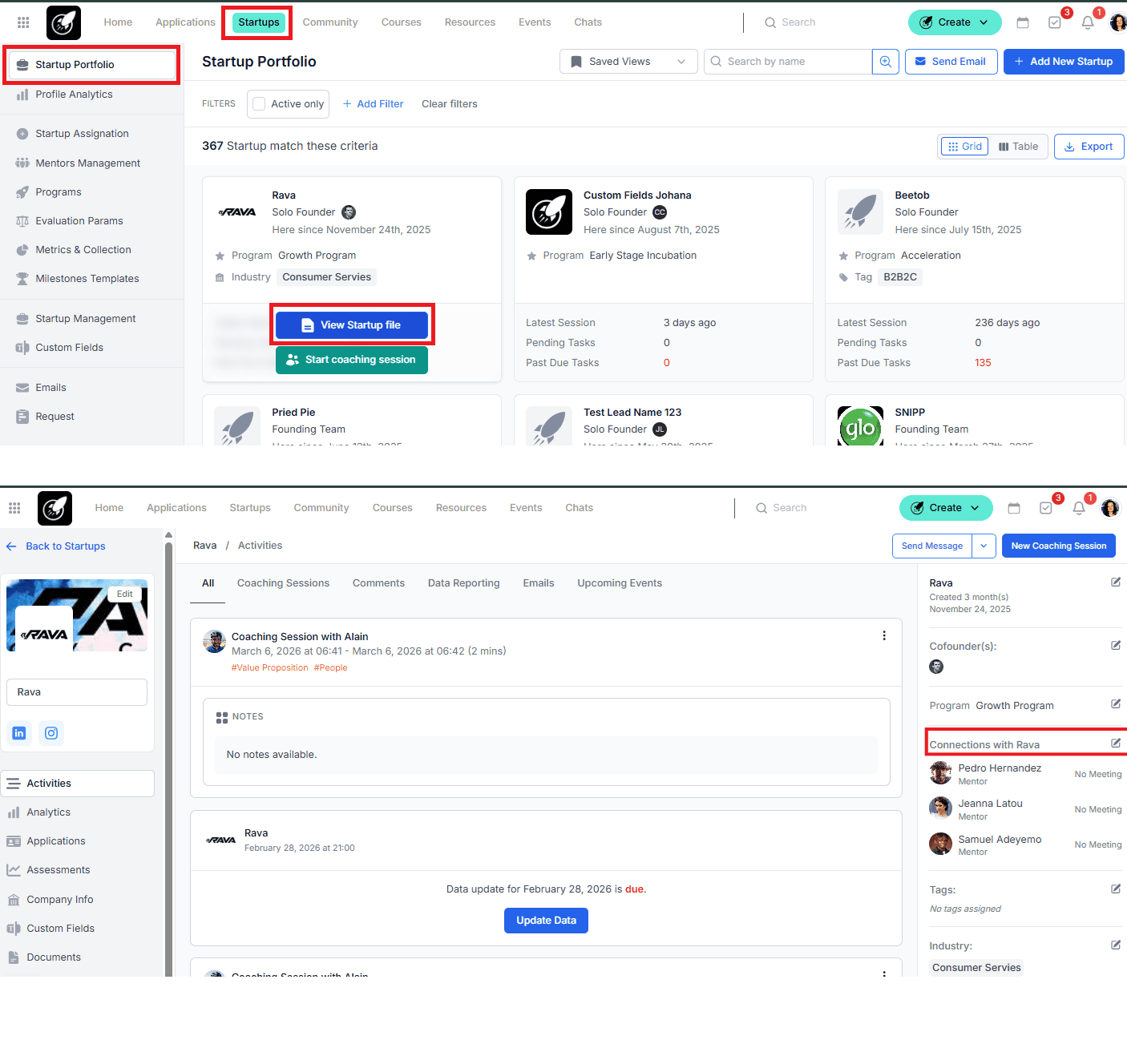 Navigate to the Startup File of your choice from the Startup Portfolio.
Locate the Connection section.
Click the Edit (pencil) icon, select your mentor(s), and click Select to save.
Navigate to the Startup File of your choice from the Startup Portfolio.
Locate the Connection section.
Click the Edit (pencil) icon, select your mentor(s), and click Select to save.
3. From Mentor Management (1-to-1)
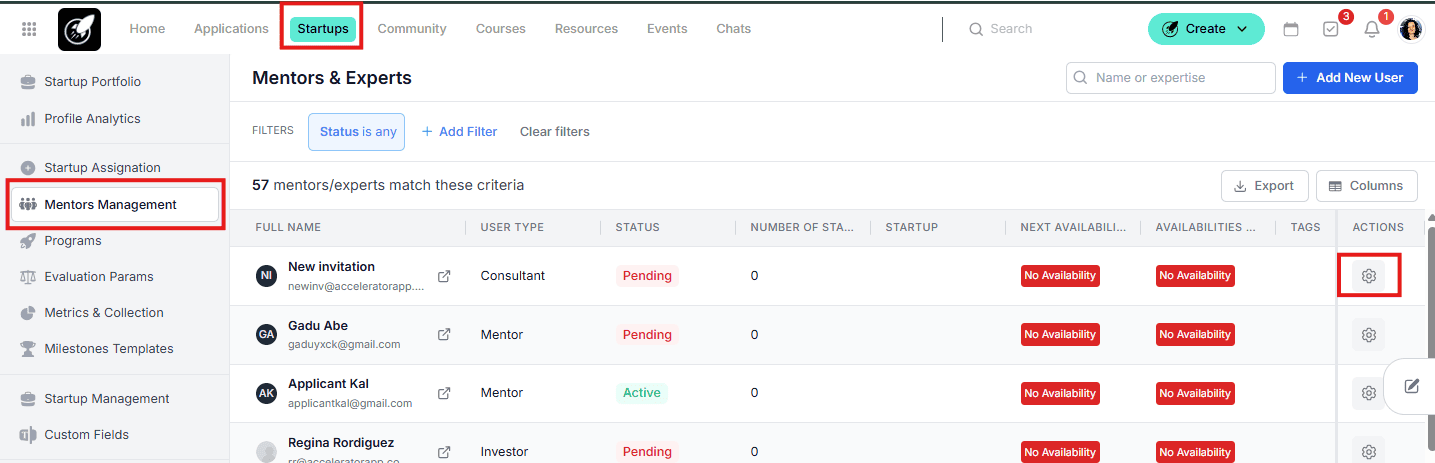 Go to Startups > Mentors Management in the top menu.
Find the specific mentor and click the Settings icon (last column).
Open the Assigned Startups dropdown.
Select the desired startups and Save.
Go to Startups > Mentors Management in the top menu.
Find the specific mentor and click the Settings icon (last column).
Open the Assigned Startups dropdown.
Select the desired startups and Save.
4. Bulk Assigning via Startups Management
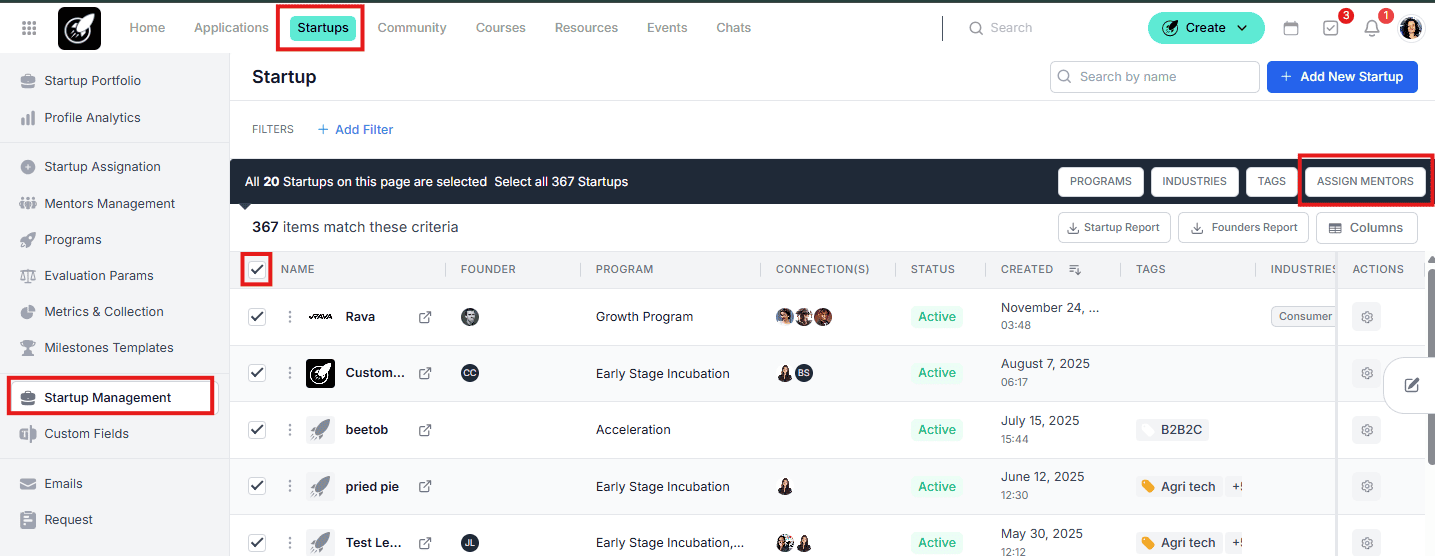 Navigate to Startups > Startups Management.
Check the boxes for all startups you wish to update.
Select the Assign Mentors option from the bulk actions menu.
Choose the mentors and hit Save.
Navigate to Startups > Startups Management.
Check the boxes for all startups you wish to update.
Select the Assign Mentors option from the bulk actions menu.
Choose the mentors and hit Save.
Best Practices
For the Admin: Crucial Setup
- Define Visibility: Set the User Role to determine if mentors and co-founders can see the entire ecosystem or only their assigned connections.
- Matching Rules: Configure the Mentor Matching Settings inside General Settings to automate or streamline the pairing logic.
- Underline Manage Notifications: Customize the "New Mentor Assignation" email template under Startups > Emails to ensure the first point of contact feels personal and professional.
For the Mentor: Onboarding
- To ensure the connections are effective, mentors must complete their profile setup:
- Availabilities: Sync calendars to allow for seamless meeting booking.
- User Integrations: Connect Zoom, Google Meet, or other tools.
- Coaching Preferences: Define their areas of expertise so admins can make better matches.
General Strategy
- Personalize where possible: Use "1-to-1" connections for high-touch, specialized mentorship.
- Automate for scale: Use the Program-level assignment (1-to-many) for general advisors or workshop leads to save time.