


Introduction to Custom Field Analytics
Custom Field Analytics provides a visual overview of the data collected through your specific custom fields. Instead of exporting CSVs to calculate averages or distributions, this page generates real-time charts and metrics based on the information provided by your startups and users.
Supported Field Types:
To ensure accurate data visualization, analytics are available for the following field types:
Quantitative: Number, Currency, and Scale (e.g., "Revenue" or "Satisfaction Score").
Categorical: Single Choice and Multiple Choice (e.g., "Industry" or "Business Model").
Temporal: Date fields (e.g., "Incorporation Date").
Where to Find Custom Field Analytics
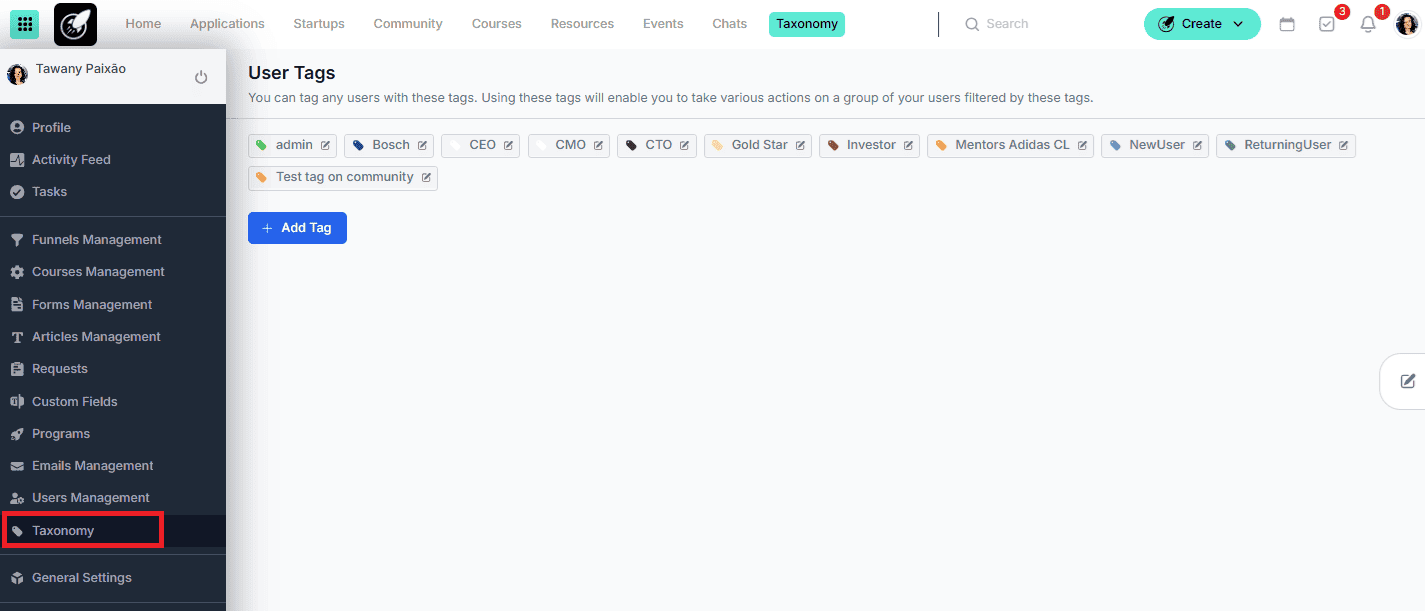
Analytics are housed directly within your Custom Fields management area. Open the sidebar menu, click on Custom Fields, and select Custom Fields Analytics tab.
Step-by-Step Actions
How to View and Filter Analytics
Access the Page: Navigate to Custom Fields > Analytics.
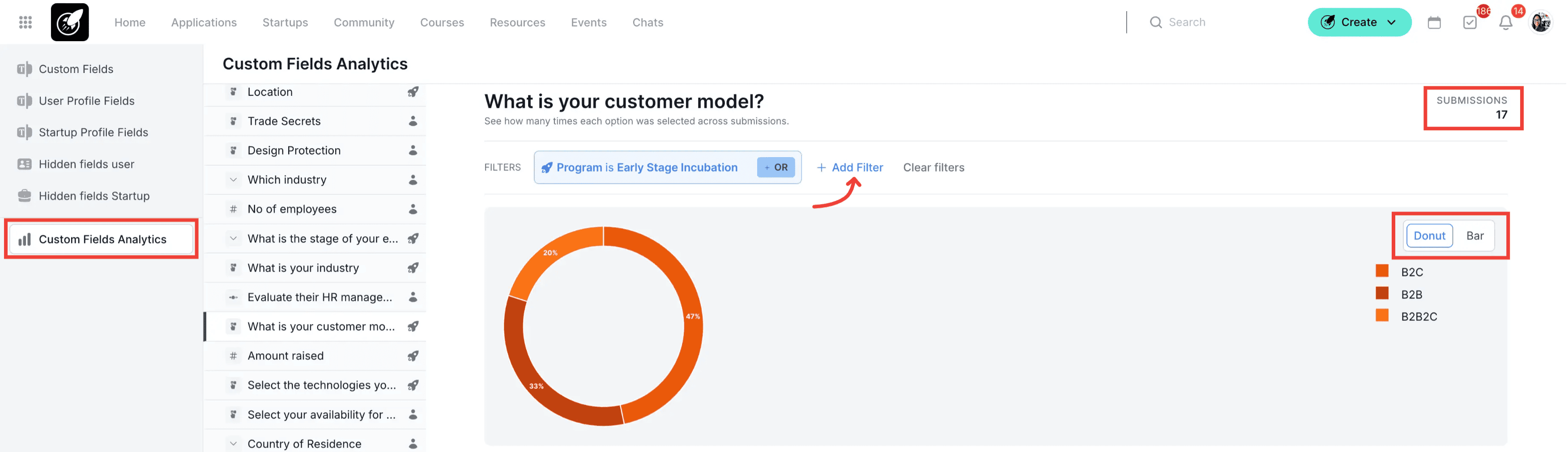
Select the Field: Use the search bar or list to select the specific custom field you want to analyze.
Apply Filters: Narrow down your data set using the sidebar filters:
- For Startup Fields: Filter by Program, Industry, or Tags.
- For User Fields: Filter by Role, Program, Tags, or Industry.
View Visualizations: The system will automatically generate a chart (e.g., a bar chart for choices or a line graph for dates/numbers).
Analyze Results: Hover over chart elements to see specific counts or percentages for each segment.
Tips & Best Practices:
Standardize Data: Analytics work best when data is clean. Use Single Choice fields instead of text fields where possible to ensure your charts aren't fragmented by different spellings.
Segment for Context: Always compare data across programs. For example, check if the "Average Monthly Revenue" differs significantly between your Pre-seed and Seed cohorts.