


Introduction to the Program Home Page
The Program Home Page is a dynamic, all-in-one command center designed to centralize the experience for every participant in a specific program. For administrators, it serves as a high-level dashboard to manage the "Founder Journey," track engagement, and broadcast critical updates.
Key Value for Admins:
Journey Visualization: View the program exactly as your founders do, in a chronological flow.
Engagement Tracking: Monitor real-time stats like startup progress, mentor meeting volume, and course completion.
Unified Communication: Use pinned announcements to ensure critical information stays at the top of the feed.
Where to Find the Program Home Page
The Program Home Page is located on the Home of AcceleratorApp.
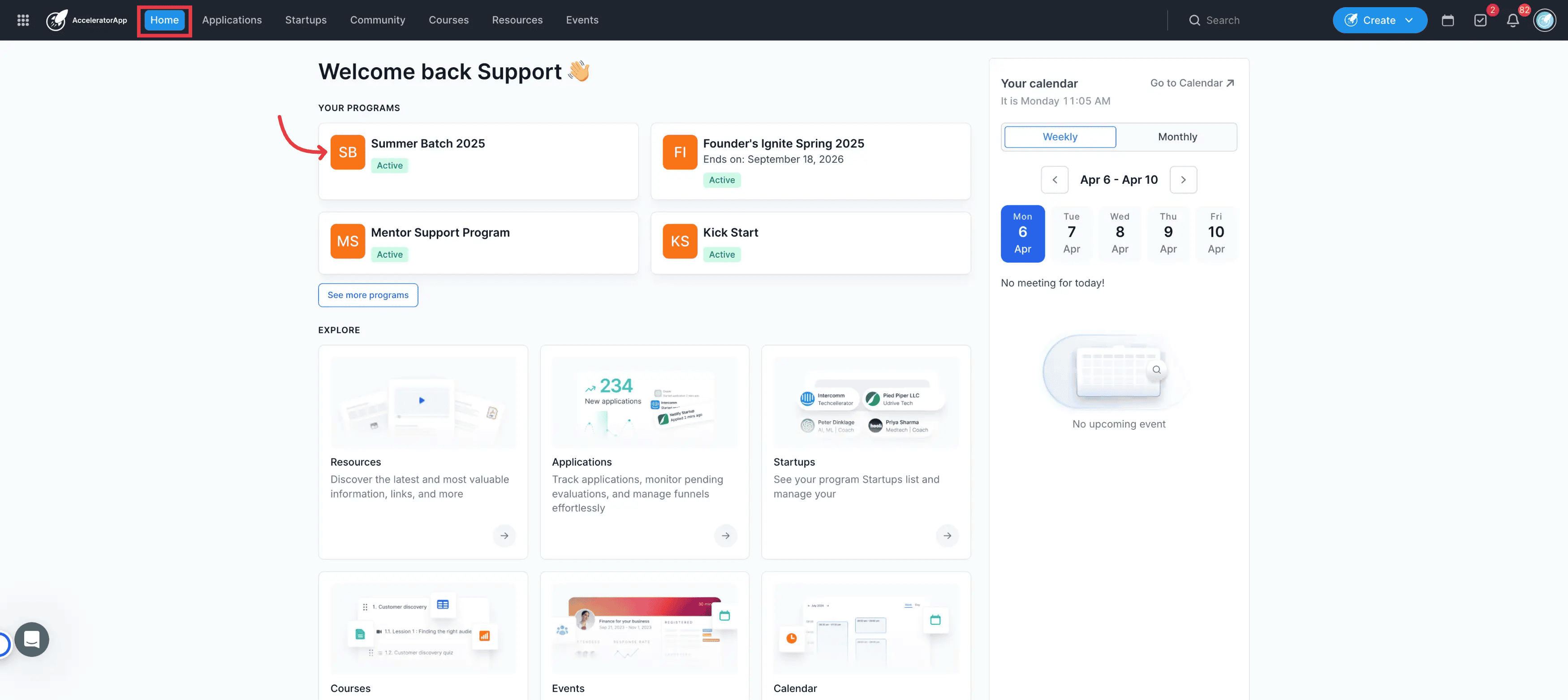
Navigation: Upon login, if you are assigned as a Program Admin, you will see the program displayed on the home page as a Program Card. Clicking this card enters the specific management view.
Multi-Program Management: If you manage multiple programs, a switcher at the top allows you to toggle between different homepages seamlessly.
Step-by-Step Actions
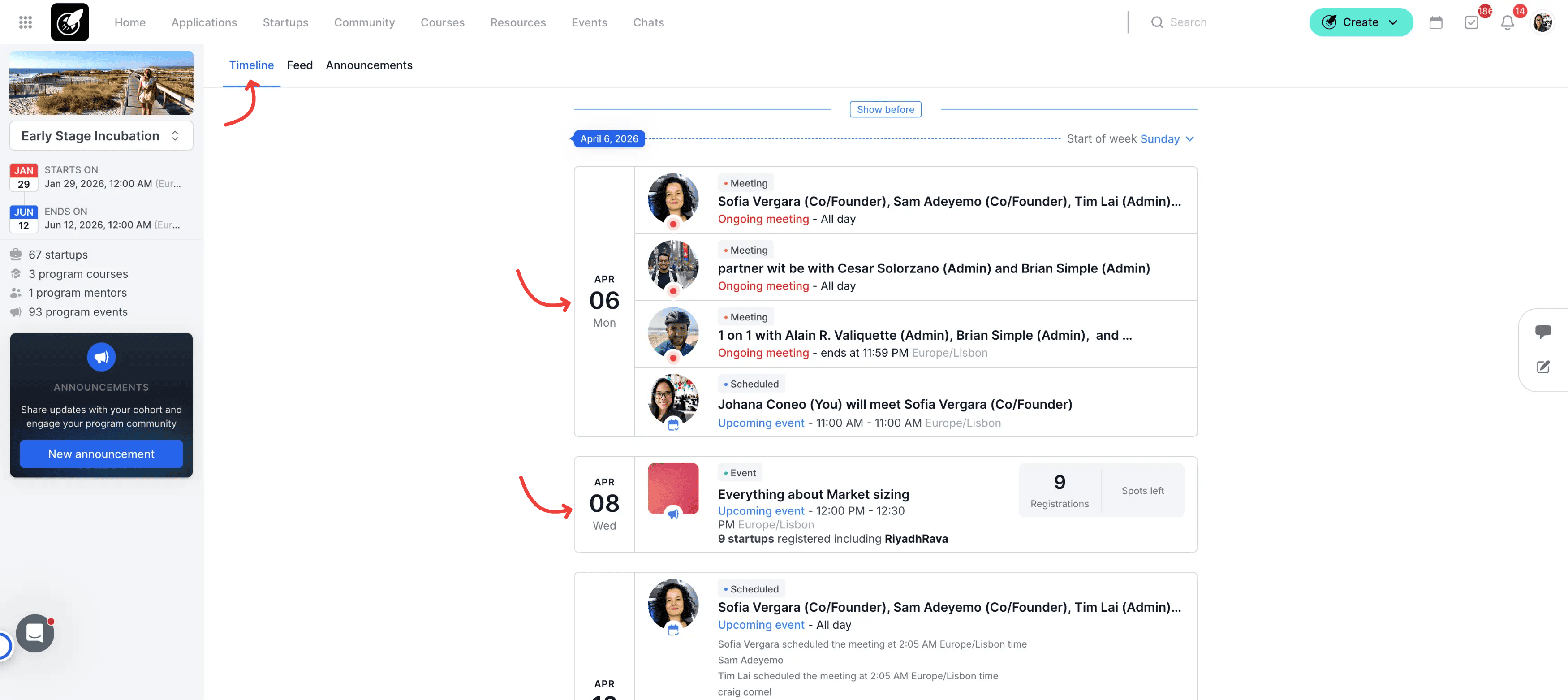
- Monitor the Timeline: Use the Journey Tab to oversee all scheduled Group and 1-on-1 events. The view automatically defaults to the start of the current week, providing immediate context for ongoing activities.
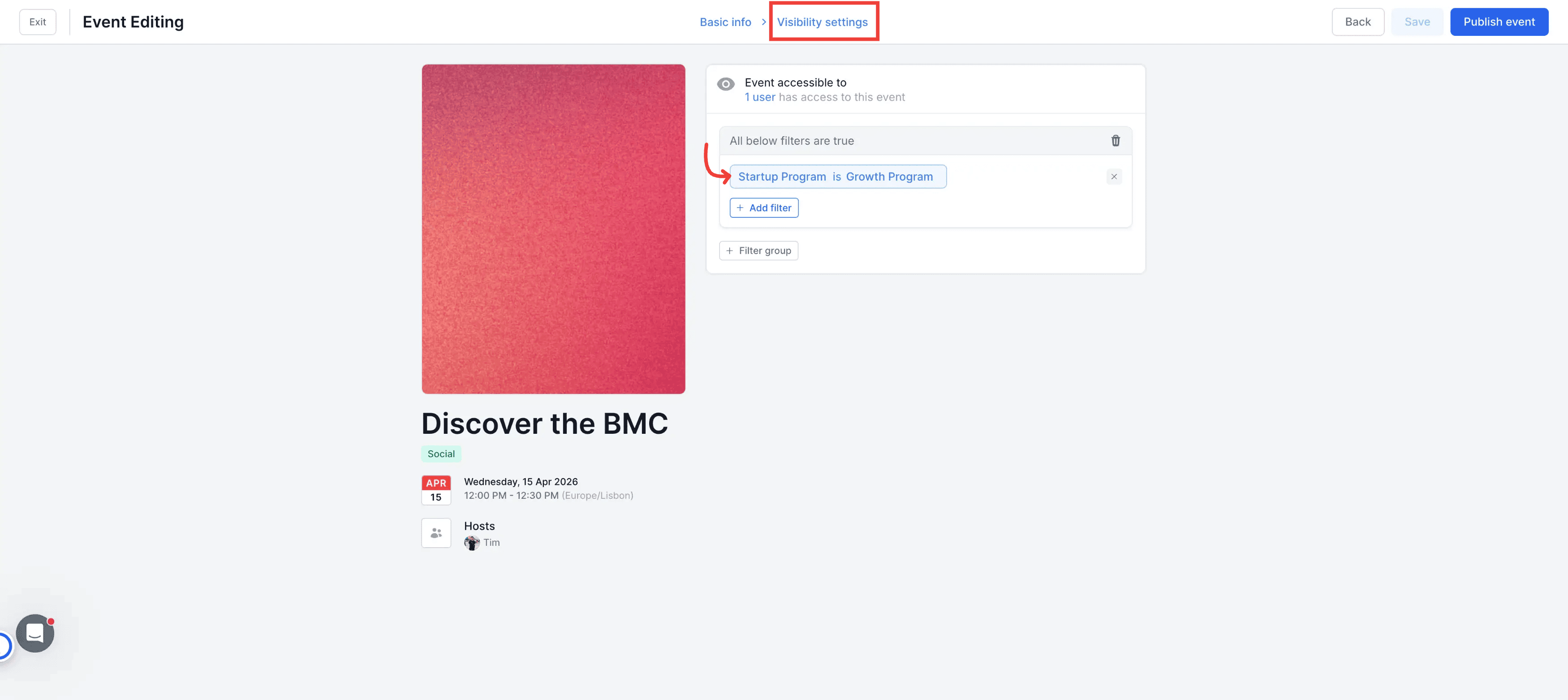
2.Create & Populate the Timeline: To ensure events appear on the program journey, you must configure their Visibility Settings. You can target a specific program to keep the timeline exclusive or set it to "Available to Everyone" for broader reach. This step is essential for the events to render correctly in the chronological feed.
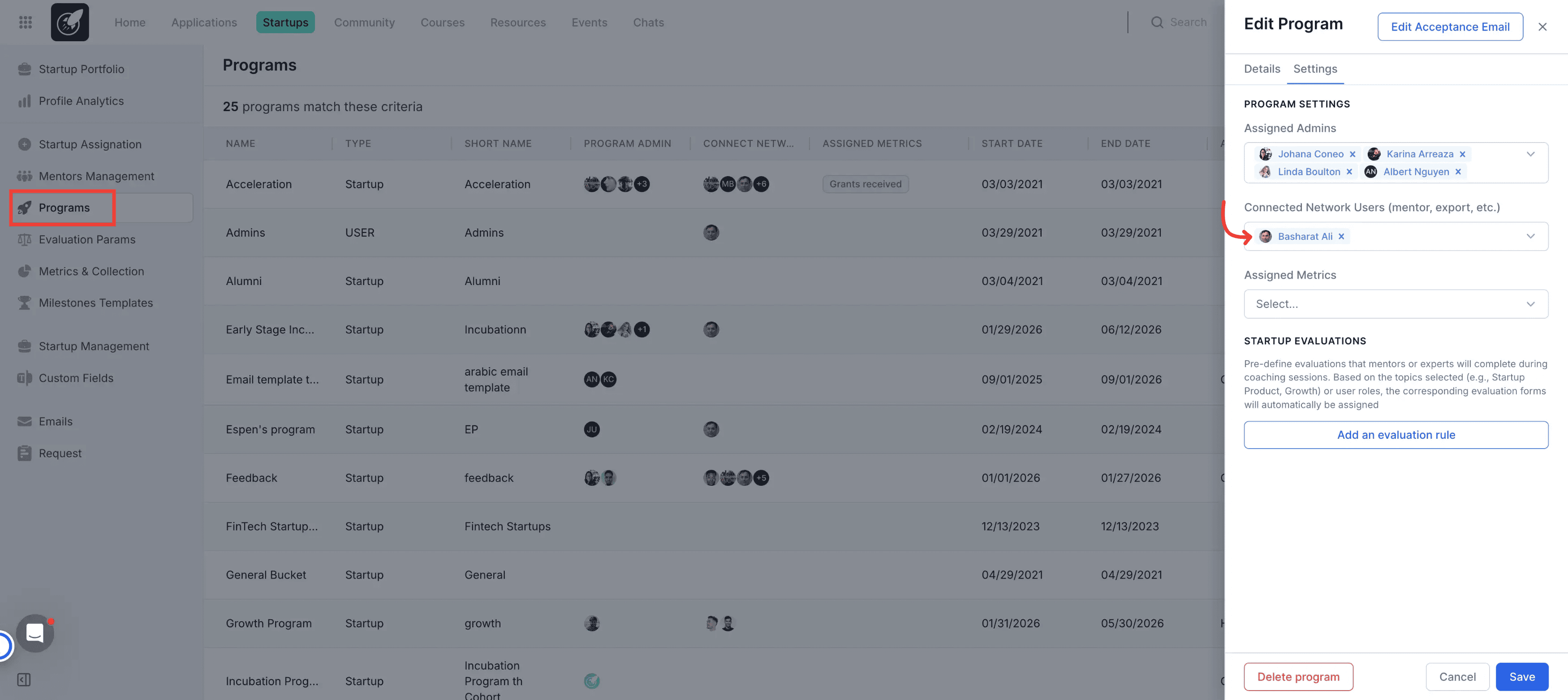
3.Connect Program Mentors: Within the Program Settings, link the mentors assigned to support your startups. This established a one-to-many connection, enabling all startups in the program to book meetings with these specific mentors/experts. If a mentor has active availability, they will be prominently displayed at the top of the page for easy booking.
4.Post Announcements: Navigate to the Announcements Tab or click the blue action button on the right side to create "Notes." These posts support rich text, images, and file attachments, allowing for high-impact communication with your cohort.
5.Pin Critical Information: Utilize the Pinned Announcement feature to fix urgent notes to the top of the Home Page. This ensures that the most vital updates remain visible to users, regardless of which tab they are currently browsing.
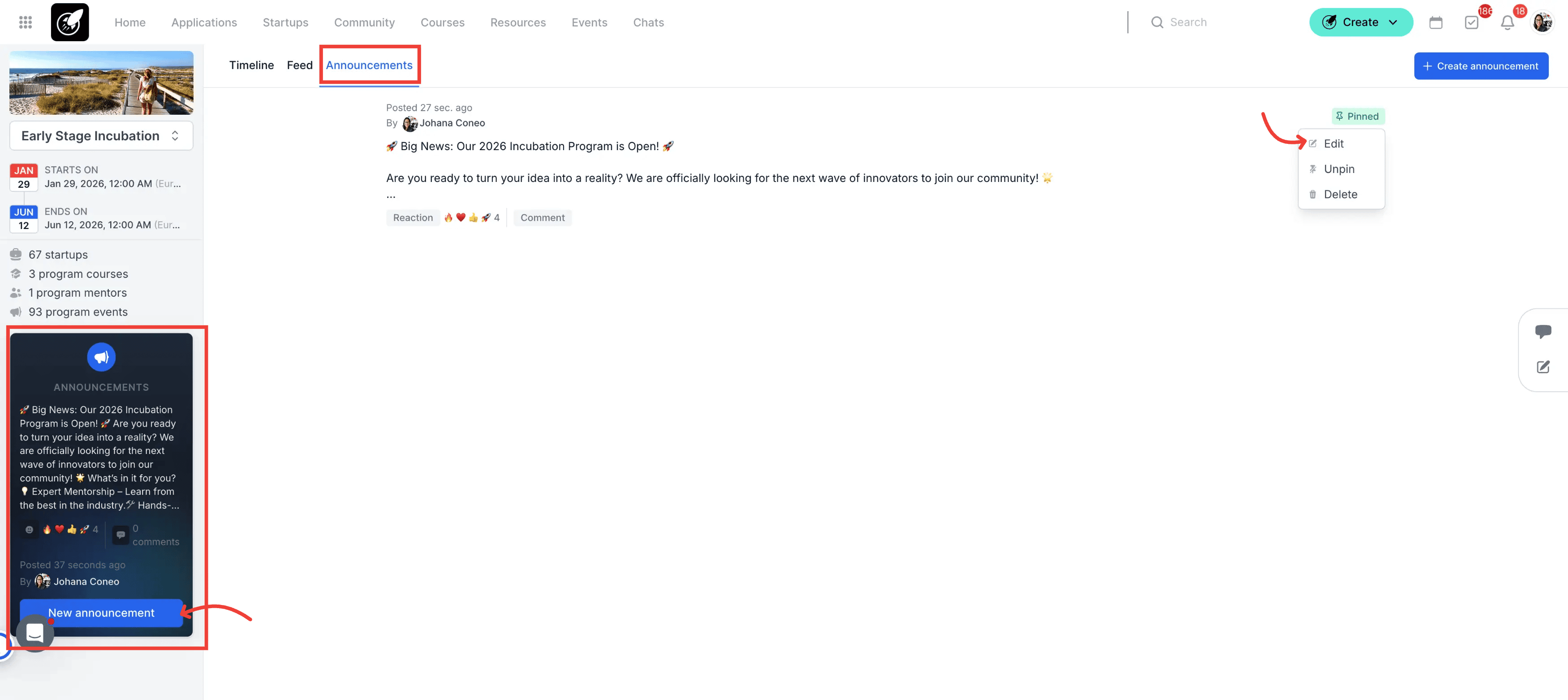
6.Manage Community Threads: Monitor and engage with replies to your announcements. The system supports nested conversations, allowing you to address founder questions directly within the thread and maintain an organized discussion.
7.Interact via the Program Feed: The Home Page features a Public Wall where all program participants can post updates, chat, and interact. This fosters a collaborative environment and encourages peer-to-peer engagement.
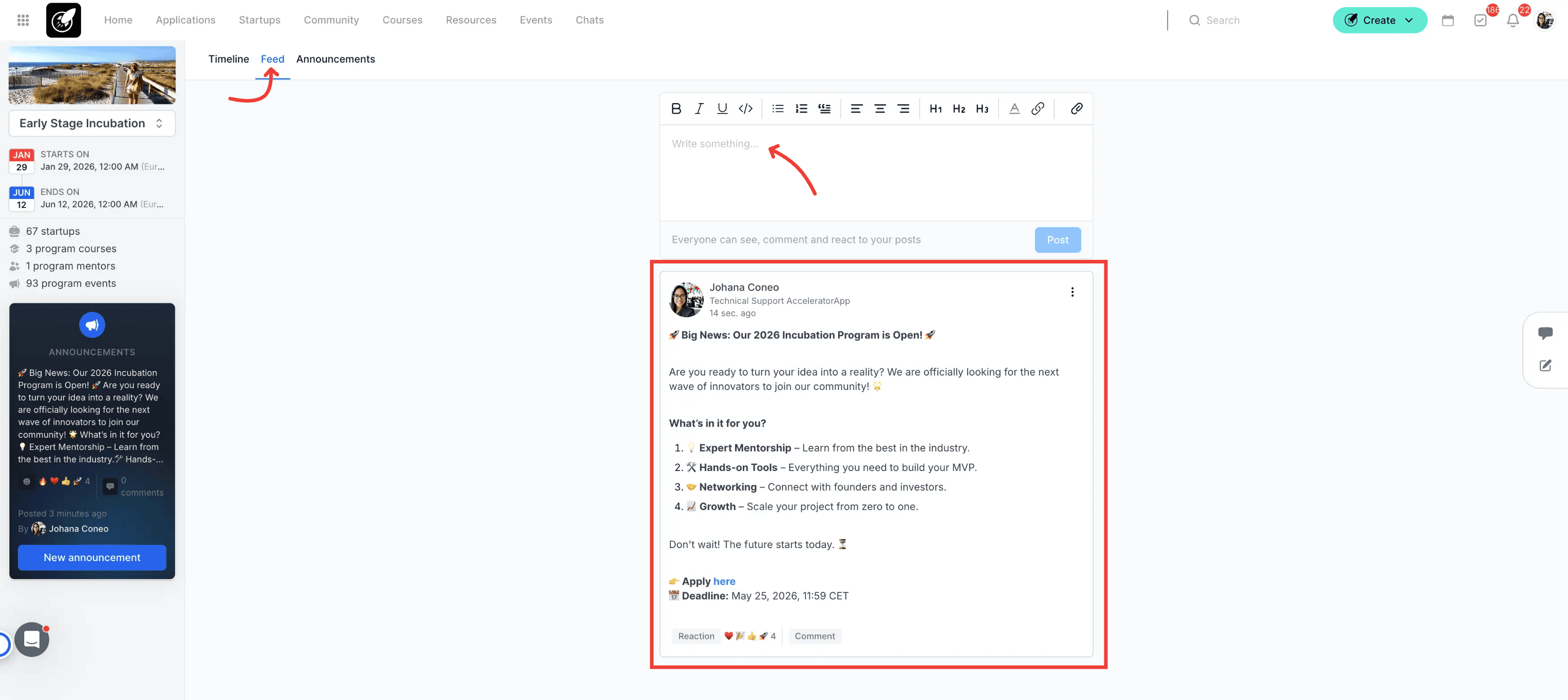
8.Track Program Statistics
Growth Metrics: Instantly view the number of active startups, connected mentors, and total events.
Founder Progress: Access time-based tracking of mentor sessions held, upcoming appointments, and event attendance directly from the timeline interface.
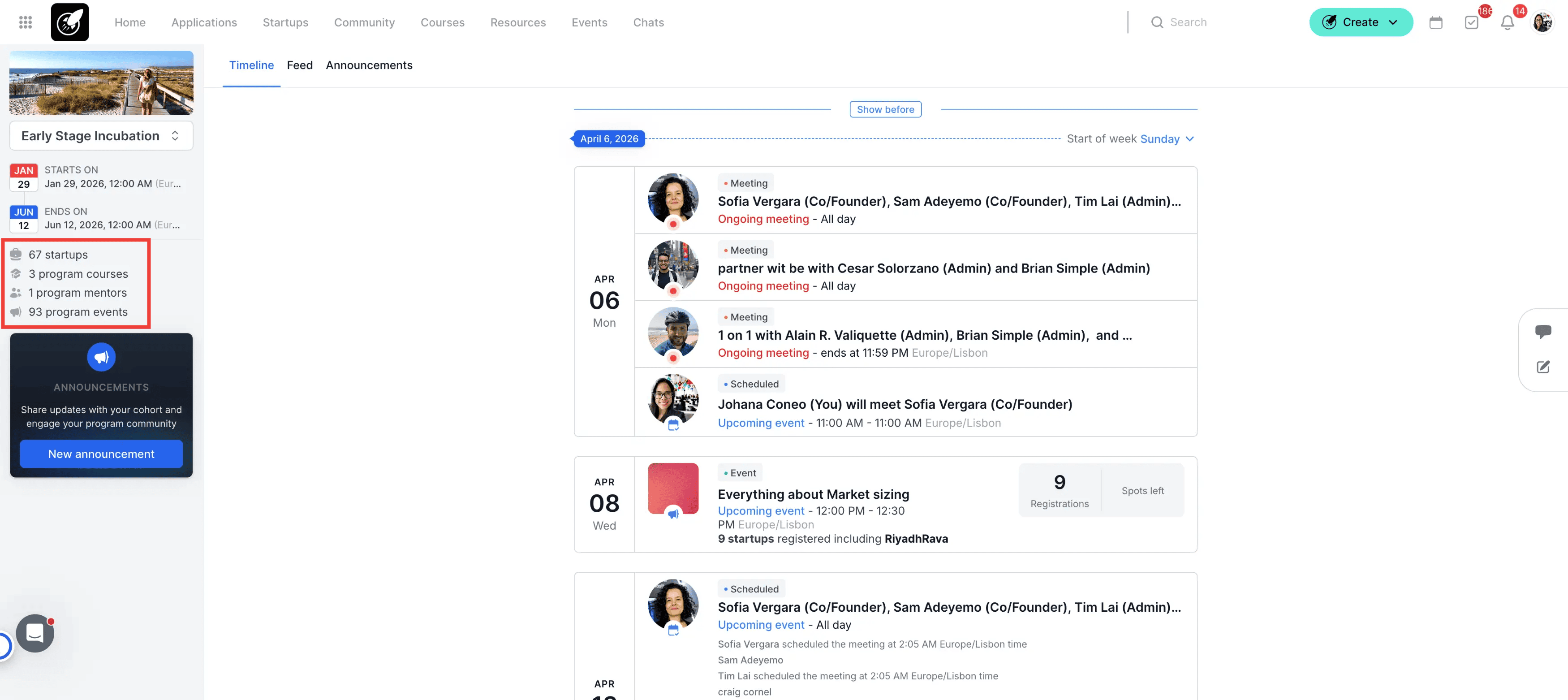
Tips & Best Practices
The "Two-Week" View: Since the homepage prioritizes the next 14 days of mentor slots, ensure your mentors have their calendars synced and updated to maximize booking rates.
Visibility Logic: Use Visibility Criteria for events and courses. If a resource isn't specific to one program, leave the program field empty so it appears for everyone, or target it specifically to keep the UI clean.