


Sending Requests
Requests allow you to collect structured information from selected users through a form. You can create a Request, define who should receive it, send it, follow up by email, and track completion from the Request page.
Feature Location
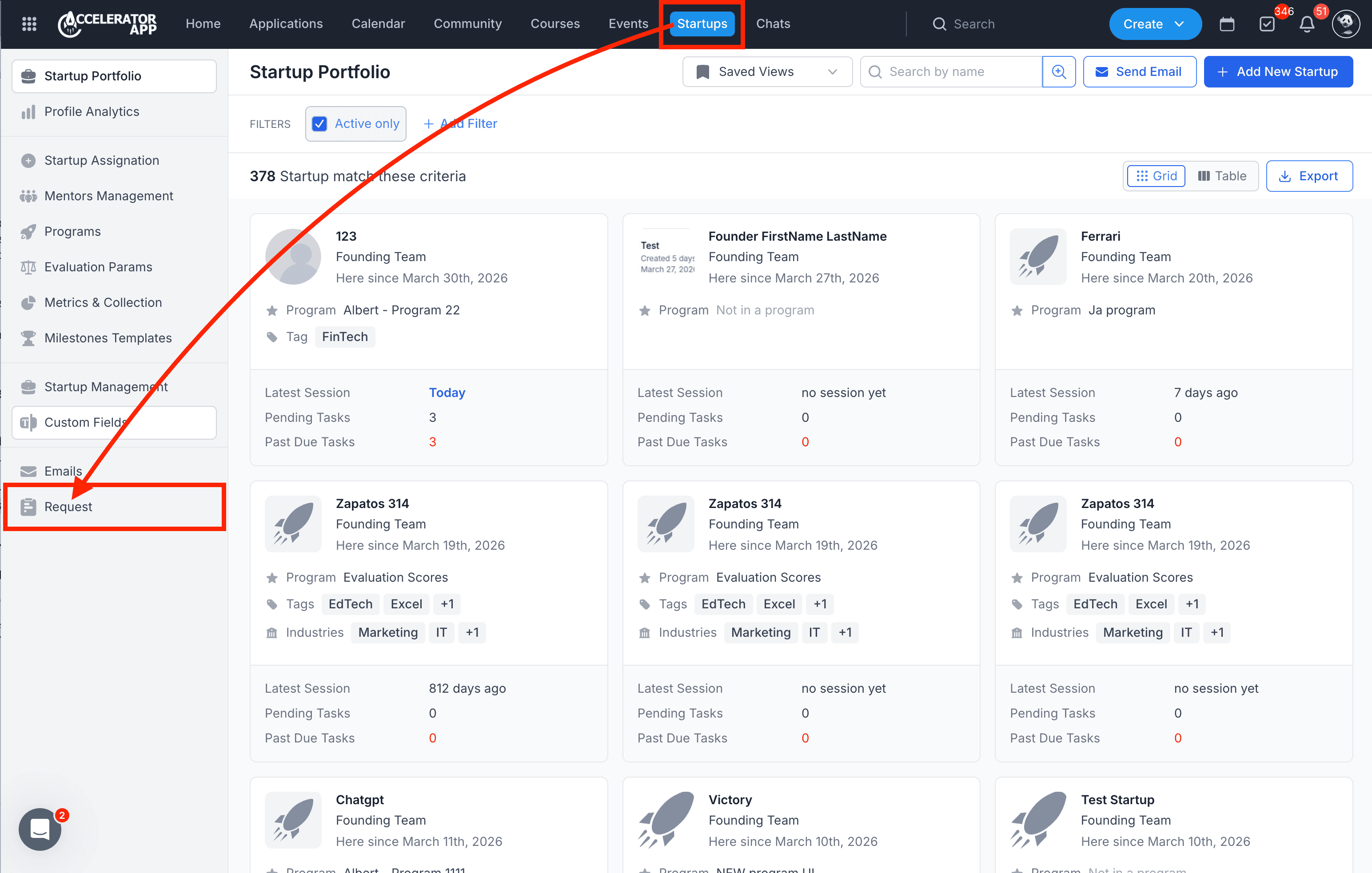
To access Requests:
- Navigate to Startups from the main top-navigation bar.
- In the left sidebar, click Request to view and manage existing requests.
1. Creating a Request
To create a new Request:
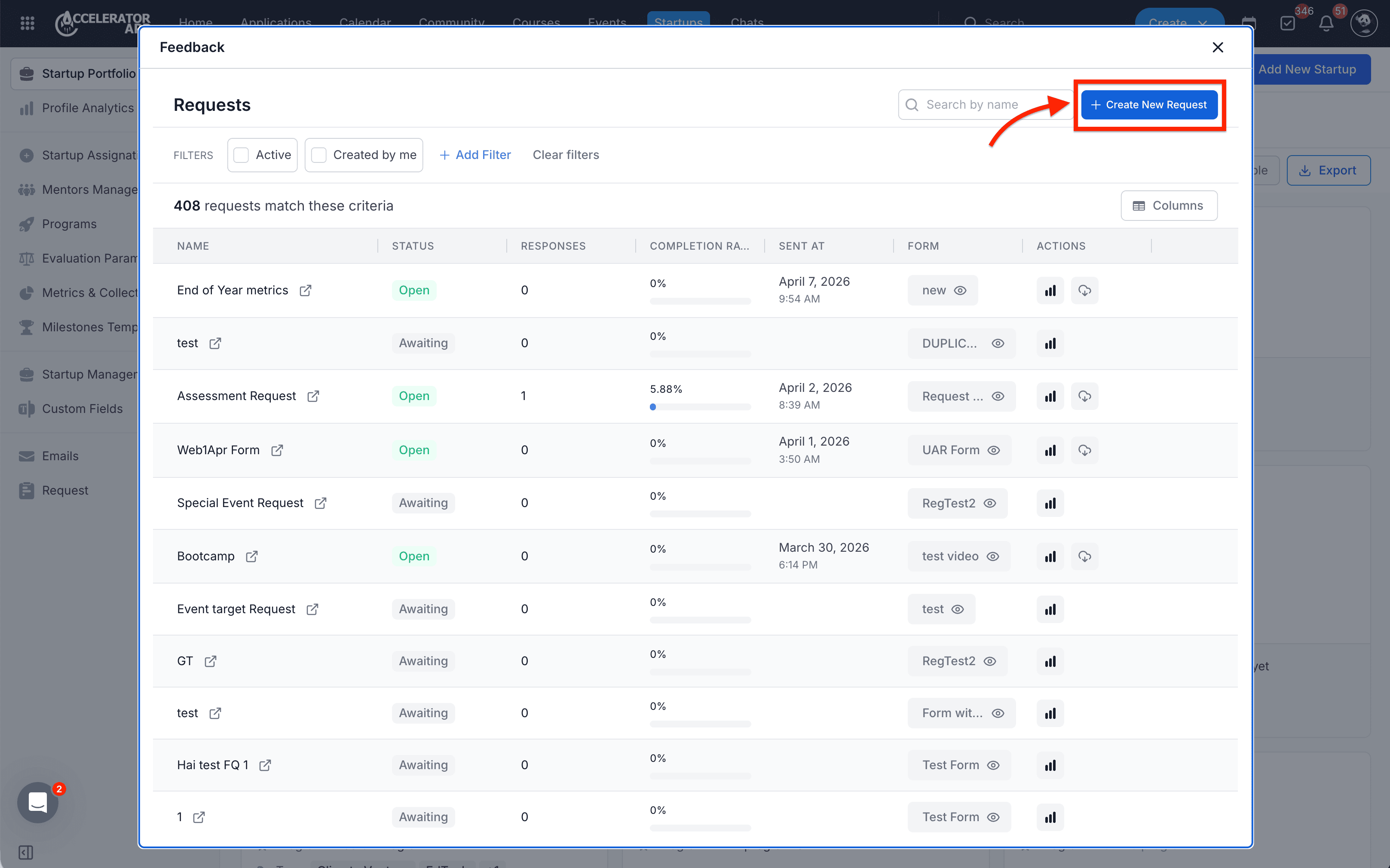
- Once in the Request section.
- Click on Create New Request.
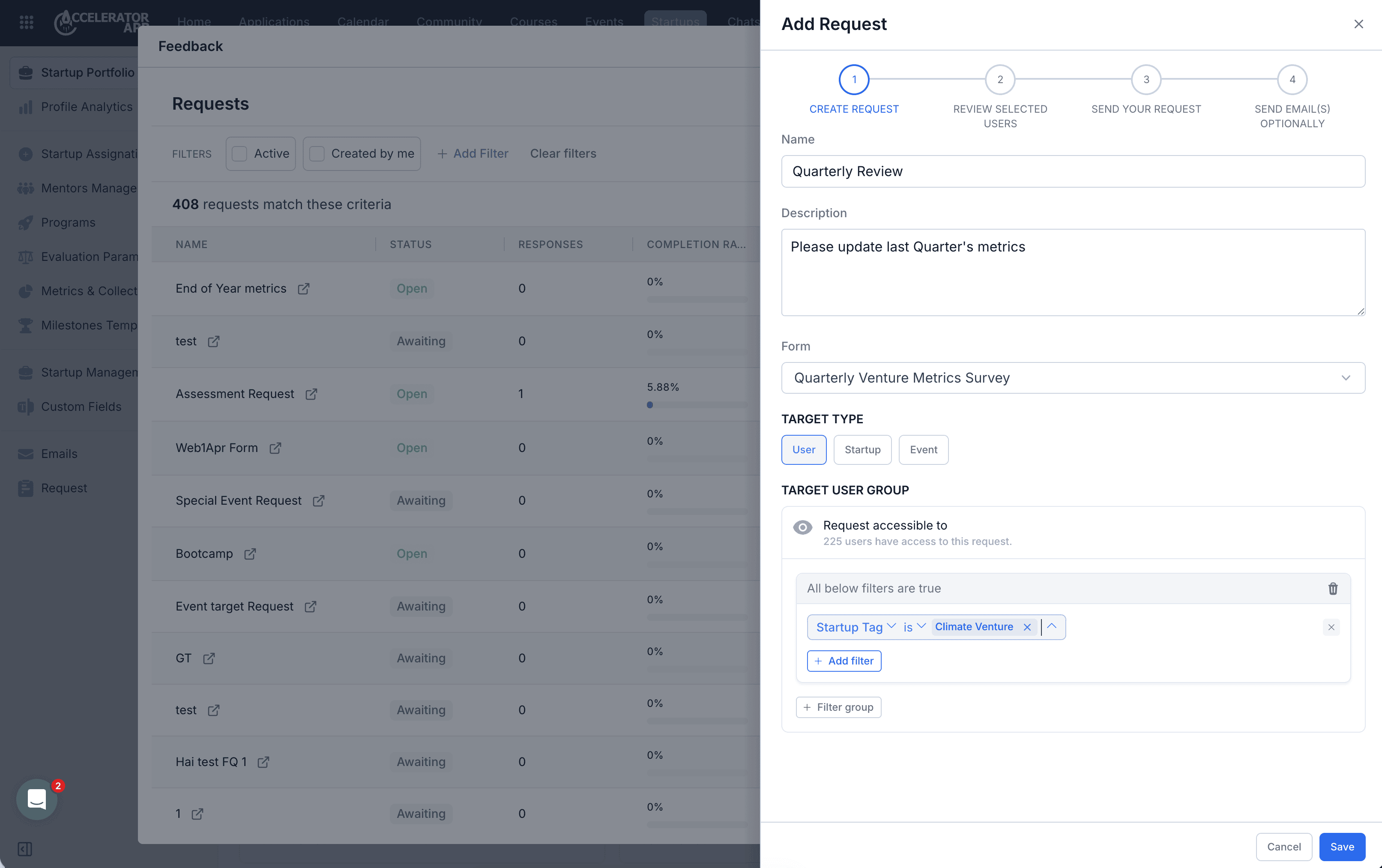
- In Create New Request, complete the following fields:
- Name
- Description
- Select the Request Form
- Target Type: User, Startup, or Event
- Define who should receive the Request.
- When targeting startups, use filters and filter groups to select the right audience.
- Click Save.
2. Reviewing Selected Users
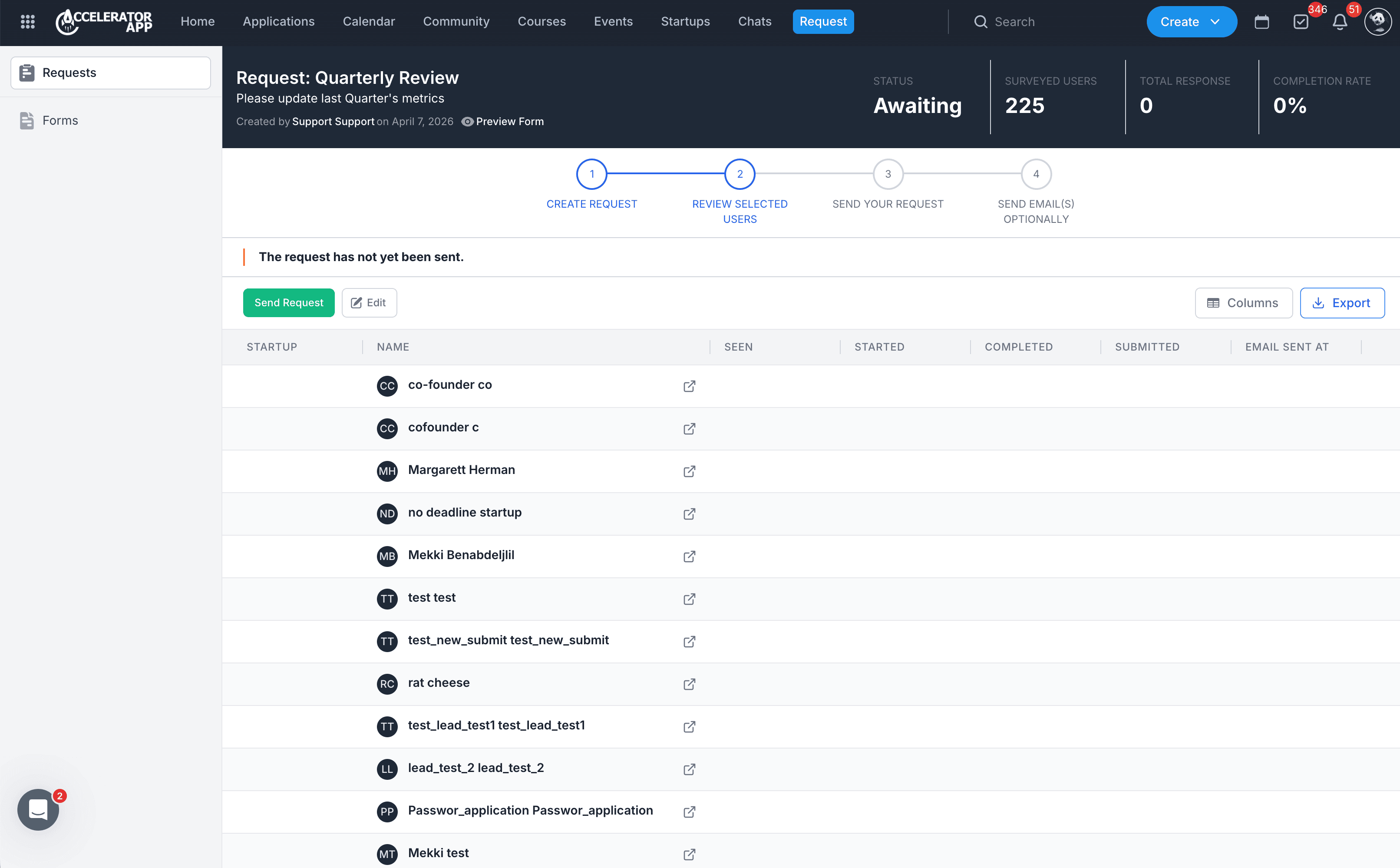
After saving, the Request opens in the review page.
Here you can:
- Review the Request details.
- Check the current Status.
- See the number of Surveyed Users, Total Response, and Completion Rate.
- Review the selected users before sending.
- Click Edit if you need to make changes.
3. Sending the Request
When the Request is ready:
- Click Send Request.
- Review the confirmation message.
- Click Confirm to send it.
Once sent:
- The Request status changes from Awaiting to Open.
- The Request becomes active for the selected recipients.
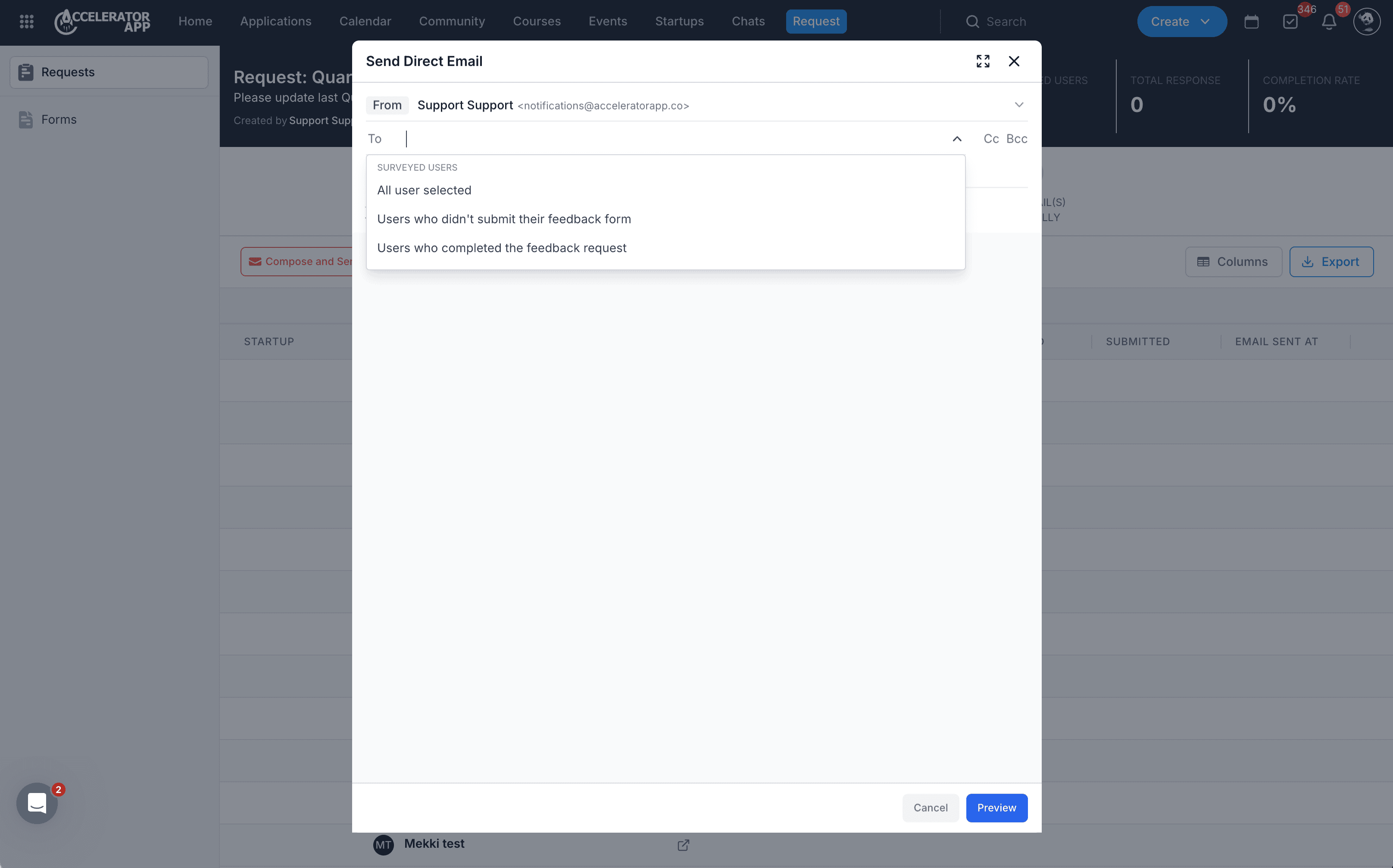
4. Sending Email(s) Optionally
After sending the Request, you can follow up by email.
To send an email:
- Open the Request.
- Click Compose and Send Email.
- Add recipients as needed.
- Enter the Subject and email content.
- Use Personalization or Templates if needed.
- Click Preview before sending.
5. Editing a Request
You can edit a Request when needed.
To edit a Request:
- Open the Request.
- Click Edit.
- Update the Request settings.
- Save your changes.
6. Closing a Request
When you no longer want to collect responses:
- Open the Request.
- Click Close Request.
Closing a Request stops it from remaining active.
7. Tracking Progress and Exporting Data
From the Request page, you can monitor progress and export data.
You can review:
- Status
- Surveyed Users
- Total Response
- Completion Rate
- User-level progress such as Seen, Started, Completed, and Submitted
You can also:
- Click Columns to customize the table view.
- Click Export to download the Request data.
Useful Tips
- Make sure the correct Form is selected before sending the Request.
- Choose the right Target Type so the Request reaches the correct audience.
- Use filters carefully to narrow down your recipients.
- Review the selected users before sending.
- Send a follow-up email to improve response rates.
Common Cases
- Collecting end-of-year startup metrics
- Sending post-event or post-session forms for feedback
- Requesting updates from selected startups or users
- Following up on program-related check-ins