


Introduction to Importing Startups with Zapier
Importing startups with Zapier allows organizations to eliminate manual data entry by routing startup info automatically from tools like Typeform, Google Forms, or CRM spreadsheets directly into AcceleratorApp. Whenever a new row is added or a form is submitted in your external app, Zapier captures that information and builds the profile for you.
This integration saves administrative time, ensures consistency across your data pipeline, and minimizes data entry errors.
ℹ️ Availability: Zapier integration requires access to your platform's API keys, typically restricted to platform administrators.
Where to Find Zapier Integration
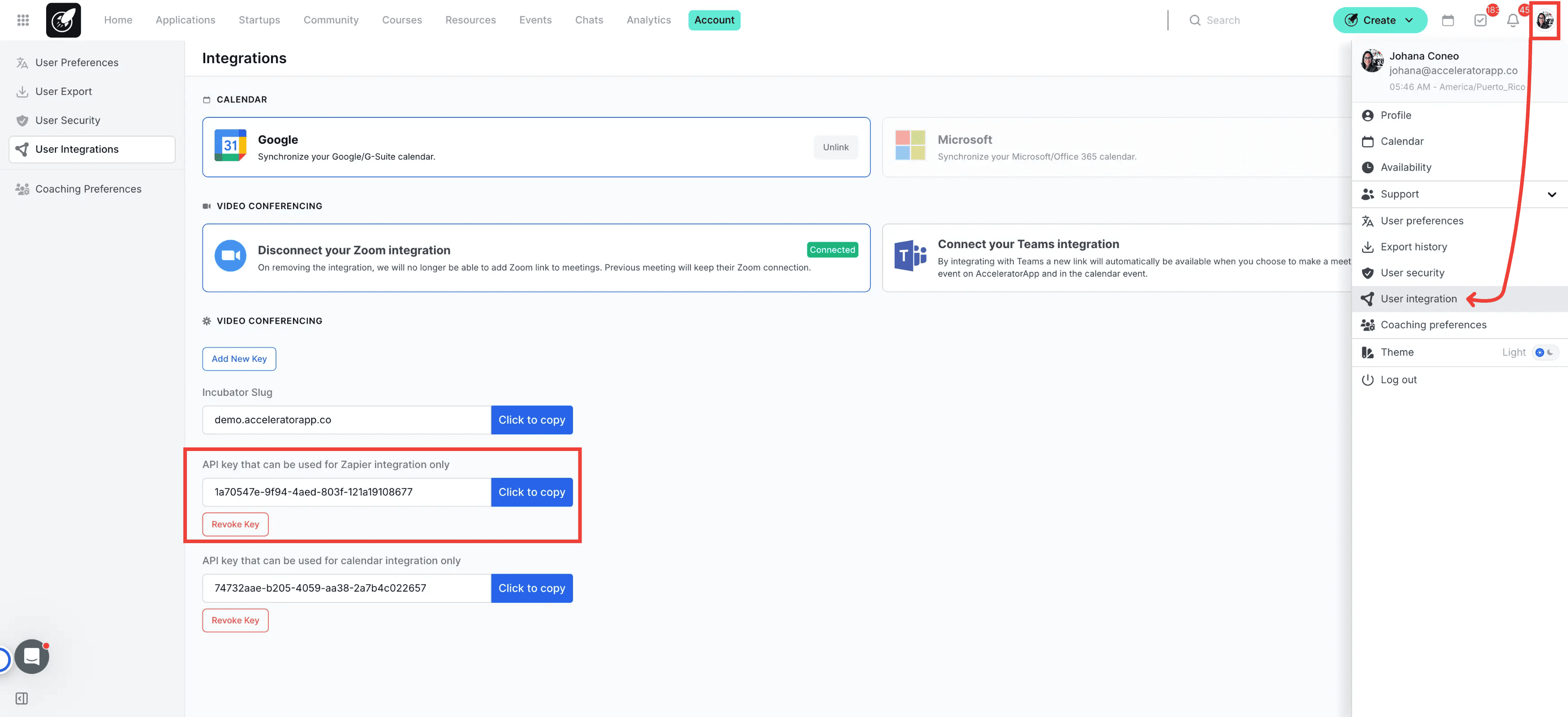
To locate your API credentials, click on your Account Menu in the top right corner, select User Integrations
Step-by-Step
1. Set Up Startup Fields in AcceleratorApp
Before starting the import process, ensure you have configured the necessary fields for your startups in AcceleratorApp. This includes:
- Startup Profile Fields: Customize the profile fields that will capture essential startup information. For more info about it click here.
- Tags: Define any tags you want to assign to startups for better categorization.
- Industries: Set up industry classifications to organize your startups effectively.
- Program: if applicable create the corresponding programs for the startups you will migrate
- Founder Profile Fields: Prepare the relevant fields for founder profiles that will be linked to each startup.
For more info about user profile fields click here.
2. Set up the Zapier Integration
Go to the your Account menu > User Integration
- Connect to Zapier: Locate the Zapier integration option and follow the prompts to connect your AcceleratorApp account to Zapier. For specific information about it click here.
- Create a New Zap: In Zapier, click on Make a Zap to start the process of creating a new automation.
- Choose a Trigger App: Select the application where your startup data originates (e.g., Google Sheets, Typeform).
- Set Up the Trigger: Follow the prompts to specify the trigger event that will initiate the import (e.g., a new form submission, a new spreadsheet row).
- Select AcceleratorApp as the Action: In the Action step, search for AcceleratorApp and choose the option to Create Startup.
- Map the Fields: Match the fields from your trigger app to the corresponding fields in AcceleratorApp, including: Startup Profile fields, Programs, Tags. Industries, Etc
- Test the Zap: Run a test to ensure the data is imported correctly into AcceleratorApp.
- Turn On the Zap: Once testing is successful, turn on the Zap to begin automatically importing startups.
Best Practices
- Ensure that all necessary fields in AcceleratorApp are set up correctly before mapping in Zapier.
- If you use a Google Sheet, ensure each field is set up in its own column. For example, each tag should have its own column, and any single-choice or multiple-choice fields (such as industry or other options) should correspond to specific columns reflecting those selections.
- Regularly review your Zaps to ensure they are functioning as expected and to make adjustments if necessary.
- Use clear naming conventions for your Zaps to easily identify their purpose later.