


Introduction to Managing Startup Founders
Managing the founding team ensures that the right individuals have access to their respective startup profiles, applications, and dashboards. As an administrator, you can easily assign or remove founders from any existing startup.
When assigning a founder, you can select an existing user who already has an account (provided they are not currently linked to another startup) or invite a new user entirely. Existing users will not receive a new email notification since they already have access, whereas new users will receive an email invitation to create their account and join the startup.
⚠️ Important Account Restriction: A single founder account can only be linked to one startup at a time. If a founder needs to manage or own multiple startups, they cannot use the same account and must register a secondary account using a different email address for each additional startup.
Where to Find Founder Management
You can manage founders from two primary areas within your administrator access:
The Startup Management section
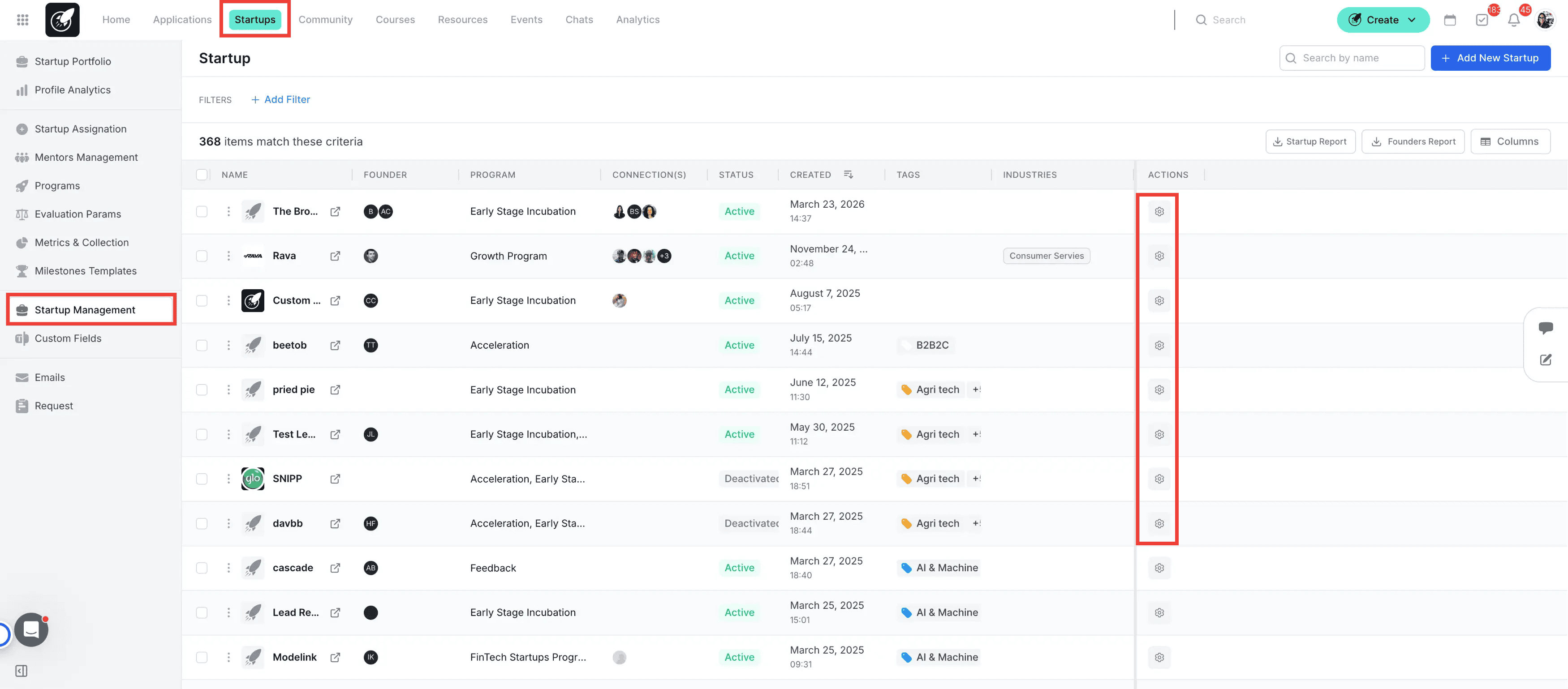
or from the Startup File
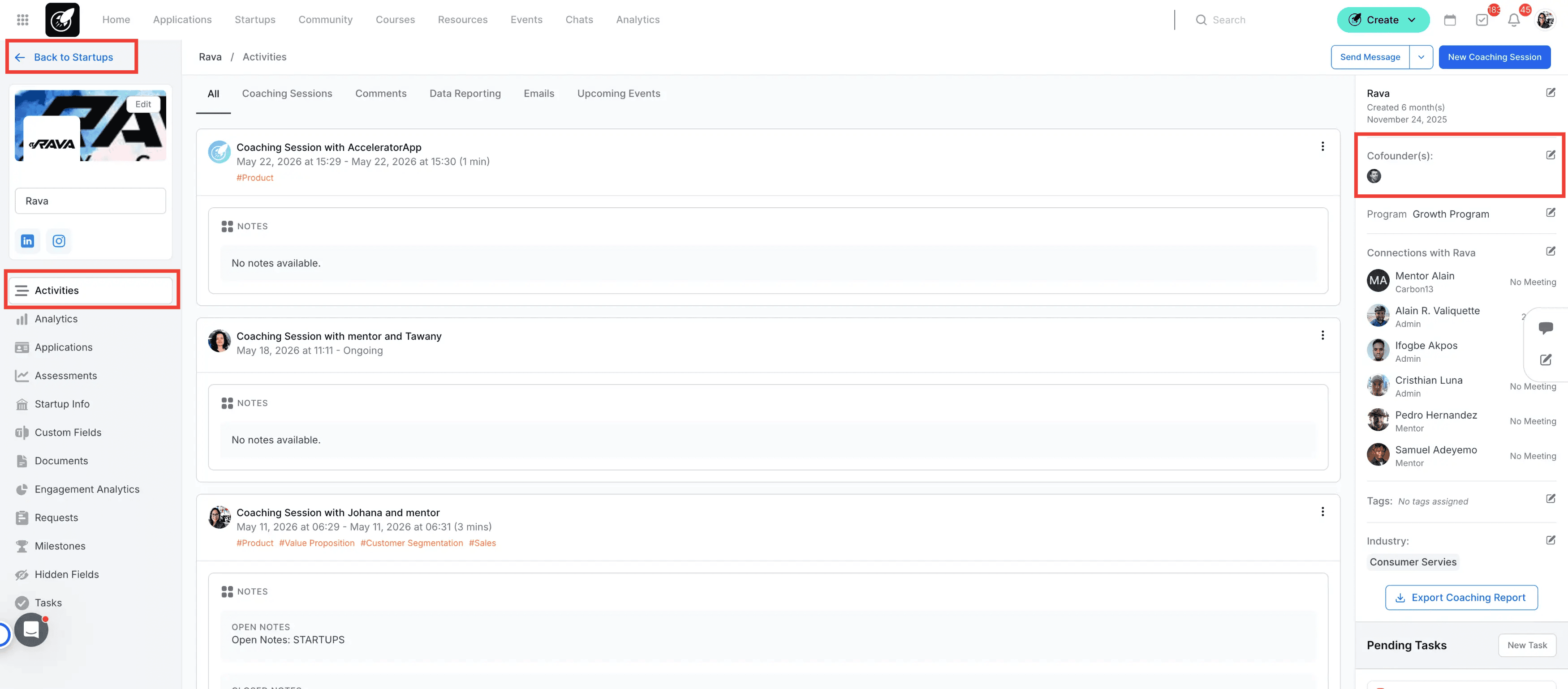
Step-by-Step
a. From the Startup File
1. Navigate to Startup Portfolio
Click on the Startups tab in your top navigation menu to view your active startups.
2. Find the Startup
Hover your mouse over the desired startup and click on Startup File.
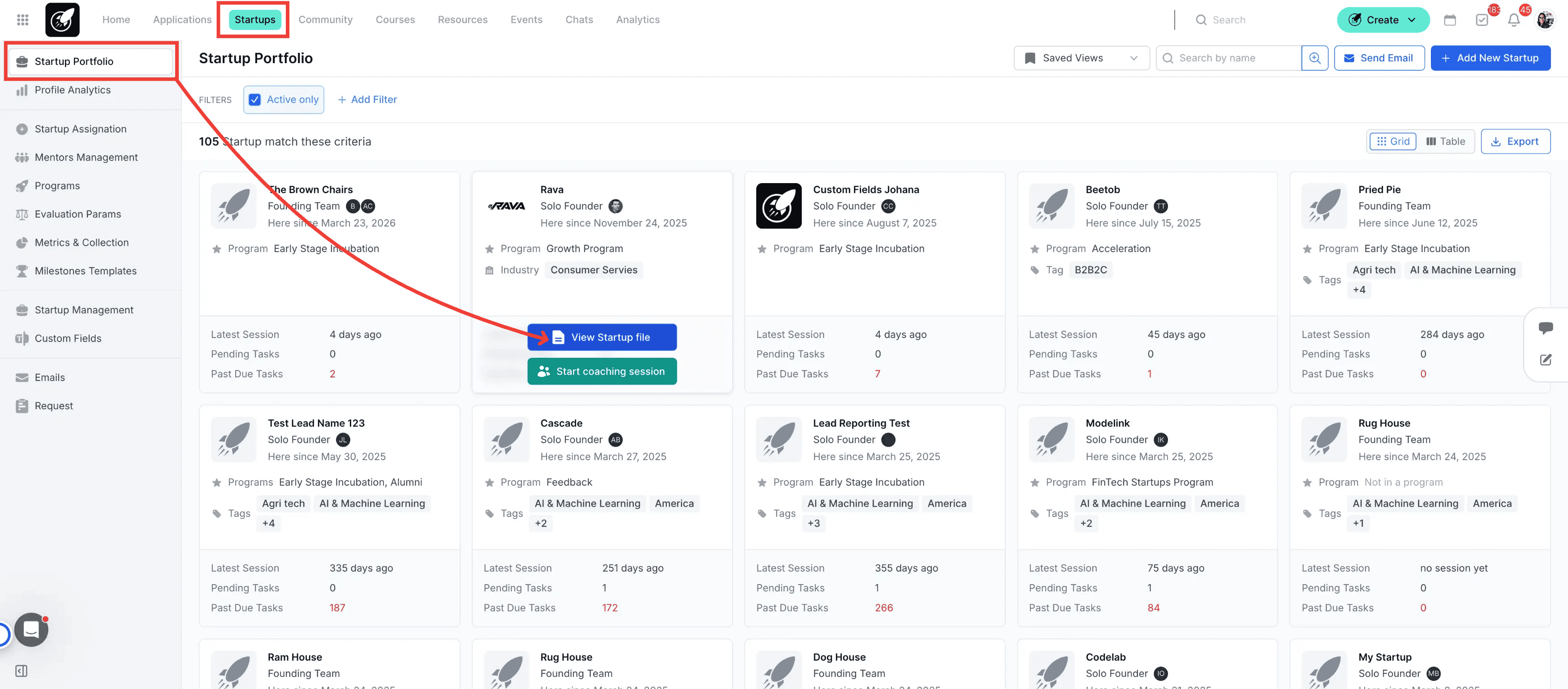
3. Locate the Cofounder Section
Find the cofounder section located on the right side of the screen and click on the Edit icon to begin making changes.
4. Choose an Existing User or Invite a New One
If the cofounder exists select the option Add From Existing Cofounder, or select the option to Invite New Cofounders enter the email address of a new user to invite them as a cofounder.
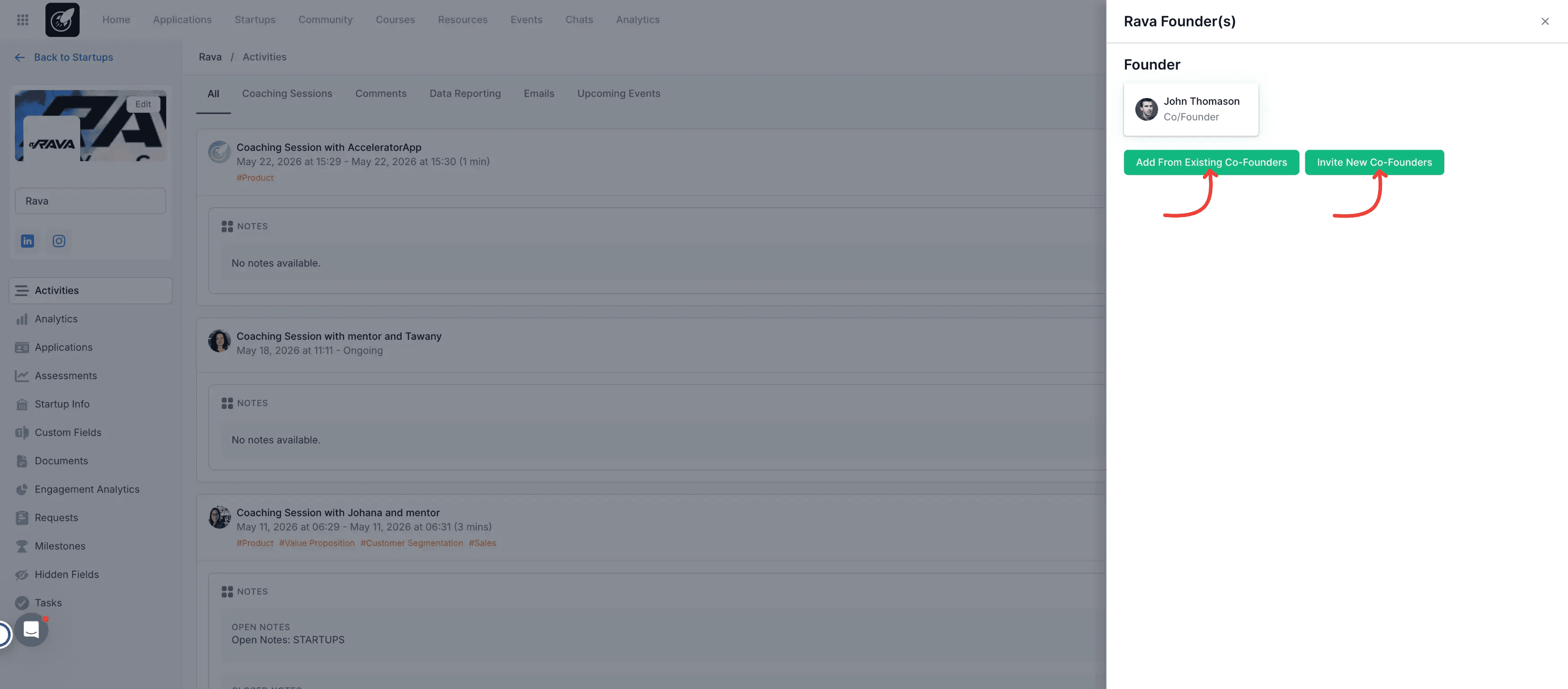
- Save the Changes
Click Save or Confirm to finalize the assignment.
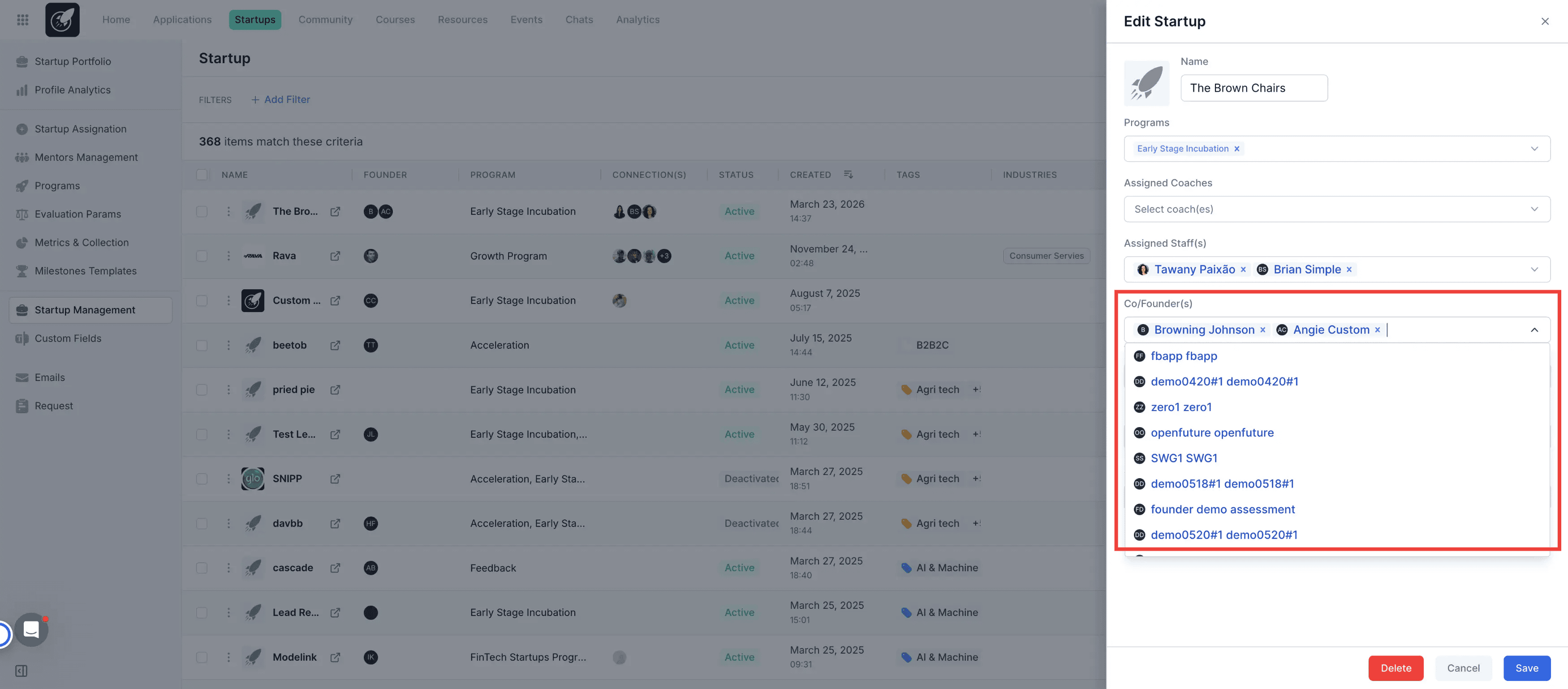
b. From the Startup Management
7. Navigate to Startup Management
Click on the Startups tab in your top navigation menu and select the Startup management tab.
8. Find the Startup
Locate your startup in the list and click on the Edit icon located on the right side of the row.
9. Choose an Existing User
Select an existing user from the dropdown menu
10. Remove a Founder if Necessary
To unlink a founder, click the X next to the user's name in the team section.
Best Practices
One Startup Per Account: Always verify if a founder is already linked to a startup before assigning them. If they are, instruct them to provide a secondary email address to create a separate account for the new startup.
Verify Email Spelling: When inviting new users, double-check their email addresses to ensure the system sends the account invitation to the correct inbox.
Communicate Internally: Since existing users do not receive an automated email notification when assigned to a new startup, send them a quick direct message to let them know they can now access the startup profile.