


Introduction to the Funding Programs
Funding Programs are the operational heart of the Funding Module. Located directly inside Funding Rounds, these programs represent the individual financial vehicles, such as specific grants, awards, or scholarships, that you use to distribute capital to your ecosystem.
_
The Funding Module is only available as a paid add-on. Because of this, it is not enabled for all organizations by default, and most users will not see it in the top navigation menu unless it has already been added to their account.
If your organization would like to add the Funding Module, please contact the AcceleratorApp Client Success team._
Understanding where Programs fit is vital for clean data:
- Parent: Every Program must belong to a Funding Round.
- Children: Every Program will eventually house multiple Funding Recipients.
Where to Find Funding Programs
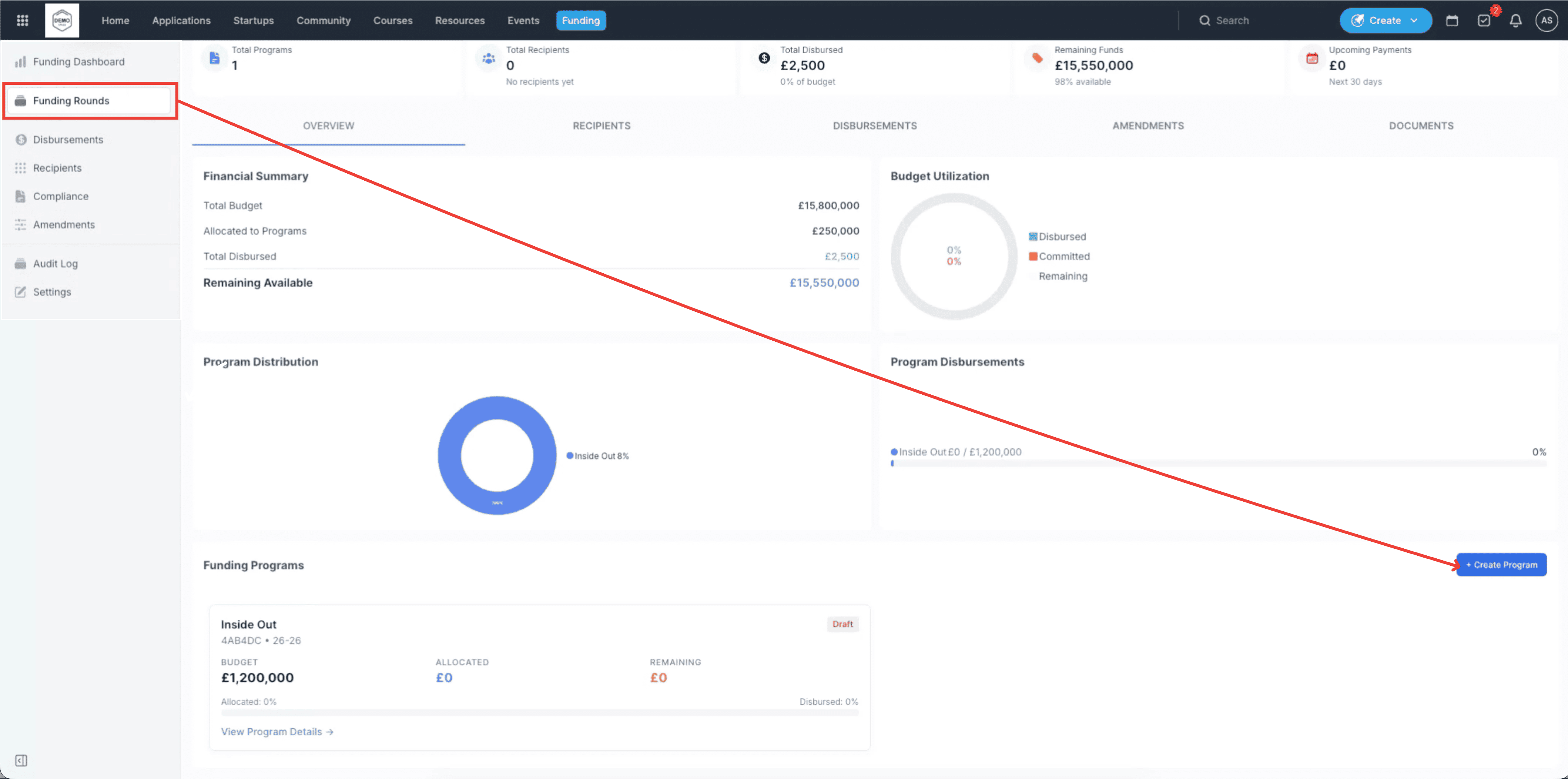
Funding Programs are managed within the context of a specific Funding Round.
Navigation: Click on Funding in the top navigation bar > Select a Funding Round
Action: From here, you can click "Create Program" to launch a new funding initiative.
Step-by-Step Actions
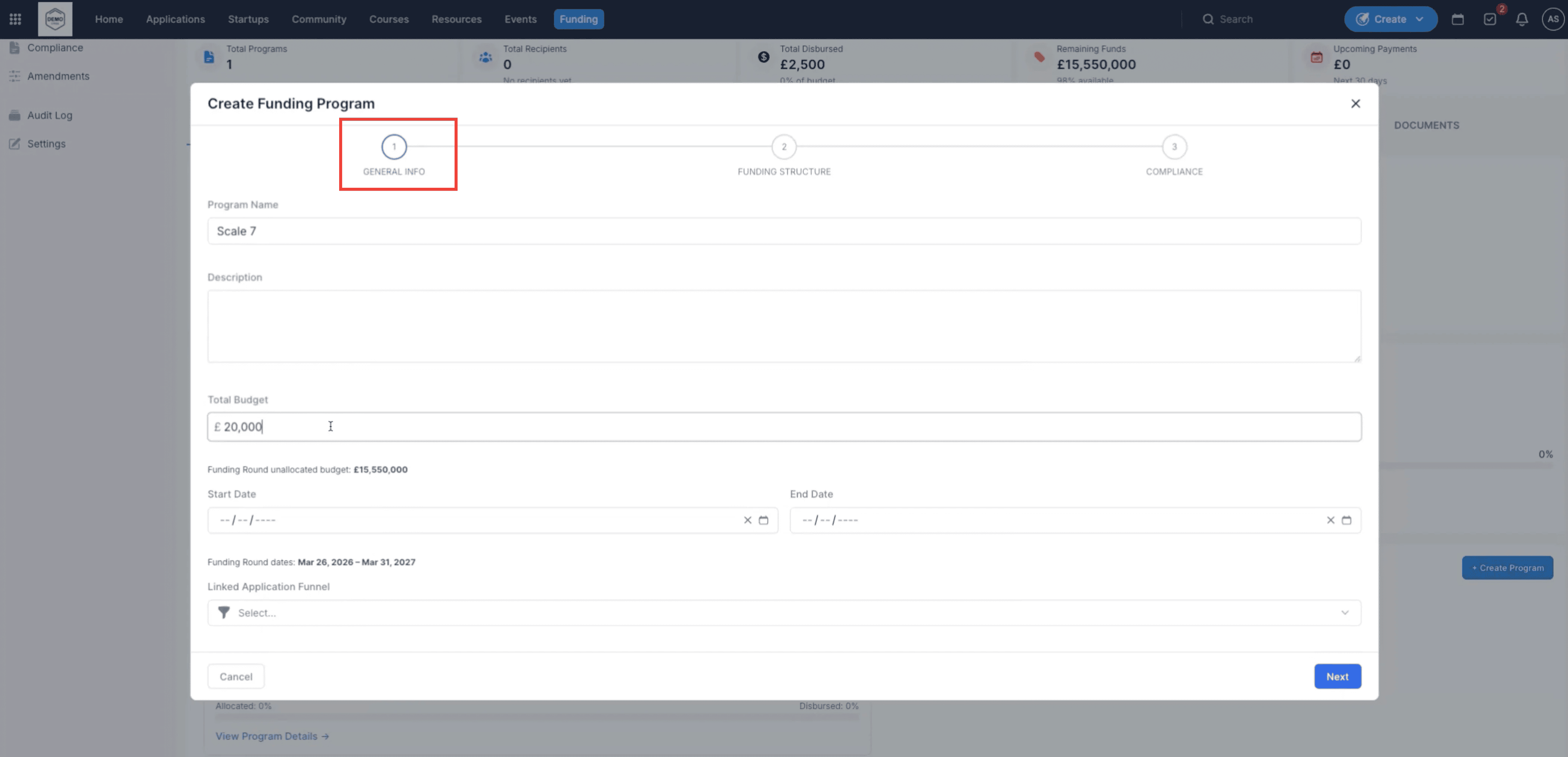
1. Add General Information
Provide the foundational details for your initiative:
Name & Description: Enter a clear title (e.g., "2026 Green Energy Grant") and describe its purpose.
Budget & Currency: Define the total capital allocated to this program. The currency typically inherits from the Round settings.
Timeline: Select the Start and End Date for the funding period.
Funnel Link: Link the specific Application Funnel where the successful candidates (winners) are coming from to streamline the transition from applicant to recipient.
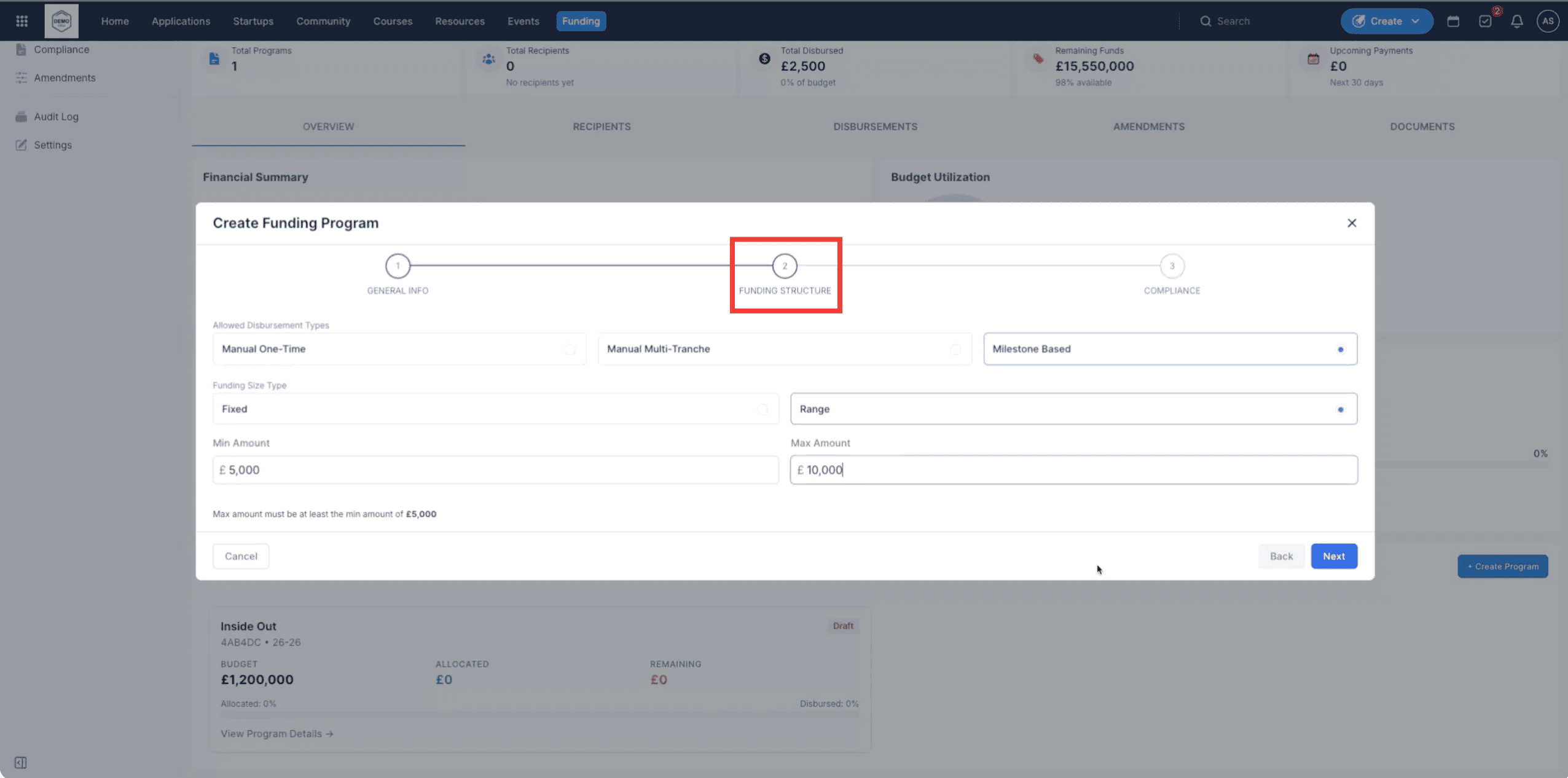
2. Define Funding Structure
Choose how the capital will be distributed:
Disbursement Types:
Manual One-Time: A single full payment.
Manual Multi-Tranche: Multiple payments managed manually over time.
Milestone Based: Payments triggered only upon the completion of specific goals.
Funding Size Type:
Fixed: Every recipient receives the exact same amount.
Range: Allows for variable funding. If selected, you must define the Minimum and Maximum amounts possible.
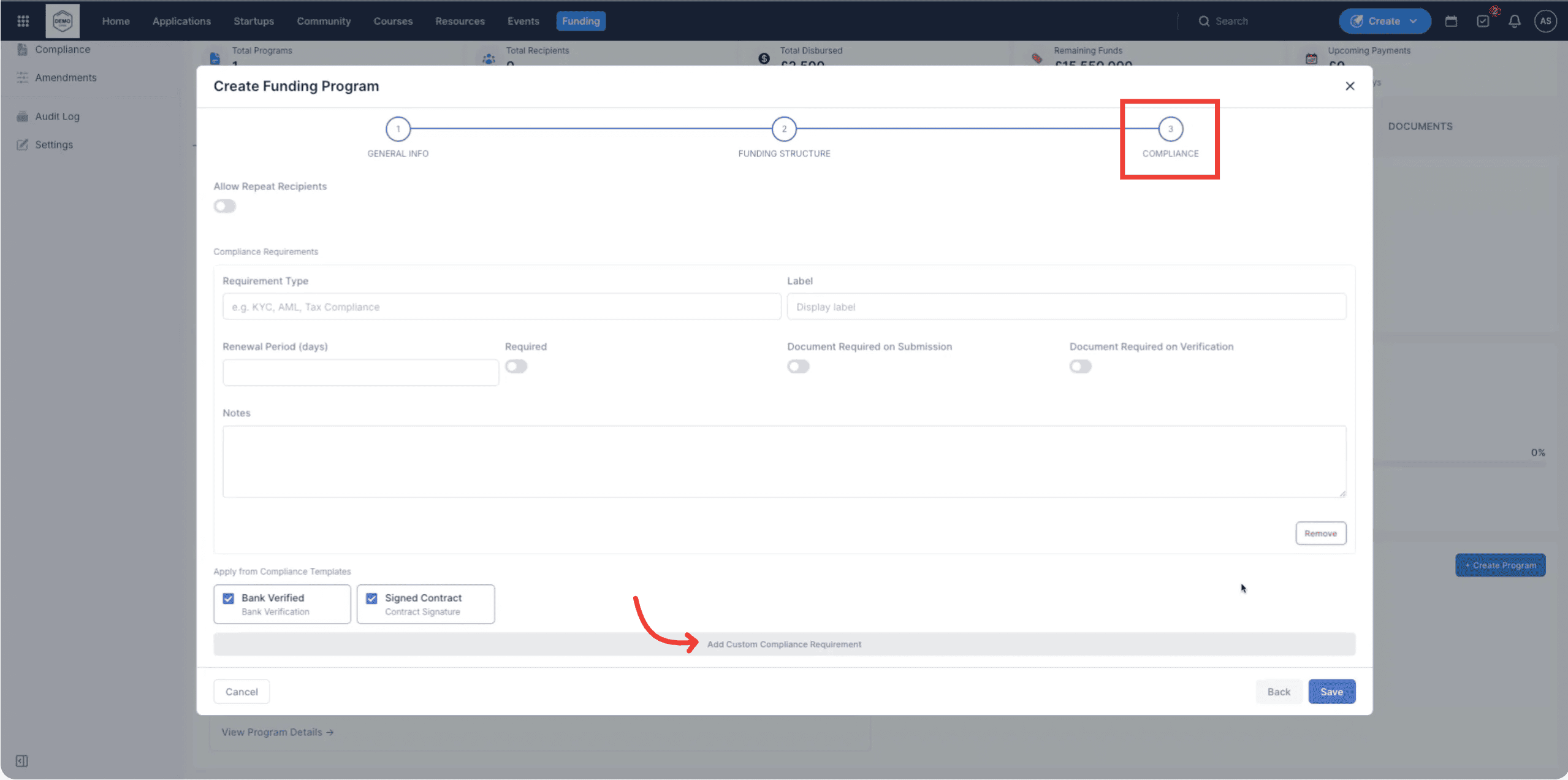
Step 3: Compliance Requirements
Set the requirements that all recipients in this program must follow.
- Templates: Use existing Compliance Templates for standard procedures or create custom requirements for information specifically needed for this program's payout.
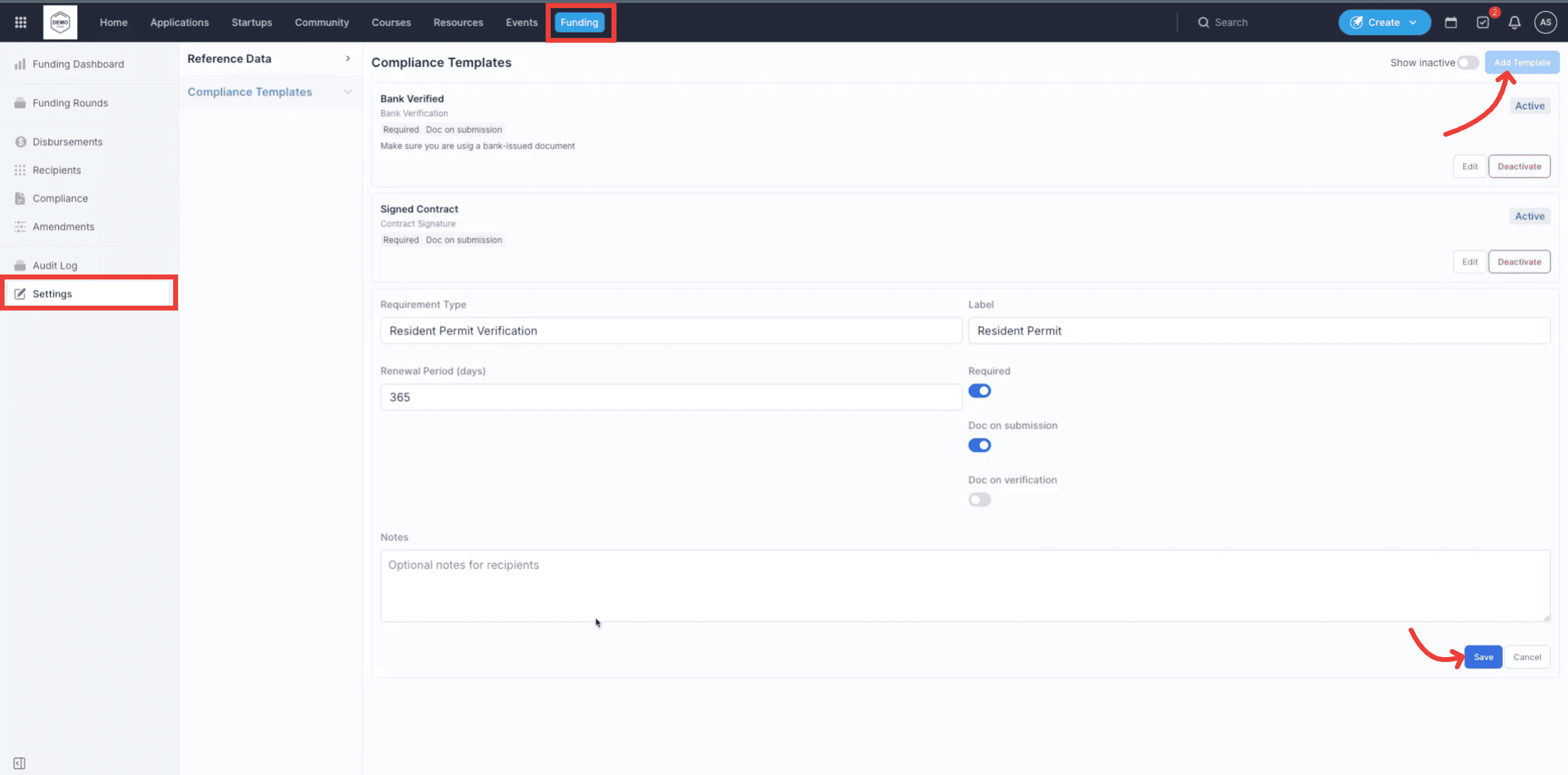
4. Where to Manage Compliance Templates
Before setting up your Funding Program, it is a best practice to standardize your documentation requirements.
Navigation: Go to Settings > Compliance Templates
Action: From here, you can create, edit, and archive templates (e.g., "Standard KYC," "Annual Impact Report," or "Financial Audit") to be selected later within any Funding Program.
Best Practices
Specific Naming: Instead of "Grant 1," use descriptive names like "Fall 2026 - R&D Innovation Grant" to make reporting clearer for stakeholders.
Budget Tracking: Regularly monitor the Program dashboard to see how much of your total allocated budget has been "Committed" vs. actually "Disbursed."
Template Reuse: If you run the same program every year, use the same settings and naming conventions to allow for year-over-year (YoY) comparison.
Additional Resources
- Introduction to Funding Module
- Introduction to Funding Rounds
- Introduction to Funding Recipients