


Introduction to the Meetings Booking Process
In AcceleratorApp, entrepreneurs can easily secure dedicated time with advisors using two primary scheduling methods: booking directly from a mentor’s community profile or registering for structured one-on-one office hour events. This flexible system eliminates manual back-and-forth communication, ensuring that founders can access critical strategic advice right when they need it most.
By utilizing these tools, you can explore the available slots your network has published, track upcoming calendar touchpoints, and manage revisions or cancellations directly from your platform dashboard.
Where to book meetings
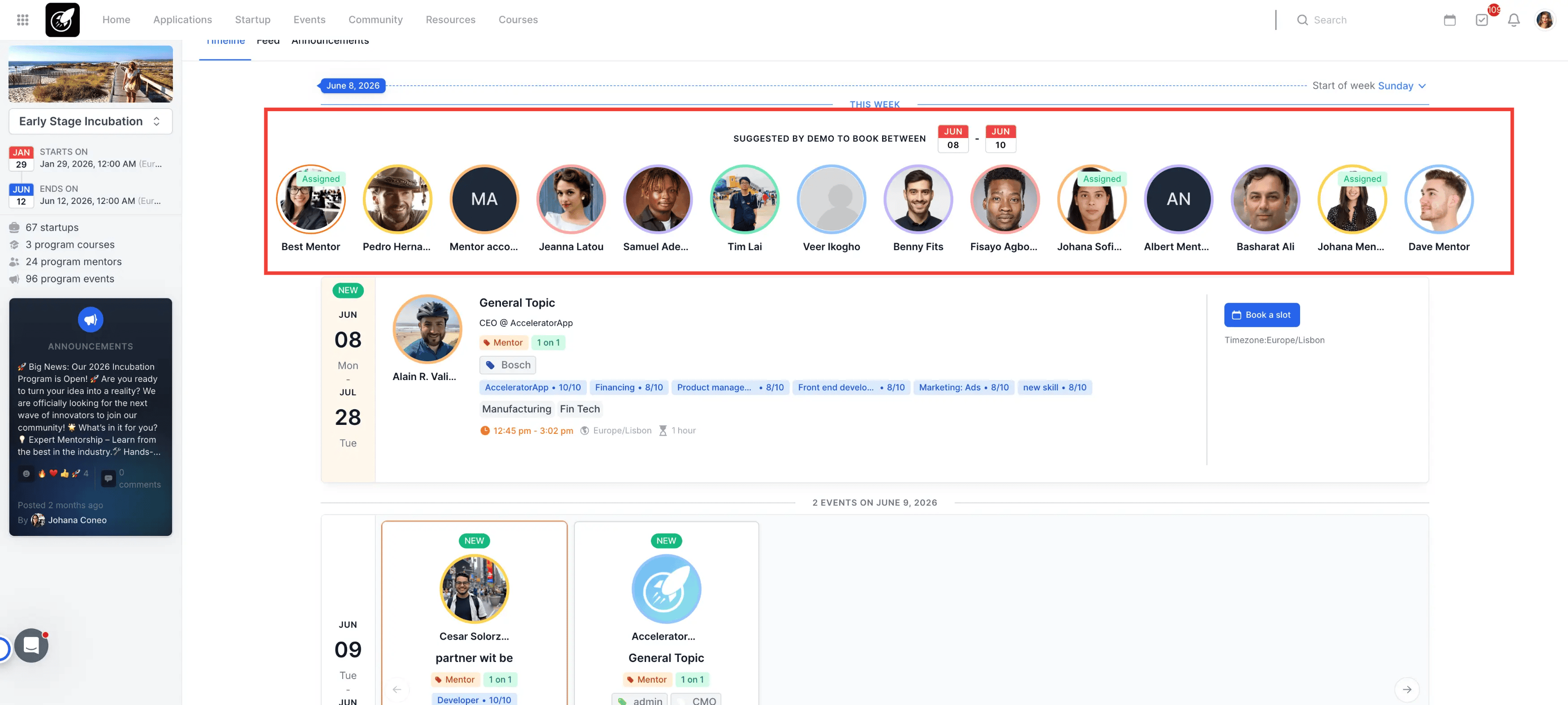
- Program Home Page: Navigate to your Program Page and find mentors connected to the program with available slots for the next 2 weeks
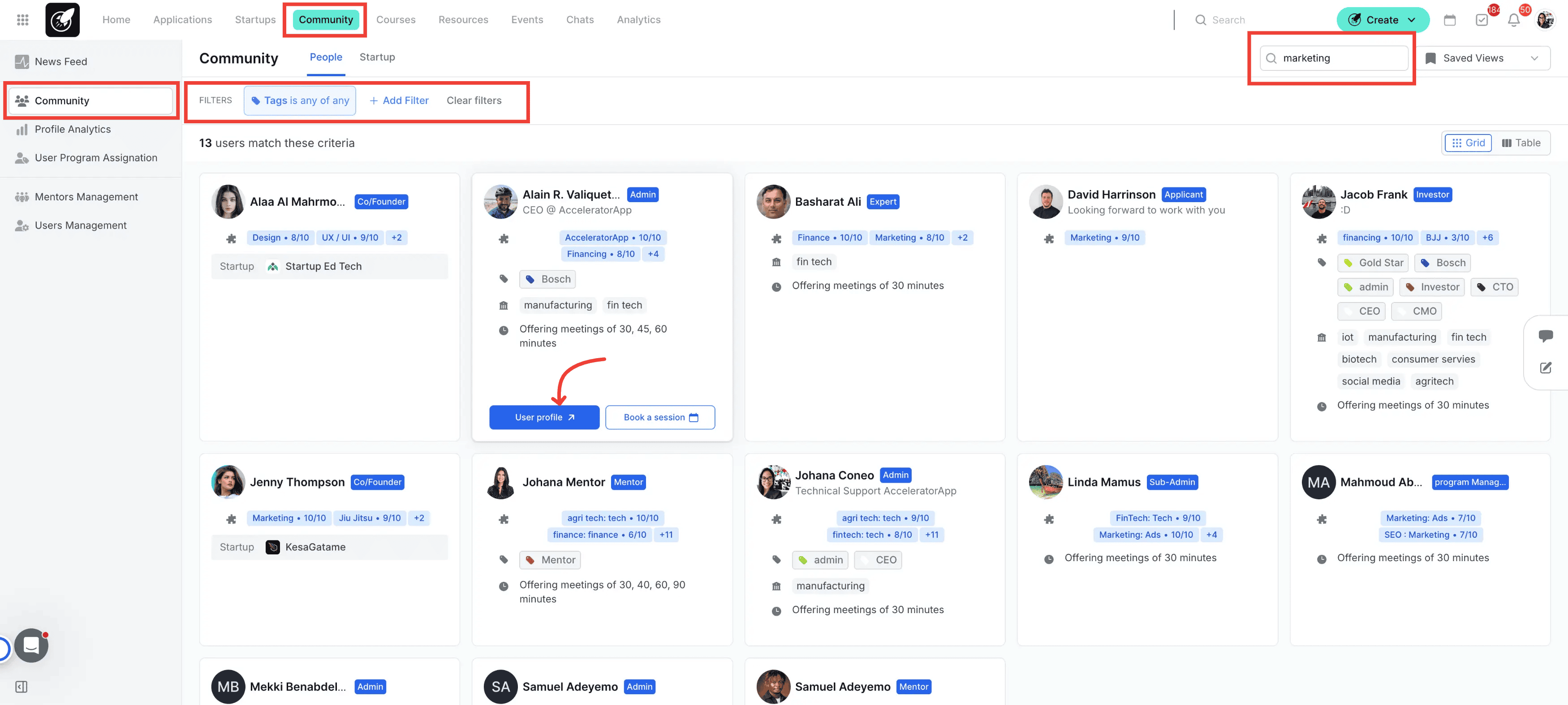
- Mentor Profiles: Navigate to the Community section in the top menu. From here, you can view and access the mentor’s profile and available time slots.
- One-on-One Events: Access the Events section in the top menu to create or book one-on-one sessions during office hours.
Step-by-Step
1. From Mentor Profiles
- Go to the Mentor Profile.
- Browse the available time slots listed by clicking the Book a Session button.
- Choose the time that works best for you and book the meeting.
- The mentor and startup will receive a confirmation notification via email.
2. From One-on-One Events
- Head to the Events Section.
- Search across the one-on-one sessions available for you
- Select the time that suits you from the listed options.
- The session will be booked, and both parties will be notified.

3. From The Program Home Page
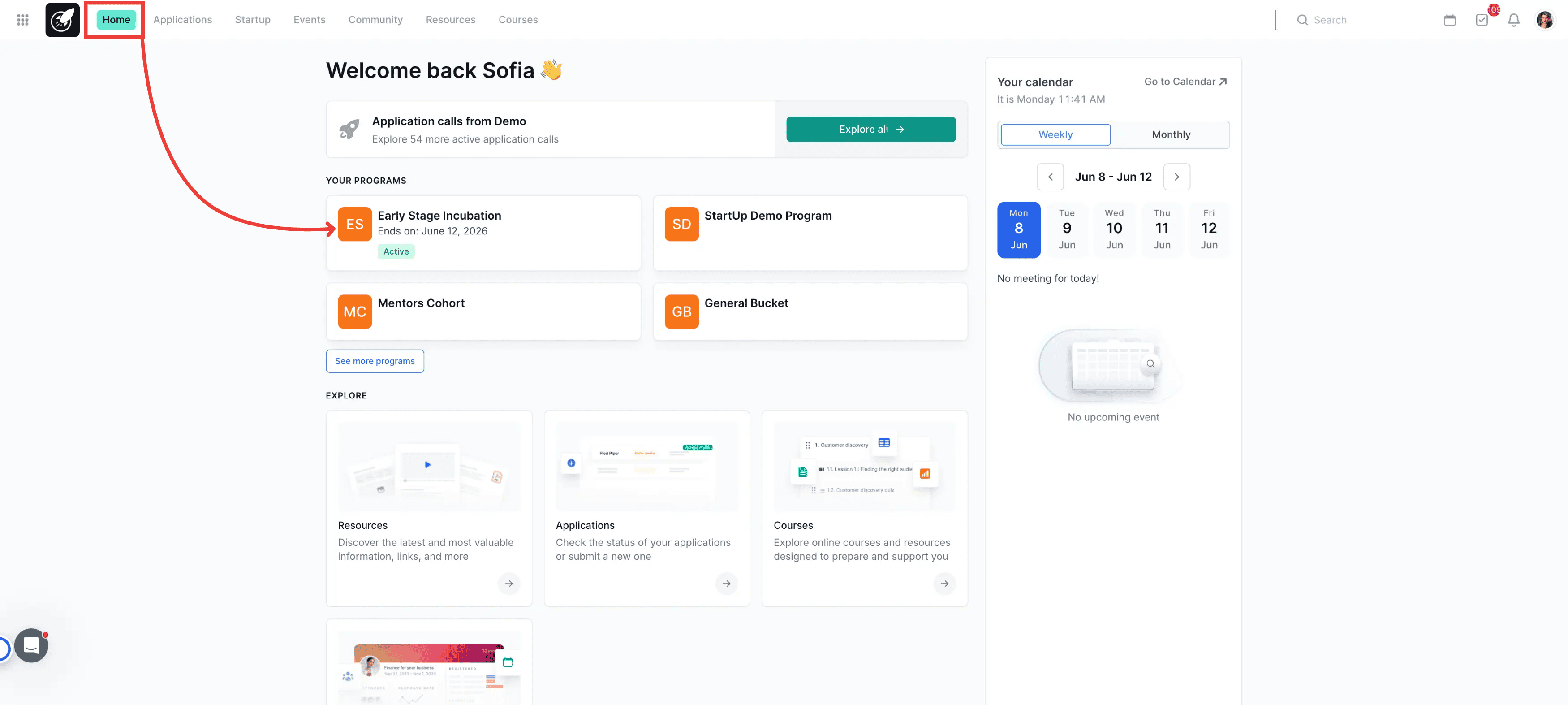
- Head to the Home section
- CliCk on your Program
- Check the mentors available this week and click on their profile Picture.
- Choose the time that works best for you and book the meeting.
- The mentor and startup will receive a confirmation notification via email.
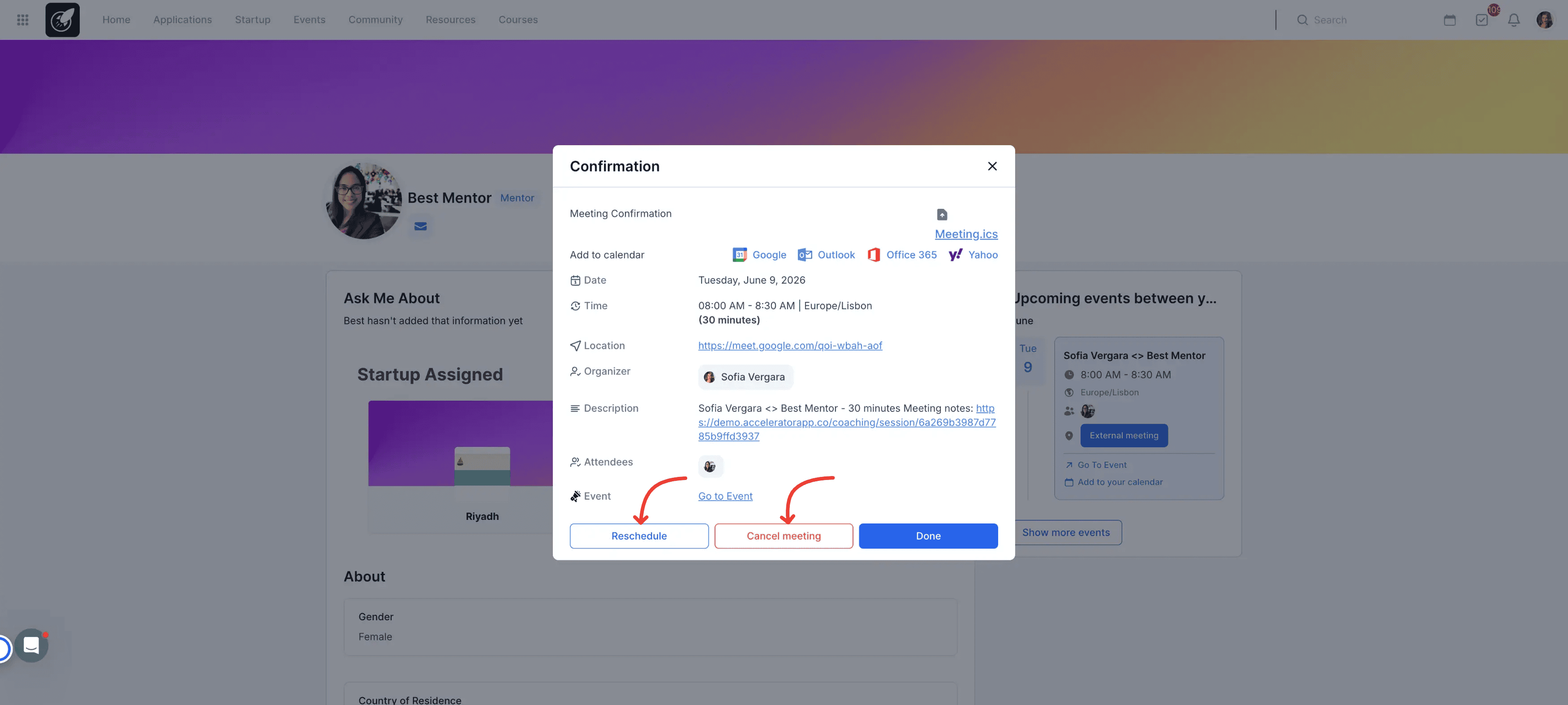
4. Canceling or Rescheduling a Meeting
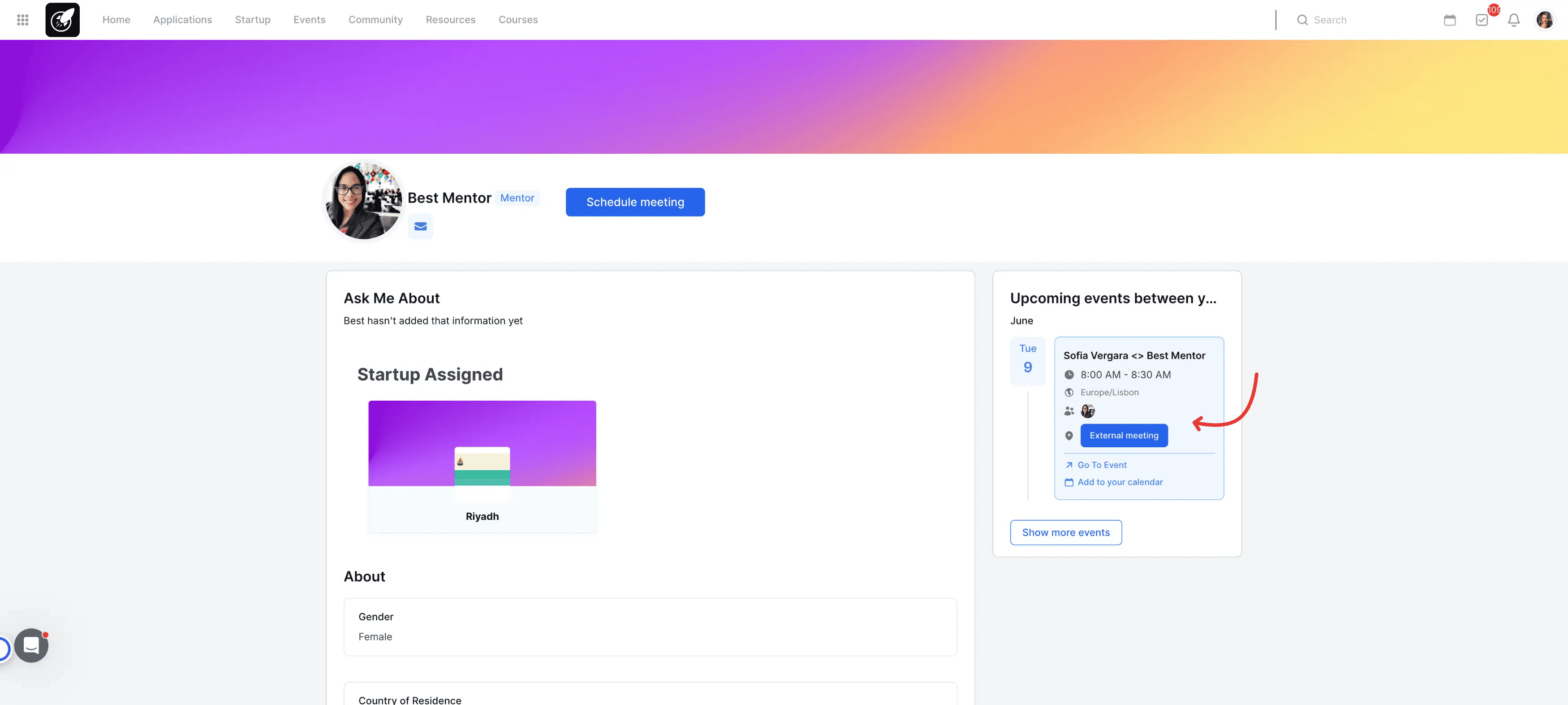
- Go back to the mentor profile or the one-on-one event where the meeting was originally scheduled.
- Click on the meeting details to open the meeting options.
- You’ll see the option to cancel or reschedule the meeting.
- Select the preferred option and follow the prompts to either cancel the meeting or choose a new time.
Tips & Best Practices
- Make sure mentors update their availability regularly so startups can see the most current options.
- For one-on-one events, ensure the mentor’s office hours are communicated to avoid scheduling confusion.
- Cancel or reschedule meetings with enough notice to ensure that both parties have enough time to adjust their schedules.