


Introduction to Create a Meetings Feature
AcceleratorApp makes it easy to schedule meetings without leaving the platform. Whether you are on a call with a startup and want to book a session on the spot, or planning ahead from your calendar, the meeting creator is accessible from multiple locations and pulls in your calendar availability, contact information, and conferencing integrations automatically.
This article covers the quick meeting creation flow available via the Create button. AcceleratorApp also supports other ways to schedule meetings depending on your workflow — including 1:1 events, scheduling directly through startup or user profiles, and mandatory meeting steps configured inside an application funnel as part of the selection process.
Where to Create a Meeting
You can open the meeting creator from any of the following places:
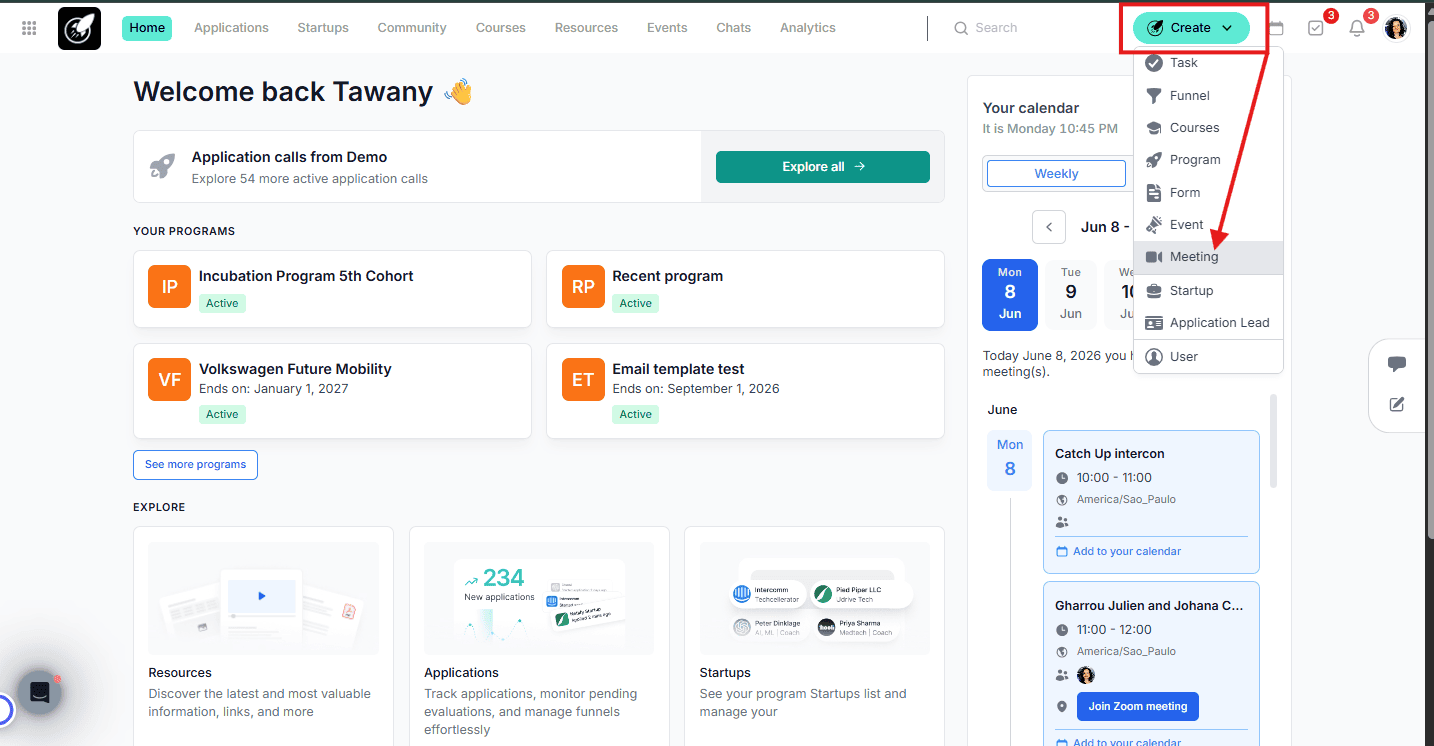
- The Create button in the top-left corner of the platform — available on every page.
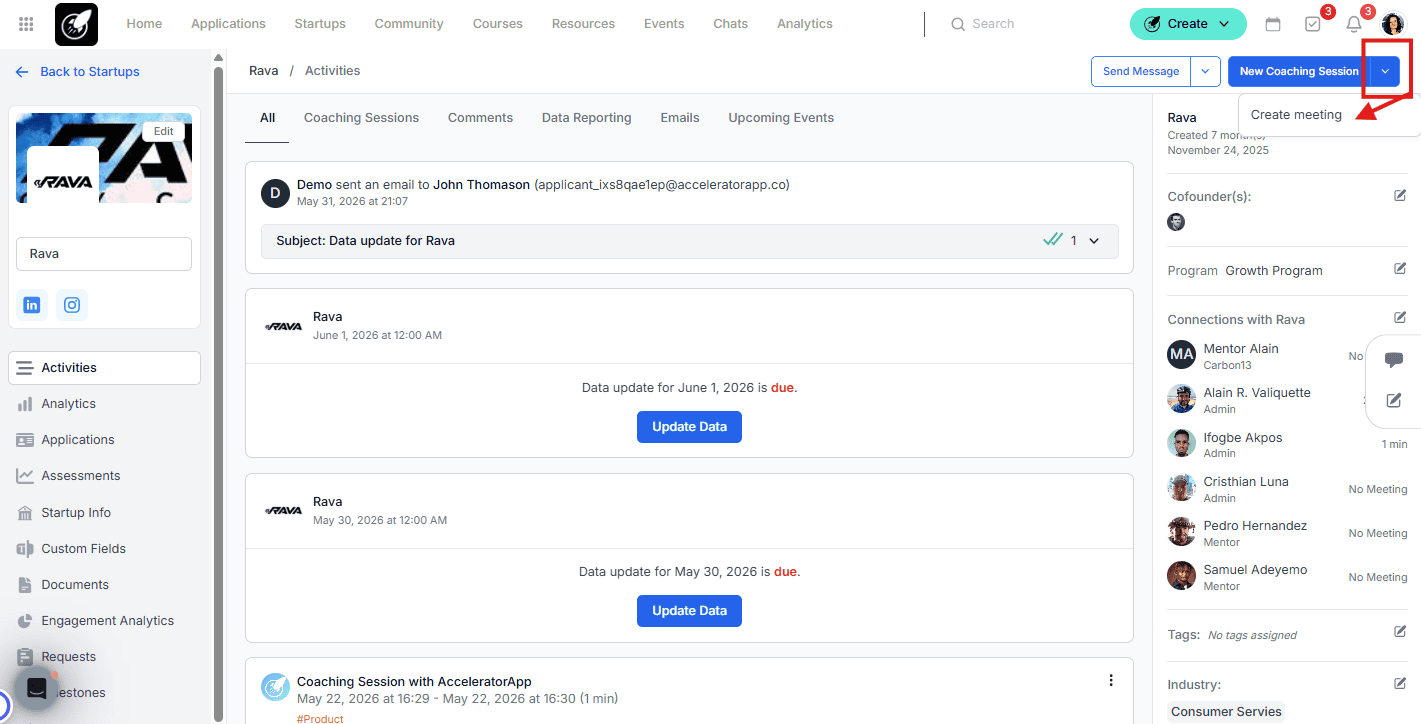
- The Startup file — with the startup pre-selected as the invitee.
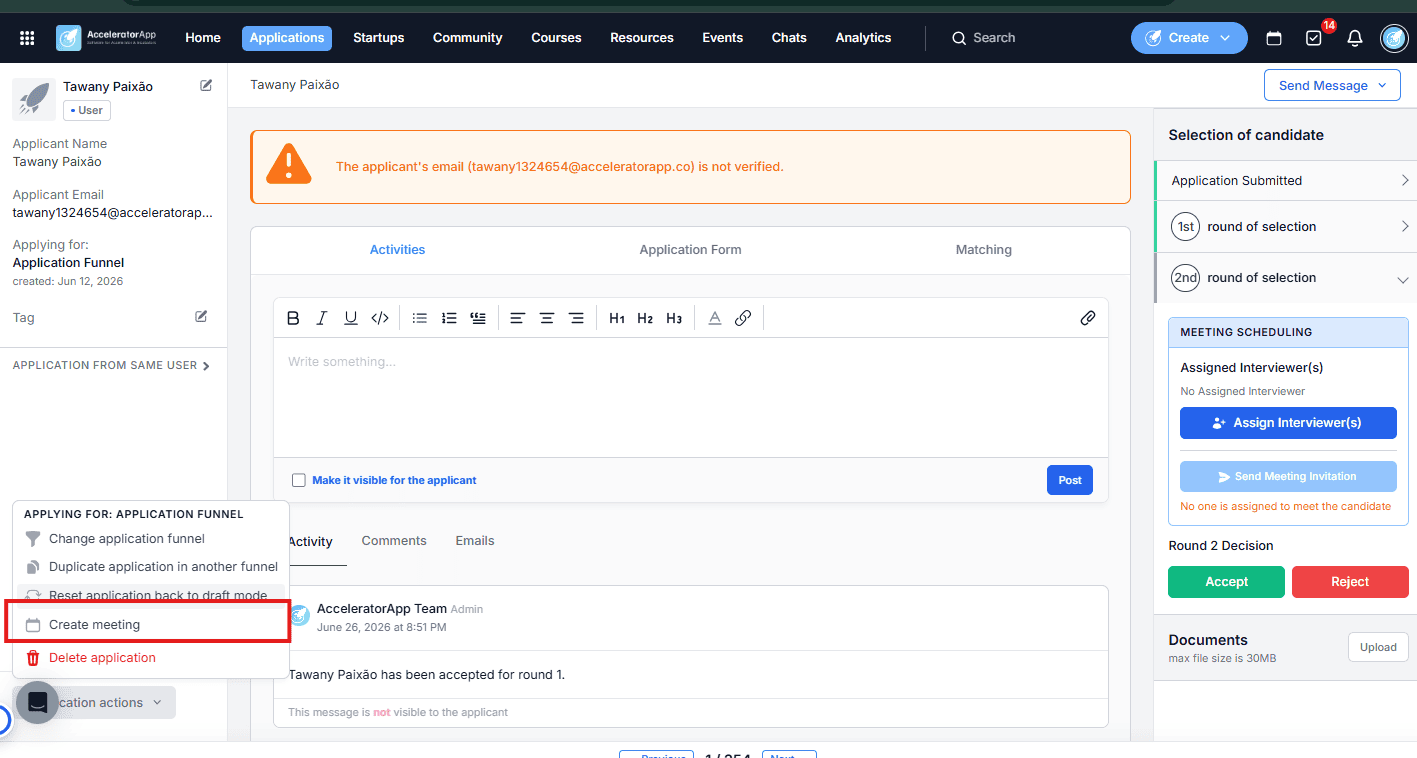
- The Application file — with the application creator pre-selected.
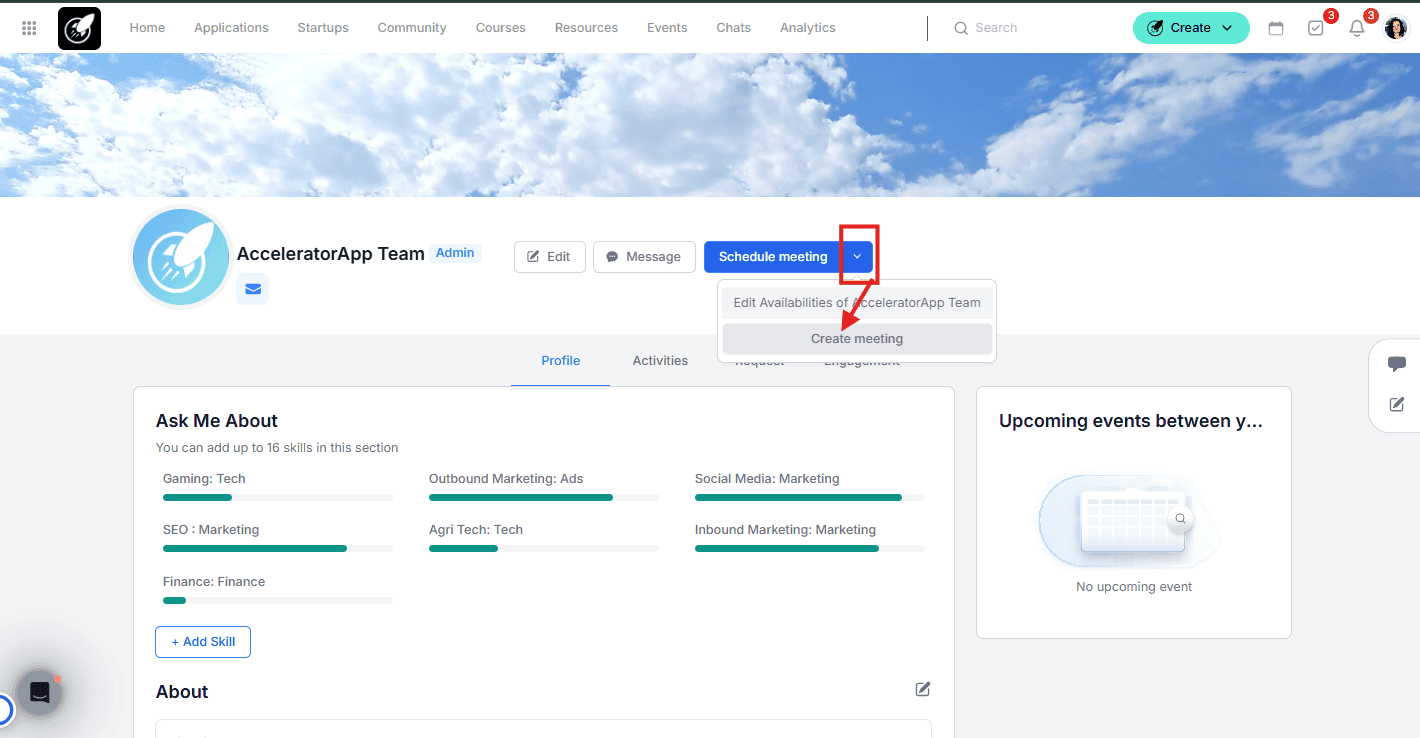
- The User file — when scheduling directly with a specific user.
- The Calendar page.
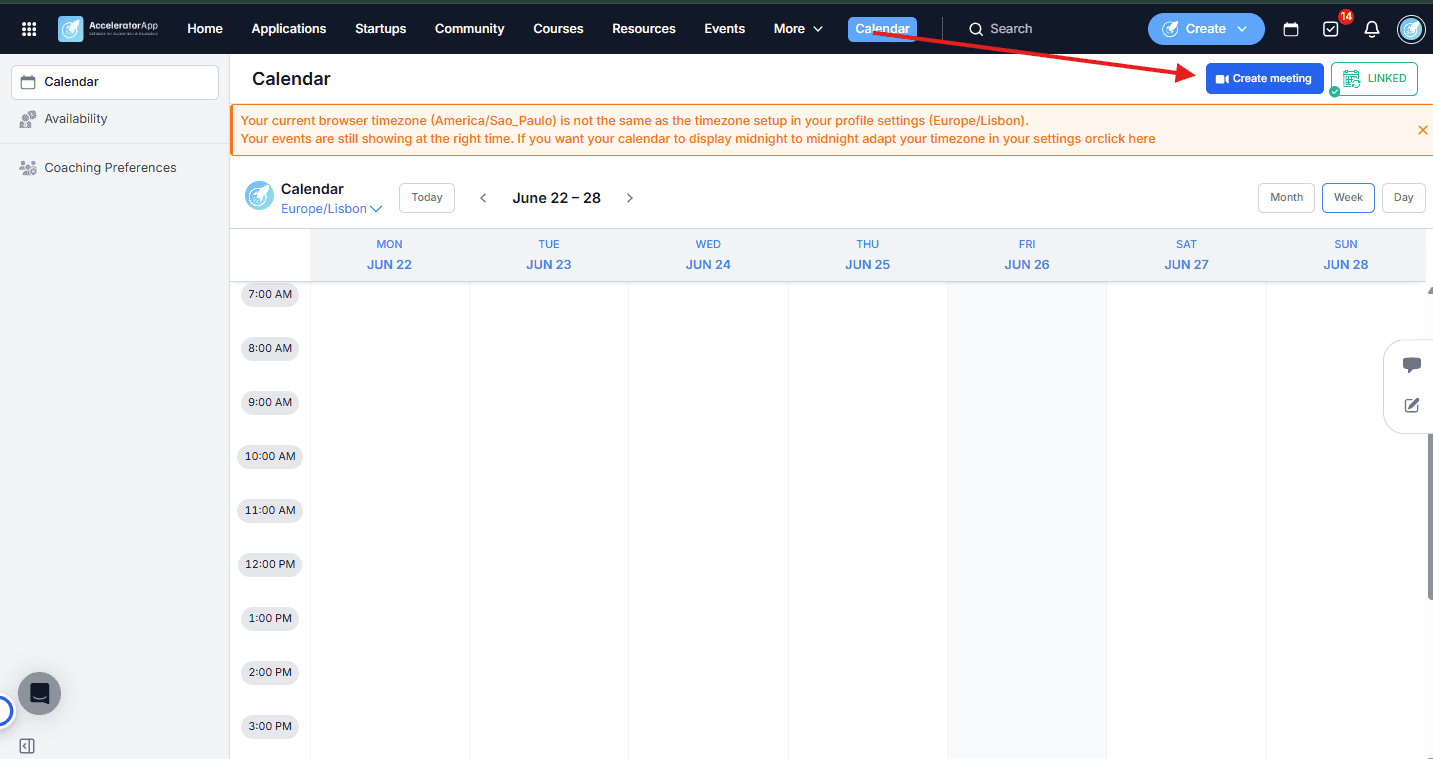
Step-by-Step
1. Open the Meeting Creator
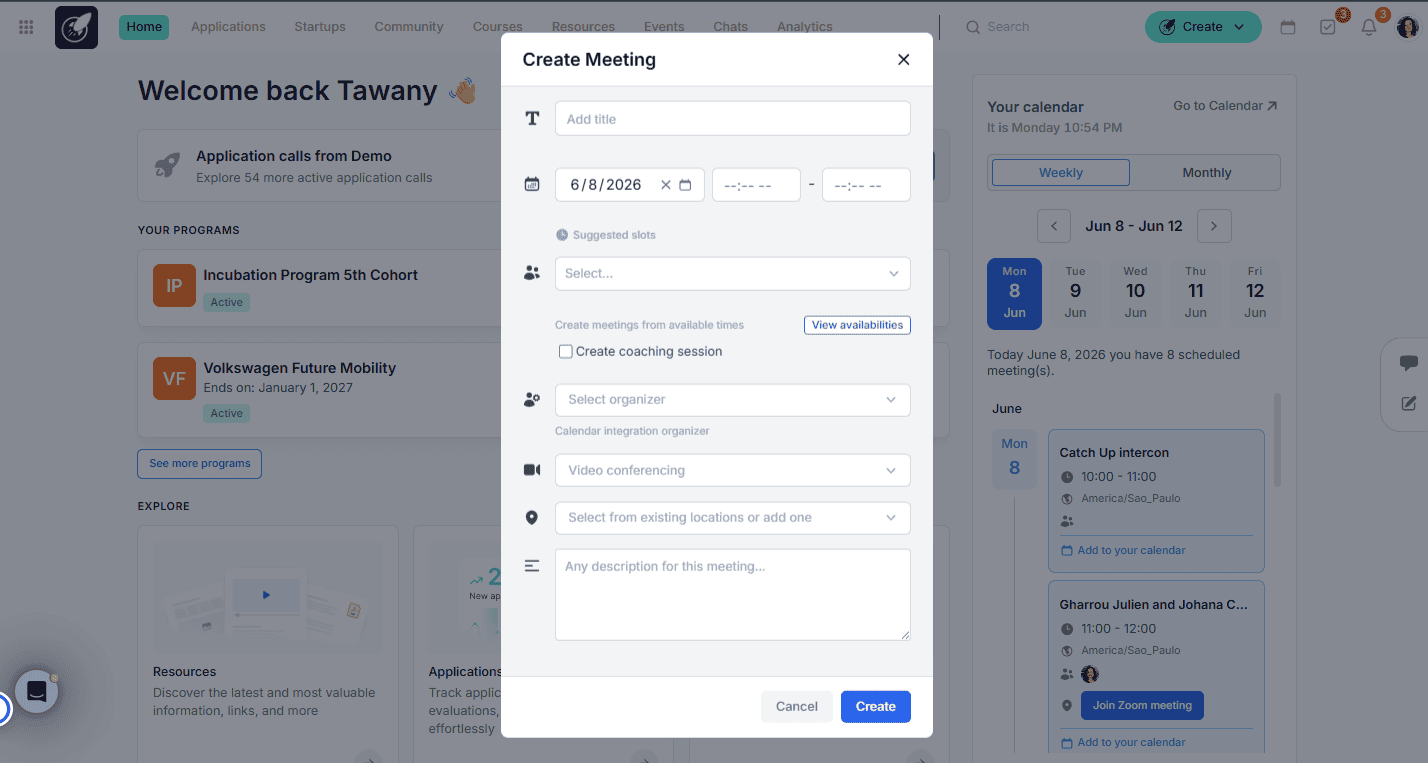
Click the Create button in the top-left corner of the platform and select Meeting. This opens the meeting creation view, which is optimized to display your calendar and available time slots at a glance.
2. Review Your Availability
The meeting creator shows your calendar with your current availability highlighted. For each available slot, you can also see what is happening before and after — including other meetings and their locations. This context helps you plan realistic gaps, especially when back-to-back meetings are in different locations.
This view is particularly useful when you are on a call with a startup and want to suggest a few open slots in real time, without switching between tools.
3. Fill in the Meeting Details
Complete the following fields to configure your meeting:
- Title — Give the meeting a clear name so all participants know what it is about.
- Date and Time — Select the date and start time for the meeting.
- Participants — Add the startup or user you want to meet with. Depending on where you opened the meeting creator, the invitee may already be pre-selected. You can also invite people who are not AcceleratorApp users by adding their email address directly.
- Organizer — Select which calendar integration will be used as the organizer for this meeting. This determines which connected calendar the event is created in.
- Video Conference Link — Choose from your connected conferencing integrations (e.g. Zoom) to automatically generate a video link for the meeting.
- Location — Select a physical location from the organization's saved addresses, or leave blank if the meeting is online only.
- Description — Add any context, agenda, or notes that participants should see before the meeting.
- Create Coaching Session — Check this box if the meeting should also be logged as a coaching session in AcceleratorApp. T
4. Confirm and Create
Review all the details and click Create to send the invite. The meeting will be added to the relevant calendars and linked to the startup or user profile where applicable.
Best Practices
- Use the Startup or Application file to create meetings in context. Opening the meeting creator from a startup or application file pre-fills the invitee, saving time and reducing the chance of selecting the wrong contact.
- Connect your calendar and conferencing integrations. The meeting creator works best when your calendar and video provider (Zoom) are connected — this allows availability to be pulled in automatically and video links to be generated on creation.